

Available in🇮🇳 India🇲🇾 Malaysia🇸🇬 Singapore🇺🇸 United States
View Settlements Using Dashboard
You can view details of settlements made to you from the Dashboard.- View a detailed break-down of the amount settled to you from the Dashboard.
- View details, such as the total settlement amount (credit + debit amount), applicable service fees, service tax, adjustments, and so on.
To view settlement details:
- Log in to the Dashboard.
- Navigate to Settlements.
- Click on the details of the settlement ID that you wish to refer to.
View Channel-Wise Settlements
Benefits of Channel-Wise Settlements
Benefits of Channel-Wise Settlements
- Zero cross-channel failures: POS settlements will not fail due to online refunds.
- Clear fund visibility: Know exactly how much you have in each channel.
Understand Segregated Settlements
With balance segregation, settlements are organised by channel type: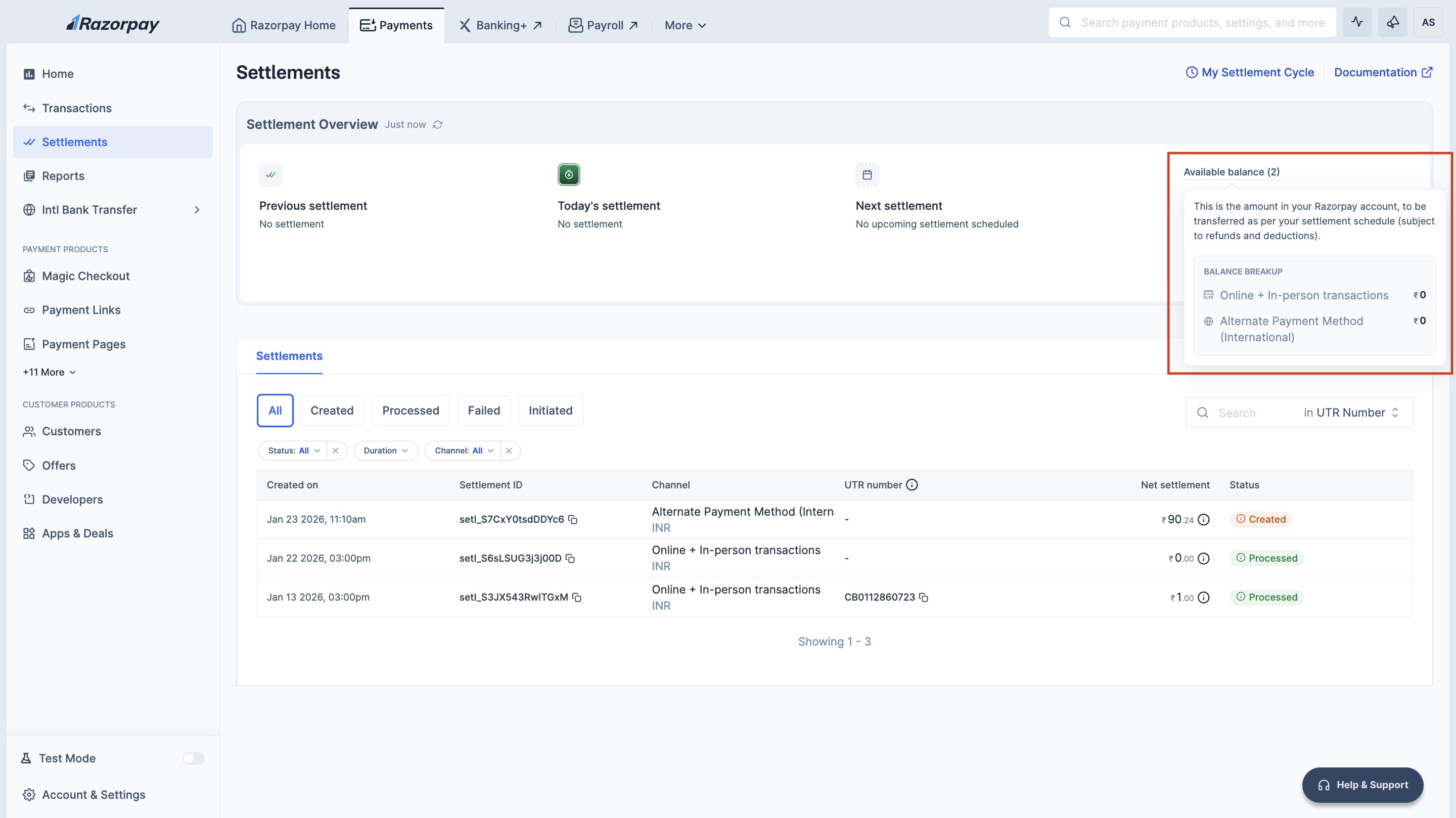 Each channel type has its own settlement schedule and settlement history.
View Settlements by Channel
To view channel-wise settlements:- Log in to the Dashboard.
- Navigate to Settlements.
-
Use the Balance Type filter to select the channel you want to view:
- Online (Domestic transactions + International Cards)
- In-Person
- Alternate Payment Method (International)
Settlement Cards on Home Page
On the Dashboard home page, you will see separate settlement cards for each active balance:- Each card shows the current balance, last settlement amount and next settlement date.
- Click on any card to view detailed settlement history for that channel.
Handy TipsWith segregated balances, you can now enable Instant Settlements for your PG Online balance even if you have POS or Cross-Border enabled. Previously, Instant setting were restricted for cross-border and omni-channel businesses.
View Settlements Using API
You can view settlement details using the Settlements API.Settlements Break-Up Description
The following screenshot displays the settlement break-up: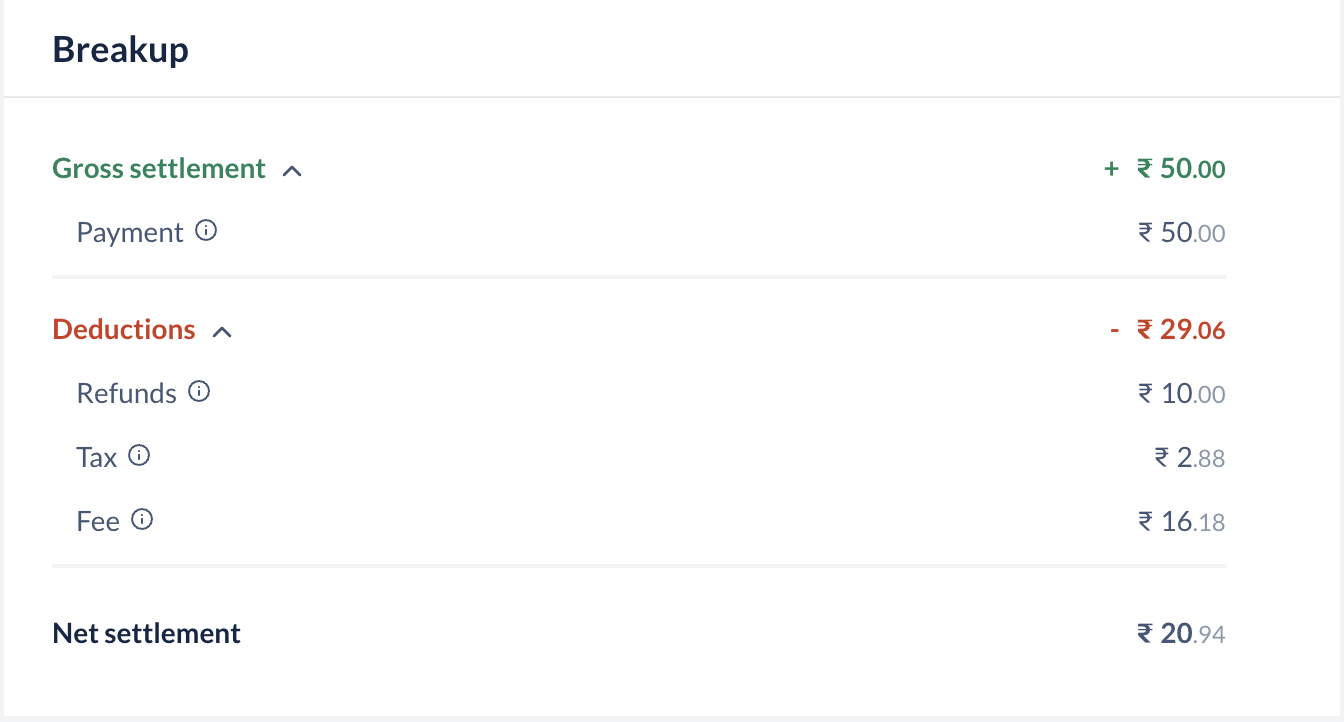 A settlement has the following components:
Payment
: The total payment amount that is being settled before deductions.
Adjustment
: Adjustments to transactions, if any.
Tax
: Tax deducted on the payment.
Fee
: Fees deducted by Razorpay for the transactions.
Transfer
: Transfers made if any, Transfers are payouts made to your linked accounts.
Linked accounts are accounts created for third-party sellers by you after onboarding them onto the Razorpay platform.
Refunds
: Refunds made if any, are refunds you have issued to your customer.
Example
Example
In this example, the amount settled to your account = Payment - Adjustment - Tax - Fee - Transfer + Refunds
Example: Gross Settelements and Deductions Calculations
Example: Gross Settelements and Deductions Calculations
Following is an example of gross settlements and deductions calculations of your settlement: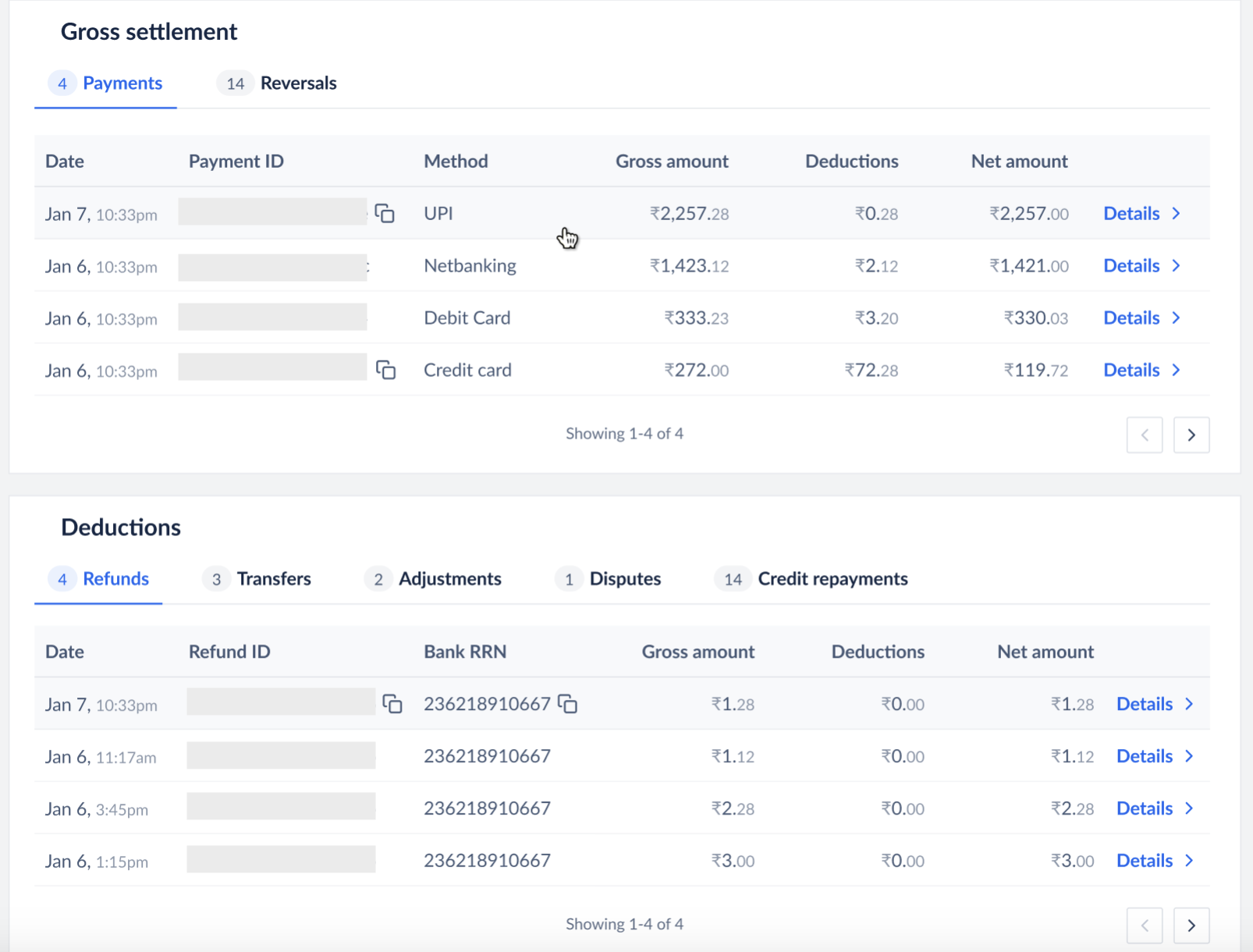 The gross settlements and deductions calculations only apply to merchants on the prepaid model.
The gross settlements and deductions calculations only apply to merchants on the prepaid model.View Settlement Timeline on Dashboard
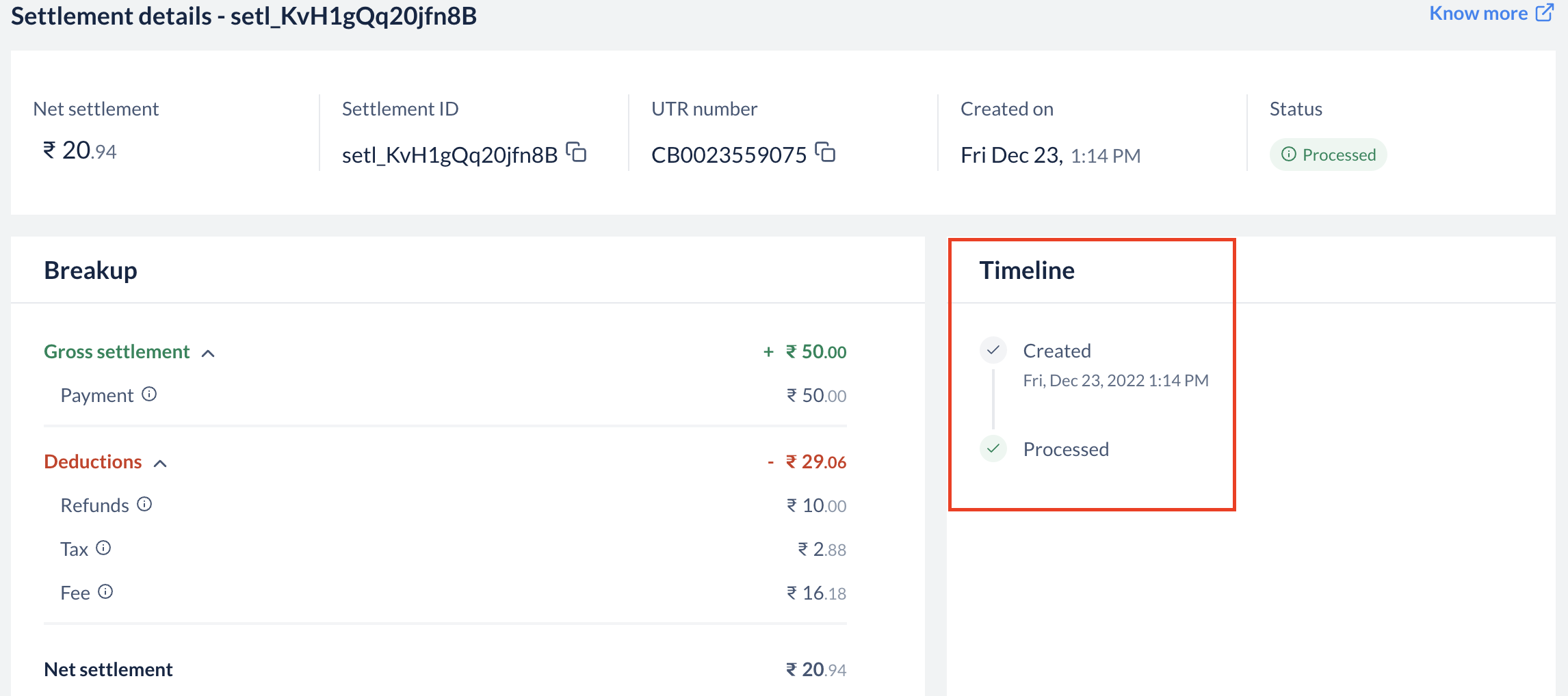
You can view the settlement timeline to check when the settlement for a particular payment will be credited. To view the settlement timeline:- Log in to the Dashboard.
- Navigate to Settlements.
- Click on the details of the settlement id for which you want to view the timeline.
- You will be able to see the settlement timeline for that particular settlement id.
Enable Settlements Placed On Hold
Your settlement can be placed on hold if we detect some risk with your payments or with your Razorpay account. You are notified about this on your Dashboard. Contact the support team to enable settlements that are placed on hold.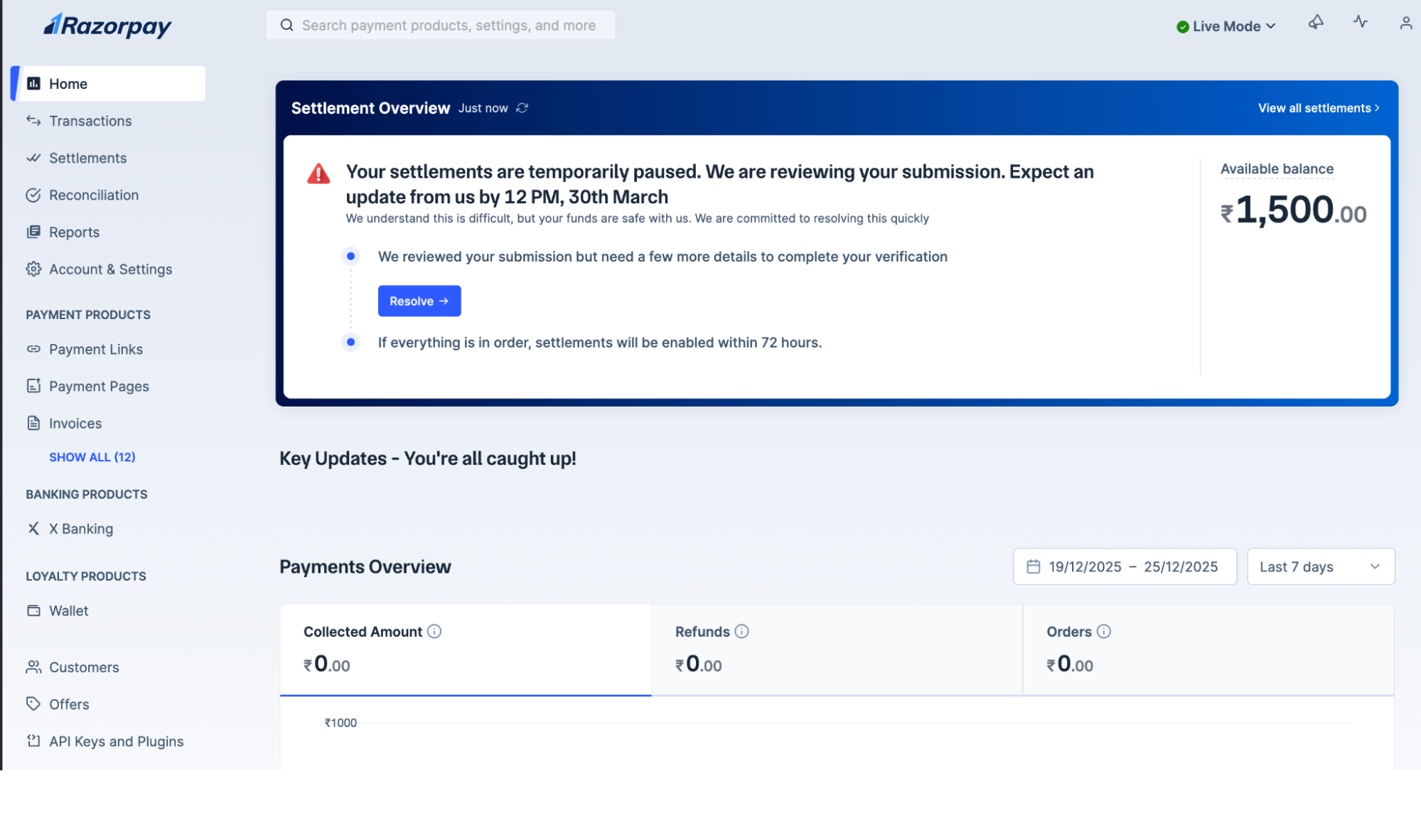 To enable settlements when they are put on hold:
- Log in to the Dashboard.
- Navigate to Home.
- Click Resolve on the notification as shown above..
Reports
Detailed insights can be gained using reports and real-time data on the Dashboard. These reports can then be used for accounting and reconciliation purposes. Know more about reports.Channel-Wise Settlement Reports
For businesses with segregated balances, settlement reports include:- Channel Type: Identifies whether the transaction was from Online (Domestic transactions + International Cards), In-person and Alternate Payment Method (International).
- Balance Account id: Unique identifier for the specific balance account.