

Available in🇮🇳 India🇲🇾 Malaysia🇸🇬 Singapore🇺🇸 United States
Manage your team of users who can access the Dashboard. You can provide specific access to a user or a set of users.
Example
You need someone in your organisation to perform day-to-day operations such as handling refunds and settlements. In this case, you can give Dashboard access to a person and assign the Operations role. This limits their access to actions related to refunds and settlements only.
Standard User Roles
There are some predefined user roles that you can assign to your team members. You can use these roles to limit a user’s access to the Dashboard. Check each role and the permissions associated with it.Owner
Owner
Actions Allowed
- Generate API keys
- Create and manage webhooks
- Manage teams
- Update brand name
- Edit activation form details, including bank account details and GST number, before submission
- View all transactions and settlements
- View all disputes
- Accept all disputes
- Contest all disputes and submit evidence
- Configure payment capture settings
- Configure payment methods
- Capture transactions
- Create refunds
- Create and manage Invoices, Plans and Subscription Links, Customer Identifiers, Customers, Payment Pages and Payment Links.
- Edit Razorpay Linked Account details
- Create and upload batch files
- Download and email reports
- Use Payments Mobile App
- Create Offers.
- Install OAuth Apps
- View and download API/webhooks logs (Developers > APIs/Webhooks)
Pseudo Owner
Pseudo Owner
The Pseudo Owner role provides full owner-level access to trusted team members for business continuity when the primary owner is unavailable (on leave, travel or emergencies). This role has identical permissions to the Owner role with enhanced audit tracking.Actions Allowed
- All permissions identical to Owner role
- Generate API keys
- Create and manage webhooks
- Manage teams (invite, modify, deactivate users)
- Update brand name
- Edit activation form details, including bank account details and GST number
- View and modify settlement bank account details
- View all transactions and settlements
- View all disputes
- Accept all disputes
- Contest all disputes and submit evidence
- Configure payment capture settings
- Configure payment methods
- Capture transactions
- Create refunds (any amount)
- Create and manage Invoices, Plans and Subscription Links, Customer Identifiers, Customers, Payment Pages and Payment Links.
- Edit Razorpay Linked Account details
- Create and upload batch files
- Download and email reports
- Use Payments Mobile App
- Create Offers
- Install OAuth Apps
- View and download API/Webhooks logs
- Delete the primary owner account
View-Only (Auditor)
View-Only (Auditor)
The View-Only role provides complete visibility into all Dashboard data without any ability to perform actions or make changes. This role is designed for stakeholders who need to monitor, review or audit your payment operations.Actions Allowed
- View all transactions and settlements
- View all disputes
- View analytics and insights
- View configuration and settings pages (read-only)
- Navigate all Dashboard sections
- Generate API keys
- Create and manage webhooks
- Manage teams
- Capture transactions
- Create refunds
- Accept or contest disputes
- Create and manage Razorpay Invoices, Payment Pages, Payment Links
- Edit activation form details, including bank account details
- Create and upload batch files
- Download or export files
- Edit any settings or configurations
- Edit Razorpay Linked Account details
- Modify API keys or webhook URLs
- Change account settings, bank details or KYC information
View-Only (Auditor) Role is Best For
- Internal and external auditors
- Compliance officers
- Senior management and executives
- Business analysts
- Regulatory reviewers
Admin
Admin
Actions Allowed
- Generate API Keys
- Create and manage webhooks
- Update brand name
- Edit activation form details, including bank account details and GST number, before submission.
- Configure payment methods
- View all transactions and settlements
- View all disputes
- Accept all disputes
- Contest all disputes and submit evidence
- Capture transactions
- Create refunds
- Create and manage Invoices, Plans and Subscription Links, Customers, Customer Identifiers, Payment Pages and Payment Links.
- Create and upload batch files
- Download and email reports
- Use Payments Mobile App
- Create Offers
- Edit Razorpay Linked Account details
- Manage Teams
Manager
Manager
Actions Allowed
- Create and manage webhooks
- Edit activation form details, including GST number, before submission
- Configure payment capture settings
- Configure payment methods
- View all transactions and settlements
- View all disputes
- Accept all disputes
- Contest all disputes and submit evidence
- Capture transactions
- Create refunds
- Create and manage Invoices, Plans and Subscription Links, Customers, Customer Identifiers, Payment Pages and Payment Links.
- Create and upload batch files
- Download and email reports
- Use Payments Mobile App
- Edit Razorpay Linked Account details
- Generate API Keys
- Manage Teams
- Resend Subscription Registration link
Operations
Operations
Actions Allowed
- View all transactions and settlements
- View all disputes
- Accept all disputes
- Contest all disputes and submit evidence
- Capture transactions
- Create refunds
- Create Invoices, Payment Buttons, Customer Identifiers, Payment Links and Payment Pages.
- Create and upload batch files
- Download and email reports
- Use Payments Mobile App
- Generate API Keys
- Manage Teams
- Edit activation form details, including bank account details and GST number, before submission
- Edit Razorpay Linked Account details
Finance
Finance
Actions Allowed
- Edit activation form details including GST number, before submission
- View all transactions and settlements
- View all disputes
- Accept all disputes
- Contest all disputes and submit evidence
- Create and upload batch files
- Download and email reports
- Generate API Keys
- Create and manage webhooks
- Manage Teams
- Capture transactions
- Create refunds
- Create and manage Invoices, Plans and Subscription Links, Customers, Customer Identifiers Payment Pages and Payment Links.
- Edit Razorpay Linked Account details
ePos
ePos
Actions Allowed
- Create Invoices and Payment Links in INR only
- Create, view and edit Offers
- Create, view and edit Payment Page
- Create, view and edit Payment Button
- Create, view and edit Payment Handle
- Generate API Keys
- Edit activation form details including GST number, before submission
- Create and manage webhooks
- Manage Teams
- View all transactions and settlements
- View all disputes
- Accept all disputes
- Contest all disputes and submit evidence
- Capture transactions
- Create refunds
- Edit Razorpay Linked Account details
- Create and upload batch files
- Download and email reports
- Create Items
- View Invoices, Payment Pages, Payment Links created by other users
Dispute Manager
Dispute Manager
The Dispute Manager role is designed for team members who handle chargebacks and payment disputes. This role provides focused access to dispute management functions while restricting access to sensitive financial operations.Actions Allowed
- View all disputes and dispute details
- Accept disputes
- Contest disputes and submit evidence
- Download dispute reports
- Search and filter disputes
- View dispute summary metrics (pending, accepted, contested)
- Generate API keys
- Create and manage webhooks
- Manage teams
- View transactions (except dispute-related context)
- View settlements
- View or edit bank account details
- Create refunds
- Capture transactions
- Edit activation form details
- Edit Razorpay account or business settings
- Create and manage Razorpay Invoices, Payment Pages, Payment Links
- Create and upload batch files (non-dispute)
- Download reports (except dispute reports)
- Edit Razorpay Linked Account details
- Use Payments Mobile App
Dispute Manager Role is Best For
- Dedicated chargeback teams.
- Customer support specialists handling dispute cases.
- Third-party dispute management agencies.
Marketing (Offers Manager)
Marketing (Offers Manager)
Actions Allowed
- Create offers
- View or manage payments
- View settlements
- View or manage disputes
- Create refunds
- Generate API keys
- Download or email general reports
Finance Manager
Finance Manager
Actions Allowed
- View Payments, Payment Links, Payment Pages and the Settlements tab
- View all transactions and settlements
- Capture payments
- Capture transactions
- View all disputes
- Create refunds
- Create and manage Invoices, Plans and Subscription Links, Customer Identifiers, Customers, Payment Pages and Payment Links
- Create and upload batch files
- Download and email reports
- Generate API keys
- Create and manage webhooks
- Accept, defend or contest disputes (view only)
- Edit activation form details
- Edit Razorpay Linked Account details
- Create Offers
Fraud Operations
Fraud Operations
Actions Allowed
- View Payments, Payment Links, Payment Pages and the Settlements tab
- View all transactions and settlements
- View all disputes
- Accept/defend all disputes (chargebacks)
- Contest all disputes and submit evidence
- Create refunds
- Edit settlement or bank account details
- Generate API keys
- Create Offers
- Manage billing entities
Fraud Analyst
Fraud Analyst
Actions Allowed
- View Payments, Payment Links, Payment Pages and the Settlements tab
- View all transactions and settlements
- View all disputes
- Accept, defend or contest disputes
- Create refunds
- Edit any settings or configurations
- Generate API keys
R&D
R&D
Actions Allowed
- Create and manage webhooks
- View or manage payments
- View or manage disputes
- Create refunds
- View settlements
- Create Offers
- Download and email reports
Support
Support
Actions Allowed
- View all transactions and settlements
- View all disputes
- Accept all disputes
- Download and email reports other than the monthly invoice report
- Generate API Keys
- Create and manage webhooks
- Manage Teams
- Edit activation form details, including bank account details and GST number, before submission
- Capture transactions
- Create refunds
- Create and manage Invoices, Plans and Subscription Links, Customers, Customer Identifiers, Payment Pages and Payment Links.
- Edit Razorpay Linked Account details
- Create and upload batch files
- Access monthly invoice report
Handy TipsA team member can be assigned only one role, as each role is tied to a specific email address. A user can have multiple roles if they have different email addresses.
Handy Tips
- A team member should be assigned a role as the role is tied to an email address. A user can have multiple roles if they have different email ids.
- Use the Dispute Manager role for team members who only need to handle chargebacks without access to refunds or bank details.
- Use the Pseudo Owner role sparingly for trusted individuals who need to manage the account when the Owner is unavailable.
- Use the View-Only role for auditors and stakeholders who need visibility without operational access.
Invite a Registered User
Invite a Registered User
- Log in to the Dashboard.
- Navigate to the Account & Settings → Business settings and click Manage Team.
- Click Invite New Member.
- Type in the email address of the user whom you want to invite. Select a role from the drop-down list.
- Click Send Invitation to invite the user. A list of accepted and pending invitations is displayed on the same page.
- Click Resend to re-invite the user or Cancel to cancel the invitation.
Accept Invite - Existing User
Accept Invite - Existing User
To accept an invitation: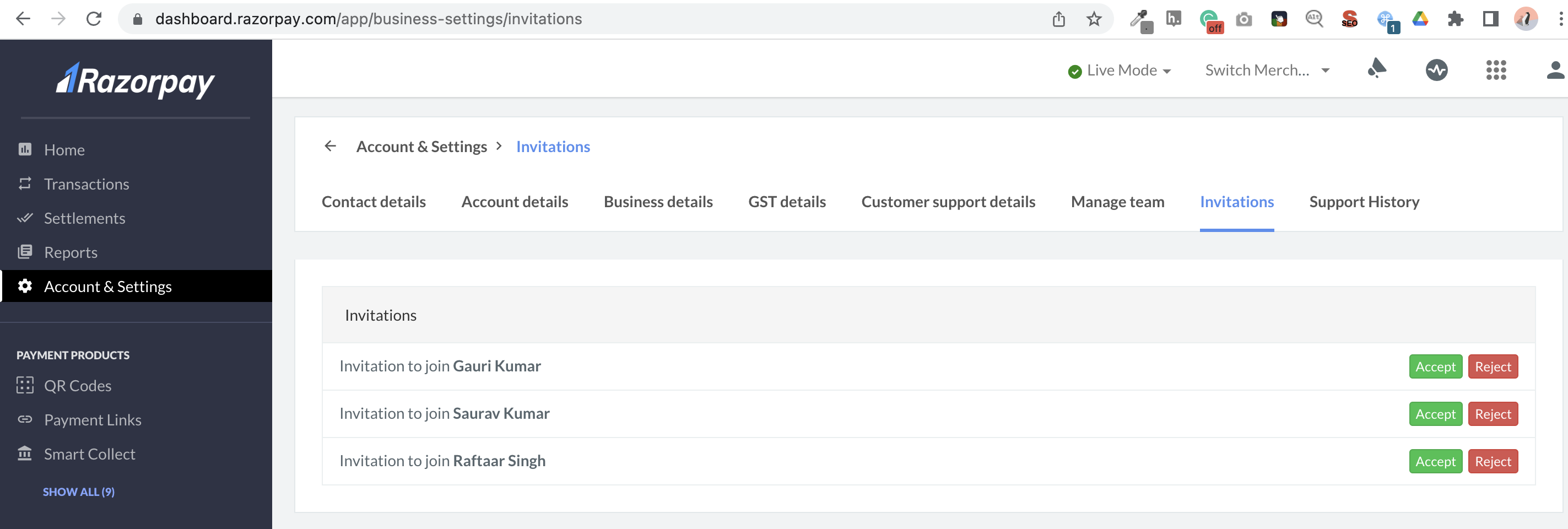
- Log in to the Dashboard.
- Navigate to the Account & Settings → Business settings and click Invitations.
- Click Accept next to the invite.
Switching AccountsAfter accepting the invite, the invited user can switch between their and your account using the Switch Merchant option available on the Dashboard header.
You cannot access their account unless they invite you to join their team.
Invite a New User
Invite a New User
You can invite a user who is not registered with Razorpay to join your team. Such users are sent an invitation link via email.To invite a new user: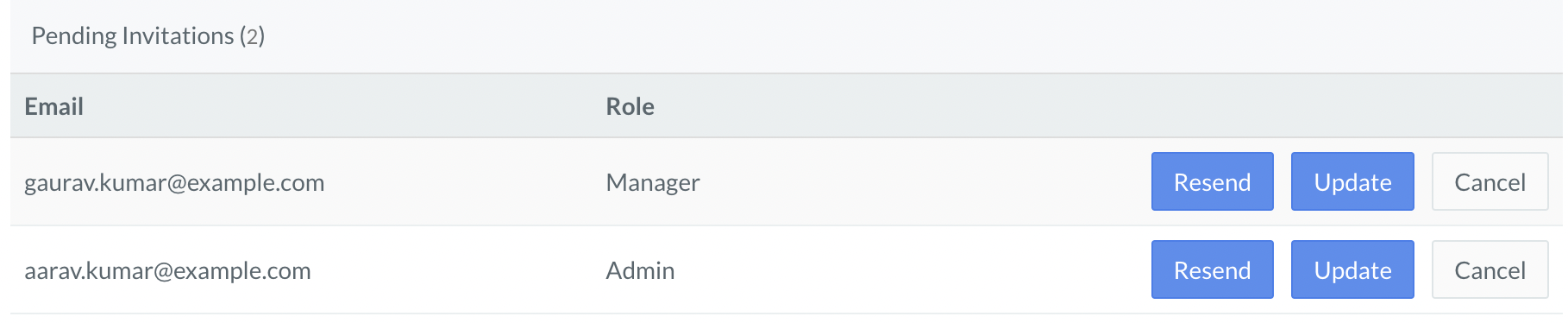
- Log in to the Dashboard.
- Navigate to the Account & Settings → Business settings and click Manage Team.
- Click Invite New Member.
- Enter the member’s email id and select the user role to be assigned.
- Click Send Invitation.
Update Role of a User
Update Role of a User
You can change the user’s role after the invitation is sent to the user or after the invitation is accepted by the user.To update a user’s role:
- Log in to the Dashboard.
- Navigate to the Account & Settings → Business settings and click Manage Team.
- Select the new role for the user from the drop-down.
- Click Update.
Remove a User
Remove a User
You can remove a user from your team to remove their complete access from your Dashboard.To remove a user from your team:
- Log in to the Dashboard.
- Navigate to the Account & Settings → Business settings and click Manage Team.
- Click Remove to remove a user from the Team Member list. Once removed, the user can no longer access your Dashboard.
- Click Cancel to remove a user from the Pending Invitations list.
Enable 2-Step Verification (2FA at Team Level)
Enable 2-Step Verification (2FA at Team Level)
You can set 2-step verification for your entire team for enhanced security and protection of your Dashboard data thus preventing malicious attacks or misuse of your sensitive business data.To enable 2-step verification for your team:
- Log in to the Dashboard.
- Navigate to the Account & Settings → Business settings and click Manage Team.
- Enable the 2-Step Verification to the team option.
- Enter the OTP sent to your registered mobile device. (This step is not required if you had already performed OTP verification during login.)
- Enter your account password and confirm.
Frequently Asked Questions (FAQs)
What to do if a user account is locked?
What to do if a user account is locked?
If a user enters the wrong OTP 9 times, their account will be locked for security reasons. In such scenarios, the user should contact their respective account owner. The account owner can unlock the users’ accounts.
What to do if a user loses their mobile device?
What to do if a user loses their mobile device?
If a user loses their mobile device, they should reach out to their respective account owner. The account owner can Invalidate 2FA for the user, that is reset 2FA for the user. The user will be asked to enter their mobile number the next time they log in to the Dashboard.
What to do if the account owner is locked?
What to do if the account owner is locked?
If you are the account owner and have entered the wrong OTP 9 times, your account will be locked for security reasons. In such scenarios, contact our Support Team to Reset 2FA for your account.
What to do if the account owner loses their mobile device?
What to do if the account owner loses their mobile device?
If you are the account owner and have lost your mobile device, contact our Support Team to Reset 2FA for your account.
What is the Dispute Manager role?
What is the Dispute Manager role?
The Dispute Manager role is designed for team members who handle chargebacks and payment disputes. Users with this role can view, accept and contest disputes and download dispute reports. They cannot create refunds or access settlement/bank details. This role is ideal for dedicated chargeback teams or third-party dispute management agencies.
What is the Pseudo Owner role?
What is the Pseudo Owner role?
The Pseudo Owner role provides full owner-level access to trusted team members for business continuity. It is useful when the primary owner is unavailable (on leave, travel or emergencies). Pseudo Owner role has the same permissions as the Owner role except they cannot delete the primary owner account. A maximum of 2 Pseudo Owners can be assigned per account and assignment requires additional authentication.
What is the View-Only (Auditor) role?
What is the View-Only (Auditor) role?
The View-Only role provides read-only access to all Dashboard data. Users with this role can view transactions, settlements, disputes and settings but cannot perform any actions or make changes. This role is ideal for auditors, compliance officers and senior management who need visibility without operational access. All page views are logged for audit purposes.
How many Pseudo Owners can I have?
How many Pseudo Owners can I have?
You can provide Pseudo Owner access to a maximum of 2 users for each Razorpay account. If you need more, contact Razorpay support to discuss your requirements.
Can a Dispute Manager issue refunds?
Can a Dispute Manager issue refunds?
No, Dispute Managers cannot create refunds. If a refund is needed to resolve a dispute, the Dispute Manager must coordinate with a team member who has refund permissions (Owner, Pseudo Owner, Admin, Manager or Operations roles).
Can a View-Only user download reports?
Can a View-Only user download reports?
No, users with view-only access can only view reports and data on the Dashboard. They cannot download or export files. This restriction helps maintain data security for audit and compliance purposes.