

Available in🇮🇳 India🇲🇾 Malaysia
Businesses need to distribute payments across multiple recipients - marketplaces paying sellers, platforms sharing revenue with partners or companies managing vendor payments. Manual fund transfers and reconciliation create operational complexity.
Razorpay Route automates this through Linked Accounts, splitting payments between multiple recipients while giving you central control and each recipient self-service capabilities.
What are Linked Accounts
Linked Accounts are dedicated entities within your Route setup that receive a portion of incoming funds. Each Linked Account:- Receives funds based on your split payment configuration.
- Has a unique
account_idfor API integration and tracking. - Can access a dedicated dashboard for self-service operations.
- Processes refunds using available balance or Refund Credits.
Features
- For You (Primary Account)
- For Linked Account Users
- Split Payments: Automatically divide incoming funds between multiple recipients.
- Central Management: Handle settlements, refunds and reconciliations for all Linked Accounts.
- Access Control: Grant or revoke dashboard permissions for each Linked Account.
- Complete Visibility: Track all fund movements, transfers and operations.
Add Linked Accounts
- Dashboard Method
- API Method
Watch this video to see how to add Linked Accounts:
To create a Linked Account:
- Log in to the Dashboard and navigate to Route under PAYMENT PRODUCTS
- Click the Accounts tab, then + Add Account
- In the Add Account popup:
- Enter Account Name and Account Email
- Toggle Dashboard Access if you want to enable immediate access
- Click Add
- Complete the KYC Form with:
- Business Details: Company information and contact details
- Bank Account Details: Account number, IFSC, beneficiary name
- Click Submit Form
Required Information
Provide these details when creating a Linked Account:- Primary Details
- Bank Details
- Linked Account name
- Contact number
- Email address (required for dashboard access)
Account Verification via Penny Testing
To avoid settlement failure, we will penny test Linked Accounts when added. Razorpay will transfer a nominal amount to the bank account details submitted to verify them. Transfers are allowed only on successful validation. This will be performed on the newly created Linked Accounts and the existing accounts when the bank account details are updated via the Dashboard. Know more about penny testing.VPA as Settlement DestinationIn addition to bank accounts, you can configure a Linked Account to settle funds to a beneficiary’s VPA (UPI id). VPA-based Linked Accounts are verified instantly via API (under 3 seconds) and support transaction-level instant settlement. Funds reach the beneficiary within a few minutes. This is available for transactions up to ₹1 lakh per transfer (NPCI limit).Refer to VPA Settlements for setup instructions.
Manage Linked Account Access
Dashboard Access
Dashboard Access
Grant dashboard access to allow Linked Account users to manage their own operations:
- Log in to the Dashboard.
- Select Route and navigate to the Accounts.
- Find the relevant Linked Account and enable Dashboard Access.
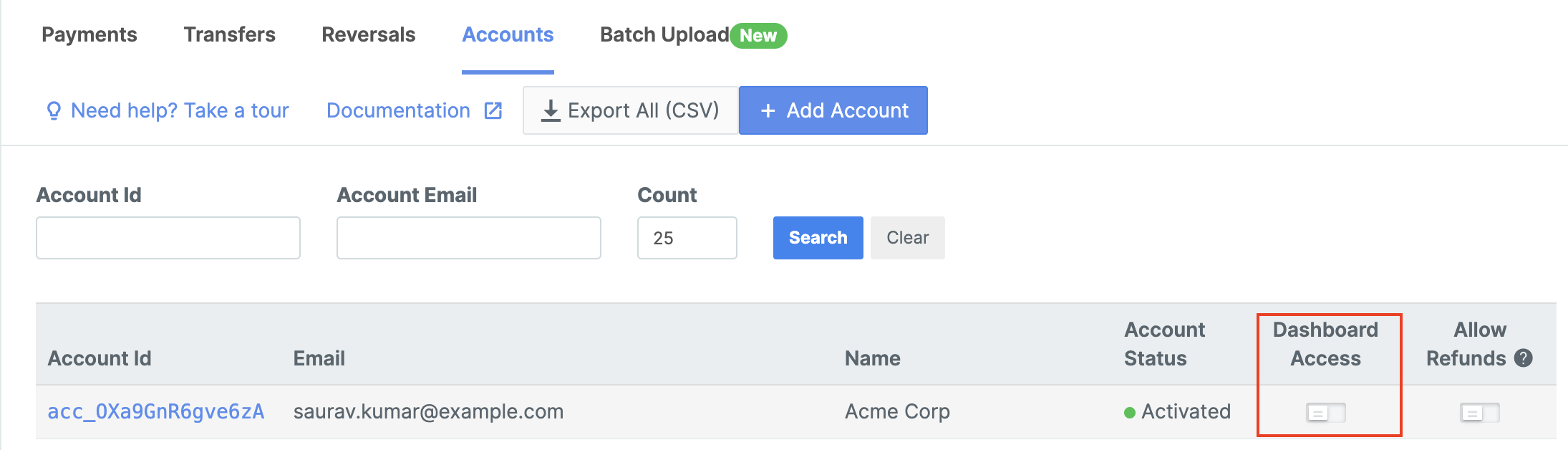
Access Requirements
- While you can create a Linked Account without adding their email, you cannot grant them Dashboard access. The access can be granted or provided only after you add the email address of the Linked Account.

- As a Linked Account user, you cannot access the Linked Account Dashboard unless the primary account owner adds you as a team member from their Linked Account Dashboard.
Refund Capabilities
Refund Capabilities
Due to government regulations, in certain cases, the Linked Accounts need to directly process refunds to customers. You can enable refunds capability while adding a new account.To enable refunds capability for an existing account:
- Navigate to the Accounts tab.
- Turn on the Allow Refunds toggle against the relevant account.
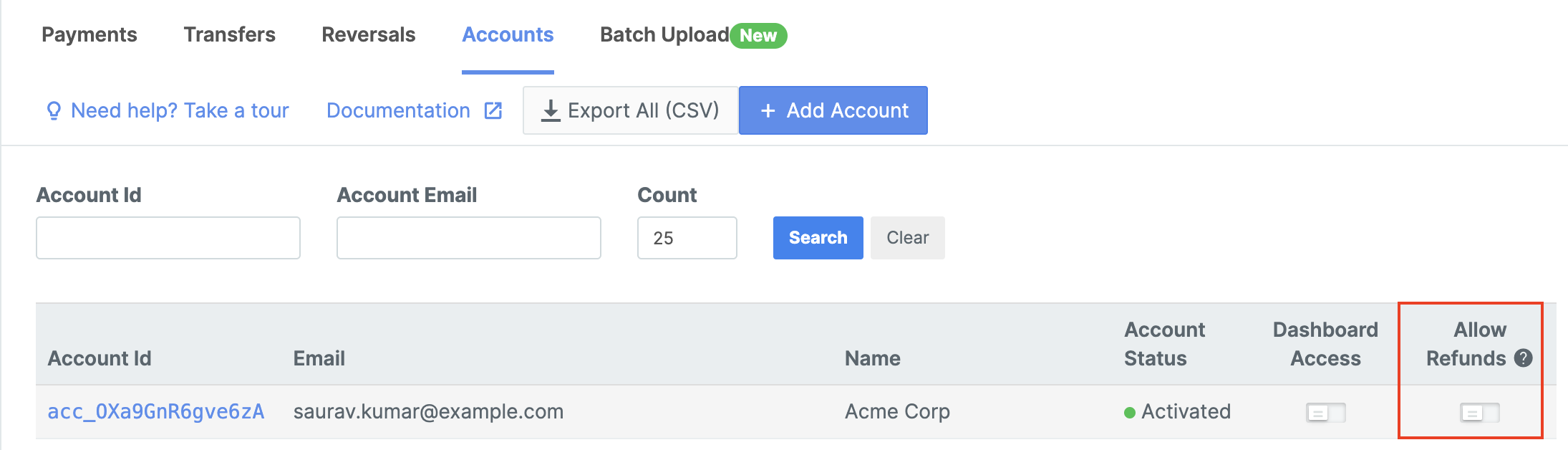
Refund Credits
Refund Credits
Refund Credits help the Linked Account to process customer refunds from a dedicated fund than using the unsettled balance. You can enable Refund Credits for a Linked Account by sending an email to your Razorpay account manager with these details:
- Linked account name
- Email id
- Balance type (Refund Credit).
Export Account Data
Download complete account information in CSV format:- Click Export All (CSV) from the Accounts tab
- Includes all account details, settlement history and configuration