

Available in🇮🇳 India
Magic Checkout supports the redemption of Shopify store credit. To let customers use their store credit at checkout, the Magic Checkout app on your Shopify store needs access to store credit data. You give it this access by adding three store credit scopes (permissions) to the app and approving them on your store.
You complete these steps in the Shopify Admin and the Shopify Dev Dashboard. No code changes are needed.
Prerequisites
- Magic Checkout is installed on your Shopify store. Know more about integrating Magic Checkout with Shopify.
- You can log in to the Shopify Admin of the store and to the Shopify Dev Dashboard of the organisation that owns the app.
Scopes to Add
The steps are in three parts:
- Find your Magic Checkout app.
- Release a new version with the store credit scopes.
- Approve the new permissions on your store.
1. Find Your Magic Checkout App
-
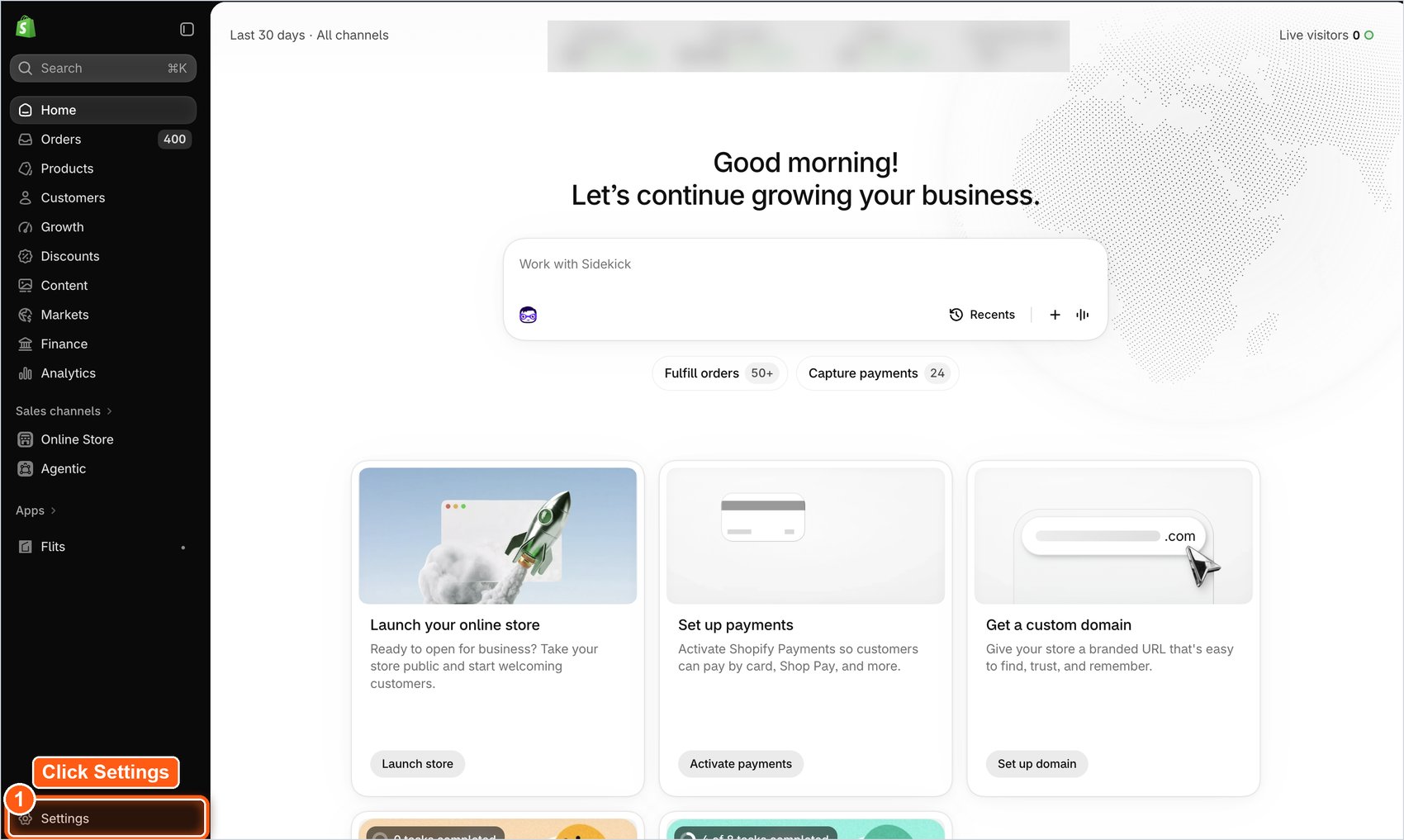
Log in to your Shopify Admin. At the bottom-left of the screen, click Settings.
-
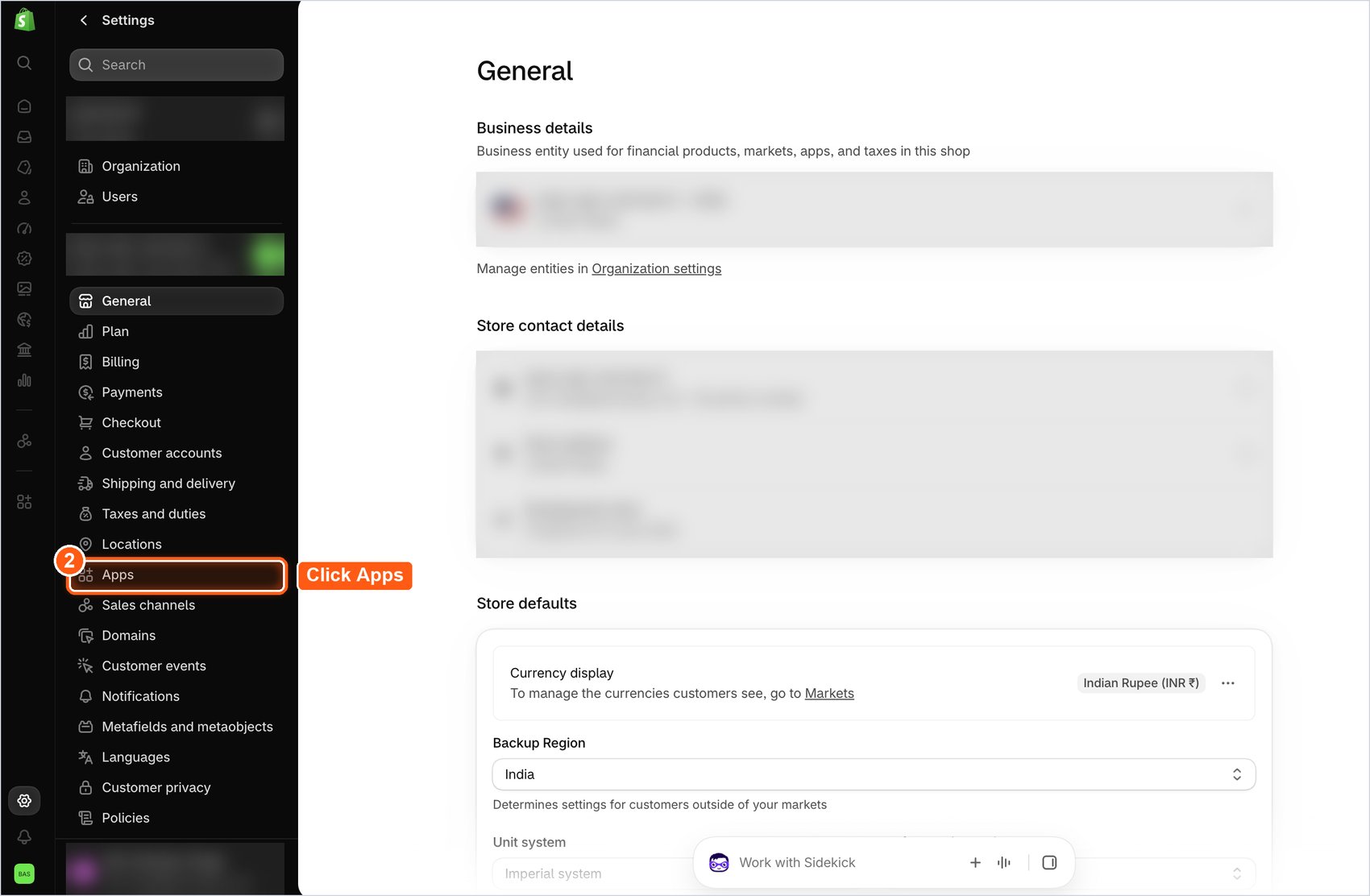
In the Settings sidebar, click Apps.
-
The Apps page lists the apps installed on your store. Find the Magic Checkout app, listed as
<App ID> - MagicCheckout, and copy its App ID. Then click Develop apps at the top-right.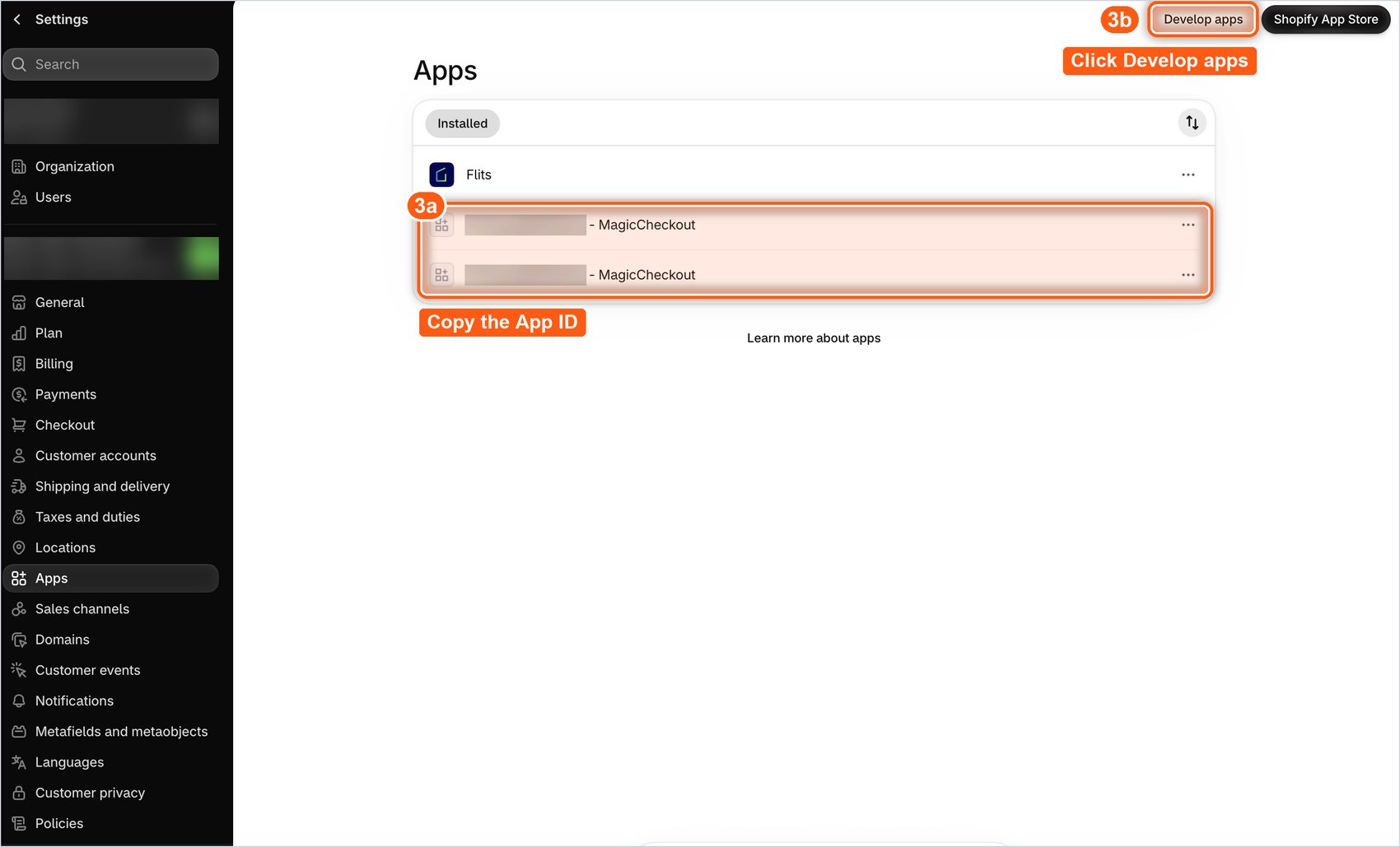
-
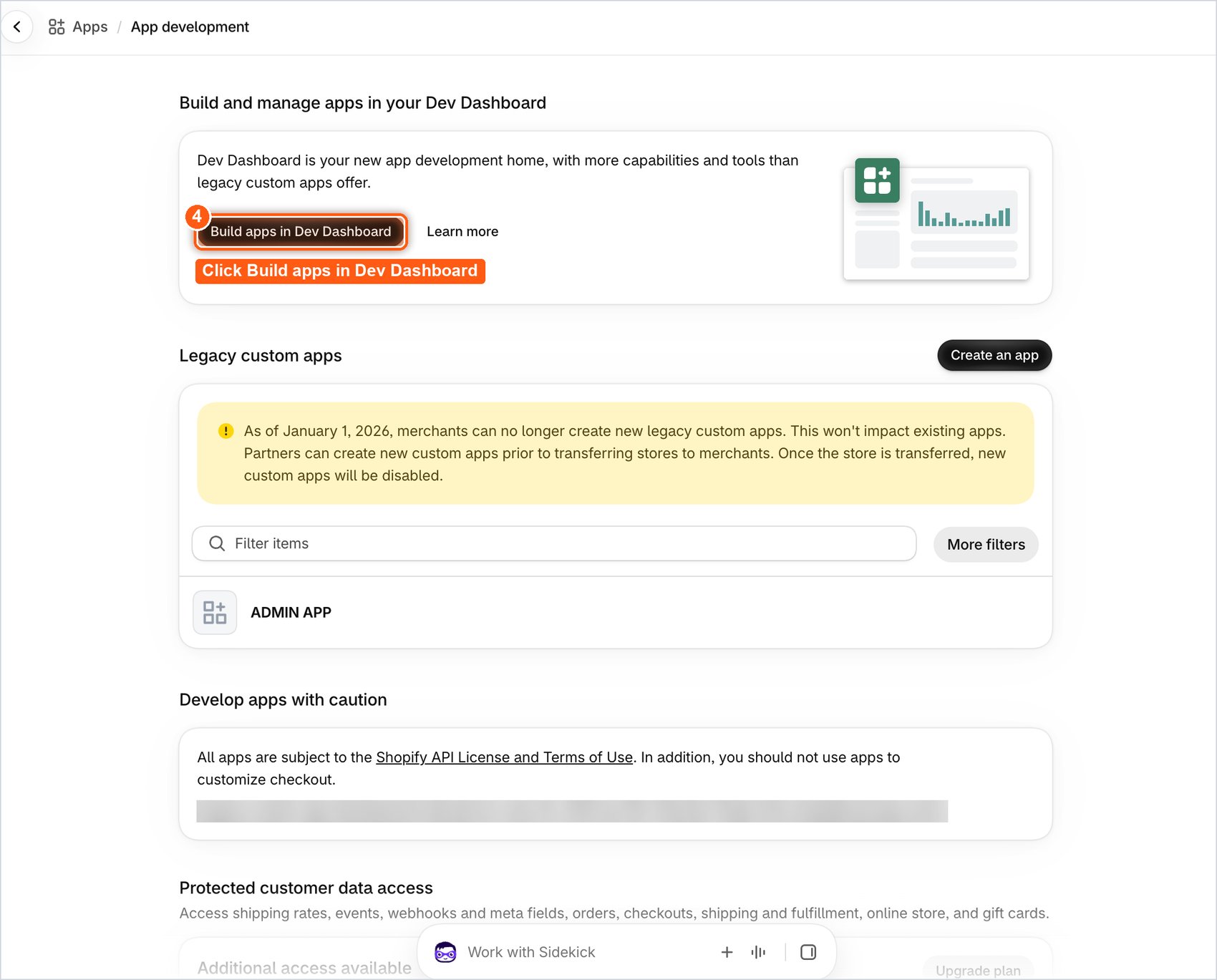
The App development page opens. Click Build apps in Dev Dashboard.
-
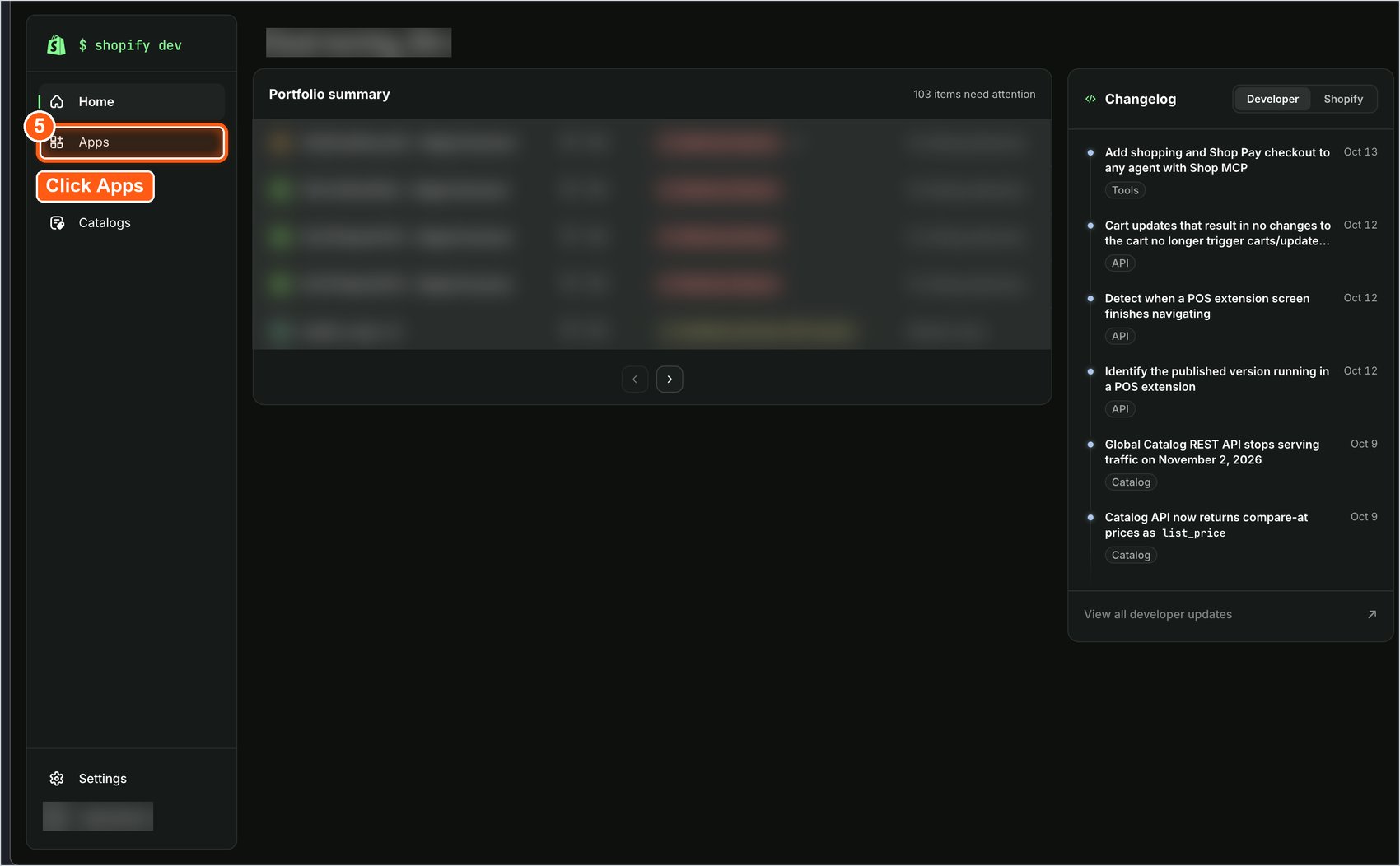
You are redirected to the Shopify Dev Dashboard. In the left sidebar, click Apps.
-
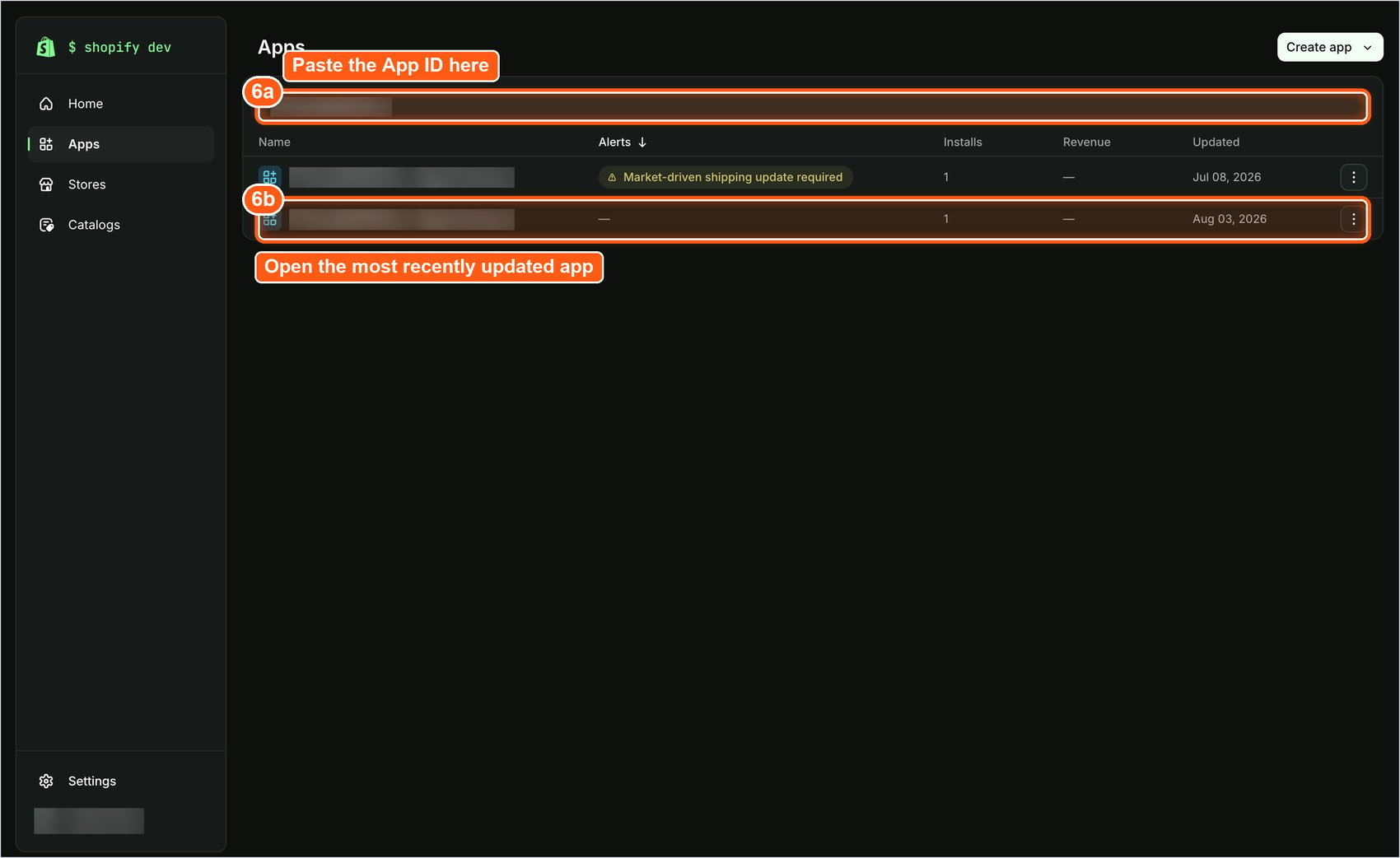
Paste the App ID you copied in step 3 into the search bar. Two entries named MagicCheckout may appear. Click the one with the most recent Updated date.
2. Release a New Version with the Store Credit Scopes
-
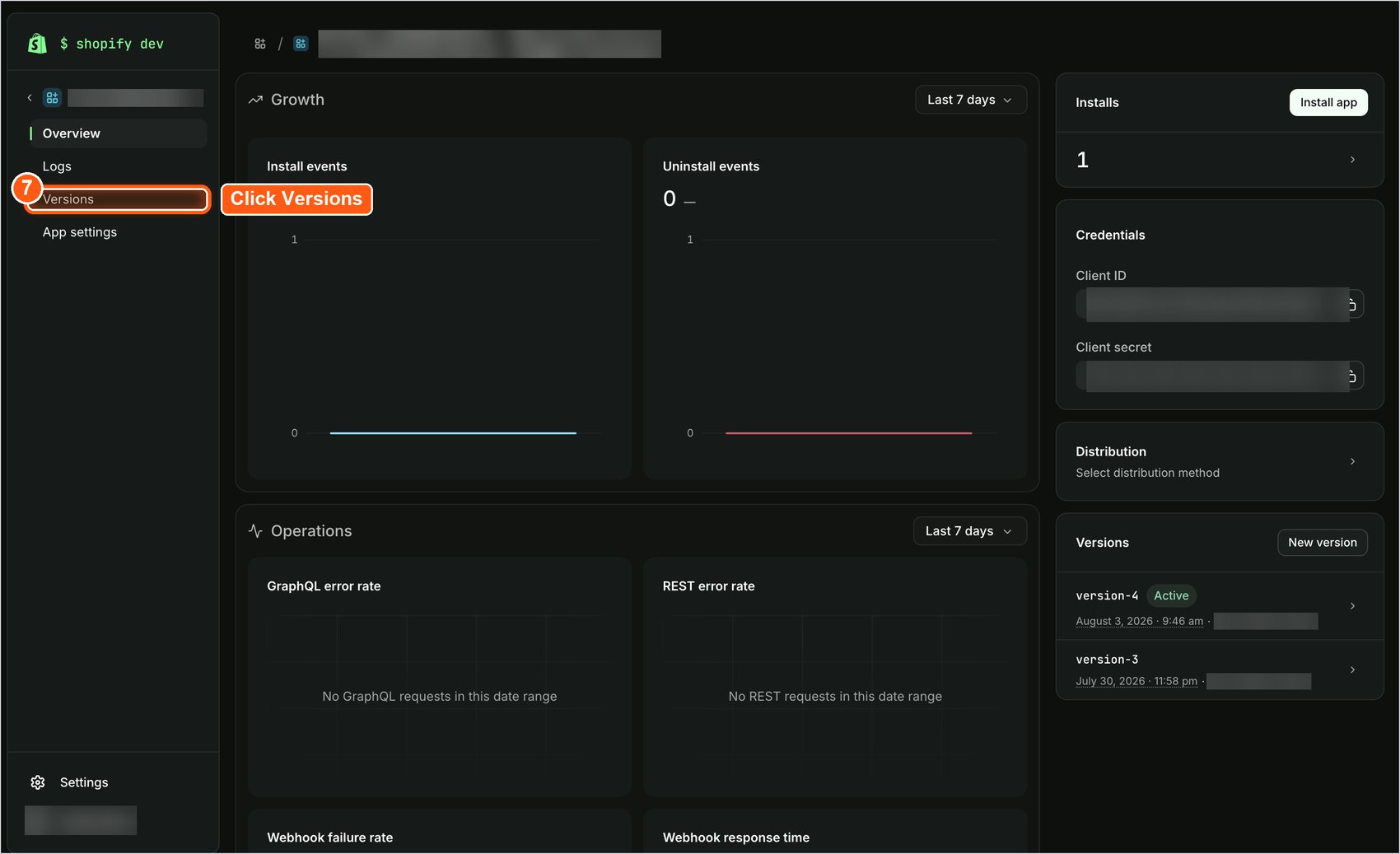
The app overview page opens. In the left sidebar, click Versions.
-
At the top-right of the Versions page, click Create version.

-
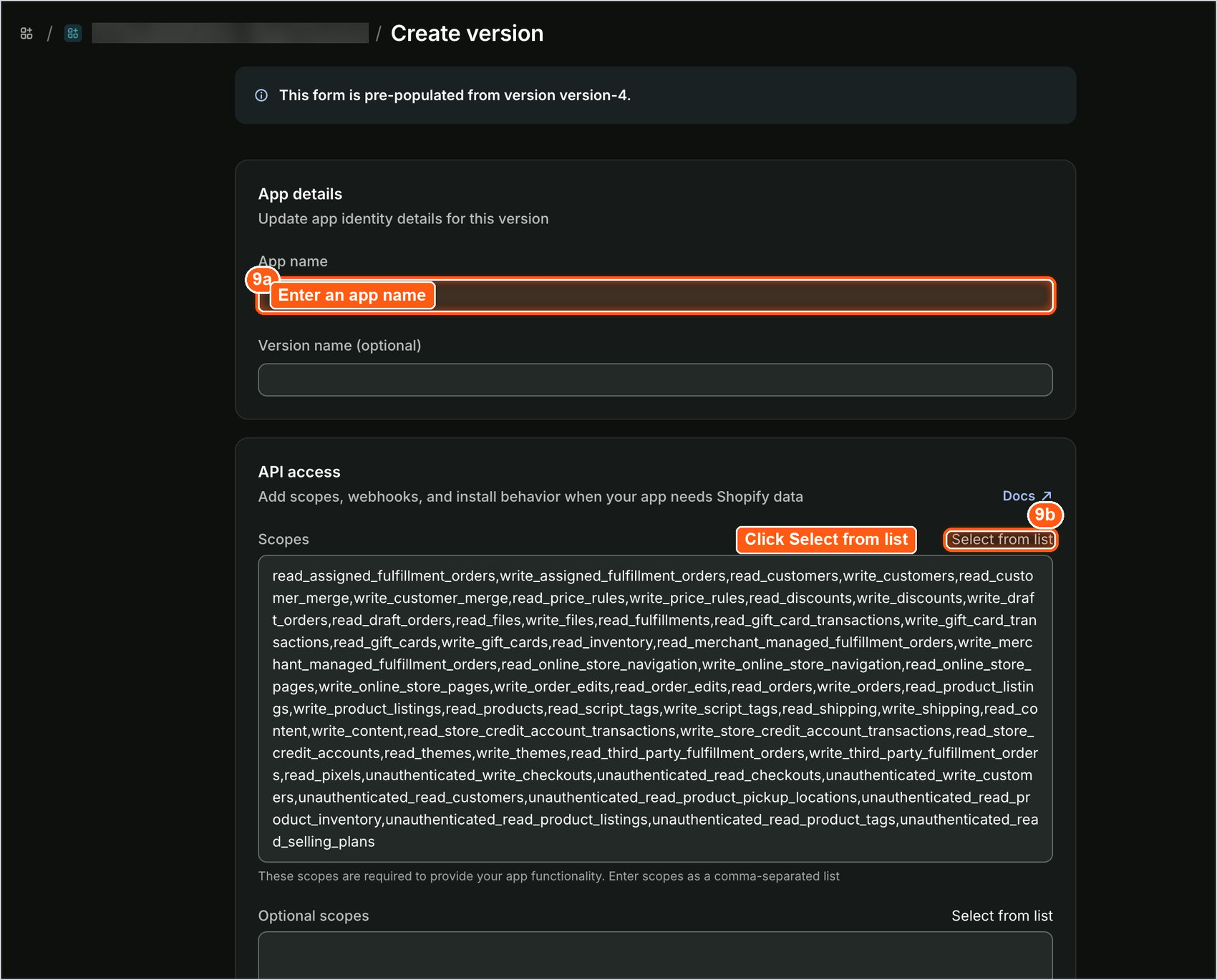
The Create version page opens, pre-filled from your current version. Enter a name in App name, for example, Magic checkout store credit. Then, under API access, click Select from list next to Scopes.
-
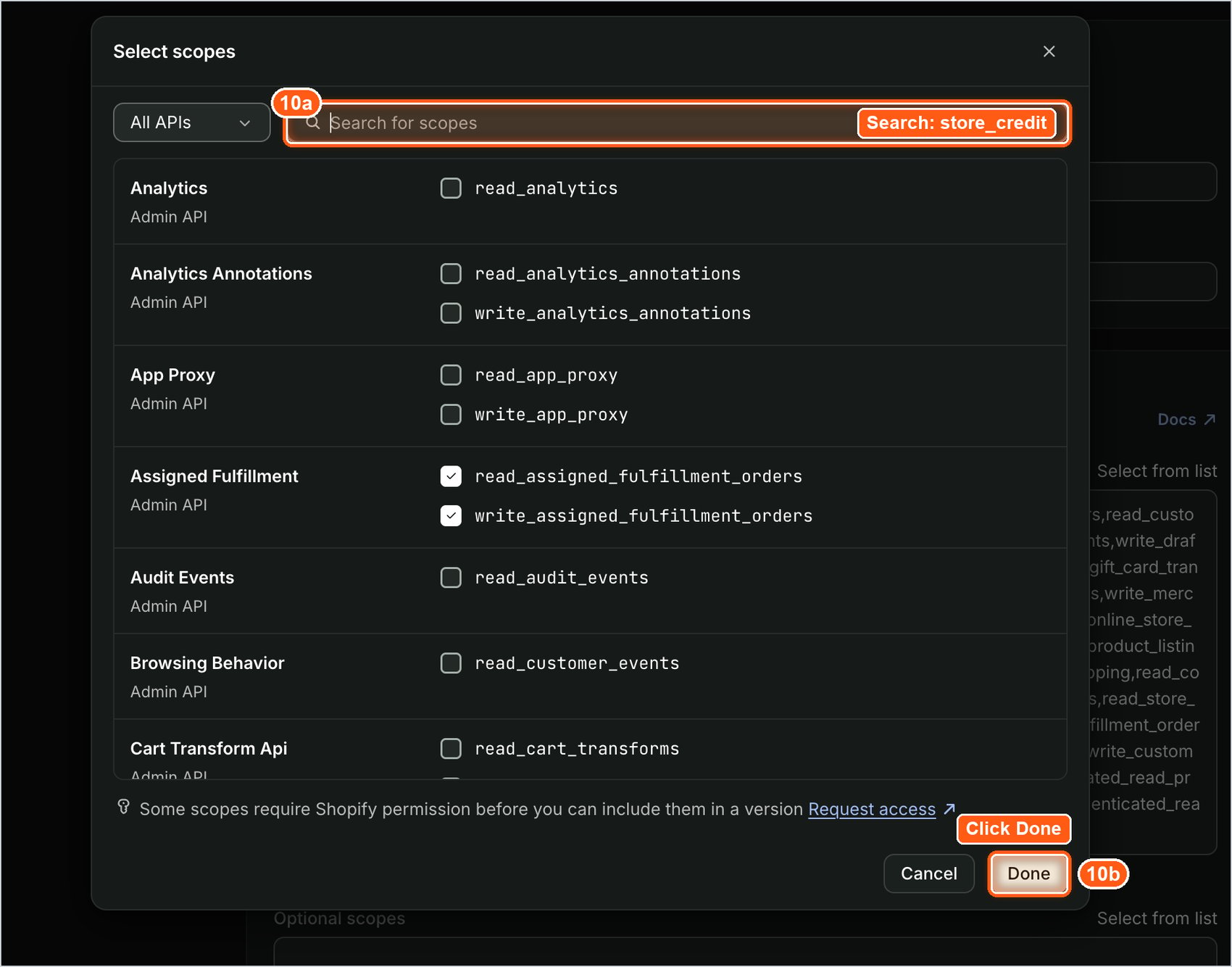
In the Select scopes window, enter
store_creditin the search box and select all three scopes listed below. Then click Done.read_store_credit_accountsread_store_credit_account_transactionswrite_store_credit_account_transactions
- Scroll to the bottom of the Create version page and click Release. Click Release again in the confirmation pop-up. Releasing makes the new version the Active version. Your earlier versions stay listed on the Versions page.
-
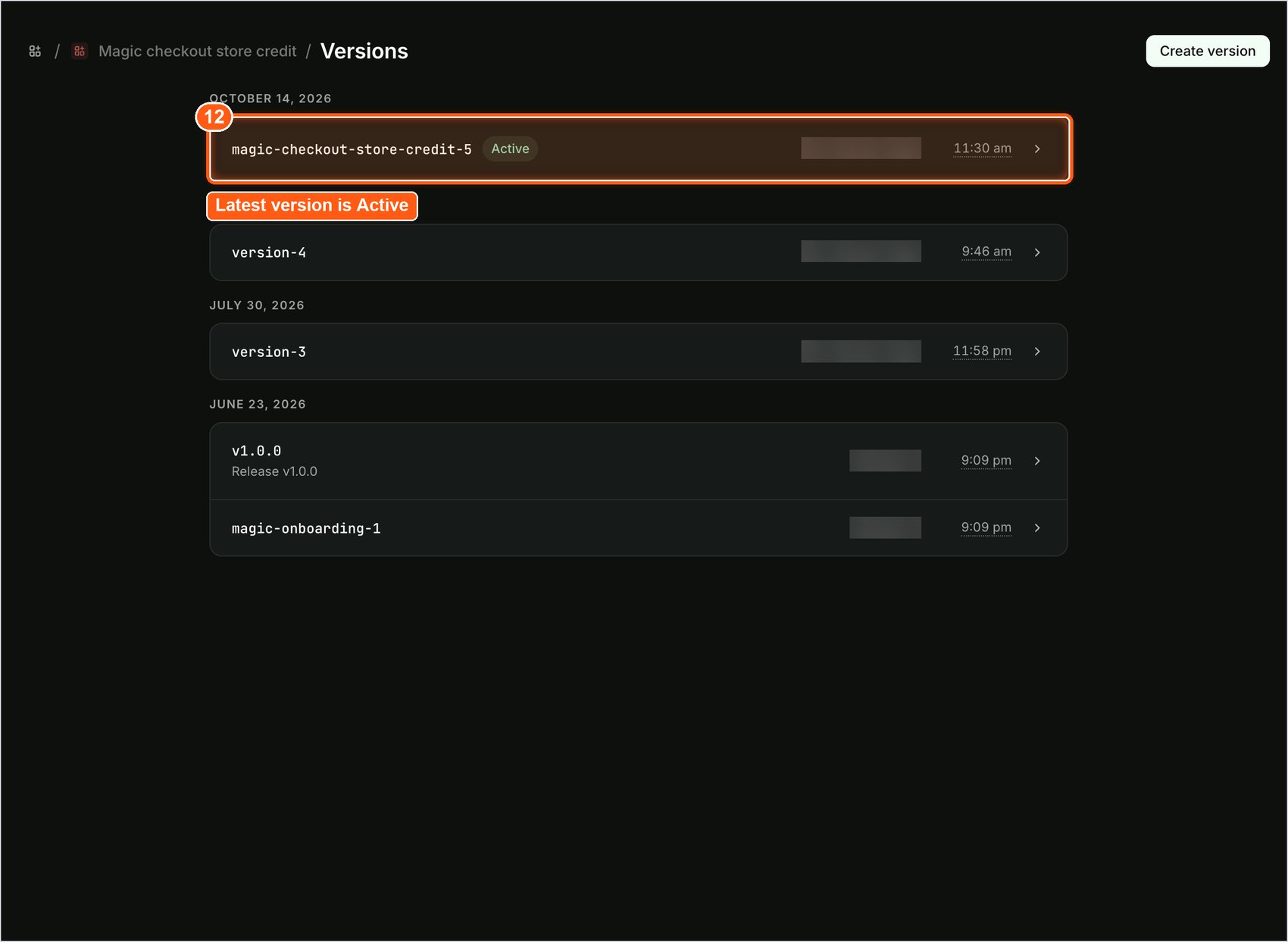
The Versions page now lists your new version at the top with an Active label.
3. Approve the New Permissions on Your Store
-
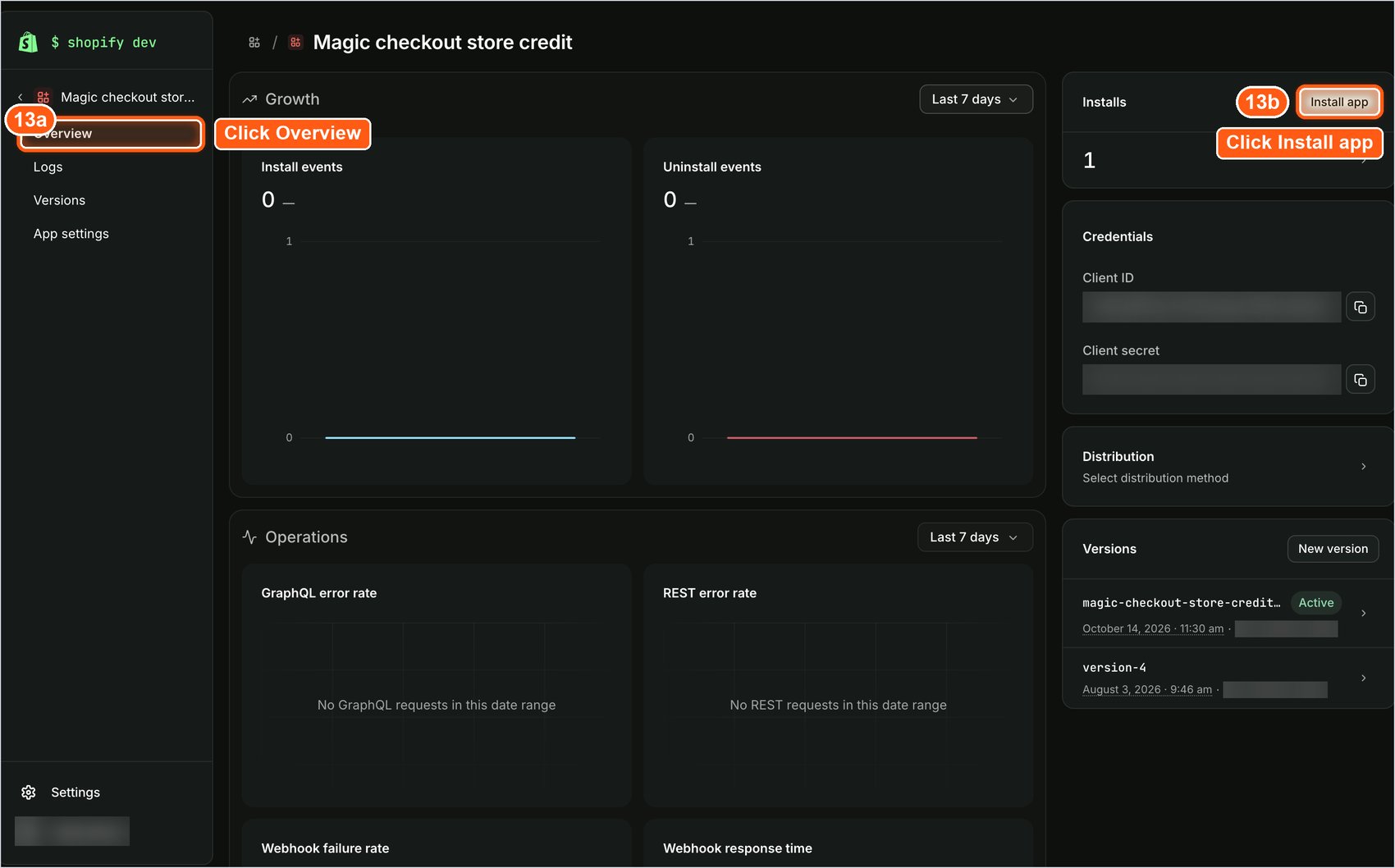
In the left sidebar, click Overview. Then, at the top-right, click Install app.
-
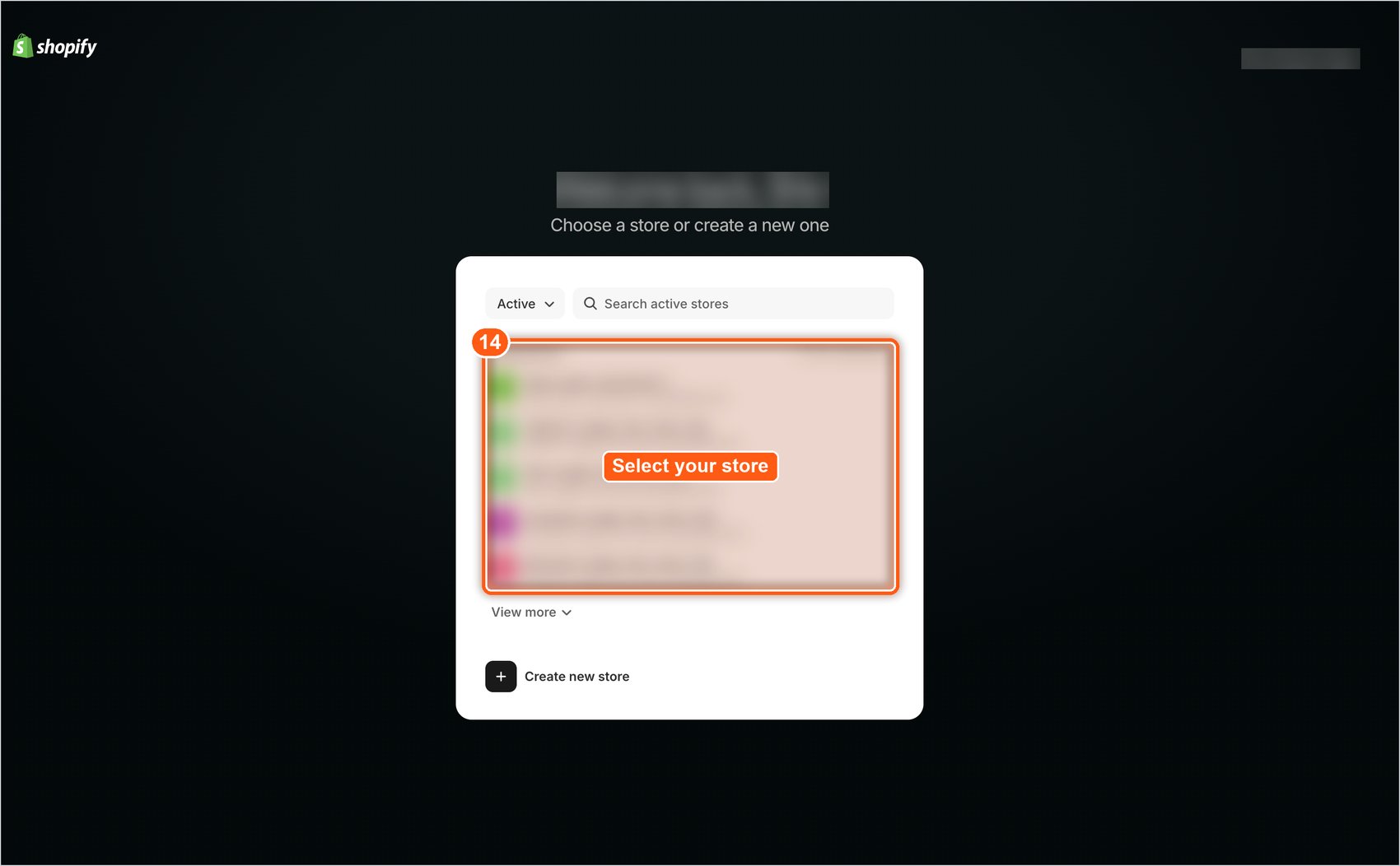
You are asked to choose a store. Click the store where Magic Checkout is installed.
-
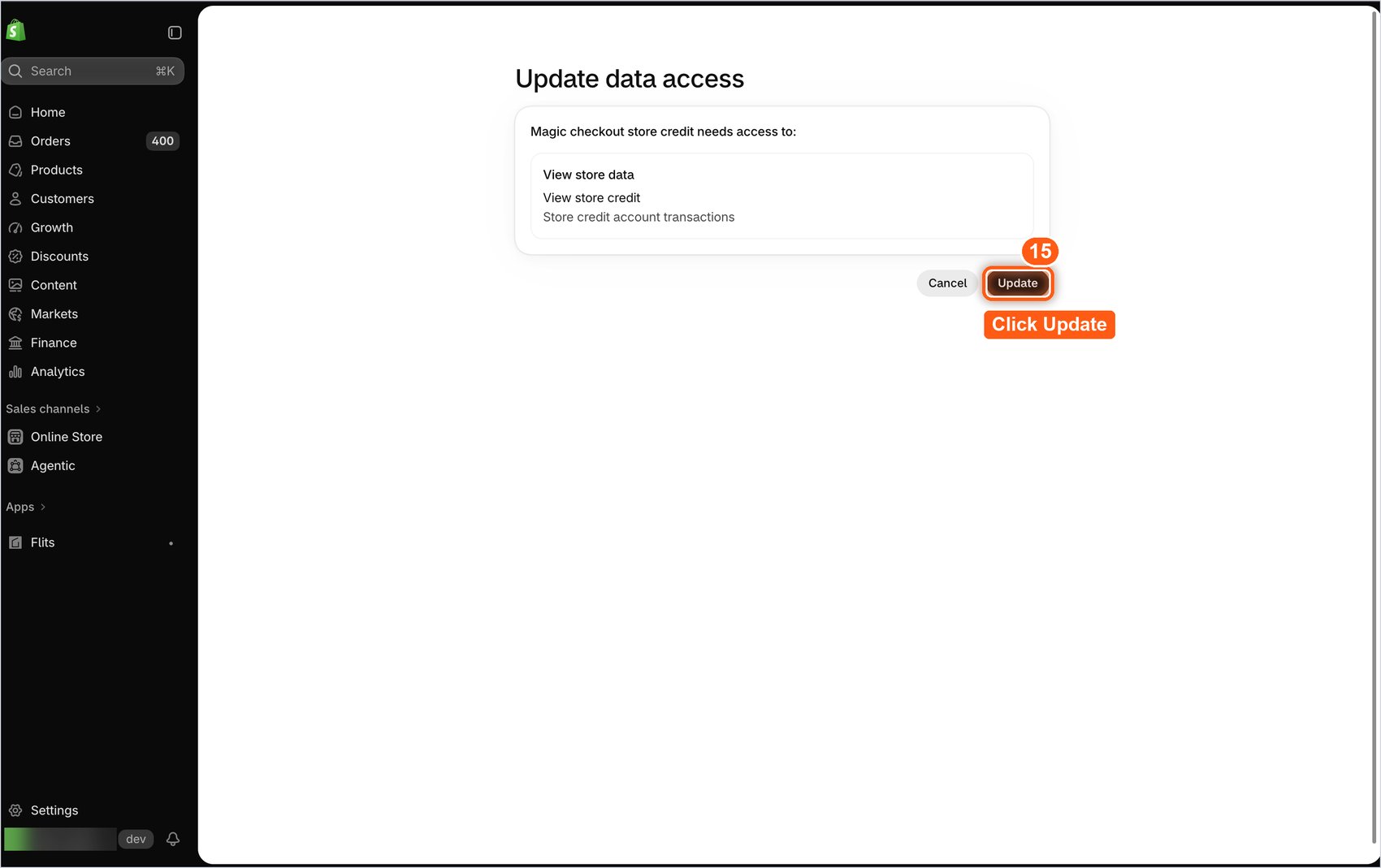
Shopify opens the Update data access page in your store’s admin and lists the permissions the app needs, including store credit. Click Update.
Need Help?If you cannot find the app, or a step looks different on your store, contact your Razorpay Magic Checkout point of contact or write to us at magic-checkout-support@razorpay.com. Share a screenshot of the page you are on.