

Available in🇮🇳 India
Additional Fees lets you charge buyers a single named fee — such as a Convenience Fee, Platform Fee or Handling Fee — at Magic Checkout. The fee is shown to buyers as a line item in the order summary, added to the order total and passed through to your Shopify order, so your operations team can reconcile it without leaving Shopify.
Use this to recover operational costs such as packaging, platform or handling on every order, instead of building the cost into your product prices.
AvailabilityAdditional Fees is available for Shopify merchants on Magic Checkout. It is disabled by default — buyers see no fee until you enable and configure it.The feature is being rolled out in phases. If you do not see the Additional Fee section on your Dashboard, write to us at magic-checkout-support@razorpay.com.
How the Fee Works
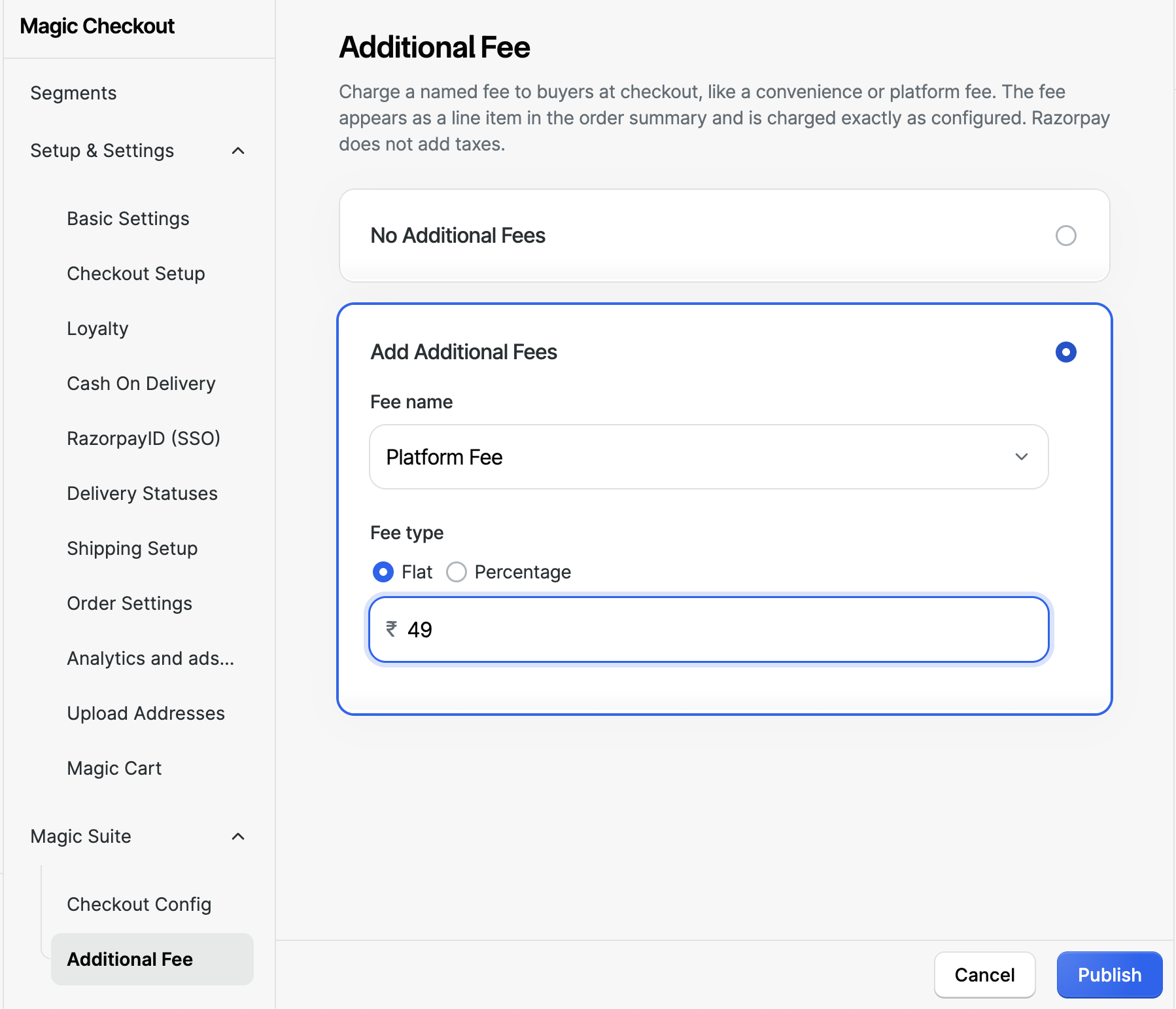
- You configure one fee — either a flat amount, for example ₹10, or a percentage of the cart subtotal, for example 1%.
- The fee is charged to the buyer exactly as you configure it. Razorpay does not calculate or add any tax on top — you are responsible for the tax treatment of the fee on your own books.
- The fee appears as a plain line item in the order summary, with the same visual weight as taxes and shipping. There is no banner or highlight.
- The fee is included in the total Razorpay captures and in the total written to your Shopify order.
How the Amount is Calculated
For a flat fee, the configured amount is charged on every order, regardless of cart value — including ₹0 carts. For a percentage fee, the amount is calculated on the cart subtotal before any discount — the sum of item prices in the cart:- Coupons, loyalty points, gift card redemptions and payment offers do not reduce the amount the fee is calculated on. The fee is resolved once against the pre-discount subtotal and stays fixed for the session, so buyers do not see it change when they apply or remove a coupon.
- The fee is calculated before shipping, taxes and COD charges are added.
- A percentage fee resolves to ₹0 only when the pre-discount subtotal itself is ₹0.
Discounts do not waive the feeThe fee is a merchant charge tied to the order being placed, not to the discounted amount the buyer pays. A coupon, even a 100%-off coupon, reduces what the buyer pays but does not reduce the fee. Loyalty points, gift card balance and payment offers can still cover the fee amount at payment time — the same way they cover shipping and COD charges today.
Configure Additional Fees
To set up your fee:- Log in to the Razorpay Dashboard and navigate to Magic Checkout → Magic Suite → Additional Fee.
-
Select Add Additional Fees. The configuration fields become active.
-
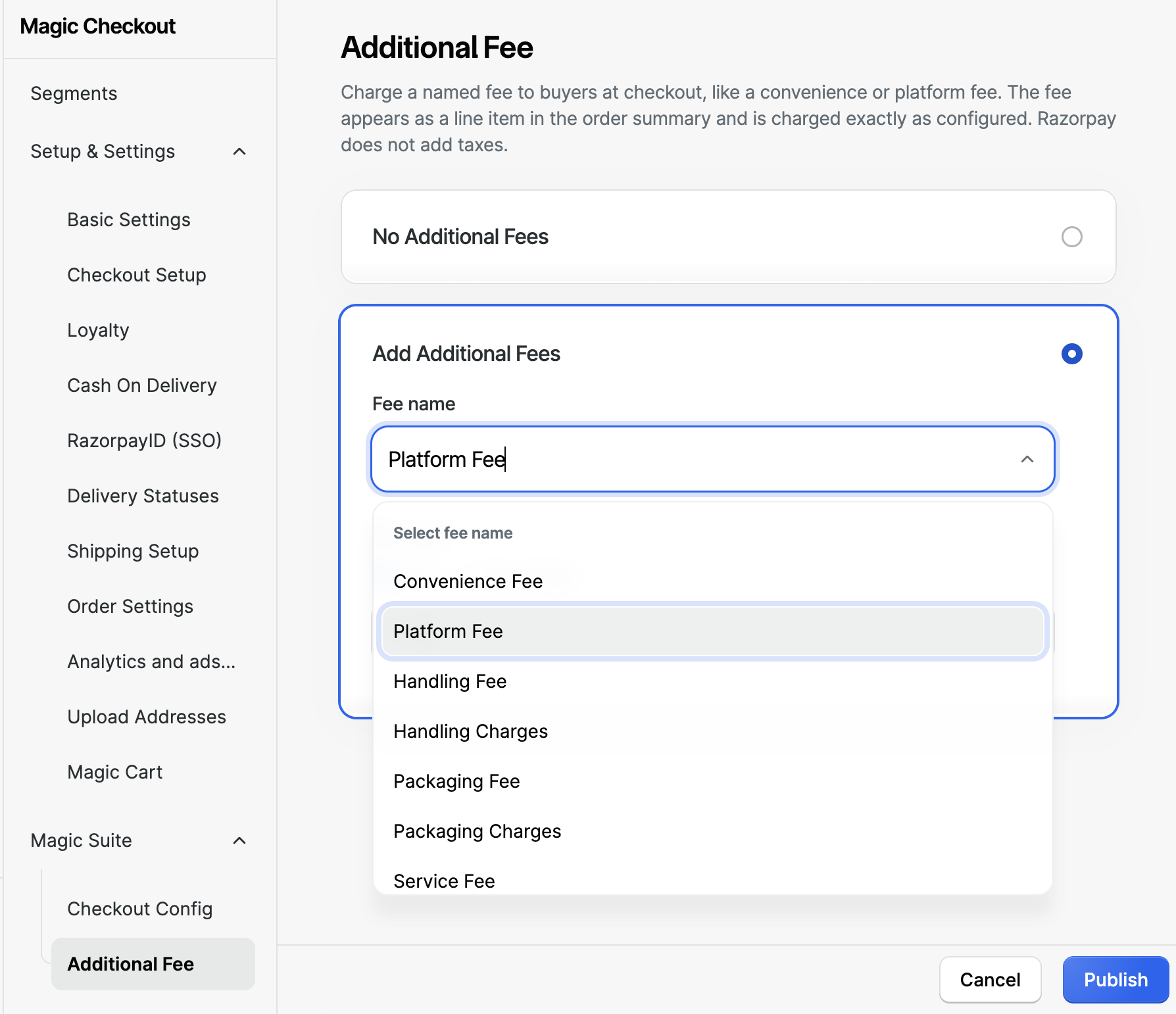
Select the Fee name from the drop-down list. You can choose one of the following pre-approved labels:
- Convenience Fee
- Platform Fee
- Handling Fee
- Handling Charges
- Packaging Fee
- Packaging Charges
- Service Fee
- Other Charges
-
Select the Fee type:
- Flat: a fixed rupee amount charged on every order.
- Percentage: a percentage of the cart subtotal.
- Enter the amount for a flat fee, or the rate for a percentage fee.
- Review the Preview panel on the right. It updates as you change the fee name, type or amount and shows how the fee appears to buyers. The preview uses a sample cart — the actual amount at checkout depends on the buyer’s cart.
-
Click Publish. In the Publish this fee? dialog, check the summary of what buyers will be charged and click Confirm. The fee goes live for all new checkout sessions from this point. To discard your changes instead, click Cancel.
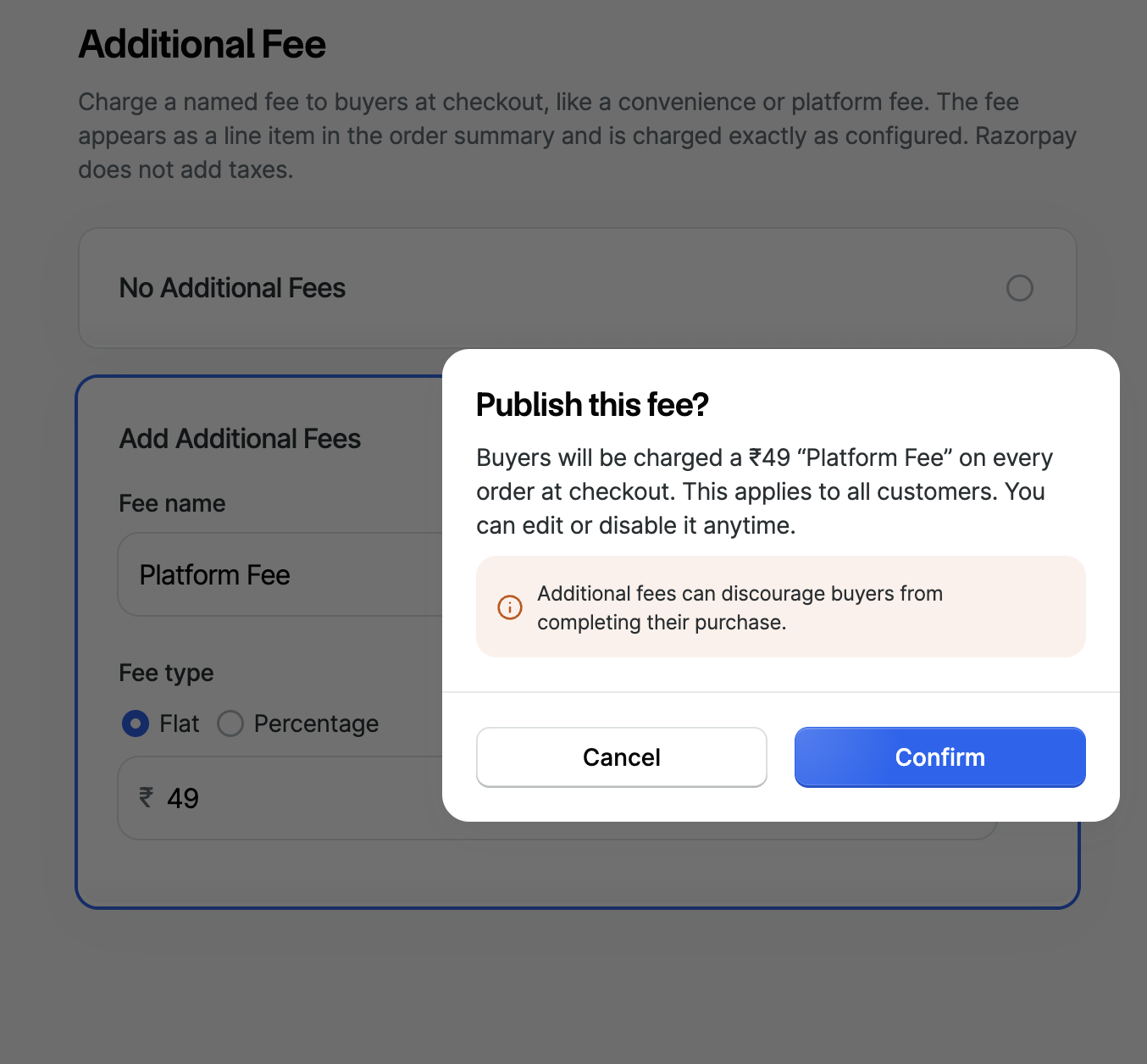
Changes apply to new sessions onlyAny change you make — the amount, rate, type or fee name, or turning the fee off — affects new checkout sessions only. Buyers already in an active checkout session are charged exactly what they were shown when their session started.
Stop Charging the Fee
To turn the fee off, select No Additional Fees and click Confirm. Buyers no longer see the charge on new checkout sessions.What Your Buyers See
When the fee is enabled, buyers see it as a line item in the order summary on the payments page, below the delivery charge and immediately above the grand total: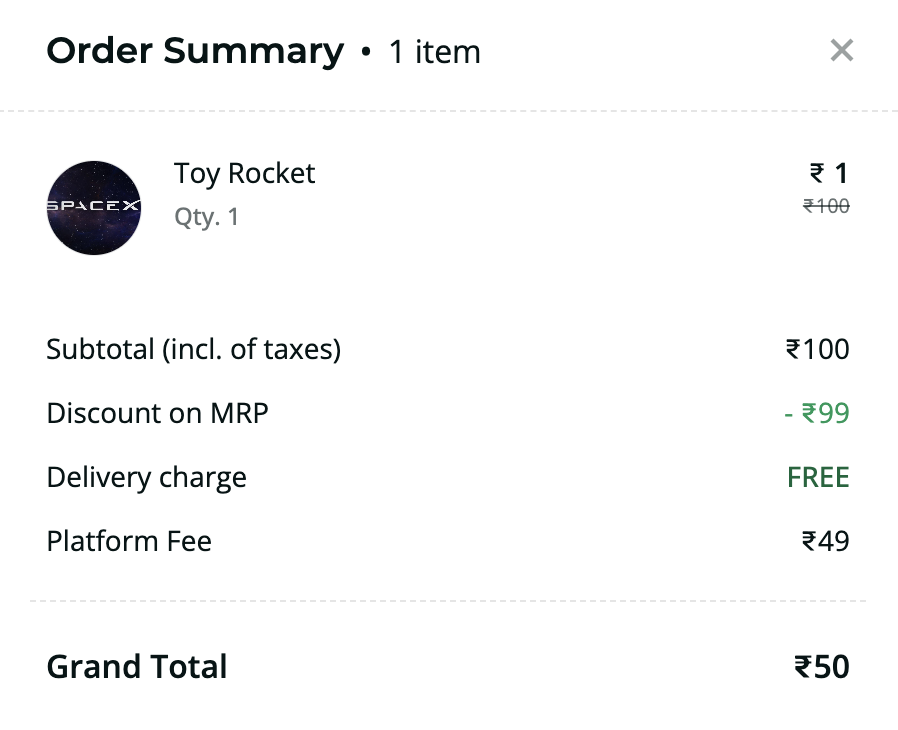 In this example a ₹99 discount brings a ₹100 item down to ₹1, and the ₹49 Platform Fee is still charged in full.
- The fee is shown only when the resolved amount is greater than ₹0. A percentage fee on a ₹0 cart is not shown.
- Applying or removing a coupon changes the payable total but does not change the fee amount.
What You See in Shopify
Every order placed through Magic Checkout carries the fee into your Shopify order. The fee is added as its own shipping line, separate from the delivery charge, so it appears as a distinct row with its own amount. Here is an order with a ₹49 flat Packaging Charges fee, as it appears in your Shopify admin order view. The fee sits under Shipping, on its own row below the delivery charge: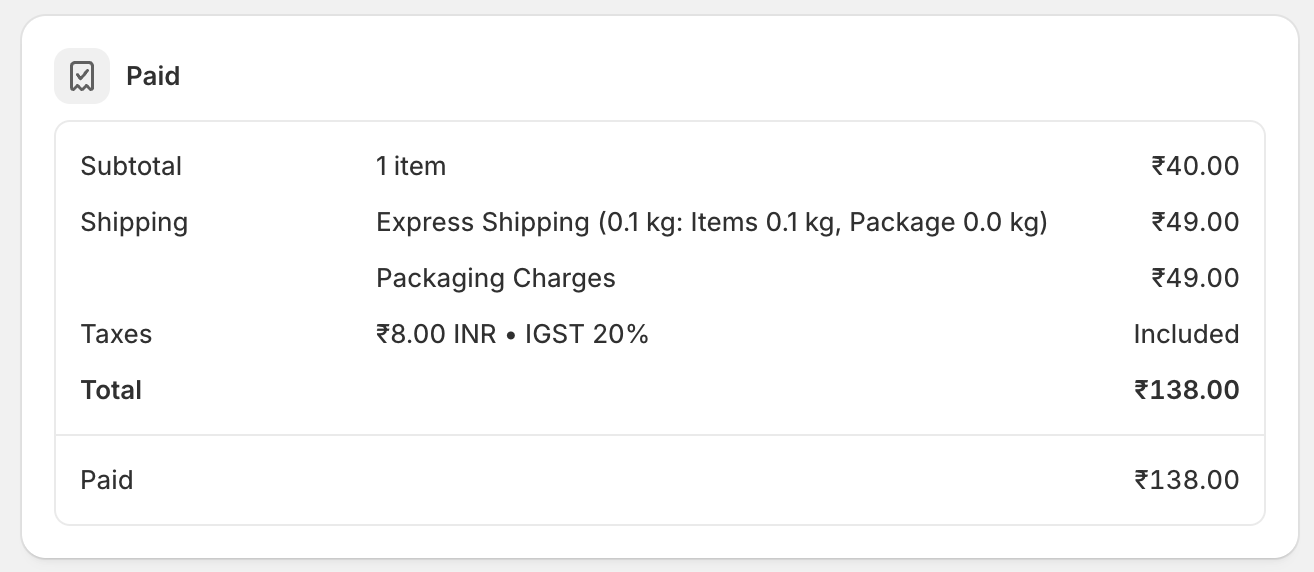 The fee row is labelled with the fee name you configured, so your operations team can identify and reconcile it directly in Shopify without opening the Magic Checkout Dashboard. The amount Razorpay captures always matches your Shopify order total.
Pulling orders through the Shopify API?The fee is an entry in the order’s
shippingLines. Both title and code carry the fee name you configured, so match on the fee name rather than on a fixed value — and note that changing your fee name on the Dashboard changes both fields on new orders.Refunds
The additional fee is part of the order total and is fully refundable from Razorpay’s payment layer:- Full refund on a cancellation or return: the fee is included in the refund.
- Payment captured but order not placed: the full amount, including the fee, is refunded.
- Partial refund: handled as a standard Razorpay partial refund on the captured total. The fee is part of the total and is not tracked or refunded separately.
Frequently Asked Questions
Can I charge more than one fee?
Can I charge more than one fee?
No. You can configure a single fee at a time. Support for multiple fees may be added in future.
Can I use a custom fee name?
Can I use a custom fee name?
No. The label is selected from the eight pre-approved options listed in Configure Additional Fees. Free-text labels are not supported.
Will Razorpay add GST on top of the fee I set?
Will Razorpay add GST on top of the fee I set?
No. The amount you configure is charged to the buyer exactly as set, that is, tax-inclusive. Razorpay does not calculate or add any tax on top. You are responsible for the tax treatment of the fee on your own books.
Does a coupon or discount reduce the fee?
Does a coupon or discount reduce the fee?
No. A percentage fee is calculated on the cart subtotal before any discount and stays fixed for the session. Coupons, loyalty points, gift cards and payment offers reduce what the buyer pays but do not reduce the fee amount.
Is the fee charged on COD orders?
Is the fee charged on COD orders?
Yes. In this version, the additional fee applies to COD orders and stacks with any existing COD fee.
I changed the fee amount mid-day. Which buyers are affected?
I changed the fee amount mid-day. Which buyers are affected?
Only buyers who start a new checkout session after you save the change. Buyers already in an active session are charged the fee that was shown to them when their session started.