

Available in🇮🇳 India
Given below are the steps to integrate Razorpay Standard Checkout on your website.
Handy TipsYou can try out our APIs on the Razorpay Postman Public Workspace. Fork the workspace and test the APIs with your Test API Keys.
1.1 Create a Customer in Server
Creating a customer generates a uniquecustomer_id by collecting basic details such as name, email and contact details. This customer_id must be included when creating a payment request to link the payment to the customer. Use the API sample code given below to create a customer.
POST /customers
Request Parameters
Request Parameters
name mandatory
: string Customer’s name.- Character length: Between 5 and 50 characters.
- Allowed characters: Uppercase letters (A-Z), lowercase letters (a-z), and spaces (not at the beginning).
- Not allowed characters: Numbers, special characters (e.g., @, ”, ,, ., etc.), Unicode characters, emojis, and non-Latin scripts or regional languages.
- Prohibited names: Names must be meaningful and contextually appropriate.
- Avoid using repetitive patterns (e.g., aaa, xyz, kkk kk).
- Names like litri litri, Hfg Gh, or husi husi are not permitted.
- Curse words or offensive names are prohibited.
- Example:
Gaurav Kumar.
contact mandatory
: string The customer’s phone number. A maximum length of 15 characters including country code. For example, +919000090000.email mandatory
: string The customer’s email address. A maximum length of 64 characters for the username. For example, in “gaurav.kumar@example.com”, “gaurav.kumar” must not exceed 64 characters.fail_existing optional
: string The request throws an exception by default if a customer with the exact details already exists. You can pass an additional parameter fail_existing to get the existing customer’s details in the response. Possible values:1(default): If a customer with the same details already exists, throws an error.0: If a customer with the same details already exists, fetches details of the existing customer.
gstin optional
: string Customer’s GST number, if available. For example,
29XAbbA4369J1PA.notes optional
: object Key-value pair used to store additional information about the entity. Holds 15 key-value pairs, 256 characters (maximum) each. For example, "note_key": "Beam me up Scotty”.Response Parameters
Response Parameters
id
: string Unique identifier of the customer. For example, cust_1Aa00000000004.entity
: string Indicates the type of entity.name
: string Customer’s name.- Character length: Between 5 and 50 characters.
- Allowed characters: Uppercase letters (A-Z), lowercase letters (a-z), and spaces (not at the beginning).
- Not allowed characters: Numbers, special characters (e.g., @, ”, ,, ., etc.), Unicode characters, emojis, and non-Latin scripts or regional languages.
- Prohibited names: Names must be meaningful and contextually appropriate.
- Avoid using repetitive patterns (e.g., aaa, xyz, kkk kk).
- Names like litri litri, Hfg Gh, or husi husi are not permitted.
- Curse words or offensive names are prohibited.
- Example:
Gaurav Kumar.
contact
: string The customer’s phone number. A maximum length of 15 characters including country code. For example, +919000090000.email
: string The customer’s email address. A maximum length of 64 characters for the username. For example, in “gaurav.kumar@example.com”, “gaurav.kumar” must not exceed 64 characters.gstin
: string GST number linked to the customer. For example,
29XAbbA4369J1PA.notes
: object Key-value pair used to store additional information about the entity. Holds 15 key-value pairs, 256 characters (maximum) each. For example, "note_key": "Beam me up Scotty”.created_at
: integer UNIX timestamp, when the customer was created. For example, 1234567890.Error Response Parameters
Error Response Parameters
1.2 Create an Order in Server
After a customer is created, an order needs to be generated using the Orders API. This order contains details such as the payment amount, currency, customer details, tax-related information and other custom notes. After the order is created, anorder_id is generated, for example, order_NGrgEcmYJsfUyl. You must pass this order_id in the checkout code to associate this order with the payment. Learn more about Order and Payment states.
POST /orders
Curl
Merchant ID(MID)-Level HS Code MappingIf all your products map to a single HS code, Razorpay can configure it at the MID level. In this case, you do not need to pass
hsc in the Create Order API. If you sell products with different HS codes, pass the respective hsc in the line item details for each product.For example:- Single HS code: A business who only sells cotton shirts maps HS code
620520at the MID level. The Create Order API can be called withoutline_items. - Multiple HS codes: A business who sells cotton shirts and sports footwear passes the respective HS code for each product in
line_items(620520for shirts,640411for footwear).
Request Parameters
Request Parameters
amount mandatory
: integer The amount for which the order was created, in currency subunits. For example, for an amount of ₹295, enter 29500. Payment can only be made for this amount against the Order.currency mandatory
: string ISO code for the currency in which you want to accept the payment. The default length is 3 characters. For example, INR.receipt optional
: string Receipt number that corresponds to this order, set for your internal reference. Can have a maximum length of 40 characters and has to be unique.customer_id mandatory
: string Unique identifier of the customer. For example, cust_1Aa00000000004.customer_details mandatory
: object This contains details about the customer details of the order.name mandatory
: string Customer’s name.- Character length: Between 5 and 50 characters.
- Allowed characters: Uppercase letters (A-Z), lowercase letters (a-z), and spaces (not at the beginning).
- Not allowed characters: Numbers, special characters (e.g., @, ”, ,, ., etc.), Unicode characters, emojis, and non-Latin scripts or regional languages.
- Prohibited names: Names must be meaningful and contextually appropriate.
- Avoid using repetitive patterns (e.g., aaa, xyz, kkk kk).
- Names like litri litri, Hfg Gh, or husi husi are not permitted.
- Curse words or offensive names are prohibited.
- Example:
Gaurav Kumar.
email optional
: string The customer’s email address. A maximum length of 64 characters for the username. For example, in “gaurav.kumar@example.com”, “gaurav.kumar” must not exceed 64 characters.contact optional
: string The customer’s phone number. A maximum length of 15 characters including country code. For example, +919123456780.shipping_address mandatory
: object This contains the shipping address of the order.line1 mandatory
: string Address Line 1 of the address.- Character length: Must be between 3 and 100 characters.
- Allowed characters: Uppercase letters (A-Z), lowercase letters (a-z), numbers (0-9), spaces, and special characters (*&/-()#_+{}[]:’”.,.).
- Not allowed characters: Regional languages.
line2 mandatory
: string Address Line 2 of the address.- Character length: Must be between 3 and 100 characters.
- Allowed characters: Uppercase letters (A-Z), lowercase letters (a-z), numbers (0-9), spaces, and special characters (*&/-()#_+{}[]:’”.,.).
- Not allowed characters: Regional languages.
city mandatory
: string Name of the city. Must be between 3 and 50 characters in length and can only include uppercase (A-Z) and lowercase (a-z) English letters, and spaces.country mandatory
: string ISO3 country code of the billing address. Only IND is allowed.state mandatory
: string Name of the state. It must be between 3 and 50 characters extended and can only include uppercase (A-Z) and lowercase (a-z) English letters and spaces. Please send the full name of the state, for example, Madhya Pradesh.zipcode mandatory
: string The ZIP code must consist of 6-digit numeric characters. Only valid Indian ZIP codes will be accepted. Refer to the list of supported ZIP codes.latitude optional
: float Latitude of the position expressed in decimal degrees (WSG 84), for example, 6.244203. A positive value denotes the northern hemisphere or the equator, and a negative value denotes the southern hemisphere. The number of digits to represent the precision of the coordinate.longitude optional
: float Longitude of the position expressed in decimal degrees (WSG 84), for example, -75.581211. A positive value denotes east longitude or the prime meridian, and a negative value denotes west longitude. The number of digits to represent the precision of the coordinate.line_items mandatory
: array Array of line items in the order. Each line item represents a product being purchased. Required for Goods businesses to capture the Harmonised System code per product for cross-border settlement.type optional
: string Type of the line item. Possible value: e_commerce.name optional
: string Name of the product. For example, Cotton Shirt.e_commerce mandatory
: object Contains e-commerce specific details for the product.other_product_codes mandatory
: object Contains product code identifiers used for risk assessment and regulatory classification.hsc mandatory
: string Harmonised System code that classifies the exported product for customs and AD bank settlement. Must be between 6 and 12 digits. For example, 620520.notes optional
: json object Key-value pair used to store additional information about the entity. Holds 15 key-value pairs, 256 characters (maximum) each. For example, "note_key": "Beam me up Scotty”.Response Parameters
Response Parameters
amount
: integer The amount for which the order was created, in currency subunits. For example, for an amount of ₹295, enter 29500.amount_due
: integer The amount pending against the order.amount_paid
: integer The amount paid against the order.attempts
: integer The number of payment attempts, successful and failed, that have been made against this order.created_at
: integer Indicates the Unix timestamp when this order was created.currency
: string ISO code for the currency in which you want to accept the payment. The default length is 3 characters.entity
: string Name of the entity. Here, it is order.id
: string The unique identifier of the order.notes
: object Key-value pair used to store additional information about the entity. Holds 15 key-value pairs, 256 characters (maximum) each. For example, "note_key": "Beam me up Scotty”.offer_id
: string The unique identifier of the offer. For example, offer_JHD834hjbxzhd38d.receipt
: string Receipt number that corresponds to this order. Can have a maximum length of 40 characters and has to be unique.status
: string The status of the order. Possible values:created: When you create an order, it is in thecreatedstate. It stays in this state till a payment is attempted on it.attempted: An order changes to theattemptedstate following the first payment attempt and remains in this state until at least one payment is successfully processed and captured.paid: After the successful capture of the payment, the order moves to thepaidstate. No further payment requests are permitted once the order moves to thepaidstate.
The order stays in thepaidstate even if the payment associated with the order is refunded.
Error Response Parameters
Error Response Parameters
1.3 Integrate with Checkout on Client-Side
Add the Pay button on your web page using the checkout code, Handler Function or Callback URL.Handler Function or Callback URL
Handler Function or Callback URL
Supported Payment Methods
Supported Payment Methods
Following payment methods are supported under the Import Flow:
- Netbanking
- UPI
- Cards
- Recurring
For recurring payments, additional integration is needed. Cards, UPI, and UPI with TPV are supported as a payment methods.
Checkout Parameters
Checkout Parameters
key mandatory
: string API Key ID generated from the Razorpay Dashboard.amount mandatory
: integer The amount to be paid by the customer in currency subunits. For example, if the amount is ₹500, enter 50000.currency mandatory
: string The currency in which the payment should be made by the customer. See the list of supported currencies.name mandatory
: string Your Business/Enterprise name shown on the Checkout form. For example, Acme Corp.description optional
: string Description of the purchase item shown on the Checkout form. It should start with an alphanumeric character.image optional
: string Link to an image (usually your business logo) shown on the Checkout form. Can also be a base64 string if you are not loading the image from a network.order_id mandatory
: string Order ID generated via Orders API.prefill
: object You can prefill the following details at Checkout.Boost Conversions and Minimise Drop-offs
- Autofill customer contact details, especially phone number to ease form completion. Include customer’s phone number in the
contactparameter of the JSON request’sprefillobject. Format: +(country code)(phone number). Example: “contact”: “+919000090000”). - This is not applicable if you do not collect customer contact details on your website before checkout, have Shopify stores or use any of the no-code apps.
name optional
: string Cardholder’s name to be pre-filled if customer is to make card payments on Checkout. For example, Gaurav Kumar.email optional
: string Email address of the customer.contact optional
: string Phone number of the customer. The expected format of the phone number is + {country code}{phone number}. If the country code is not specified, 91 will be used as the default value. This is particularly important while prefilling contact of customers with phone numbers issued outside India. Examples:- +14155552671 (a valid non-Indian number)
- +919977665544 (a valid Indian number).
If 9977665544 is entered,+91is added to it as +919977665544.
method optional
: string Pre-selection of the payment method for the customer. Will only work if contact and email are also pre-filled. Possible values:cardnetbankingwalletemiupi
theme
: object Thematic options to modify the appearance of Checkout.color optional
: string Enter your brand colour’s HEX code to alter the text, payment method icons and CTA (call-to-action) button colour of the Checkout form.backdrop_color optional
: string Enter a HEX code to change the Checkout’s backdrop colour.modal
: object Options to handle the Checkout modal.backdropclose optional
: boolean Indicates whether clicking the translucent blank space outside the Checkout form should close the form. Possible values:true: Closes the form when your customer clicks outside the checkout form.false(default): Does not close the form when customer clicks outside the checkout form.
escape optional
: boolean Indicates whether pressing the escape key should close the Checkout form. Possible values:true(default): Closes the form when the customer presses the escape key.false: Does not close the form when the customer presses the escape key.
handleback optional
: boolean Determines whether Checkout must behave similar to the browser when back button is pressed. Possible values:true(default): Checkout behaves similarly to the browser. That is, when the browser’s back button is pressed, the Checkout also simulates a back press. This happens as long as the Checkout modal is open.false: Checkout does not simulate a back press when browser’s back button is pressed.
confirm_close optional
: boolean Determines whether a confirmation dialog box should be shown if customers attempts to close Checkout. Possible values:true: Confirmation dialog box is shown.false(default): Confirmation dialog box is not shown.
ondismiss optional
: function Used to track the status of Checkout. You can pass a modal object with ondismiss: function()\{\} as options. This function is called when the modal is closed by the user.animation optional
: boolean Shows an animation before loading of Checkout. Possible values:true(default): Animation appears.false: Animation does not appear.
subscription_id optional
: string If you are accepting recurring payments using Razorpay Checkout, you should pass the relevant subscription_id to the Checkout. Know more about Subscriptions on Checkout.subscription_card_change optional
: boolean Permit or restrict customer from changing the card linked to the subscription. You can also do this from the hosted page. Possible values:true: Allow the customer to change the card from Checkout.false(default): Do not allow the customer to change the card from Checkout.
recurring optional
: boolean Determines if you are accepting recurring (charge-at-will) payments on Checkout via instruments such as emandate, paper NACH and so on. Possible values:true: You are accepting recurring payments.false(default): You are not accepting recurring payments.
callback_url optional
: string Customers will be redirected to this URL on successful payment. Ensure that the domain of the Callback URL is allowlisted.redirect optional
: boolean Determines whether to post a response to the event handler post payment completion or redirect to Callback URL. callback_url must be passed while using this parameter. Possible values:true: Customer is redirected to the specified callback URL in case of payment failure.false(default): Customer is shown the Checkout popup to retry the payment with the suggested next best option.
customer_id optional
: string Unique identifier of customer. Used for:- Local saved cards feature.
- Static bank account details on Checkout in case of Bank Transfer payment method.
remember_customer optional
: boolean Determines whether to allow saving of cards. Can also be configured via the Dashboard. Possible values:true: Enables card saving feature.false(default): Disables card saving feature.
timeout optional
: integer Sets a timeout on Checkout, in seconds. After the specified time limit, the customer will not be able to use Checkout.readonly
: object Marks fields as read-only.contact optional
: boolean Used to set the contact field as readonly. Possible values:true: Customer will not be able to edit this field.false(default): Customer will be able to edit this field.
email optional
: boolean Used to set the email field as readonly. Possible values:true: Customer will not be able to edit this field.false(default): Customer will be able to edit this field.
name optional
: boolean Used to set the name field as readonly. Possible values:true: Customer will not be able to edit this field.false(default): Customer will be able to edit this field.
hidden
: object Hides the contact details.contact optional
: boolean Used to set the contact field as optional. Possible values:true: Customer will not be able to view this field.false(default): Customer will be able to view this field.
email optional
: boolean Used to set the email field as optional. Possible values:true: Customer will not be able to view this field.false(default): Customer will be able to view this field.
send_sms_hash optional
: boolean Used to auto-read OTP for cards and net banking pages. Applicable from Android SDK version 1.5.9 and above. Possible values:true: OTP is auto-read.false(default): OTP is not auto-read.
allow_rotation optional
: boolean Used to rotate payment page as per screen orientation. Applicable from Android SDK version 1.6.4 and above. Possible values:true: Payment page can be rotated.false(default): Payment page cannot be rotated.
retry optional
: object Parameters that enable retry of payment on the checkout.enabled
: boolean Determines whether the customers can retry payments on the checkout. Possible values:true(default): Enables customers to retry payments with the suggested next best option.false: Disables customers from retrying the payment.
max_count
: integer The number of times the customer can retry the payment with the suggested next best option. We recommend you to set this to 4. Having a larger number here can cause loops to occur.config optional
: object Parameters that enable checkout configuration.display
: object Child parameter that enables configuration of checkout display language.language
: string The language in which checkout should be displayed. Possible values:en: Englishben: Bengalihi: Hindimar: Marathiguj: Gujaratitam: Tamiltel: Telugu
notes mandatory
: object Key-value pair that can be used to store additional information about the entity. Maximum 15 key-value pairs, 256 characters (maximum) each. For example, "note_key": "Beam me up Scotty”.invoice_number mandatory
: string Invoice number of the invoice generated. Ensure each payment has a unique invoice number.goods_description mandatory
: string Description of the goods. For example, Digital Lamp.Errors
Errors
Given below is a list of errors you may face while integrating with checkout on the client-side.
Configure Payment Methods (Optional)
Configure Payment Methods (Optional)
Multiple payment methods are available on the Razorpay Web Standard Checkout.
- The payment methods are fixed and cannot be changed.
- You can configure the order or make certain payment methods prominent. Know more about configuring payment methods.
Handy TipsThe open method of Razorpay object (
rzp1.open()) must be invoked by your site’s JavaScript, which may or may not be a user-driven action such as a click.1.4 Handle Payment Success and Failure
The way the Payment Success and Failure scenarios are handled depends on the Checkout Sample Code you used in the last step.Checkout with Handler Function
Checkout with Handler Function
If you used the sample code with the handler function:
- On Payment Success
- On Payment Failure
The customer sees your website page. The checkout returns the response object of the successful payment (razorpay_payment_id, razorpay_order_id and razorpay_signature). Collect these and send them to your server.
Checkout with Callback URL
Checkout with Callback URL
If you used the sample code with the callback URL:
- On Payment Success
- On Payment Failure
Razorpay makes a POST call to the callback URL with the razorpay_payment_id, razorpay_order_id and razorpay_signature in the response object of the successful payment. Only successful authorisations are auto-submitted.
1.5 Store Fields in Your Server
A successful payment returns the following fields to the Checkout form.Success Callback
Success Callback
- You need to store these fields in your server.
- You can confirm the authenticity of these details by verifying the signature in the next step.
razorpay_payment_id
: string Unique identifier for the payment returned by Checkout only for successful payments.razorpay_order_id
: string Unique identifier for the order returned by Checkout.razorpay_signature
: string Signature returned by the Checkout. This is used to verify the payment.1.6 Verify Payment Signature
This is a mandatory step to confirm the authenticity of the details returned to the Checkout form for successful payments.To verify the razorpay_signature returned to you by the Checkout form:
To verify the razorpay_signature returned to you by the Checkout form:
-
Create a signature in your server using the following attributes:
order_id: Retrieve theorder_idfrom your server. Do not use therazorpay_order_idreturned by Checkout.razorpay_payment_id: Returned by Checkout.key_secret: Available in your server. Thekey_secretthat was generated from the Dashboard.
-
Use the SHA256 algorithm, the
razorpay_payment_idand theorder_idto construct a HMAC hex digest as shown below:
HMAC Hex Digest
- If the signature you generate on your server matches the
razorpay_signaturereturned to you by the Checkout form, the payment received is from an authentic source.
Generate Signature on Your Server
Generate Signature on Your Server
Given below is the sample code for payment signature verification:
Post Signature Verification
Post Signature Verification
After you have completed the integration, you can set up webhooks, make test payments, replace the test key with the live key and integrate with other APIs.
1.7 Verify Payment Status
Handy TipsOn the Razorpay Dashboard, ensure that the payment status is
captured. Refer to the payment capture settings page to know how to capture payments automatically.You can track the payment status in three ways:
You can track the payment status in three ways:
- Verify Status from Dashboard
- Subscribe to Webhook Events
- Poll APIs
To verify the payment status from the Razorpay Dashboard: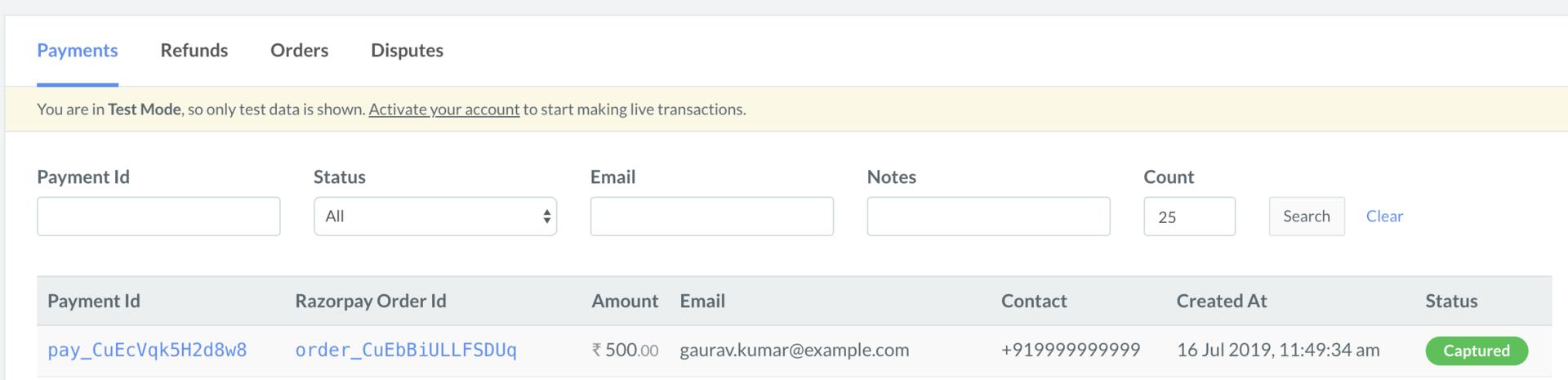
- Log in to the Razorpay Dashboard and navigate to Transactions → Payments.
- Check if a Payment Id has been generated and note the status. In case of a successful payment, the status is marked as Captured.