

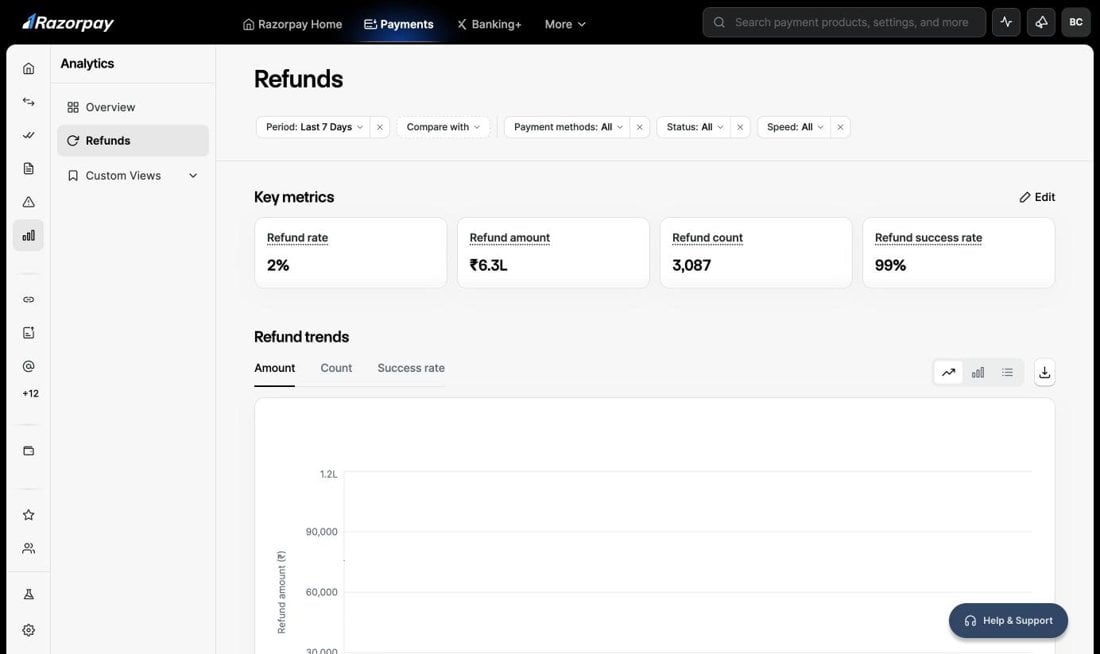
Apply Filters
The filters at the top of the page apply to every widget below them: key metrics, trends and the refunds breakdown. Use the filters to:- Select the Period: Today, Yesterday, Last 7 Days (default), Last 14 Days, Last 30 Days or a Custom range of up to 90 days.
- Click Compare with to compare the selected period against the Previous period or a Custom date range.
- Filter by Payment methods: Card, Netbanking, UPI or All. Expand Card or UPI to pick a sub-type.
- Filter by refund Status: Pending, Processed, Failed or All.
- Filter by refund Speed: Normal, Instant or All.
- Filter by Gateway: a specific gateway or All. Available only for Optimizer merchants who route payments to gateways other than Razorpay.
- Click × on any filter to clear it.
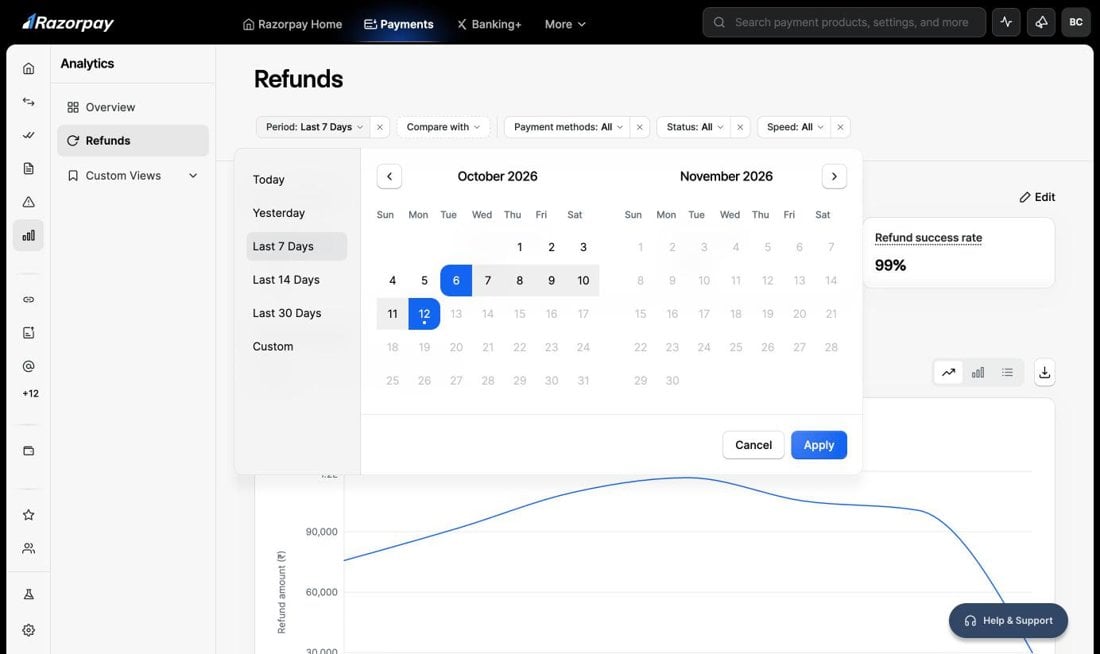
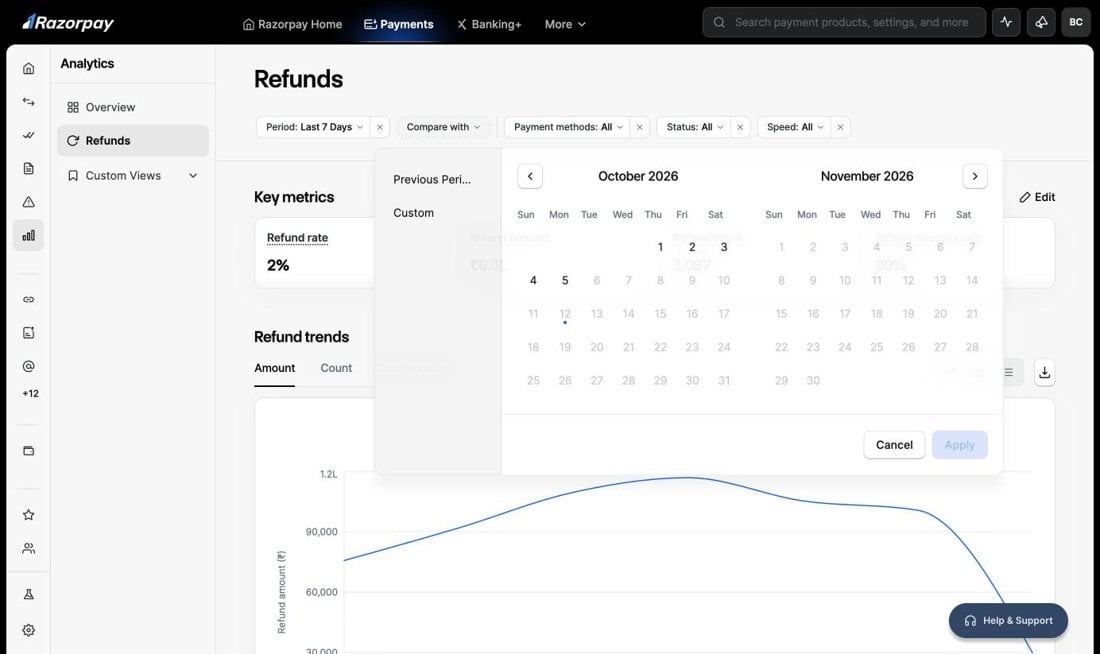
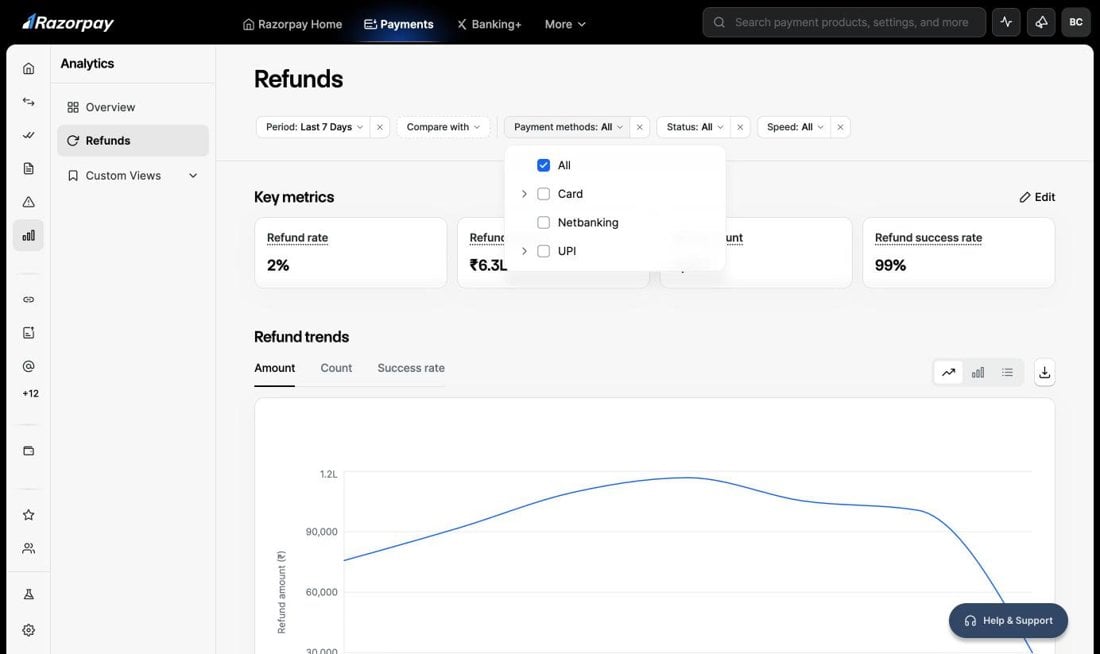
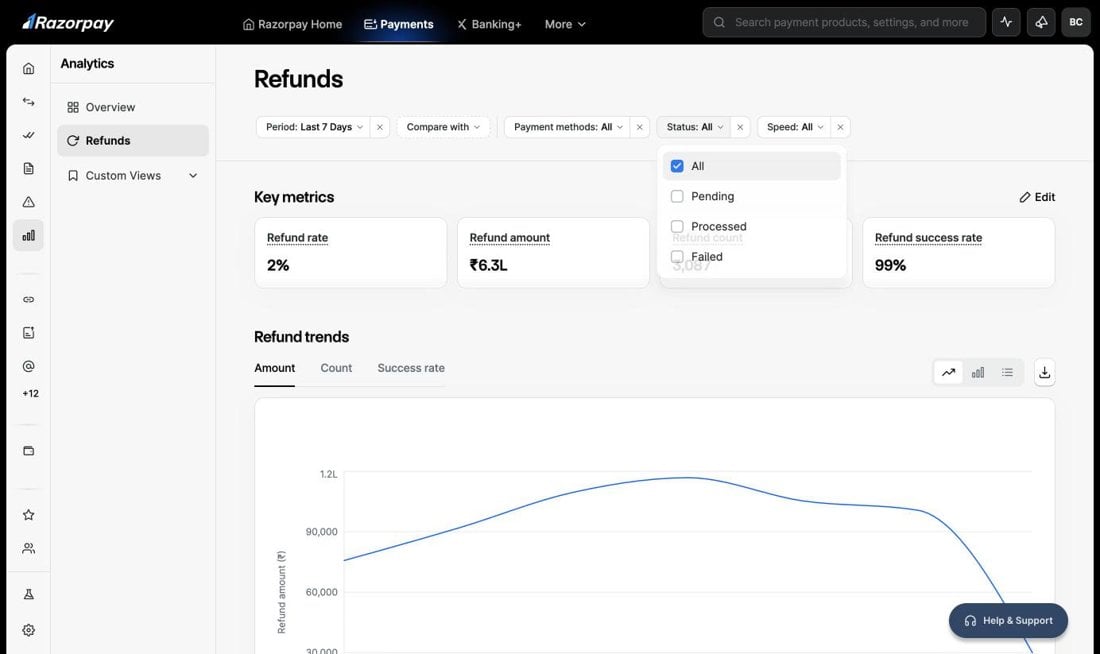
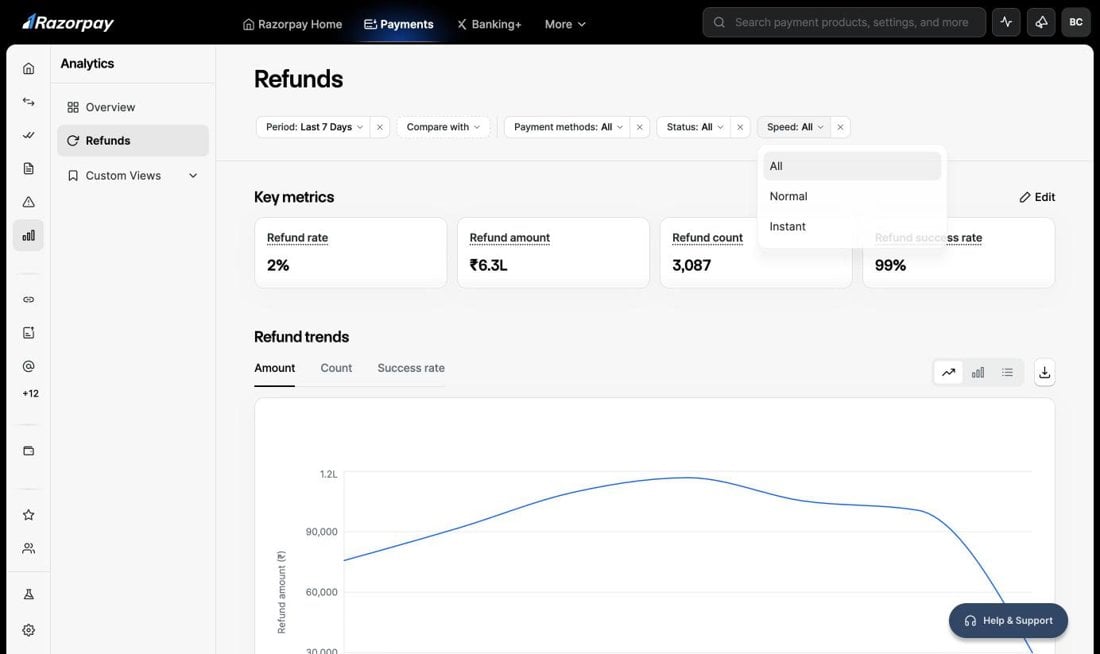
The Gateway filter only shows for Optimizer merchants routing payments to gateways other than Razorpay.
Track Key Metrics
Key metrics give you a quick read on refund health for the selected filters.- The page shows 4 metrics by default: Refund rate, Refund amount, Refund count and Refund success rate.
- Hover over a metric name to see its definition.
- Click Edit to choose which metrics to display. Pin up to 4 metrics. Selecting a new metric replaces the one selected last.
- Each metric value reflects your filter selection.
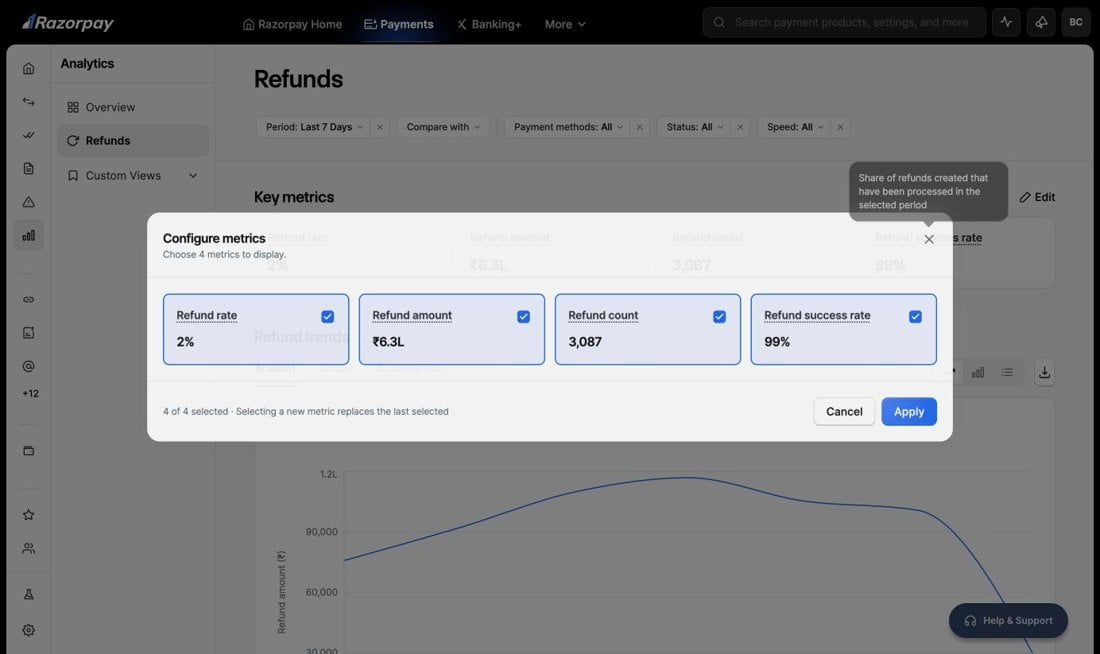
Refund rate and Refund success rate depend on the payments authorised and the refunds initiated in the selected period. Refunds for recent payments may still be in progress, so these rates can read lower for the last few days and settle over time.
Track Refund Trends
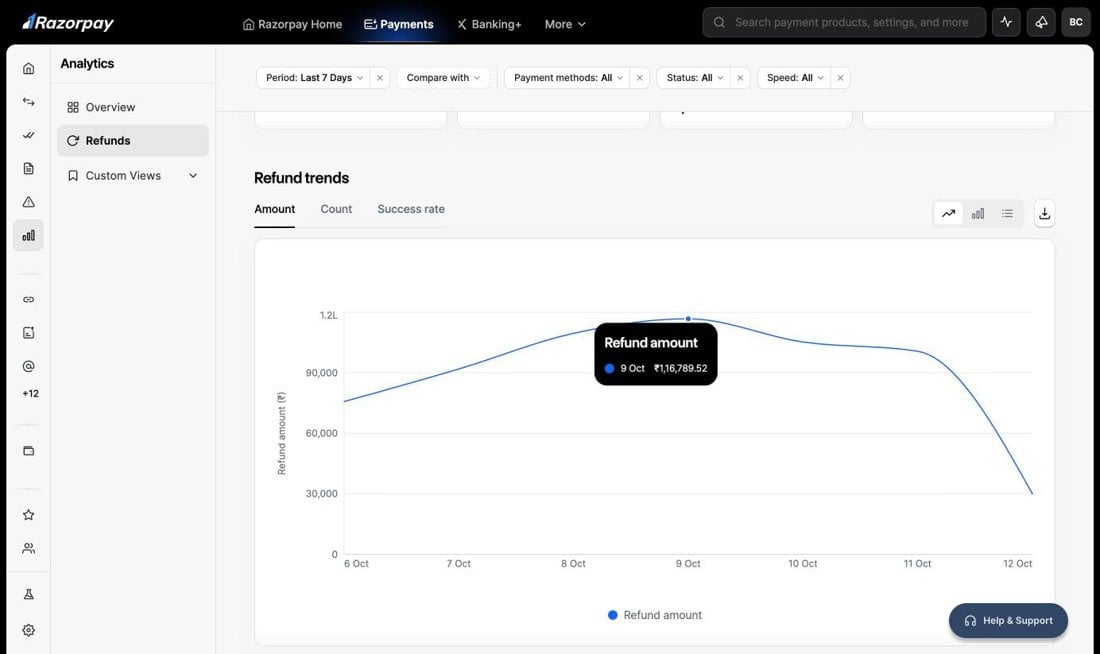
The Refund trends chart plots how refunds move over time for the selected filters.- Switch between the Amount, Count and Success rate tabs.
- Hover over any point on the chart to see its exact value.
- Use Compare with in the filters to compare against another date range.
- Switch the view to Trend line, Bar chart or Data table.
- Click Download to export the chart data as a CSV file.
- Track TAT for refunds processed through external gateways and split the trends by gateway. Available only for Optimizer merchants.
View the Refunds Breakdown
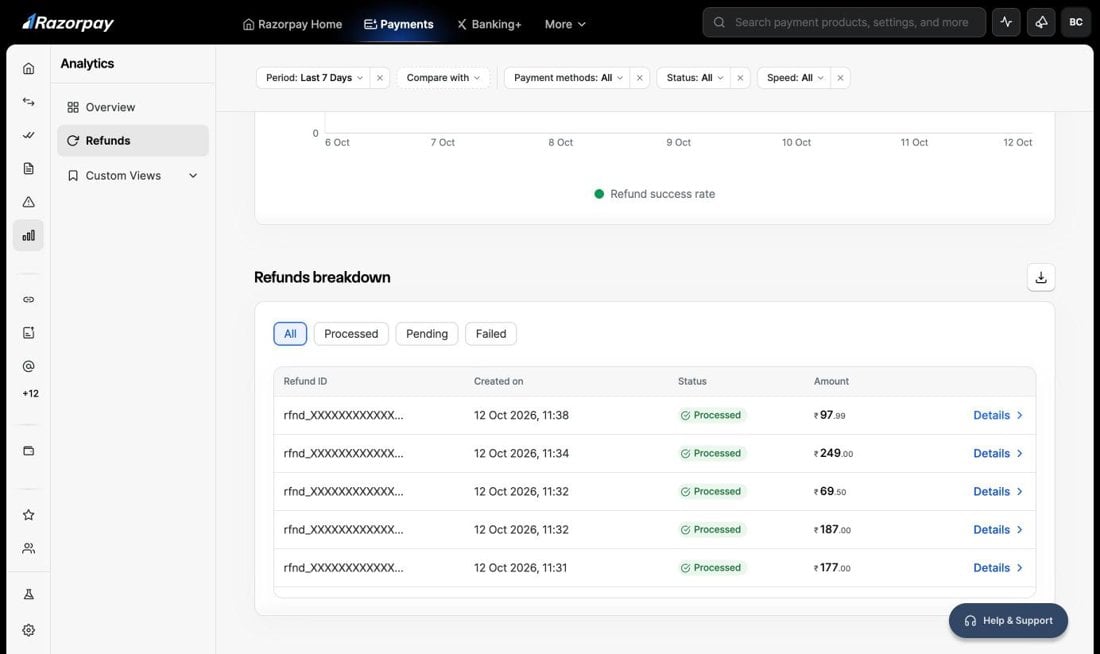
The Refunds breakdown lists every refund that matches your filters, newest first.- Use the quick filters to view All, Processed, Pending or Failed refunds.
- Each row shows the Refund ID, Created on date and time, Status and Amount.
- Click Details on any row to open the refund in the right pane.
- Click Download to export the list.
Open Refund Details
Click Details on any row to open the right pane with the full context of a refund. The right pane shows:- Transaction details: Payment ID, Bank Retrieval Reference Number (RRN), Order ID, Invoice ID, Payment method, Customer details and Processed by.
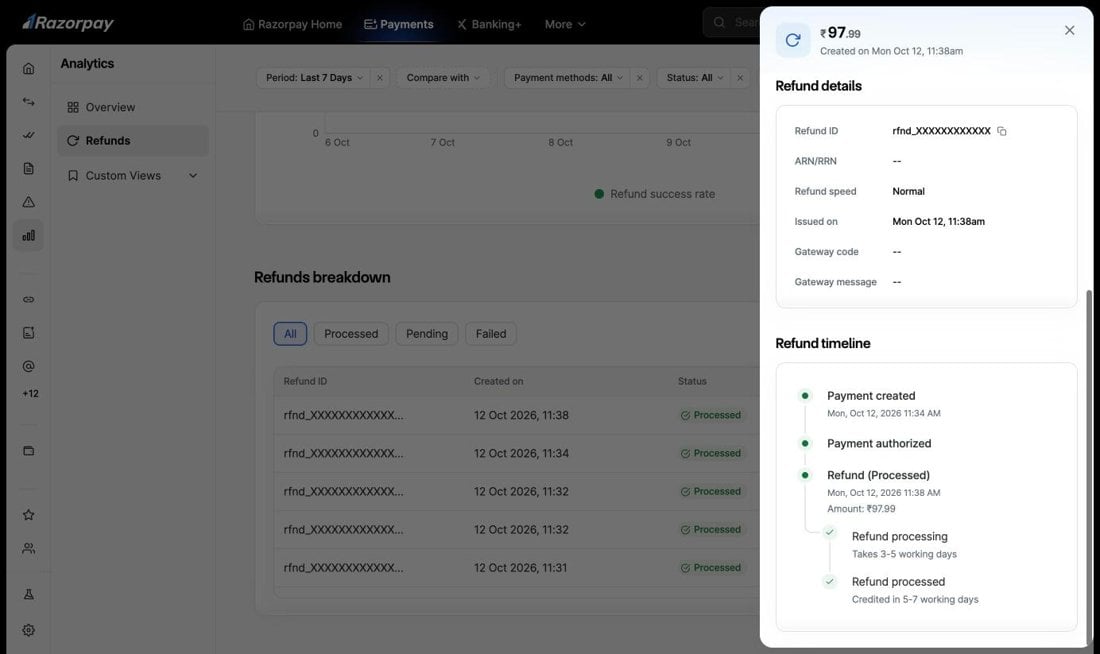
- Refund details: Refund ID, Acquirer Reference Number (ARN) or RRN, Refund speed, Issued on, Gateway code and Gateway message.
- Refund timeline: Each step from payment creation to authorisation, refund creation and refund processing, with timestamps.
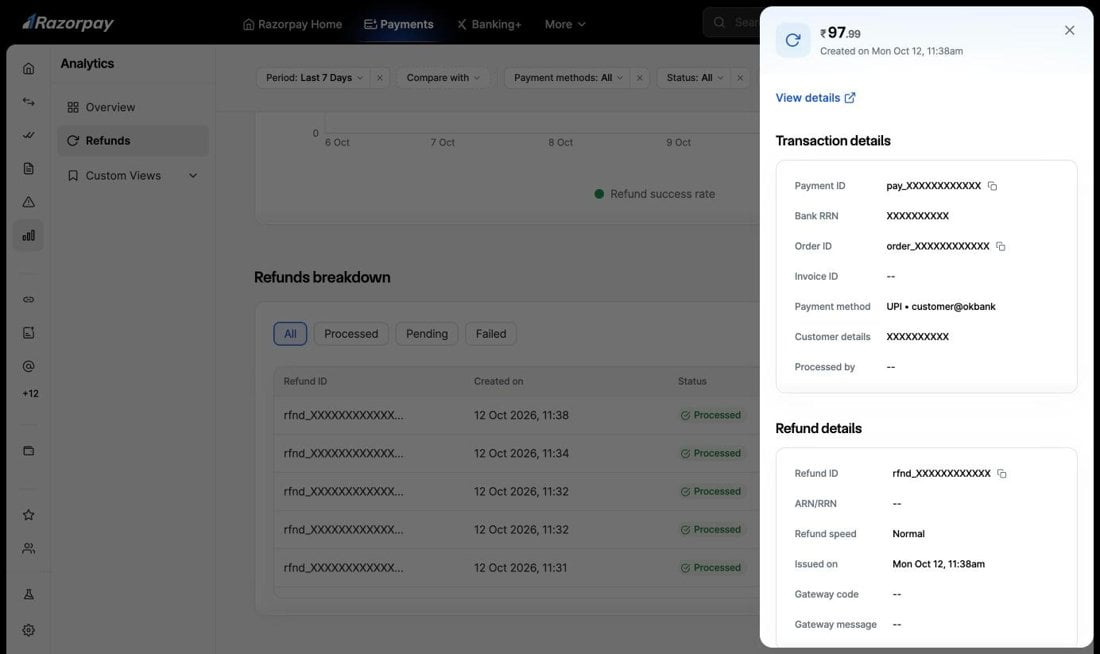
- Click View details to open the refund on the Refunds page under Transactions.
- Click the copy icon next to any ID to copy its value.
Share the ARN or RRN with your customer when they ask about a refund. Their bank can use it to trace the credit. Normal refunds take 3 to 5 working days to process. The money reaches your customer in 5 to 7 working days. Instant refunds reach your customer within minutes. Know more about Instant Refunds.