

Available in🇮🇳 India🇸🇬 Singapore🇺🇸 United States
You can sign in to the Razorpay Dashboard with a 6-digit code from an authenticator app on your phone instead of waiting for an SMS OTP. Setup takes about a minute. After that, the Dashboard asks for the code from your app at sign-in and no SMS is sent. SMS OTP stays on as your backup.
Authenticator app sign-in is being rolled out to merchants in India in phases. If you do not see the Authenticator app card on the Security & sign-in page, contact your account manager or raise a request with our Support team.
Before You Start
- Use the web Dashboard at dashboard.razorpay.com in a browser, on your computer or your phone.
- Install an authenticator app on your phone. Google Authenticator, Microsoft Authenticator, Authy, 1Password, Duo and any other app that generates time-based 6-digit codes work.
- Keep a verified phone number on your profile. It is your backup if your phone is not with you, and some sensitive actions still start with an SMS OTP.
- Each team member sets up the authenticator app for their own login. Setting it up for yourself does not change anything for other users on your account.
Set Up an Authenticator App
-
Log in to the Dashboard and click Account & Settings. Under Your profile, click Manage next to Security & sign-in.

-
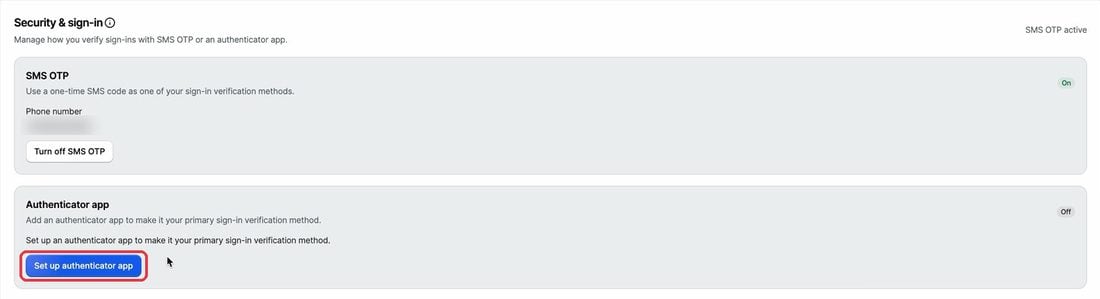
You see two cards: SMS OTP and Authenticator app. On the Authenticator app card, click Set up authenticator app.
-
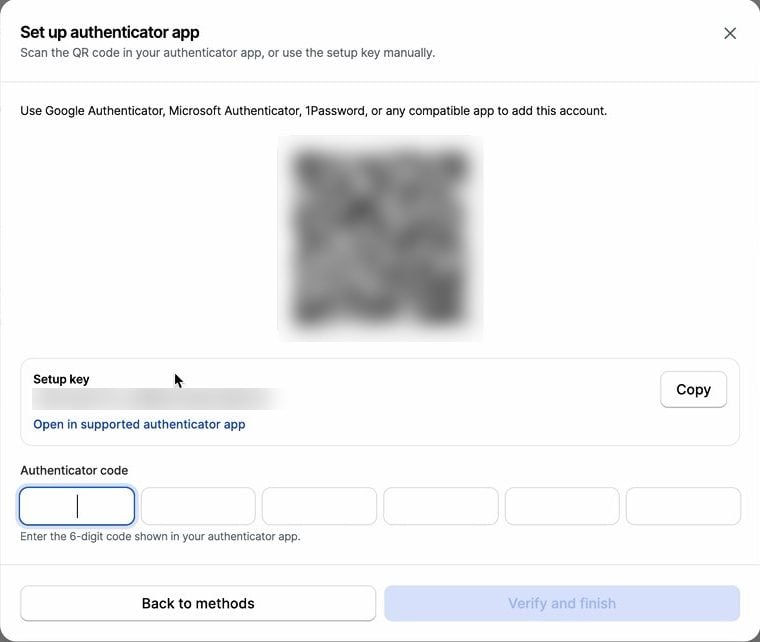
Open your authenticator app, choose to add an account and scan the QR code. If scanning does not work, click Copy next to the setup key and enter the key in your app instead. Do not share the QR code or setup key with anyone.
-
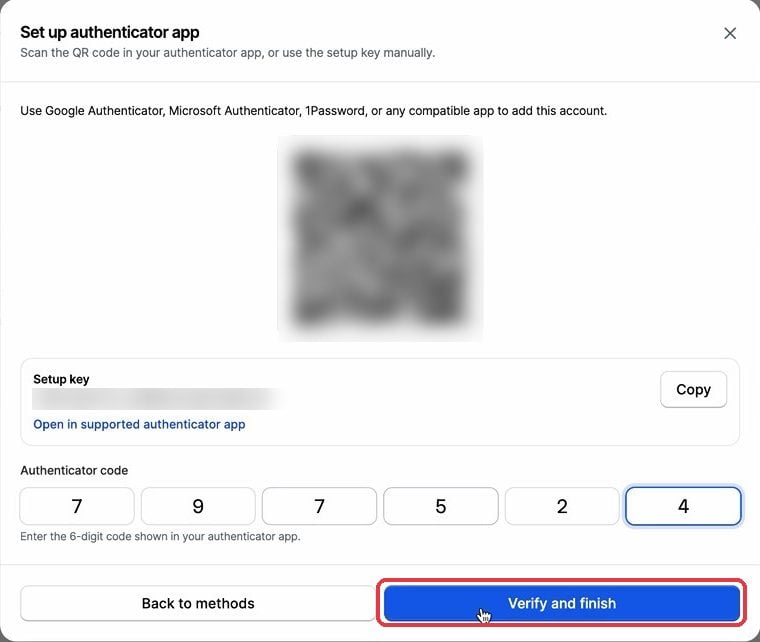
Your app shows a 6-digit code for Razorpay that changes every 30 seconds. Enter the current code and click Verify and finish. If the code changes while you type, enter the new one. The setup window lasts 10 minutes. If it expires, close the dialog and start again.
-
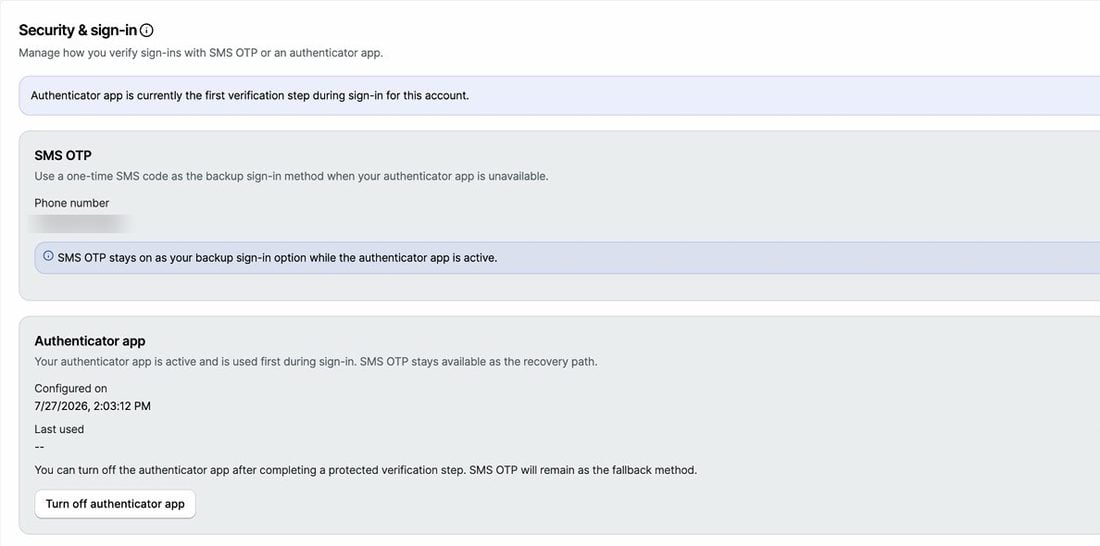
The Authenticator app card now shows the date you set it up. The authenticator app is now your first sign-in step and SMS OTP stays on as your backup.
Sign In With Your Authenticator App
- Sign in with your email and password, or with Google, as usual. The Two Step Verification screen asks for the code from your authenticator app.
-
Open your app, enter the current 6-digit code and click Verify.
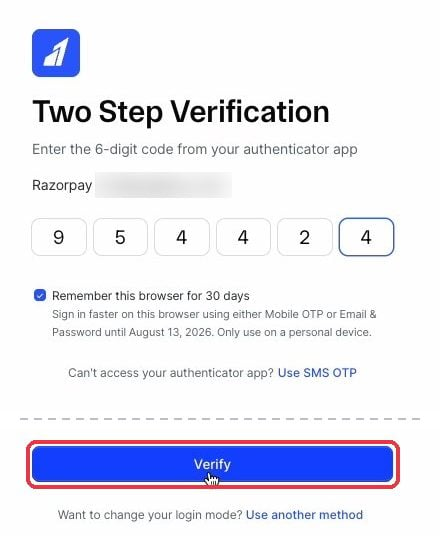
If a code does not work, wait for the next code in your app instead of entering the same digits again. After 9 incorrect codes, your account is locked for security reasons.
Use SMS OTP Instead
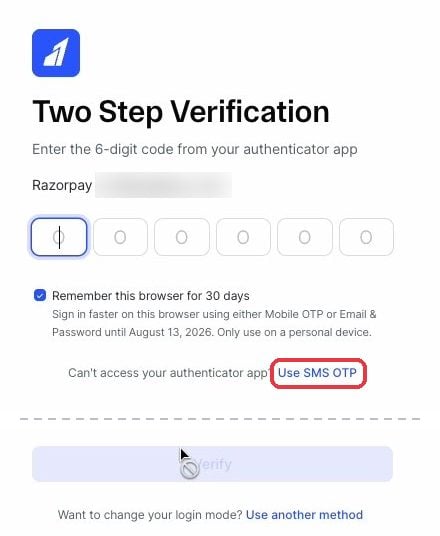
If your phone is not with you, you can sign in with an SMS OTP. This option appears only if your profile has a verified phone number with SMS OTP on.-
On the Two Step Verification screen, click Use SMS OTP.
-
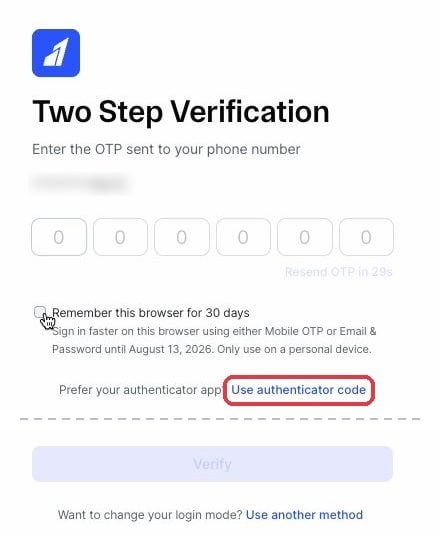
Enter the OTP sent to your verified phone number to complete the sign-in. To go back to the code from your app, click Use authenticator code.
Verify Sensitive Actions
Sensitive actions on the Dashboard, such as generating or regenerating API keys and inviting team members, ask you to verify again in a 2-Step Verification window. The window sends an SMS OTP first. To use your authenticator app instead, click Use authenticator code in the window. If the SMS cannot be delivered, the window switches to your authenticator app automatically. After you verify, either at sign-in or in the Dashboard, you are not asked again for 30 minutes.These sensitive actions still need a verified phone number on your profile. Add and verify a phone number before you need it.
Turn Off the Authenticator App
-
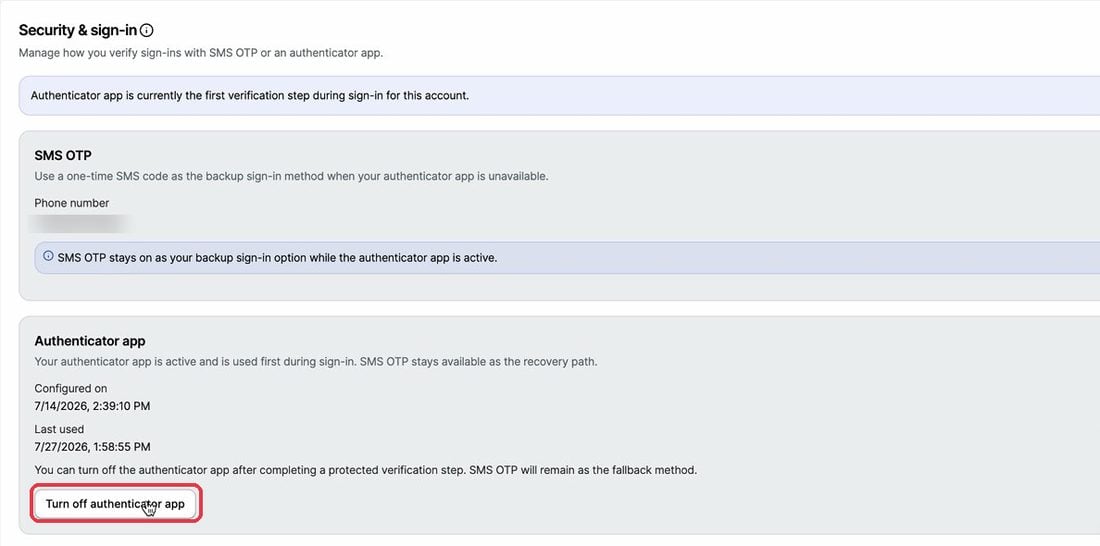
Go to Account & Settings → Security & sign-in and click Turn off authenticator app on the Authenticator app card. This option works only when SMS OTP is on and your phone number is verified, so you always have one way to sign in.
-
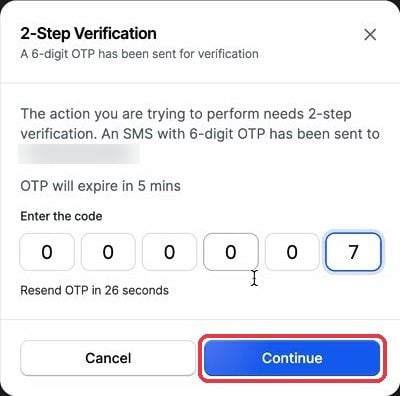
Enter the OTP sent to your phone and click Continue. Turning off always asks for an SMS OTP, even if you verified a few minutes ago.
New Phone or Lost Phone
FAQs
Why don't I see the Authenticator app card?
Why don't I see the Authenticator app card?
Authenticator app sign-in may not be available for your account yet, or your organisation may manage 2-step verification centrally. Contact your account manager or raise a request with our Support team, and share the email address you sign in with.
Which authenticator apps can I use?
Which authenticator apps can I use?
Any app that generates time-based 6-digit codes, such as Google Authenticator, Microsoft Authenticator, Authy, 1Password and Duo.
Does the authenticator app replace SMS OTP?
Does the authenticator app replace SMS OTP?
At sign-in, yes. The Dashboard asks for the code from your authenticator app first. SMS OTP stays on as your backup if you have a verified phone number.
Can I turn on the authenticator app for my whole team?
Can I turn on the authenticator app for my whole team?
No. Each team member sets up the authenticator app for their own login. There is no account-wide setting.
Is it safe to skip OTP on this browser for 30 days?
Is it safe to skip OTP on this browser for 30 days?
Skip OTP on this browser for 30 days trusts one browser on one device. Use it only on your own computer.
Can I use the authenticator app on the Razorpay mobile app?
Can I use the authenticator app on the Razorpay mobile app?
Not yet. Authenticator app sign-in works on the web Dashboard only.