Available in🇮🇳 India
The Surveys page allows businesses to create, manage, and analyse standalone surveys that collect valuable customer feedback across multiple channels. The survey feature offers businesses complete flexibility in designing feedback forms and viewing responses in real time. It is the central page to view, create, edit, duplicate, unpublish, delete and manage all standalone survey campaigns.
Surveys help businesses collect vital customer feedback, analyse sentiment, improve service quality and enhance customer satisfaction.
Features
The Survey page provides the following features:Survey Table
The main table displays:- Survey Name
- Status (Active, Inactive, Draft)
- Description
- Date of Creation
- Date of Update
- Actions
Search
Quickly locate specific surveys using the search bar by entering the survey name.Filter
Filter surveys based on:- Survey Status (Active, Inactive, Draft)
- Time Frame (Creation or update date)
Actions
The following actions are available for each survey via the actions column:View
View the complete survey details including design, settings and configuration.Edit
Modify campaign details, survey structure (single-page or multi-page), additional settings and response conditions. Surveys marked inactive cannot be edited.Delete
Permanently delete a survey from the system. Deleted surveys cannot be retrieved.Duplicate
Create a copy of an existing survey. While duplicating, businesses can rename and modify the survey before publishing.Unpublish
Unpublish a survey to prevent it from appearing in any new media going forward.Unpublish for All
Completely remove a survey from all channels, including emails, SMS, survey links and any previously distributed media. All links associated with the survey will stop functioning.View Survey Responses
Access all responses submitted by customers for the selected survey.- Sort: Sort responses by newest first or oldest first.
- Channel: Filter responses based on the channel where responses were collected (Digital Bills, Emails, SMS and so on).
- Export Survey Responses: Export survey responses to a maximum of 10 recipients via email. If no email is provided, data will be sent to the registered email address.
Create New Survey
Businesses can create standalone surveys by:- Adding campaign details and survey name.
- Designing the survey using drag-and-drop tools to create single-page or multi-page forms.
- Configuring additional settings such as branching logic or response conditions if required.
- Previewing the survey to check the final design.
- Publishing the survey immediately or scheduling it for later.
- Under Create section on the Billme Dashboard, click Surveys. The Surveys page appears.
- Click + New Survey. The New Campaign page appears.
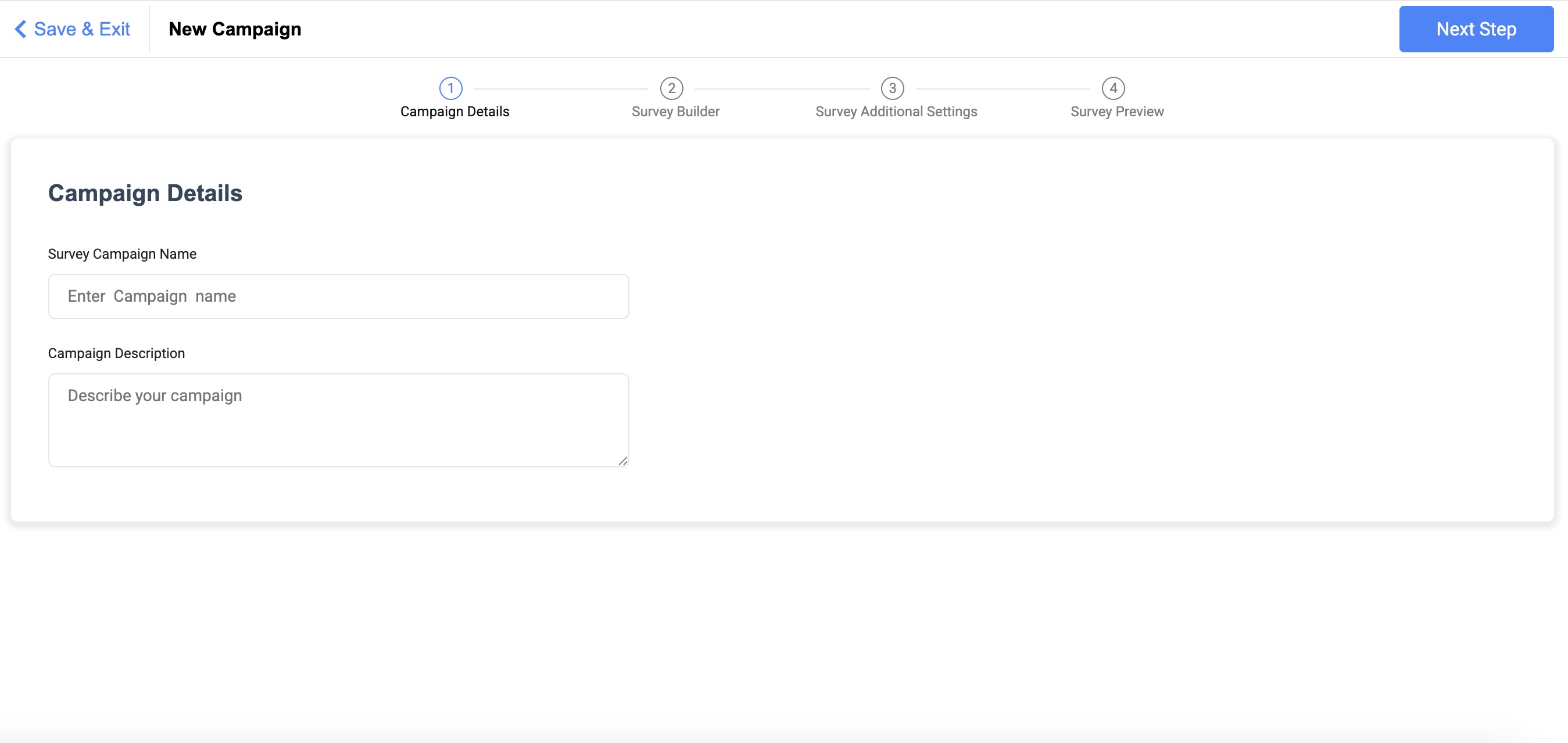
- Enter the Campaign Details such as Campaign name and description and Click Next Step. The Survey Builder page appears.
- Select if your survey is a Single Page Survey or a Multi Page Survey
- Add a header image for your survey.
- Add the survey name and description.
- Add the survey question and description.
- Select your question type from the dropdown.
- You can also add more questions, text fields and background colours.
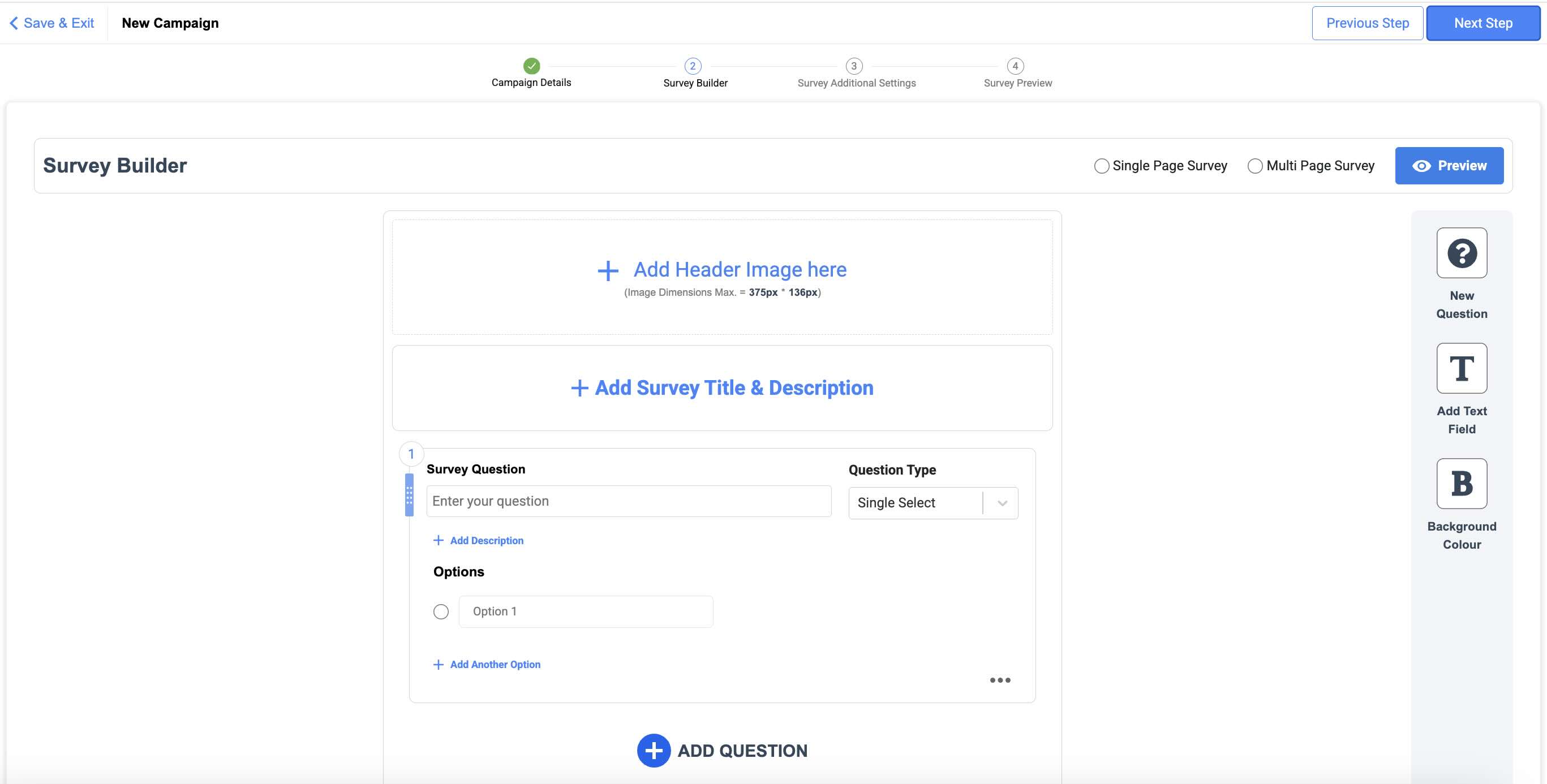
- Preview your survey and click Next Step. The Survey Additional Settings page appears.
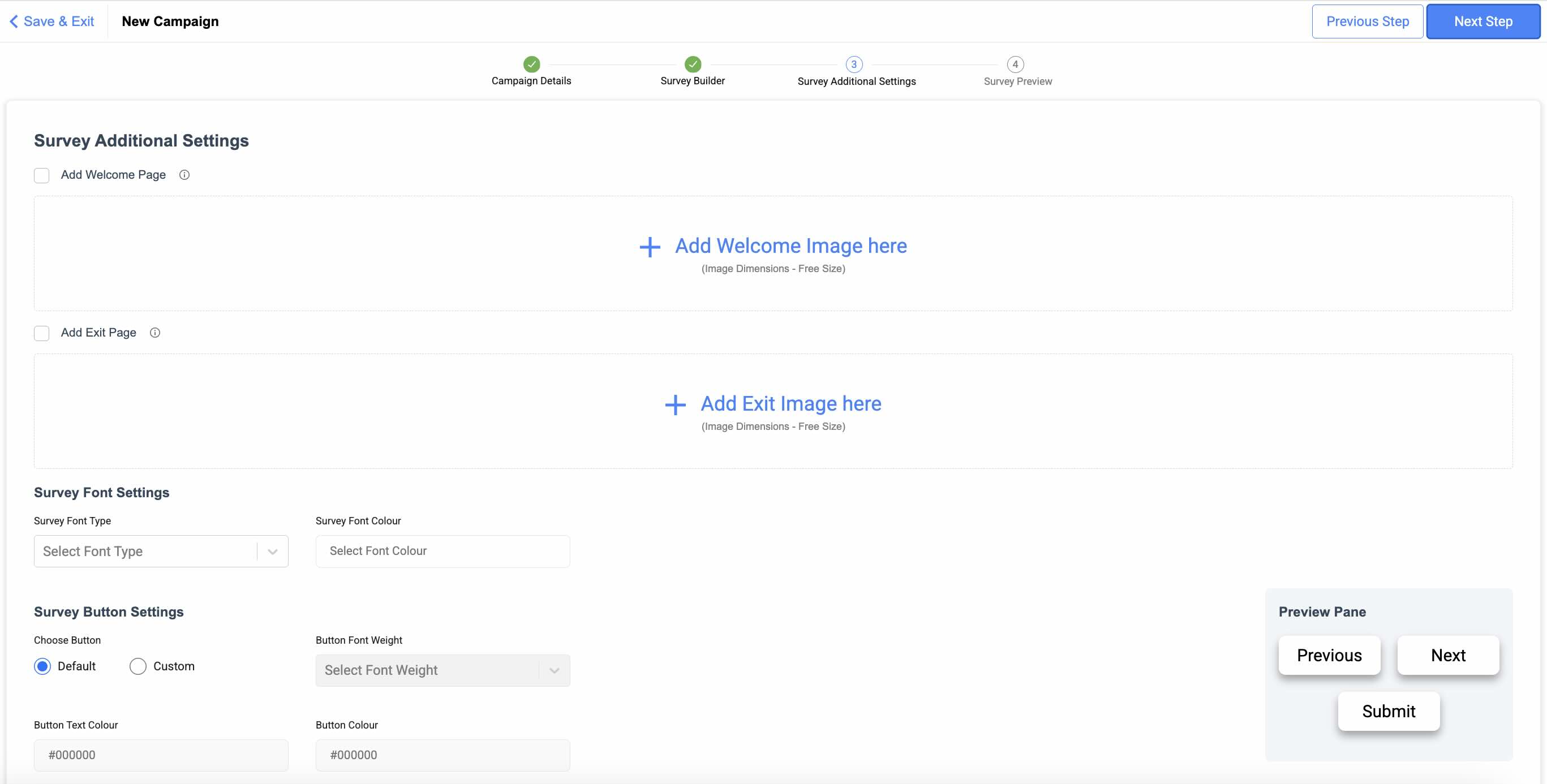
- Add a welcome image and an exit image.
- Customise your survey font and button.
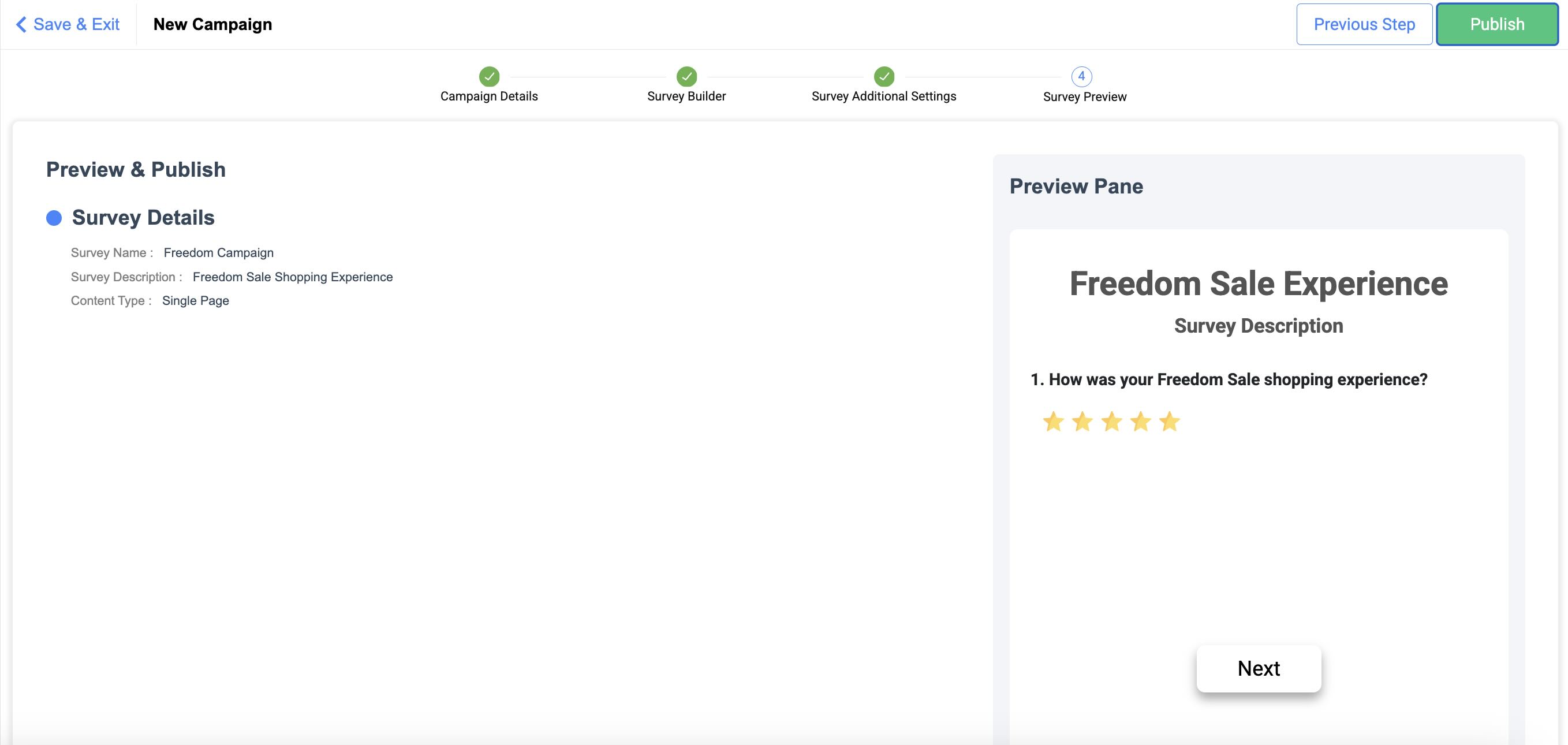
- On the Preview & Publish page, preview the final look of your survey and click Publish.