

Available in🇮🇳 India
Use Razorpay Offers to provide discounts or cashback on Payment Links issued to customers. You can restrict the payment methods on which the Offers are applied and limit their usage to a defined period.
Enable Offers for Payment Links
Select the Checkout Visibility option to display discount and cashback offers on Payment Links.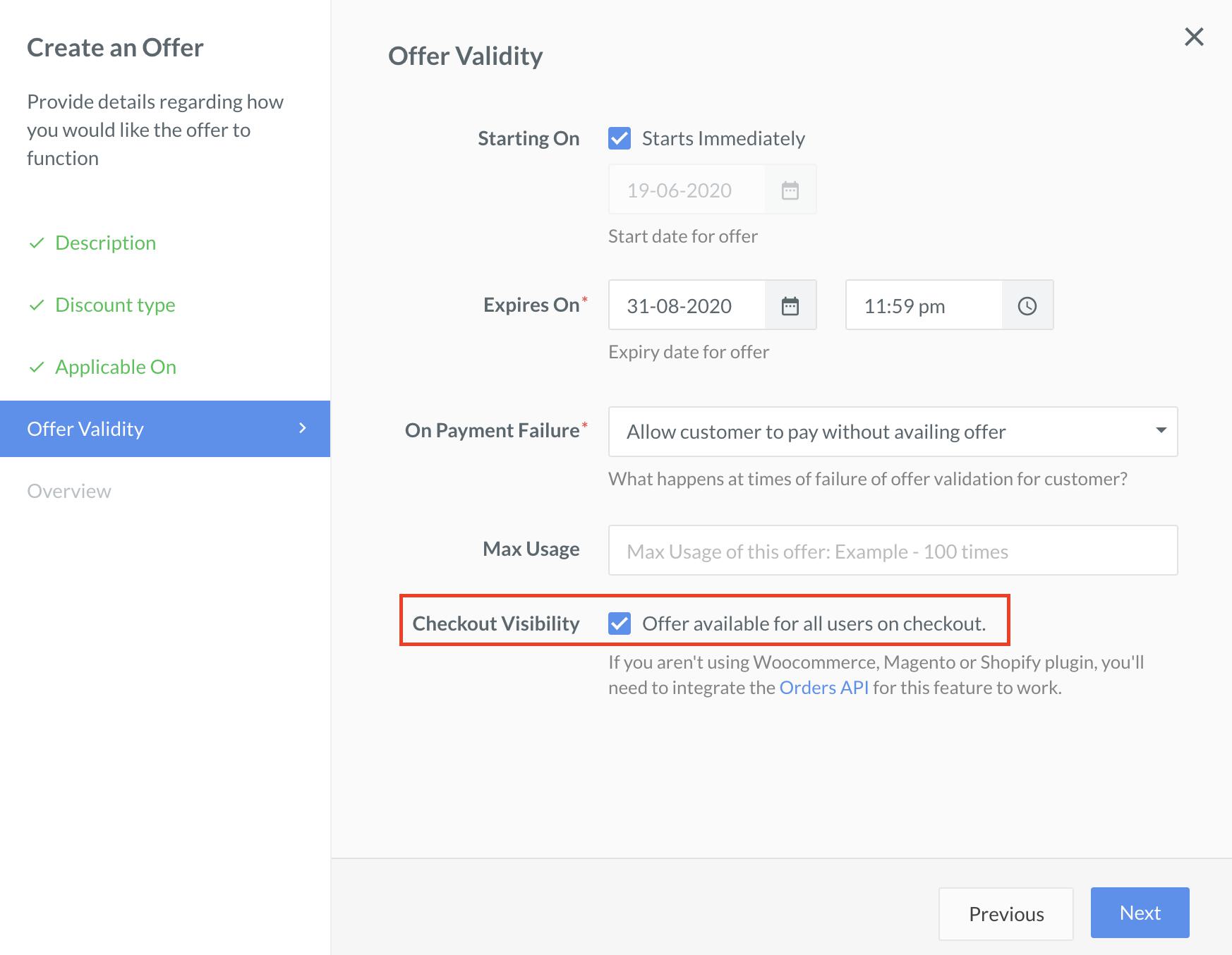
How Offers Appear for Payment Links
Watch this video to see how offers appear for Payment Links when customers want to make payments using Payment Links.SKU and Brand Offers on Payment Links
Add the products (SKUs) a customer is paying for to a Payment Link, so that SKU and Brand Offers configured for those products apply at checkout. For example, a bank discount on a specific phone model applies only when that model’s SKU is on the link.Feature RequestSKU and Brand Offers on Payment Links is an on-demand feature. Contact your Razorpay account manager to enable it on your account. Razorpay configures the offers and the SKUs they apply to for you.
- Log in to the Dashboard.
- Go to the PAYMENT PRODUCTS section and click Payment Links.
- Click + Create Payment Link.
- In the Product details section, turn on Add product details.
- Enter the details of each product:
- SKU id (Mandatory): The SKU identifier. It must match the SKU configured in the offer.
- Unit price (Mandatory): The price of one unit of the product.
- Quantity (Mandatory): The number of units.
- Name (Optional): The product name. For example,
Smartphone 128 GB.
- Click Add product to add more products to the link.
- Enter the other link details, such as customer details and link expiry, and click Generate Link.