

Available in🇮🇳 India
Feature AvailabilityMultiple secrets are being rolled out to merchants in phases. If the API Keys page on your Dashboard shows separate Public keys and Secrets sections, this feature is enabled for your account. Otherwise, follow the steps to regenerate API keys.
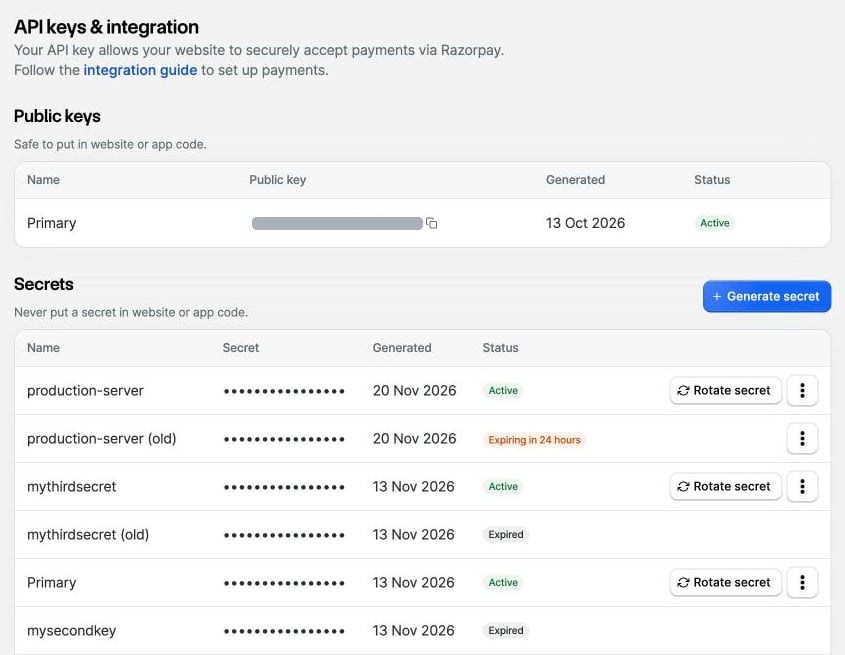
- Public key (
key_id): Identifies your account. It is safe to use in your website or app code. - Secret (
key_secret): Authenticates your API requests. Never put a secret in your website or app code.
- Give each server or vendor its own secret, so you can revoke one without affecting the others.
- Rotate a secret without downtime. The old and new secrets both work for 24 hours while you update your servers.
Two-Factor AuthenticationIn Live Mode, you must verify your identity with an OTP before you generate, rotate or revoke a secret. Test Mode does not require an OTP.
Generate a Secret
To generate a new secret:- Log in to the Dashboard and select the mode (Test or Live).
- Navigate to Account & Settings → API Keys (under Website and app settings).
- In the Secrets section, click Generate secret. You can have up to 10 secrets in each mode.
-
Enter a Name for the secret. Name it after the server or vendor that will use it. The name must be unique within the selected mode.
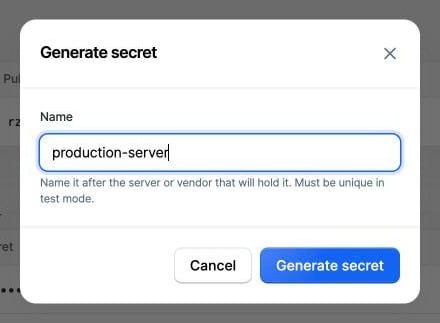
- Click Generate secret.
-
In the Save your new secret dialog, copy the secret or click Download .env to save it as an environment file. The dialog also shows the public key to use with the secret.
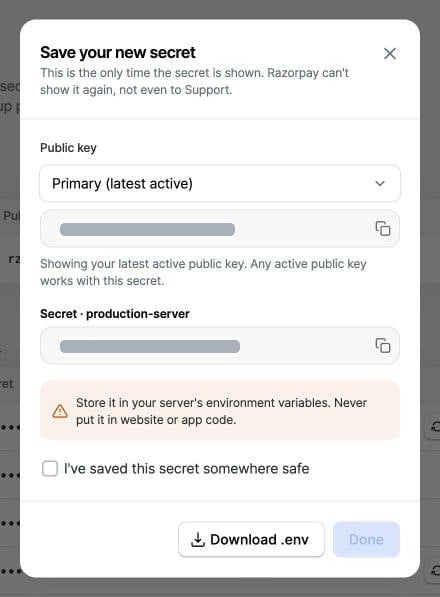
- Select I’ve saved this secret somewhere safe and click Done.
Rotate a Secret
Rotate a secret to replace it with a new one. Your public keys stay the same. To rotate a secret:- Log in to the Dashboard and select the mode (Test or Live).
- Navigate to Account & Settings → API Keys (under Website and app settings).
-
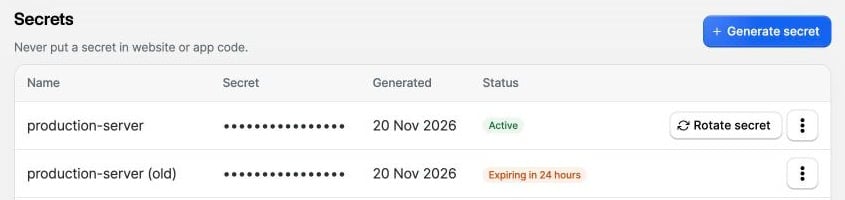
In the Secrets section, click Rotate secret next to the secret. You can also click the ⋮ (more options) icon and select Rotate secret.
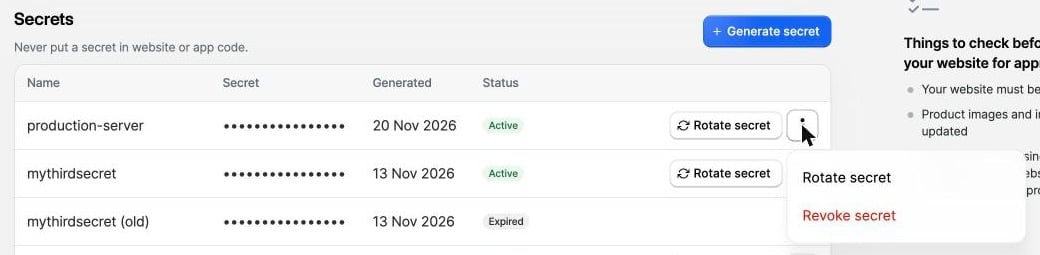
-
Under When should the old secret stop working?, select one of the following:
- In 24 hours: Both secrets work until then, so you can switch your servers to the new secret without downtime. Use this for routine rotation.
- Immediately: The old secret stops working right away. Use this if the secret has leaked.
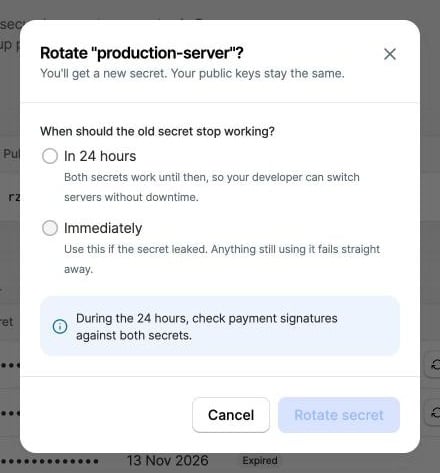
- Click Rotate secret.
- In the Save your new secret dialog, copy or download the new secret and save it securely.
- Replace the old secret with the new one on every server, plugin or vendor system that uses it.
Revoke a Secret
Revoking a secret is permanent. To get a new secret without breaking your integration, rotate the secret instead. To revoke a secret:- Log in to the Dashboard and select the mode (Test or Live).
- Navigate to Account & Settings → API Keys (under Website and app settings).
- In the Secrets section, click the ⋮ (more options) icon next to the secret and select Revoke secret.
-
Under When should this secret stop working?, select one of the following:
- In 24 hours: Gives you time to move your servers to another secret.
- Immediately: The secret stops working right away. Use this if the secret has leaked.
-
Select I understand API calls still using this secret will fail.
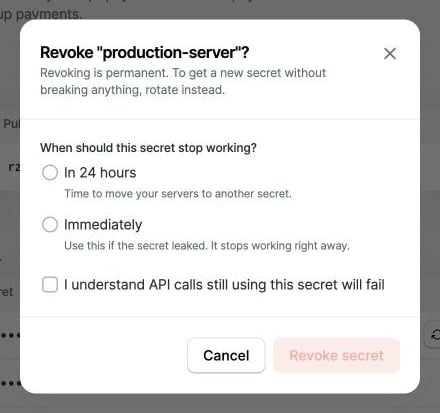
- Click Revoke secret.
Frequently Asked Questions (FAQs)
How many secrets can I have?
How many secrets can I have?
You can have up to 10 secrets in each mode (Test and Live) for your public key.
Will rotating my secret break my integration?
Will rotating my secret break my integration?
No, if you select In 24 hours while rotating. The old and new secrets both work for 24 hours, so you can update your servers without downtime. If you select Immediately, every API call that still uses the old secret fails right away.
What should I do if I lose a secret?
What should I do if I lose a secret?
Razorpay cannot show a secret again after you close the Save your new secret dialog. Generate a new secret, update your servers and then revoke the lost secret.
Who can manage secrets?
Who can manage secrets?
Only users with the Owner or Admin role have access to API keys. Know more about standard user roles & permissions.