

Available in🇮🇳 India
On the Payroll Dashboard, you can dismiss multiple employees at once using the bulk dismissal and settlement feature. With this feature, you can also:
Know more about employee dismissal.
How it Works
- Download the initiation template from the Payroll Dashboard.
- Add employee details for dismissal and upload the sheet.
- Download and update the settlement sheet. Upload the sheet again to process settlement.
Video Tutorial
Watch the video below to know how to initiate employee dismissal in bulk and process bulk final settlement.Bulk Dismissal
To dismiss employees in bulk:- Log in to the Payroll Dashboard.
- Navigate to ADMIN OPTIONS → People and click Bulk Full & final Initiation.
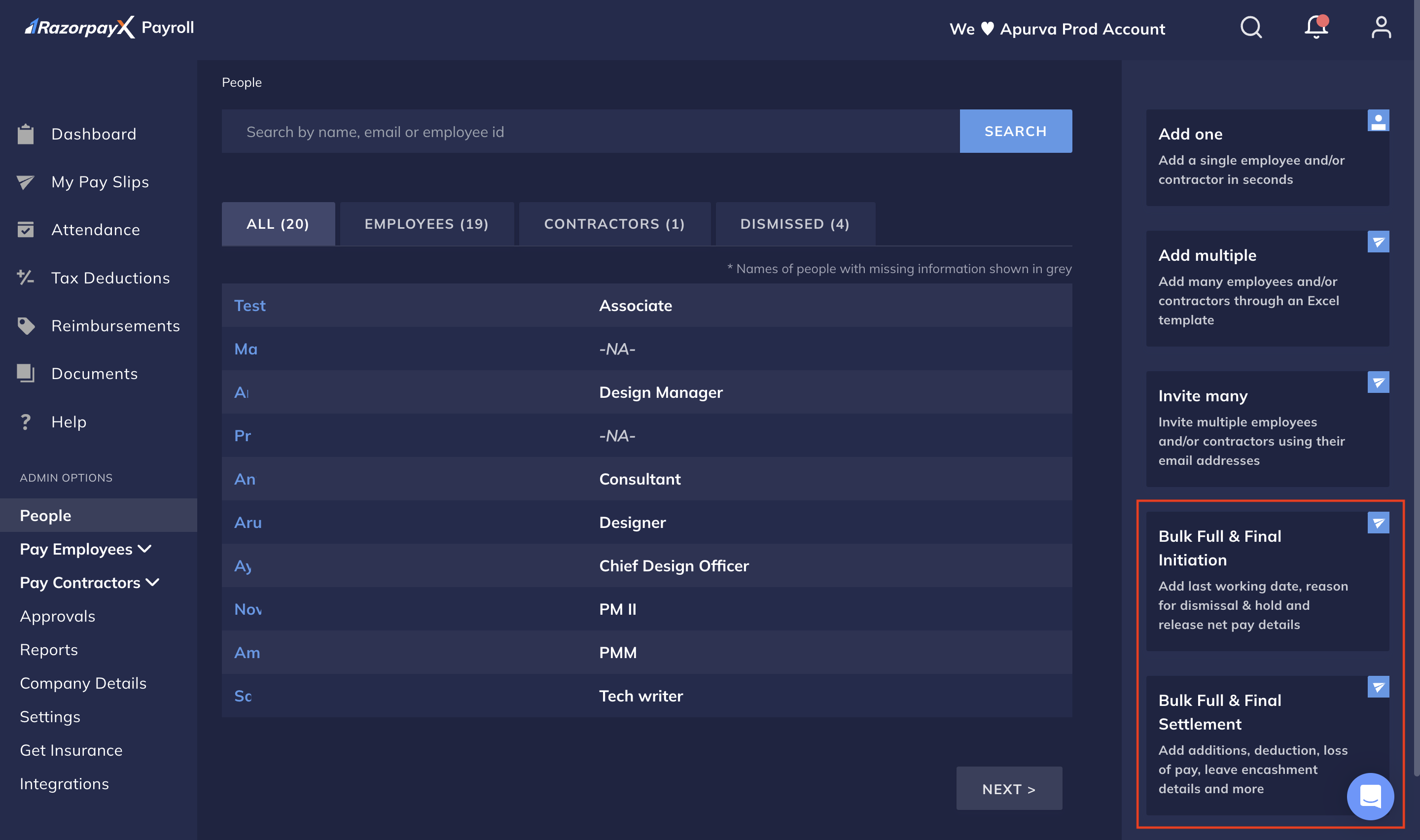
- On the Bulk Full & final Initiation page:
- Download the template.
How to fill the template correctly?
How to fill the template correctly?
- Follow the instructions in the template to fill the sheet.
- Ensure the employees for whom you are initiating FnF in bulk are not the orgnaisation’s administrators.
- You can start holding salary from a month where the payroll is not yet finalised.
- Ensure you upload the file in the
.xlsxformat.
- Upload the updated sheet for us to validate it for any errors. Know how to resolve the template errors. You can click Replace file to update the current sheet.
- Click Upload & Preview.
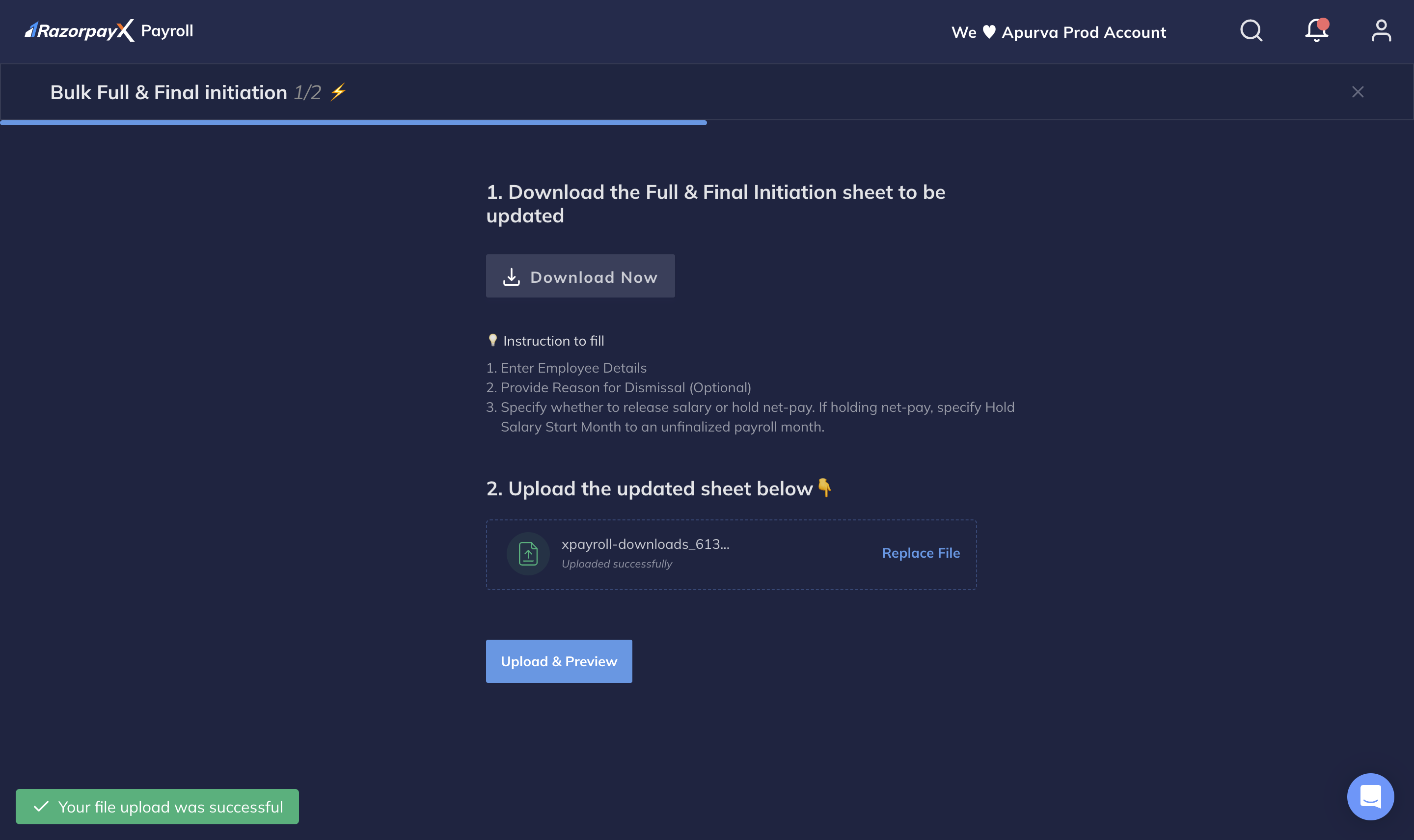
- Review the employee details validated as shown on the page. This includes information such as the number of employees, employees’ whose net pay is on hold, dismissal details and more.
- Click Confirm to proceed with the bulk dismissal process.
Bulk Settlement
Bulk settlement happens after you initiate the bulk dismissal. You can update the details or salary adjustments of the dismissed employees. You must dismiss employees to process bulk FnF settlements. To process bulk FnF settlements:- Log in to the Payroll Dashboard.
-
Navigate to ADMIN OPTIONS → People and click Bulk Full & Final Settlement.
-
On the Bulk Full & Final Settlement page:
- Click Download Now to download the settlement sheet from the Dashboard. The downloaded sheet contains employee information as uploaded in the bulk initiation step.
How to fill the template correctly?
How to fill the template correctly?
- To not make salary adjustments for specific employees, delete their rows from the pre-filled sheet. Deleting these rows does not cancel dismissal.
- In the No. of Days column in the template, enter the number of days for Leave encashment/LOP. We automatically calculate the amount.
- Leave the cells empty if some salary adjustments for an employee are not applicable. Do not enter ’-’ or ‘NA’ and more.
- If you select Leave encashment amount, do not enter the number of days in No. of Days column in the template.
- Provide labels for additions/deductions that do not have the leave encashment/LOP labels. Labels reflects on the payslip and denote the reason for salary adjustment.
- Ensure you upload the file in the
.xlsxformat.
- Upload the updated sheet for us to validate it for errors. Know how to resolve the template errors.
- Click Upload & Preview.
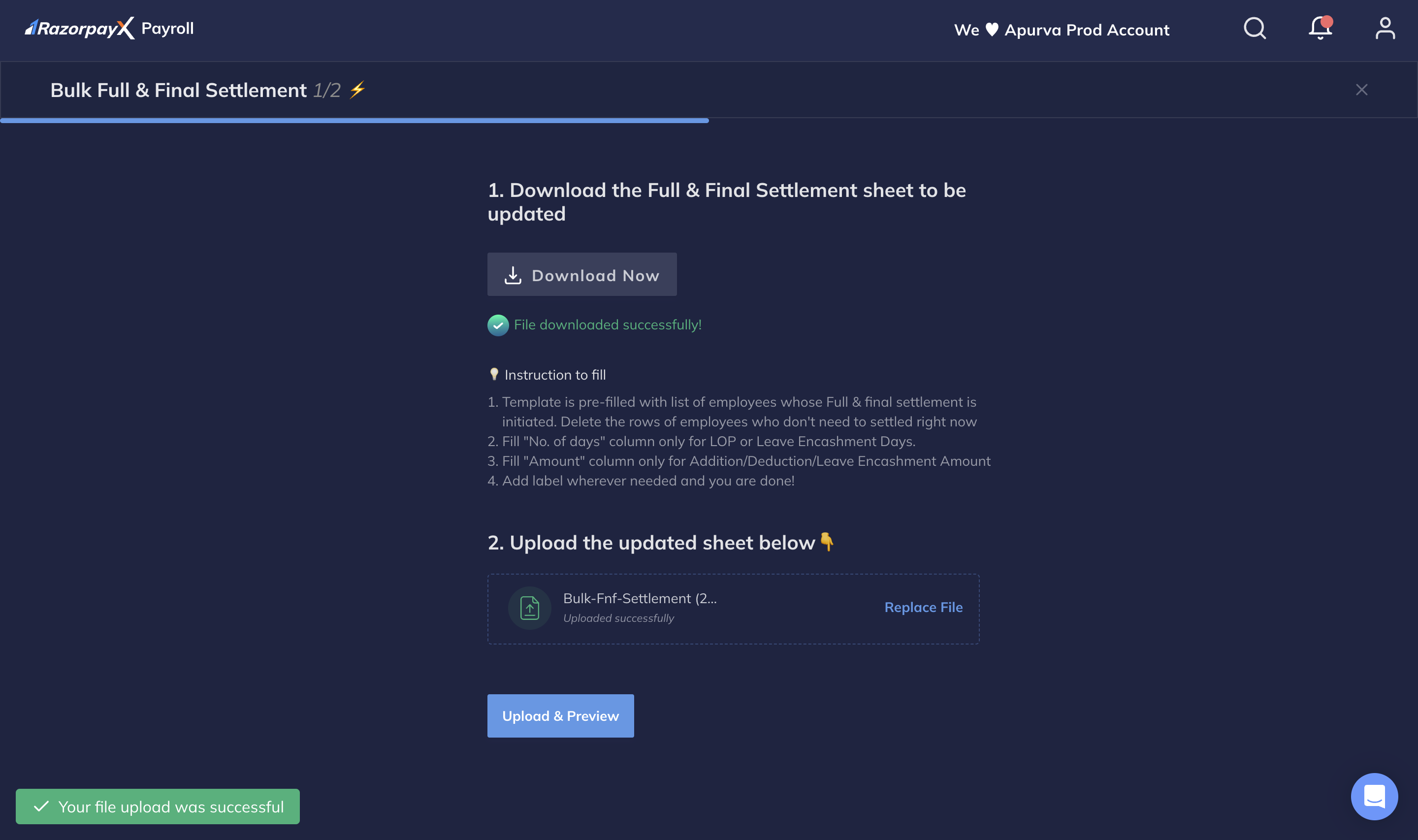
- On the Preview page, you can view the dismissed employees’ salary adjustments. You can also use the filters above the table to understand the settlement action required for specific employees.
- Verify the employees’ details and click Proceed To Confirm.
- Click Confirm.
Resolve Errors
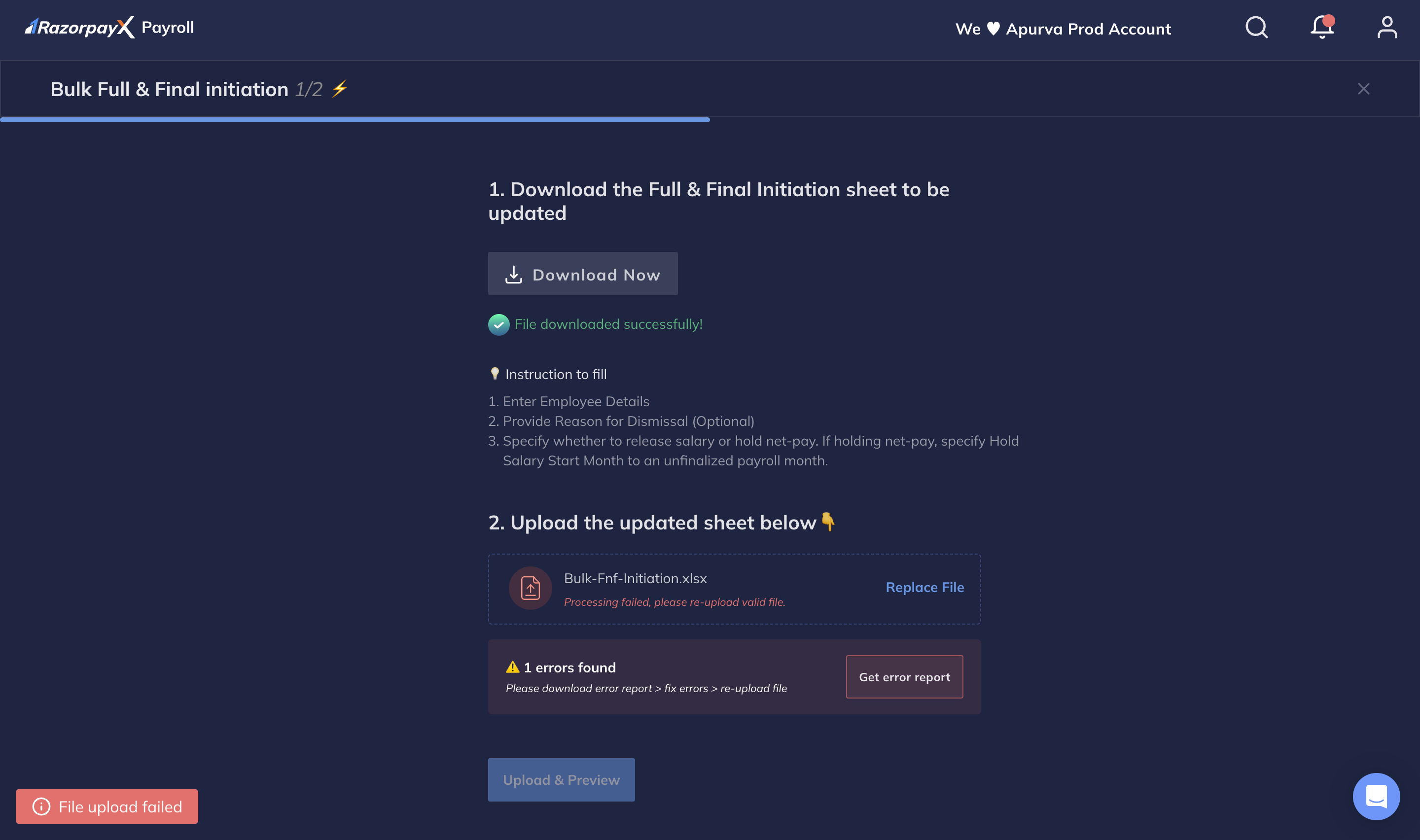
In some cases when the template upload process fails, you can download the error report, fix the errors in the report and reupload the corrected file.- When you run into errors on the Bulk initiation/Bulk settlement page, click Get error report.
- In the downloaded report, make changes to the fields with errors.
- Click Replace File to re-upload the file on the Dashboard.
FAQs
I want to hold the salary of a single employee. Is it possible?
I want to hold the salary of a single employee. Is it possible?
Yes, you can withhold the salary of an individual employee. Refer to Hold Salary, Pay Compliance.
Can we manually select employees when initiating Bulk FNF?
Can we manually select employees when initiating Bulk FNF?
Yes, you can manually select the employees. Enter the employee names in the Bulk Dismissal initiation template file.
What are the supported payment modes to process an employee's FNF?
What are the supported payment modes to process an employee's FNF?
We support NEFT and IMPS to process the employee’s full and final settlement. However, we recommend using NEFT as the default payment mode. Know more about payroll payouts.