

Available in🇮🇳 India🇲🇾 Malaysia🇸🇬 Singapore🇺🇸 United States
You can share payment receipts with customers via email once they complete payments using the Payment Page.
Set Up Payment Receipt
Payment Page Receipts can be generated and shared using Automated Rececipts or Manual Receipts.- Automated Receipt
- Manual Receipt
You can automatically share the payment receipt with customers via email and SMS. An auto-generated reference number is added by Razorpay.To configure automated Payment Page receipts: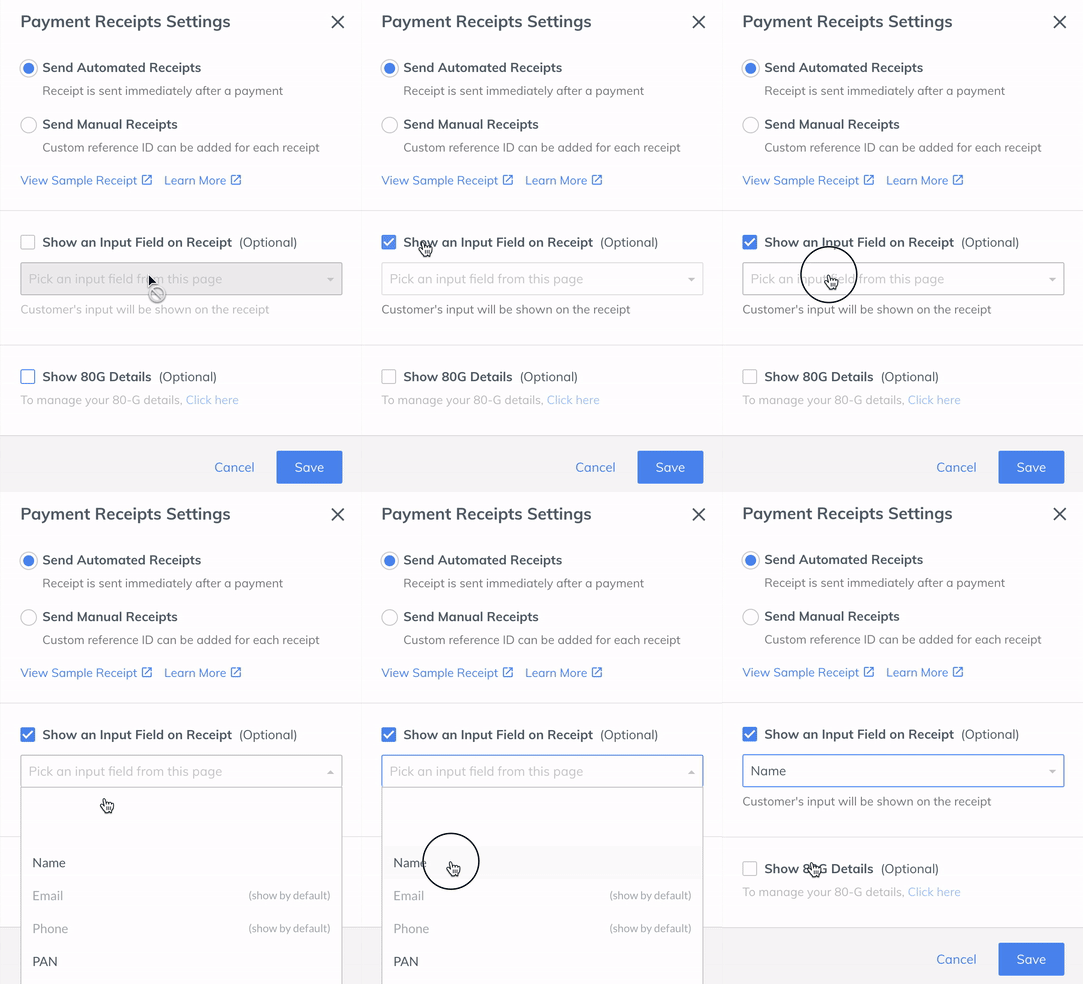
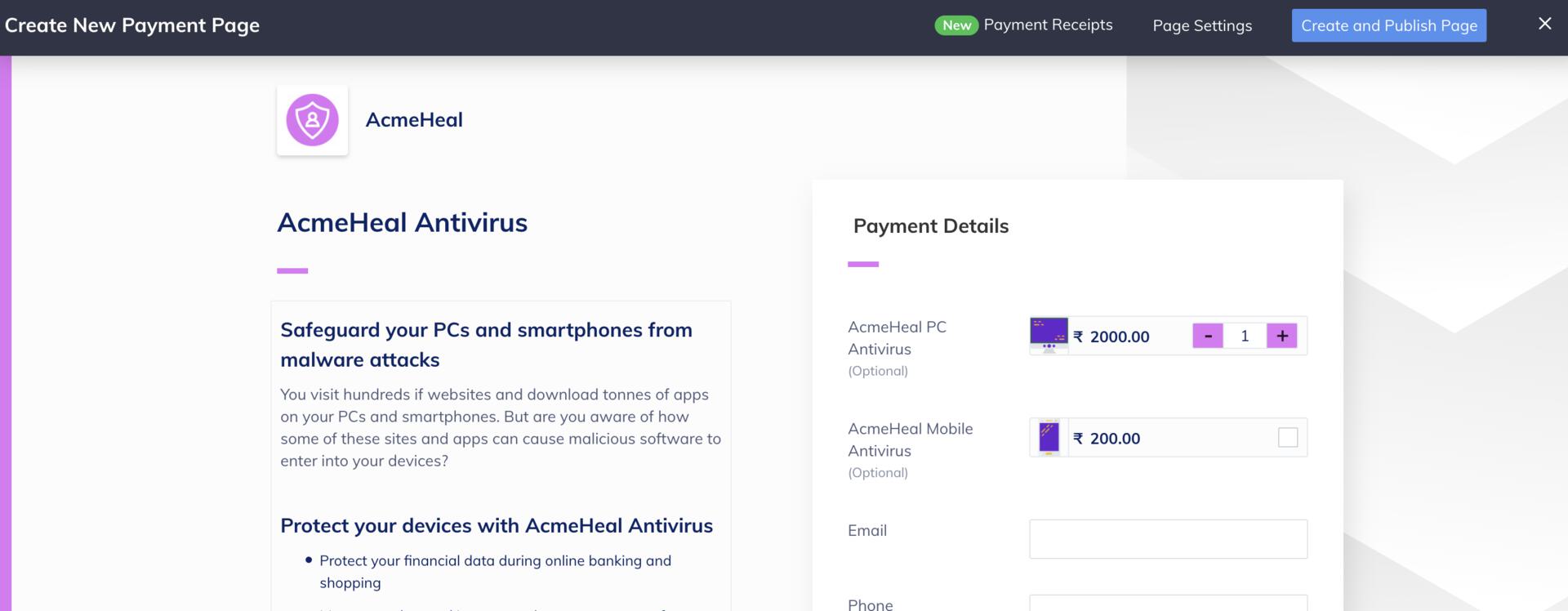
- While creating or editing the Payment Page, select Payment Receipts from the top menu ribbon.
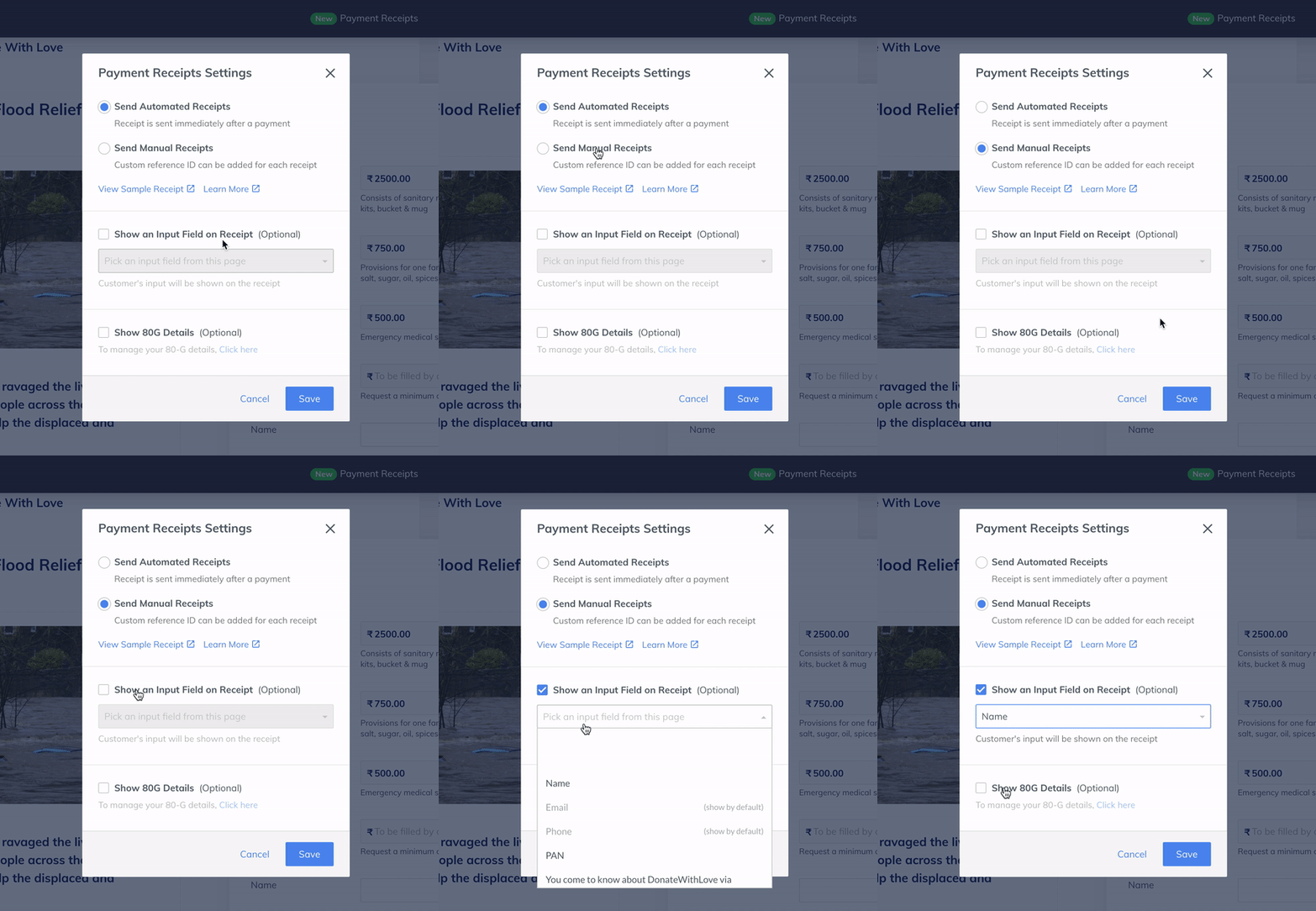
- On the Payment Receipts Settings pop-up page, select Send Automated Receipts.
- To show an input field such as Name, Address and its associated value in the receipt:
- Enable the Show an Input Field on Receipt option.
- In the drop-down list, select one of the custom input fields such as
Name,AddressorLandmark, used on the Payment Page. For example, if you have selectedName, the customer’s nameGaurav Kumarwill appear on the Payment Page receipt.
- Click Save.


Resend and Download Payment Receipt
Resend and Download Payment Receipt
To resend the receipt to a customer:
- Navigate to the page’s Transactions Details screen. All the payments made using the Payment Page are listed here.
- Click on the Payment id to view the payment details.
- In the Payment Receipt field, click the Send button. This will resend the receipt to the customer.
Email Notification to Customers
Email Notification to Customers
After your customers complete the payment using the Payment Page, the payment receipt is sent to them via email as a PDF attachment. The details entered by the customer on the Payment Page appear on the email body.
PDF Receipt to Customers
PDF Receipt to Customers
Here is a sample PDF of the payment receipt.