Available in🇮🇳 India
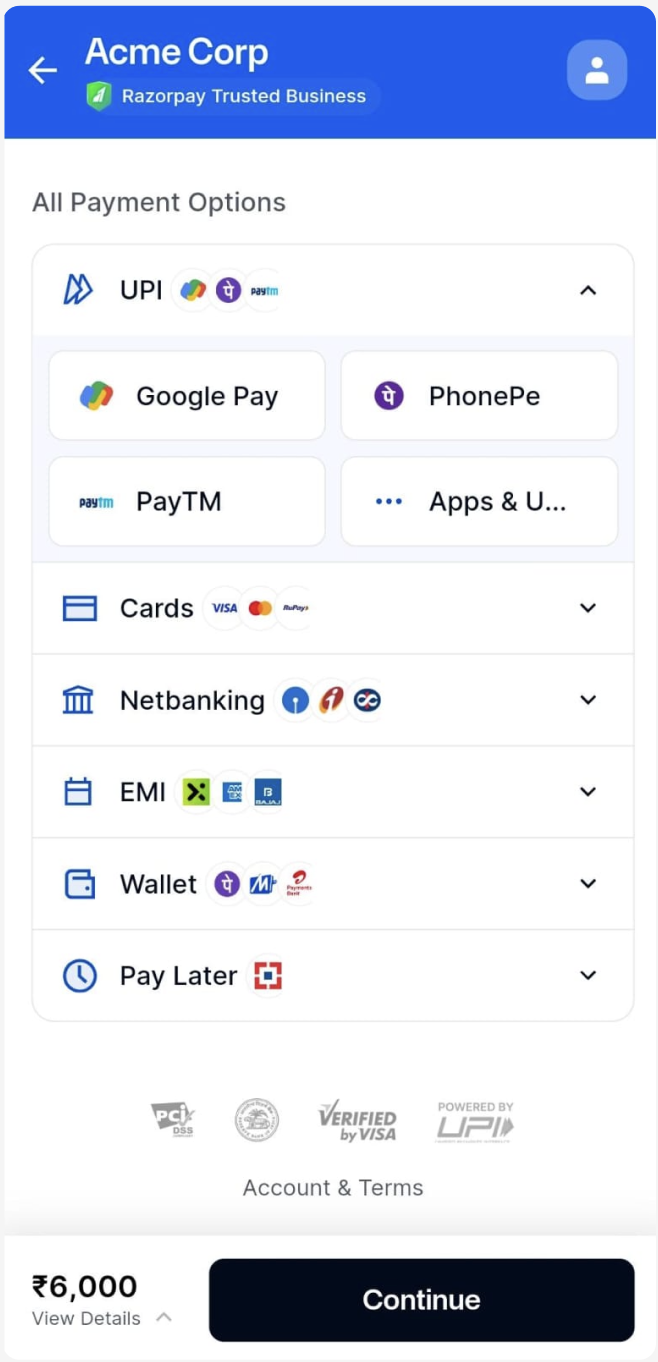
When using Razorpay Standard Checkout Integration, you do not require any extra integration to display the Google Pay option in the list of payment options.Google Pay is shown inside the UPI section on the checkout form. Google pay is shown under the UPI section on the checkout form.

Web Integration

Collect flow

On your website, all Google Pay requests will be Collect requests. The customer selects the Google Pay option, enters their UPI handle and clicks Pay. A request is sent to the Google Pay app installed on their mobile device. The customer has to manually open the Google Pay app and approve the request.

Intent flow

Customers can make intent-based payments using Google Pay on mobile-web applications. Here, the customer is redirected to Google Pay’s application, installed on their mobile devices, to complete the payment.
Watch Out!This feature is only available for web pages running on HTTPS on Google Chrome for Android (v56 and above) and not on Google Chrome web views.
Feature RequestThis is an on-demand feature. Please raise a request with our Support team to get this feature activated on your Razorpay account.

Android Integration

UPI Collect Flow DeprecatedAccording to NPCI guidelines, the UPI Collect flow is being deprecated effective 28 February 2026. Customers can no longer make payments or register UPI mandates by manually entering VPA/UPI id/mobile numbers.Exemptions: UPI Collect will continue to be supported for:
  • MCC 6012 & 6211 (IPO and secondary market transactions).
  • iOS mobile app and mobile web transactions.
  • UPI Mandates (execute/modify/revoke operations only)
  • eRupi vouchers.
  • PACB businesses (cross-border/international payments).
Action Required:
  • If you are a new Razorpay user, use UPI Intent.
  • If you are an existing Razorpay user not covered by exemptions, you must migrate to UPI Intent or UPI QR code to continue accepting UPI payments. For detailed migration steps, refer to the migration documentation.

Intent-Based Integration

When using the Standard Checkout, Google Pay is shown inside the payment method UPI. The customer selects Google Pay from the list of apps and click Pay. Customers are then redirected to the Google Pay application, provided it is installed on the mobile device they are using to access checkout, where they can make the payment.

Intent-Based Integration Using Google Pay SDK

You also have the option to integrate Google Pay with the Standard Checkout on your Android app using Google’s SDK. This offers the advantage of letting you open Google Pay within your application for customers to make the payment without any redirection, enhancing the user experience.

Prerequisites

  1. Sign up for a business account with Google Pay.
  2. Contact our Support Team and have them whitelist your UPI ID/VPA.
  3. Verify your UPI ID/VPA details on the Google Merchant Console. Here, Google deposits a small amount into the bank account linked to your VPA (UPI ID).
  4. You should have already integrated Razorpay Standard Checkout.
  5. Generate API Keys from the Dashboard.

Collect-Based Integration

This is same as UPI Collect Integration. The customers enter their UPI handle in the Enter your UPI ID section on the Checkout form and click Pay. Collect the customer’s UPI handle and pass it in the payment request with method as upi. Razorpay then triggers a Collect request. The Collection request is sent to the customer’s Google Pay application where they can make the payment.
NPCI Restrictions for UPI Collect FlowAs per NPCI guidelines, the following MCC codes are restricted and cannot accept UPI Collect payments:
To integrate Google Pay with the Checkout on your Android app using Google’s SDK:
  1. Download the Google Pay SDK and add the .aar files to the application library.
Handy TipsThe Razorpay-Google Pay SDK acts as a wrapper over the native Google-SDK. This SDK connects Razorpay’s SDK with the Google SDK. You need all the 3 SDKs (listed below) for the flow to work.
  • Razorpay Android SDK
  • Google Pay SDK
  • Razorpay-Google Pay SDK
  1. Add the following lines of code to the build.gradle file of your application:
build.gradle
This adds the dependencies for the SDK and creates a Google Pay UPI payment method on your Checkout form.