

Available in🇮🇳 India🇸🇬 Singapore
Save your customers’ card details with Razorpay using tokens. The next time the customer makes any transaction, they only need to enter the CVV of the previously saved card. This saves the customer the hassle of entering the card details multiple times for each transaction.
Know how to integrate saved cards at Standard Checkout.
As per the RBI guidelines, we save the cards in a tokenised form. Razorpay does not save sensitive card details and only saves the tokens.
On Demand Feature - Raise a Request
On Demand Feature - Raise a Request
- This is an on-demand feature. Please raise a request with our Support team to get this feature activated on your Razorpay account.
- It takes approximately 5-7 working days to enable tokenisation for Visa, MasterCard and other networks.
- Watch this video to know how to raise a feature enablement request on the Dashboard.
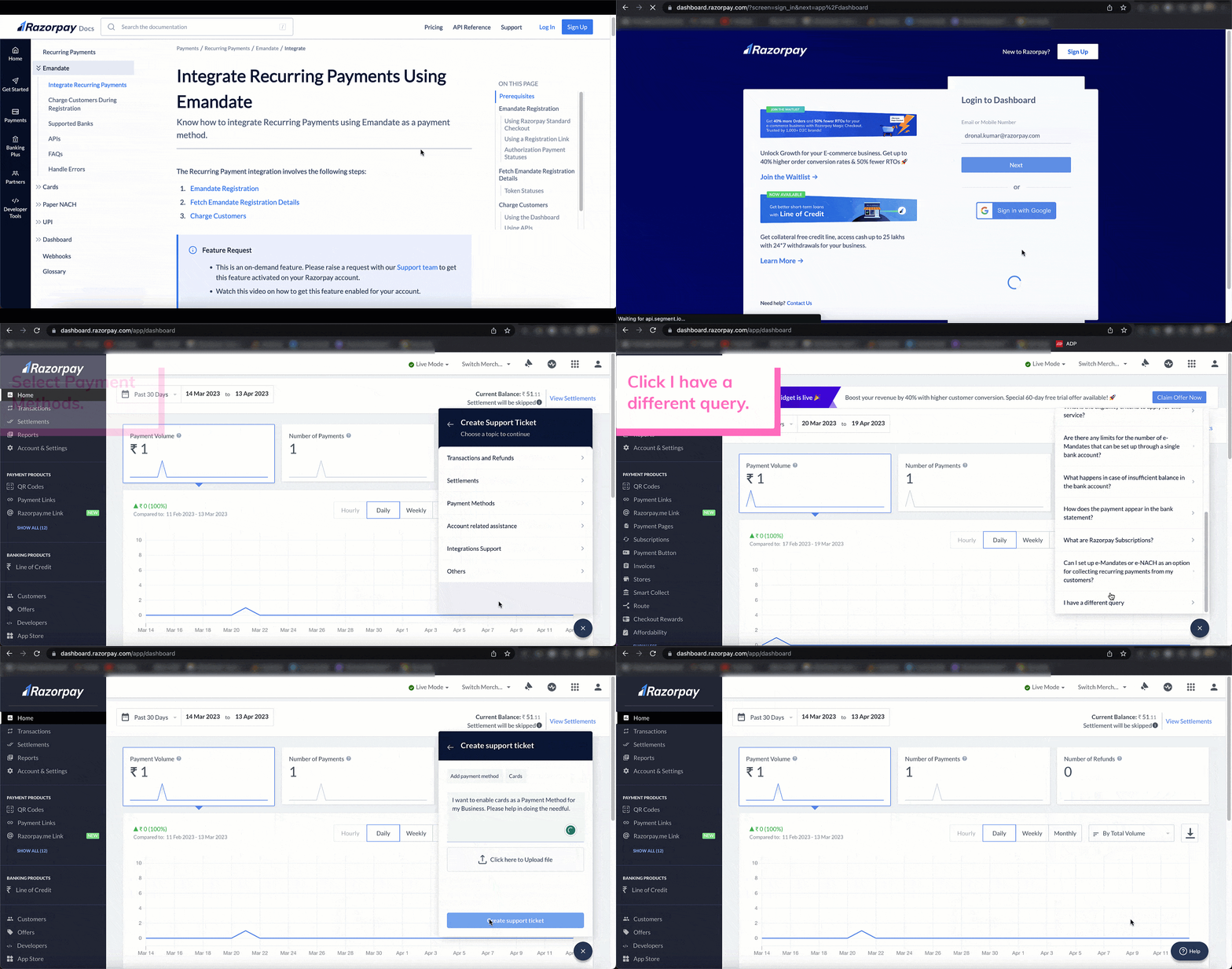
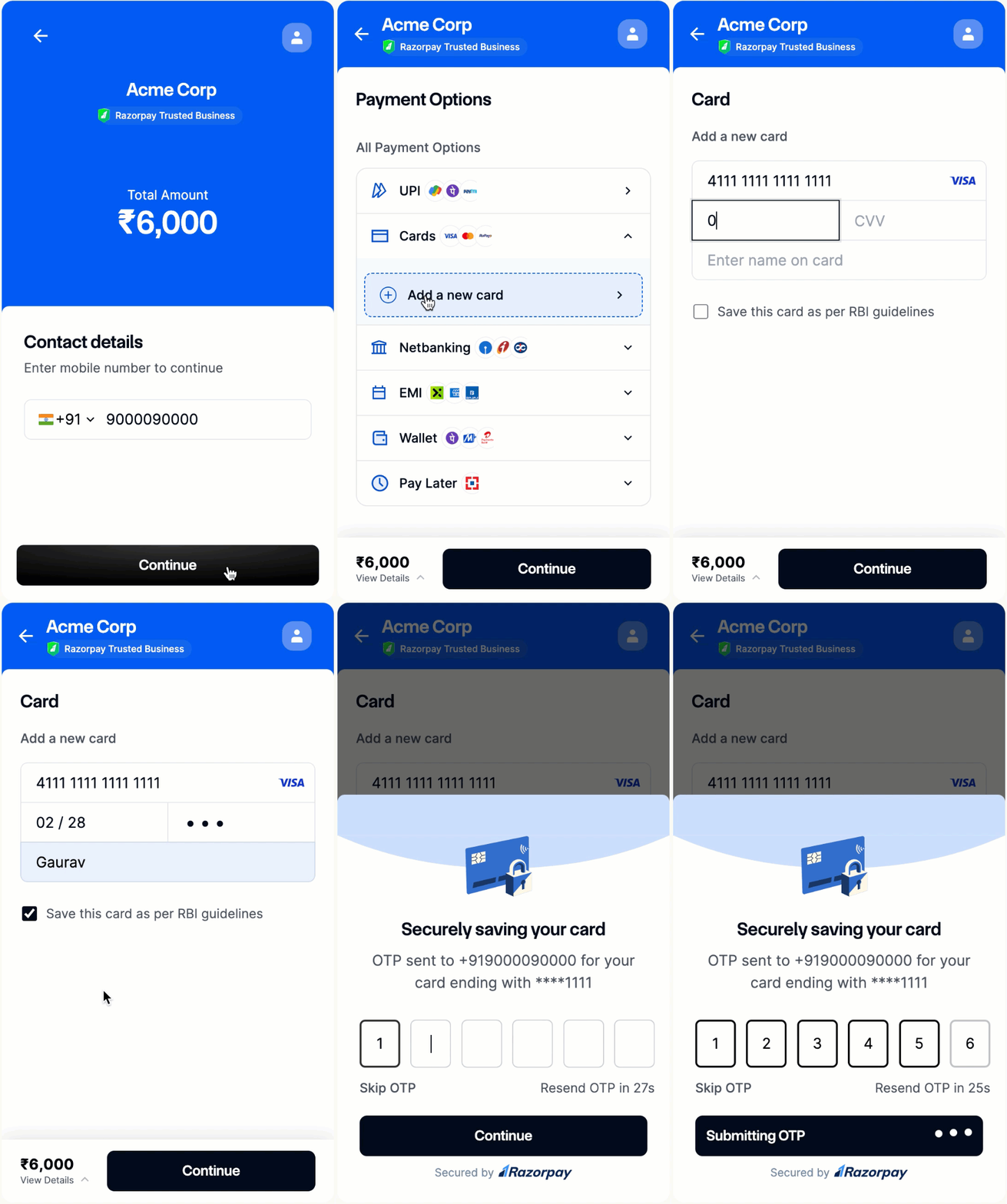
Save Card Details
To save card details, the customer:- Opens Razorpay Checkout and selects Card as the payment method.
- Provides the card details.
- While making a card payment, the customer can choose to:
- Save their card details.
- Not save their card details.
Make Payments Using Saved Cards
To make payment using saved cards:- The customers log in to the Razorpay Checkout.
- They select Card as the payment method.
- They enter the OTP sent to their phone or use their fingerprint if Biometric Authentication biometric authentication is set up, then click Verify.
- They select the saved card, enter the CVV and click Pay.
- We recommend that customers log out of Checkout after they complete the transaction. To do this, they must:
- Open Razorpay Checkout.
- Select Card as the payment method.
- Click the drop-down list and select Log out from all devices.
Manage Saved Cards
According to RBI Guidelines, all customers should have a way to delete their card details stored as tokens. Customers can manage saved tokens using our portal. Customers can manage their saved card details stored as tokens using our portal. To manage saved cards:- Log in to the Portal using their Mobile Number and enter your Email. Click Send OTP.
- Enter the OTP sent to their mobile number for verification and click Verify.
- They can choose to select a card and delete the website/app on that particular card, or they can also select a website/app and delete the card on that particular website/app.
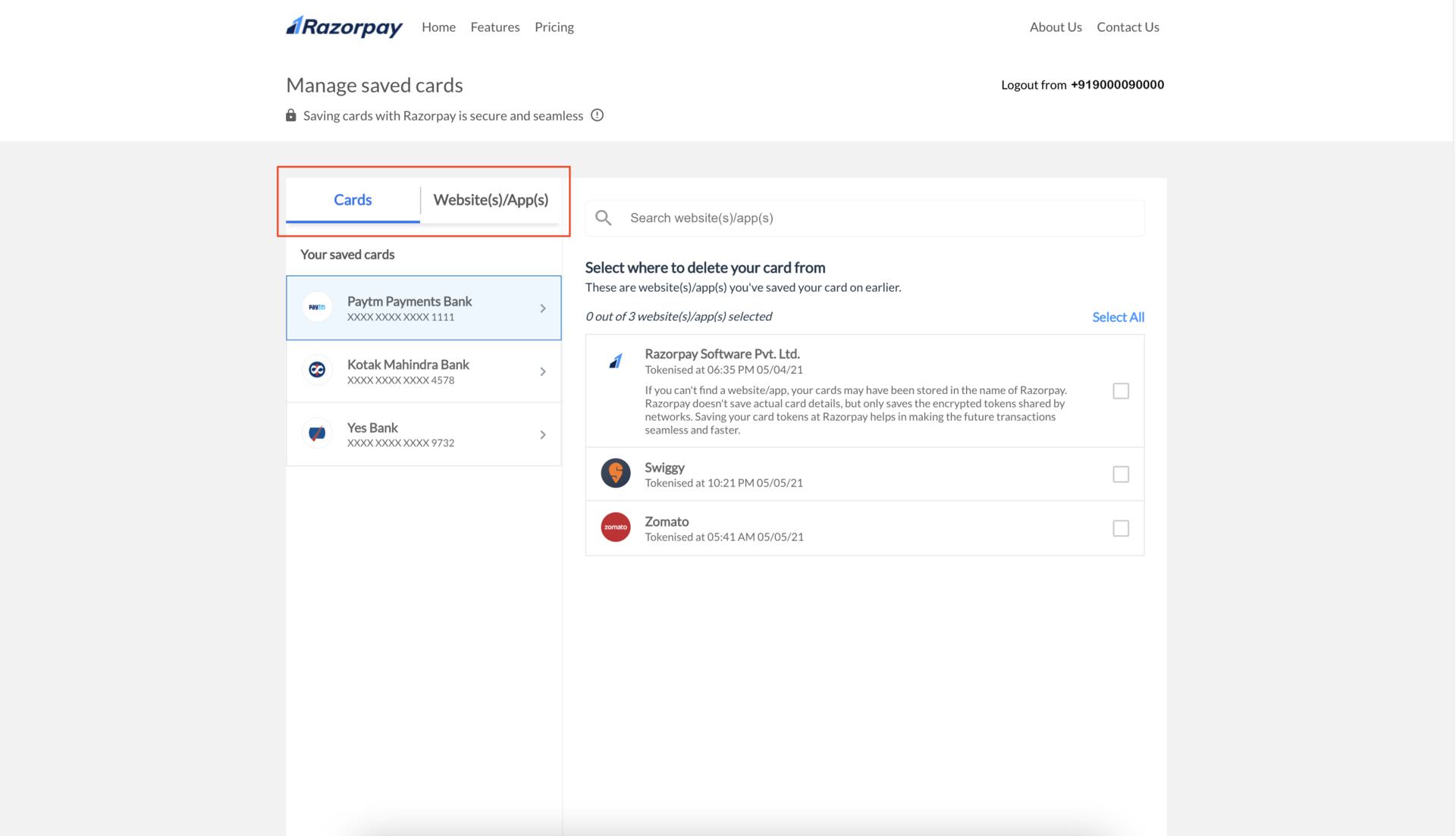
To delete website/app on a particular card:
To delete website/app on a particular card:
- Select Cards. View a list of saved cards.
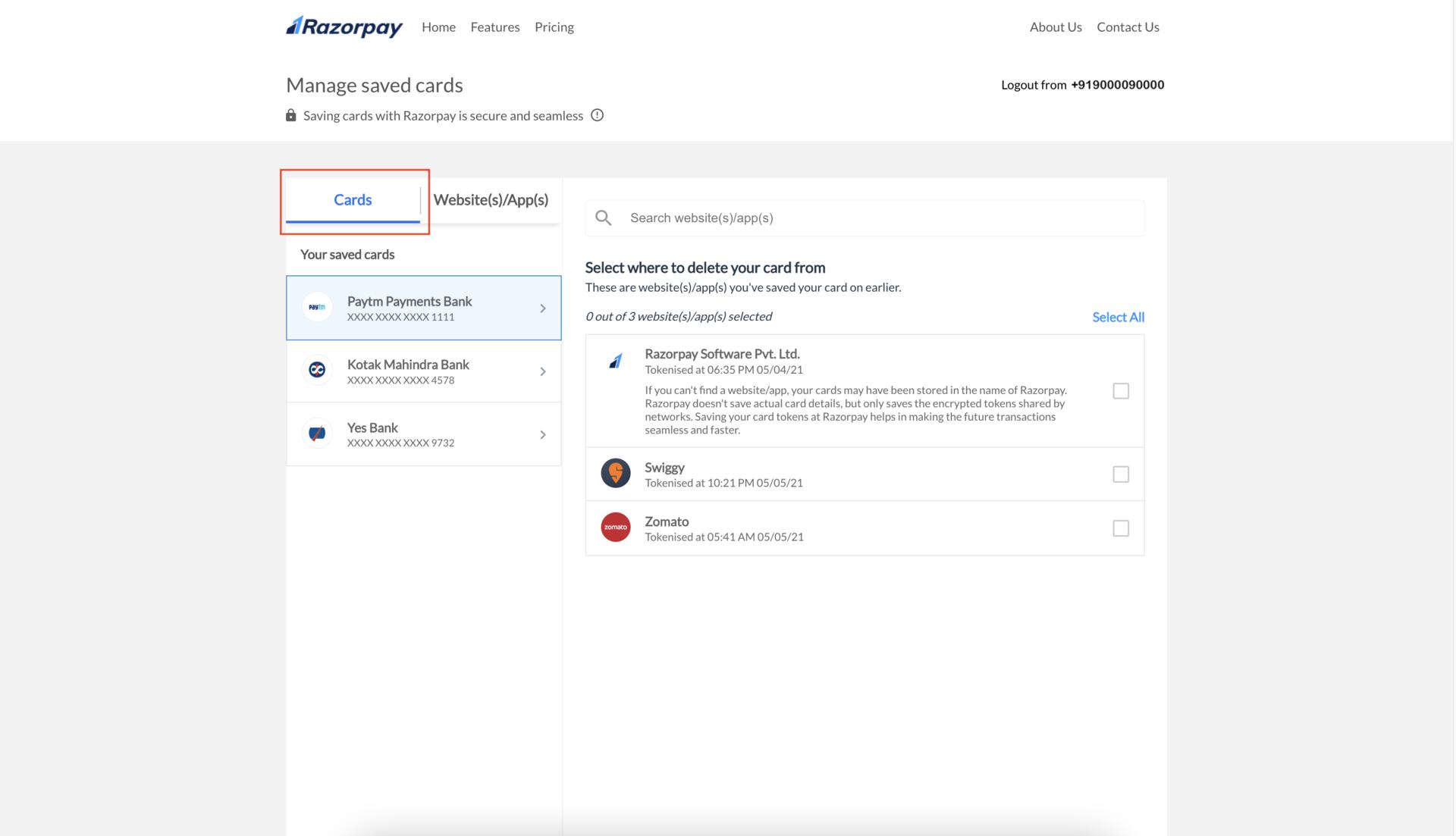
- Select a card. For example, a customer selects a card from Paytm Payments Bank. They can now view a list of websites/apps they saved the card on earlier.
- Either click Select All or select the relevant check box against each website/app.
Handy TipsIf they cannot find a website/app, their card might be saved directly on Razorpay. They can select the check box to delete all the cards saved on Razorpay.
- Click Delete. A pop-up appears to confirm the action, click Yes, Delete.
To delete card on a particular Website/App:
To delete card on a particular Website/App:
- Select Websites/Apps. They view a list of websites/apps they have saved their cards on earlier.
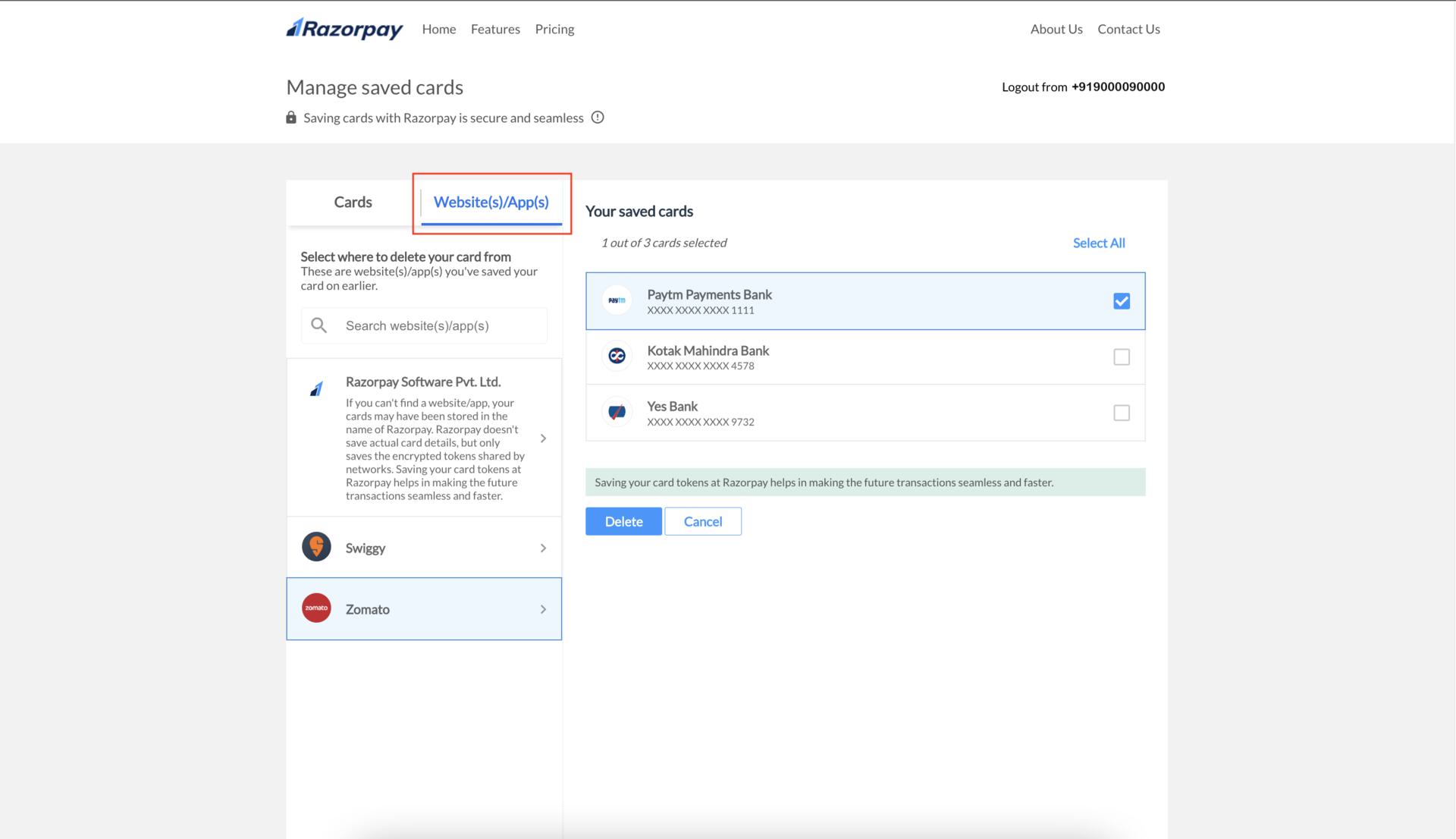
- Select a website/app. For example, a customer selects Zomato. They can now view the cards saved on Zomato.
- Either click Select All or select the relevant check box against each card.
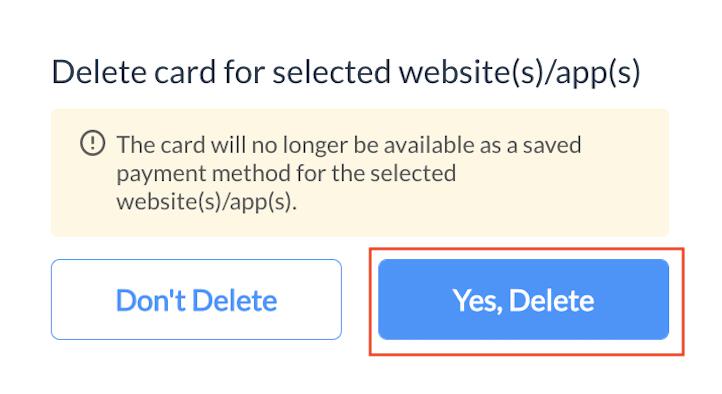
- Click Delete. A pop-up appears to confirm the action, click Yes, Delete.
Frequently Asked Questions (FAQs)
Why are my customers unable to access the saved cards?
Why are my customers unable to access the saved cards?
If your customers are using Google Chrome and not able to access saved cards, it may be due to their browser configurations. Go to Chrome Settings, select Privacy and security → Cookies and other site data → Allow all cookies and restart the browser. If they still cannot access them, contact our Support team.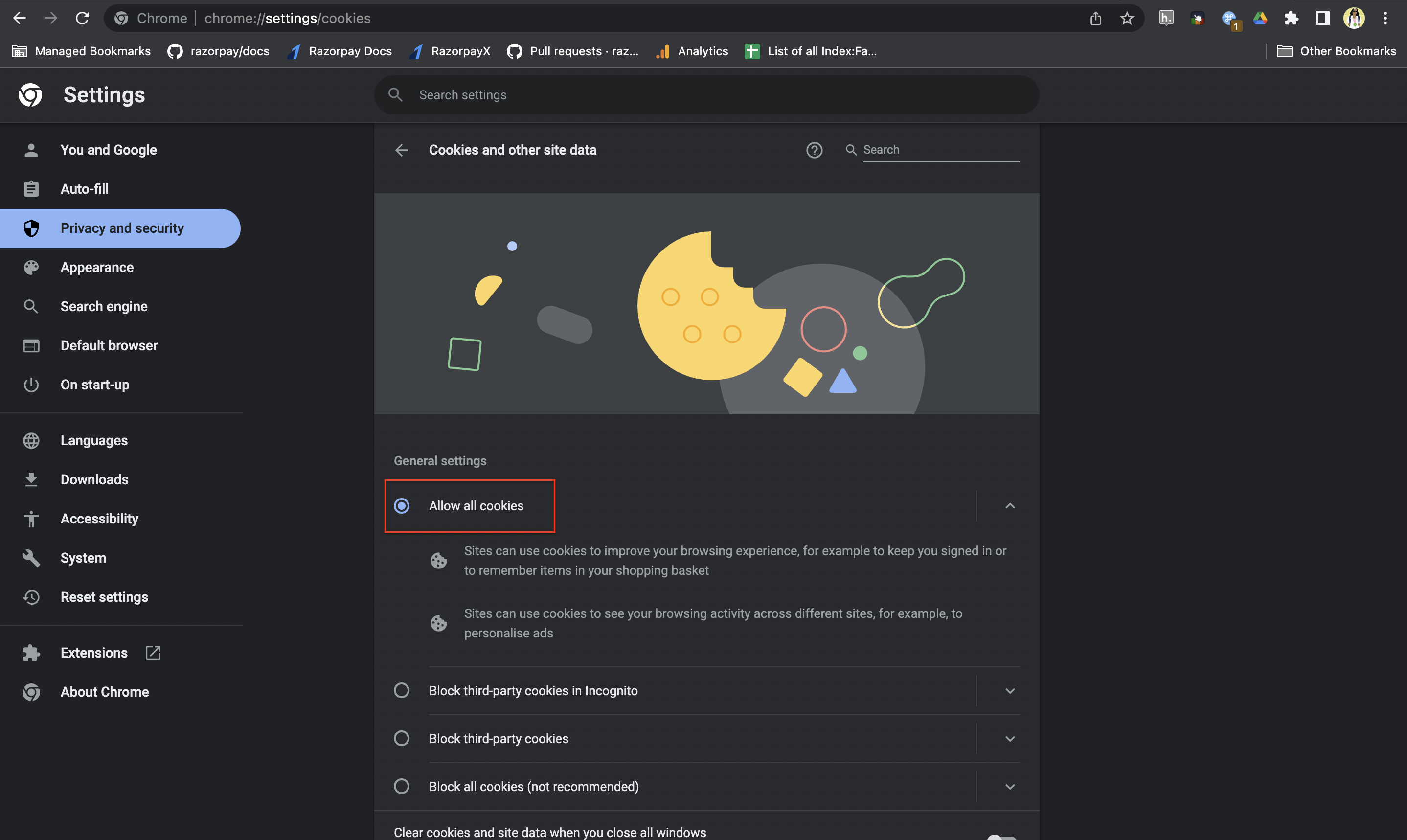
My customers have accessed their saved cards on the Checkout by providing OTP. How do they now log out?
My customers have accessed their saved cards on the Checkout by providing OTP. How do they now log out?
For a safer and secured payment experience, your customer must log out from the Razorpay Checkout by following these steps:
- Open Razorpay Checkout.
- Select Card as the payment method.
- Click the drop-down and select Log out from all devices.