

Available in🇮🇳 India
Feature AvailabilityActivity logs are available only to Optimizer merchants, on request. To enable Activity logs for your account, reach out to your Optimizer Account Manager or Razorpay Tech Support.
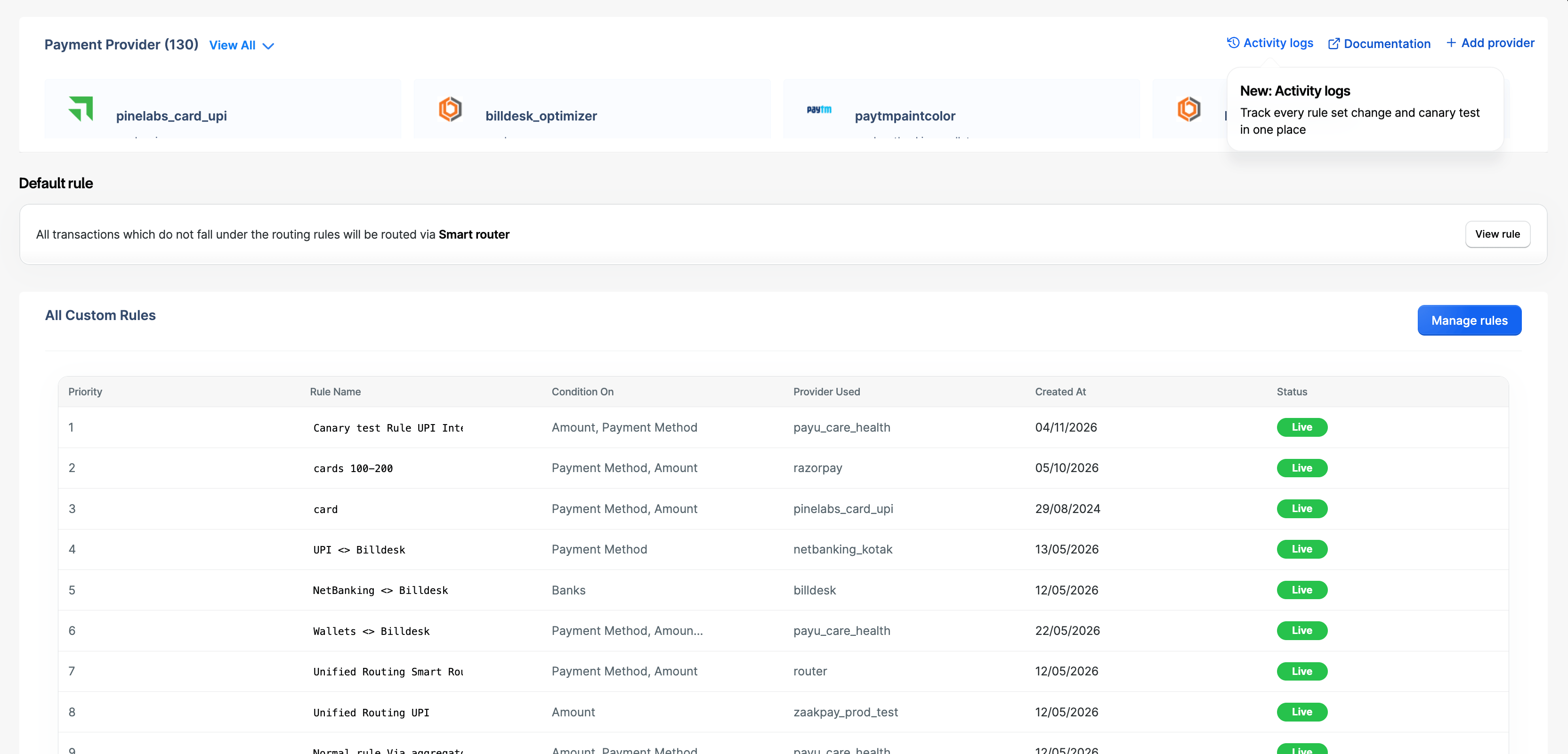
View Activity Logs
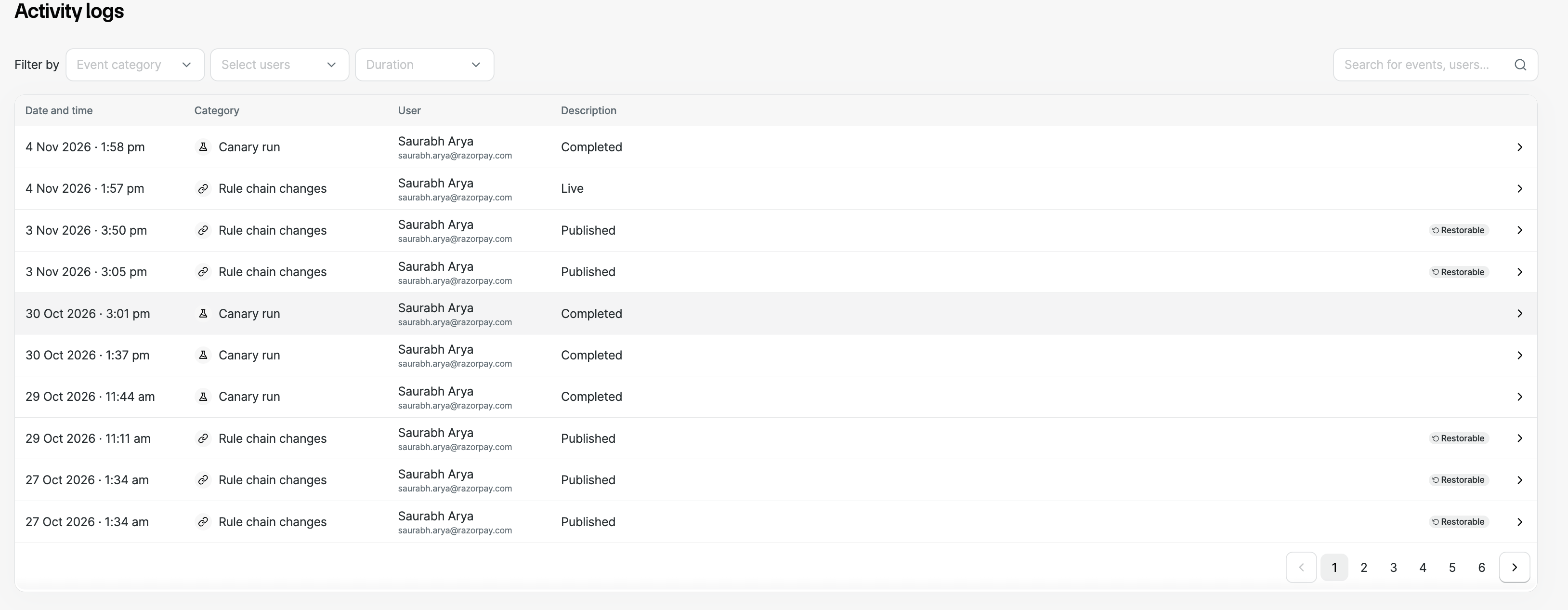
The Activity logs page lists every change to your rule chain and every canary run, newest first. Each entry shows:- Date and time of the event.
- Category: Rule chain changes or Canary run.
- User: name and email address of the team member who made the change.
- Description: the outcome of the event.
- Restorable: shown on earlier rule chain versions you can go back to.
Filter and Search Activity Logs
Use the filters at the top of the page to find a change quickly. You can:- Filter by Event category: All categories, Rule chain changes or Canary run.
- Filter by user with Select users: All users or a specific team member.
- Filter by Duration: All time, Last 7 days, Last 30 days or Last 90 days.
- Use the search box to find entries by event category, user name, email or description.
- Click × in the search box to clear it.
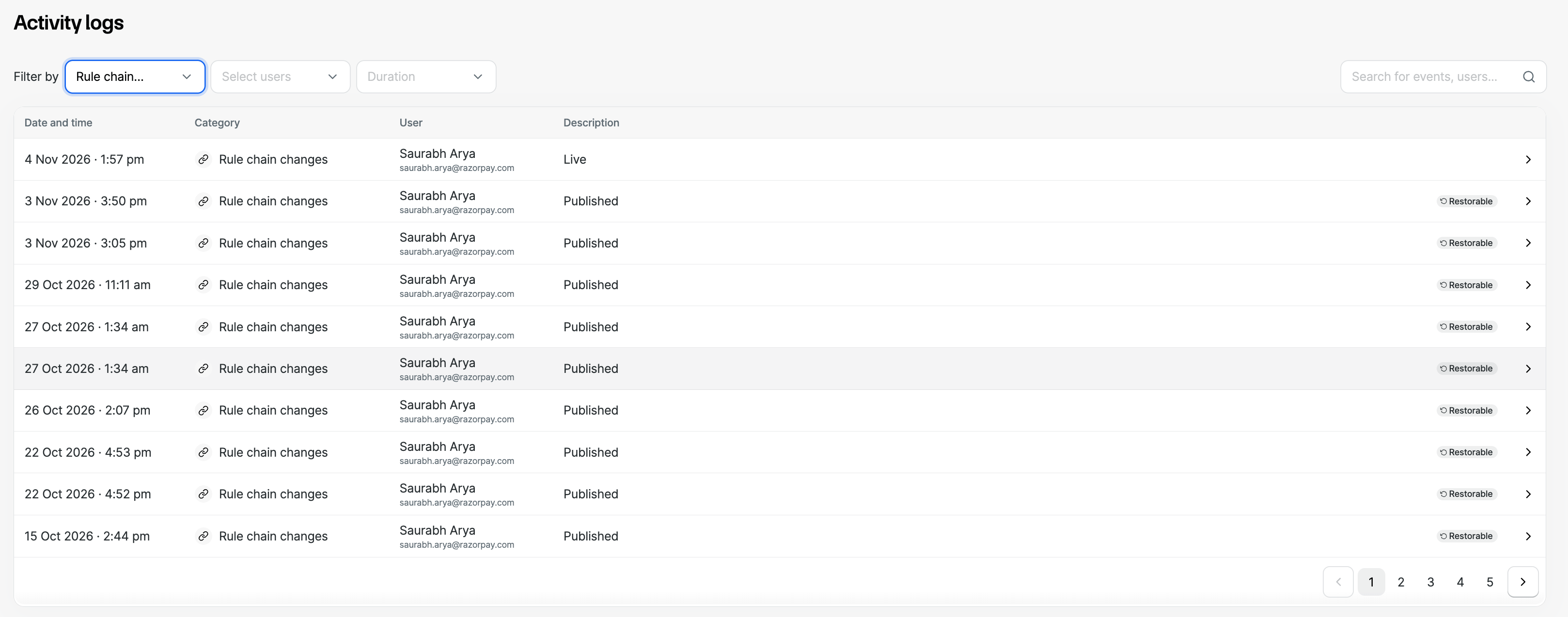
Activity logs are kept for 90 days. Search does not look inside rules. To find when a specific rule changed, filter by Rule chain changes and open the entries.
Review Rule Chain Changes
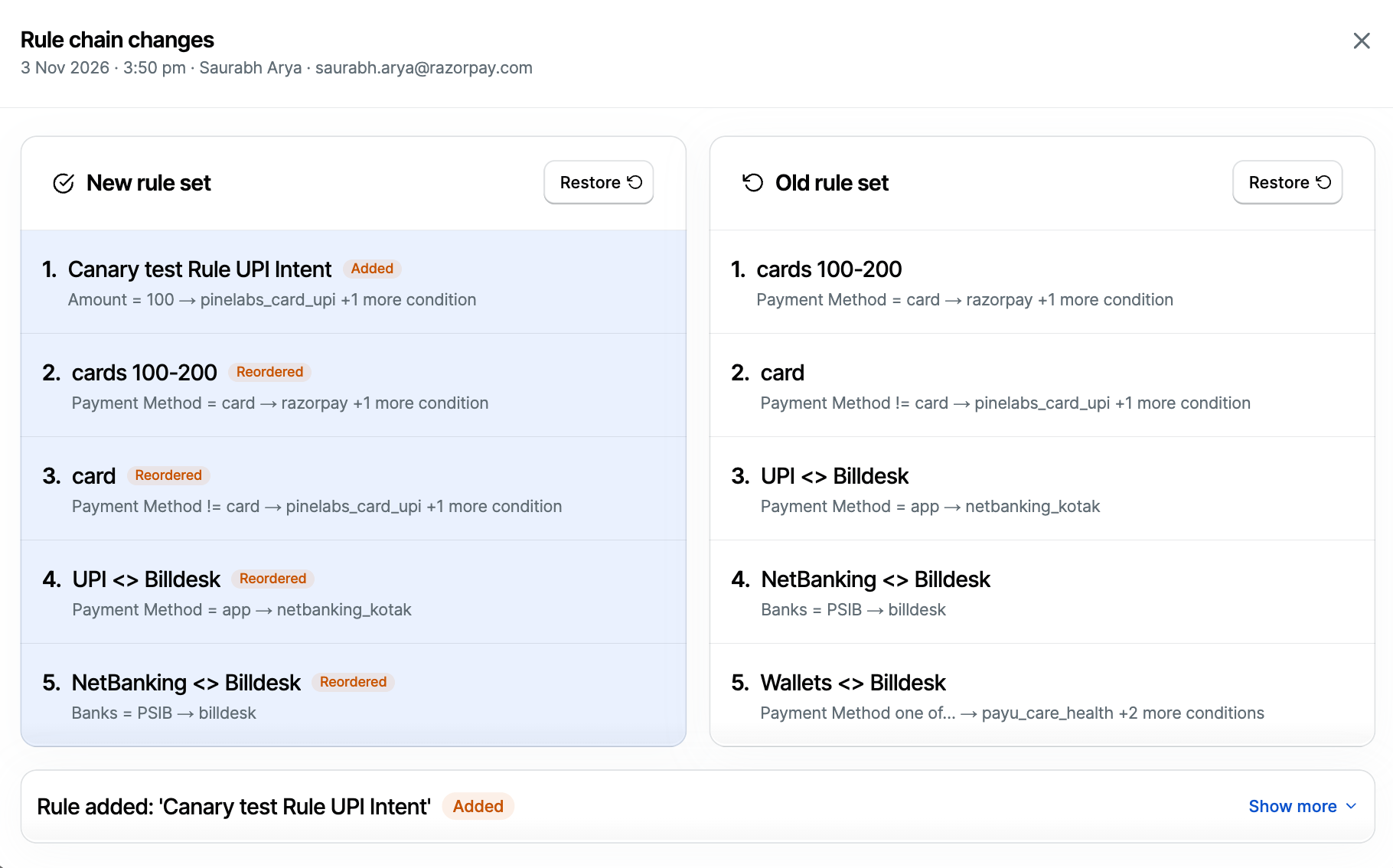
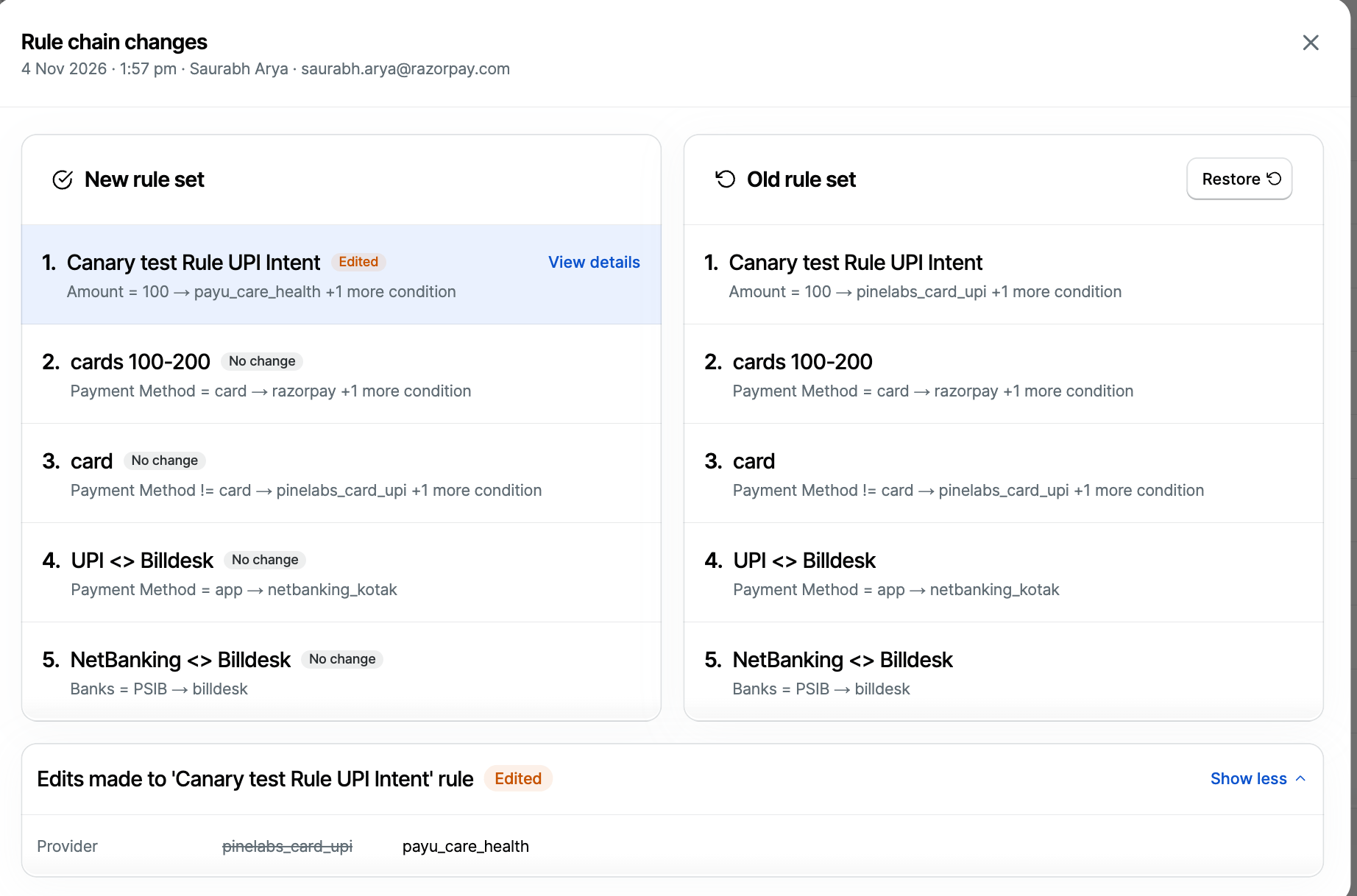
Click any Rule chain changes entry to see the change. The date, time, user name and email appear at the top, followed by a side-by-side view:- New rule set: the rule chain after the change.
- Old rule set: the rule chain before the change.
View Rule Details
To see exactly what changed in a rule:- Click View details next to an edited rule, or click Show more on the summary below the rule sets.
- Each changed field is listed with the old value struck through and the new value next to it.
- Click Show less to collapse the details.
Restore an Earlier Rule Chain
To go back to an earlier version of your rule chain:- Open the Rule chain changes entry that has the version you want.
- Review the rule sets and tags to confirm it is the right version.
- Click Restore on the rule set you want to go back to.
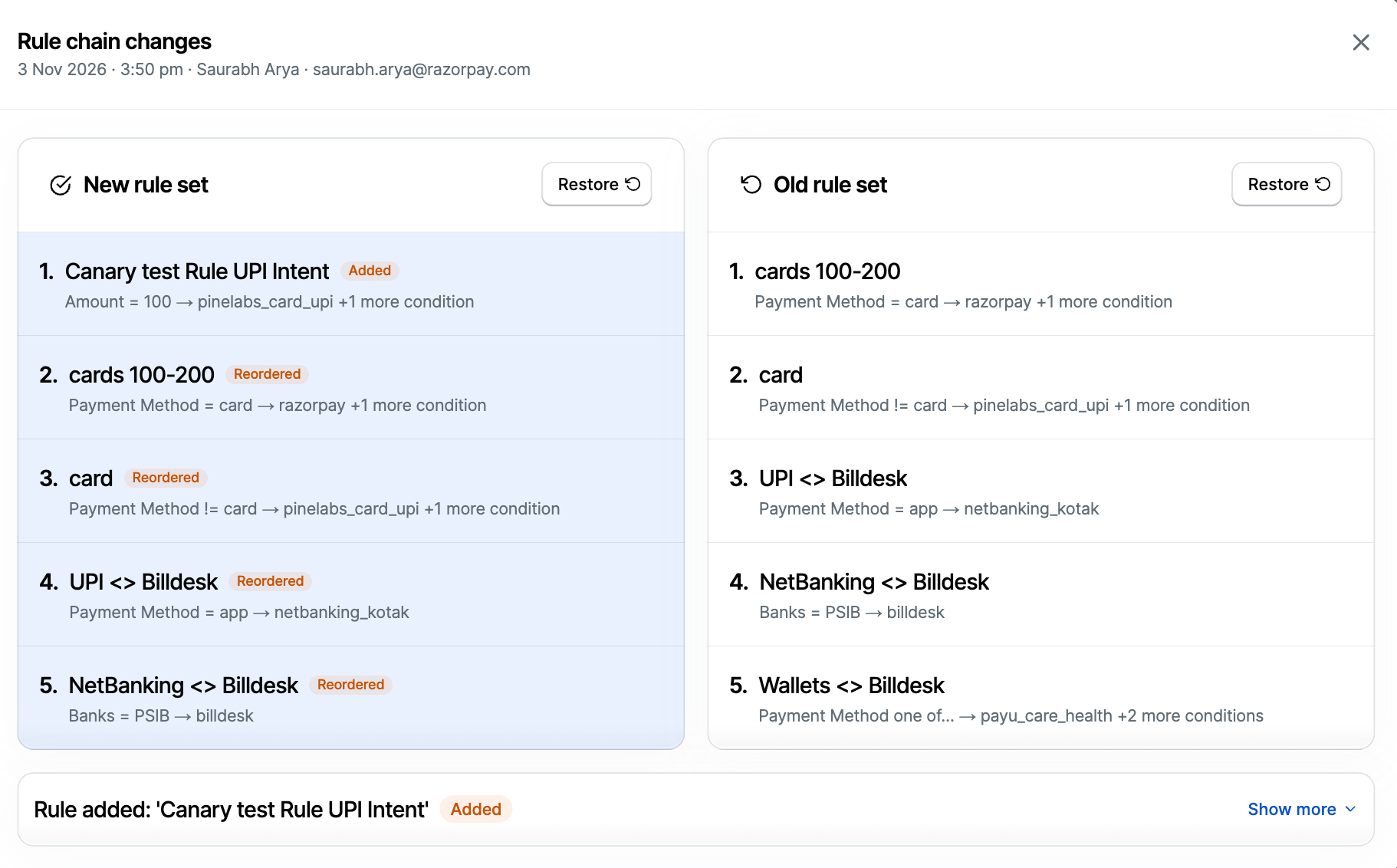
Restoring a rule chain changes how your payments are routed. Review the rule sets before you restore.
Review Canary Runs
A canary run tests a new rule chain on a share of your traffic before it goes live for all payments. The rest of your traffic continues to use your existing rule chain. Click any Canary run entry to see:- The traffic share and time window of the test, for example 5% traffic · 3:01 pm – 3:02 pm.
- New rule set and Existing rule set, each with its traffic share, Success rate and number of transactions in the test window.
- Per-gateway success rate breakdown: click Show details to see the Transactions, New rule set SR, Existing rule set SR and Change for each gateway.
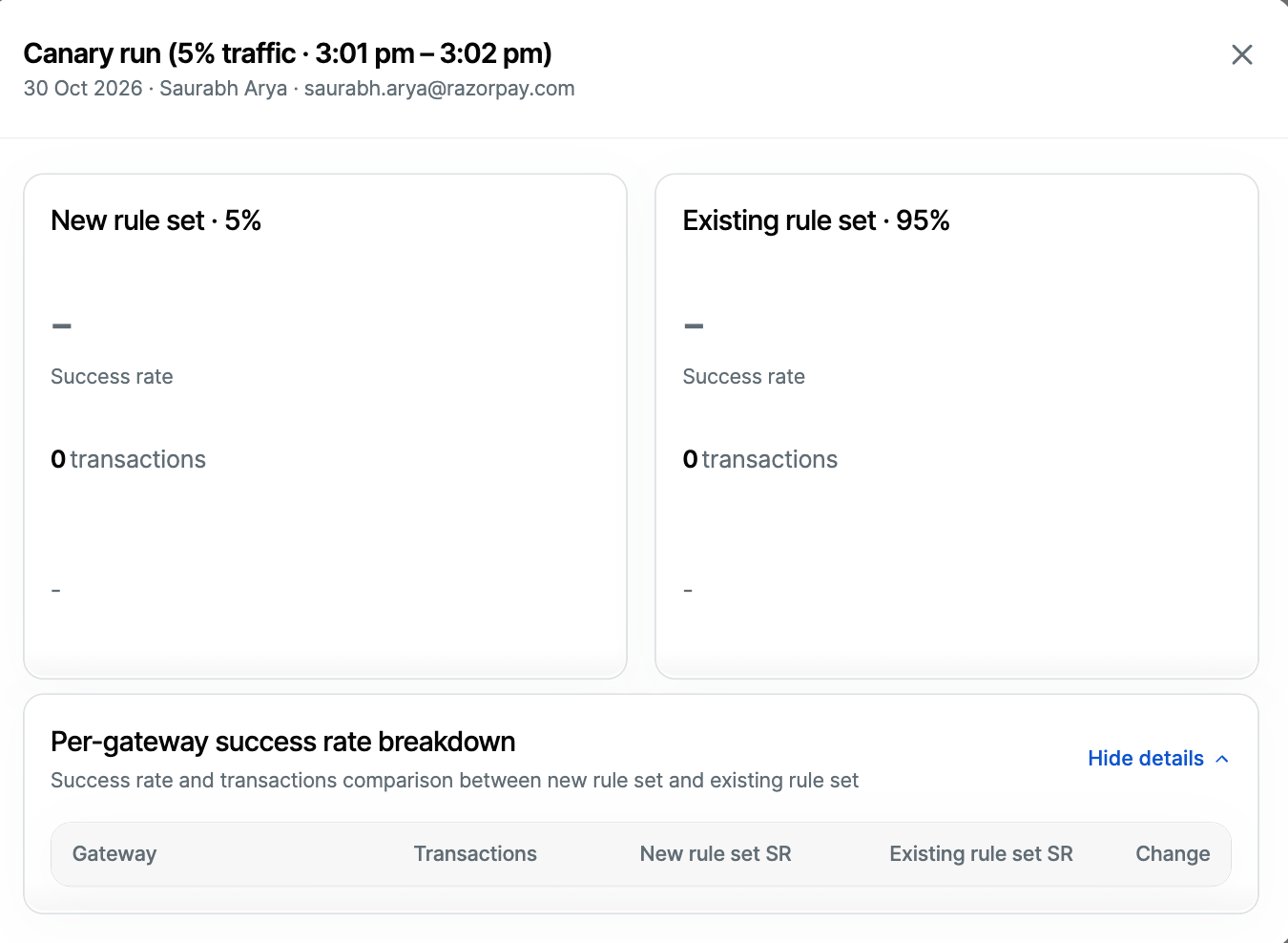
If no payments were processed during the test window, the success rate shows ”–” and the transaction count shows 0.