

Available in🇮🇳 India🇸🇬 Singapore
After creating offers from the Dashboard, you have to integrate them on Razorpay Standard Checkout so that your customers can avail them while making payments.
Exception
You need not integrate offers with Orders API if you use any of the following Razorpay products or plugins to accept payments:- Plugins: Magento, Shopify or WooCommerce.
- Products: Payment Links, Payment Buttons, Payment Pages and Invoices.
Handy TipsAs per the RBI guidelines, the original card number is replaced with a surrogate value called a token. However, we will continue to support BIN-based offers post tokenisation. Note that BIN-based offers will not work on saved American Express (AMEX) cards.
Validation Criteria
Only those offers that pass the following validations are be displayed at the Checkout:Display Offers at Checkout
There are three ways in which you can display offers at Razorpay Checkout:Method 1: Display Offers by Default
This is the easiest way to display offers at the Checkout. While creating the offer from the Dashboard, enable the Show Offer on Checkout option. The offer automatically appears at the Checkout.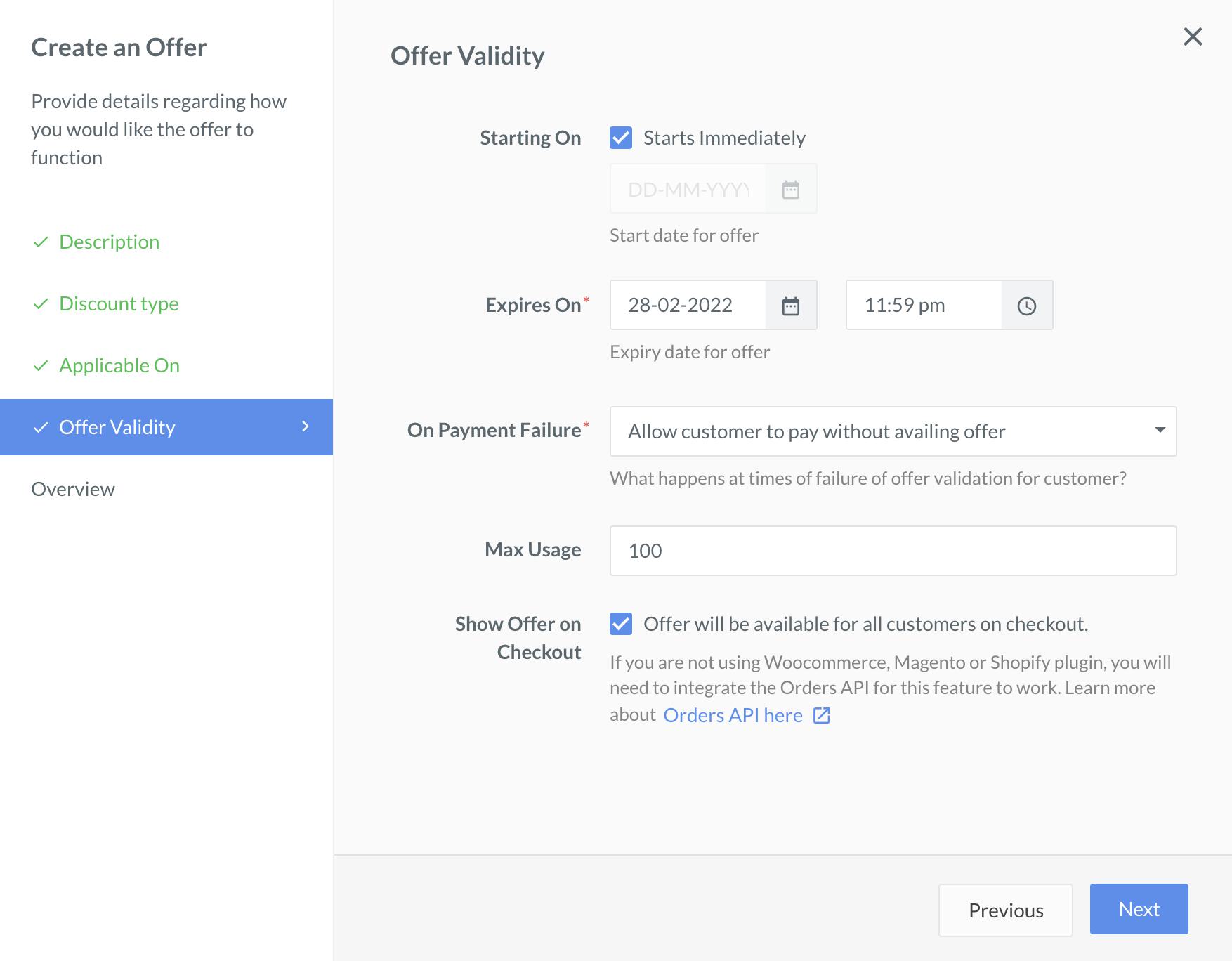
Method 2: Display Limited Offers
To display a specific set of offers at the Checkout, you should associate the offers with an order. You can pass theoffers array as a request attribute in the Create Orders API.
Some use cases:
- If you have multiple product lines running on the same account and certain business logic on your side for displaying offers.
- The discount has already been applied, and you would like to restrict the payment method to avail the offer.
Method 3: Force Offer
Use this method when a customer has already selected an offer on your website or app before the payment process begins. By forcing an offer, you lock the checkout to that specific offer, ensuring the customer can only pay using the forced offer. If the customer does not accept the forced offer, the payment will not be processed.Integrate Offers with Orders API
To integrate offers, follow these steps:Step 1: Create an Offer from the Dashboard
You can create offers from the Dashboard.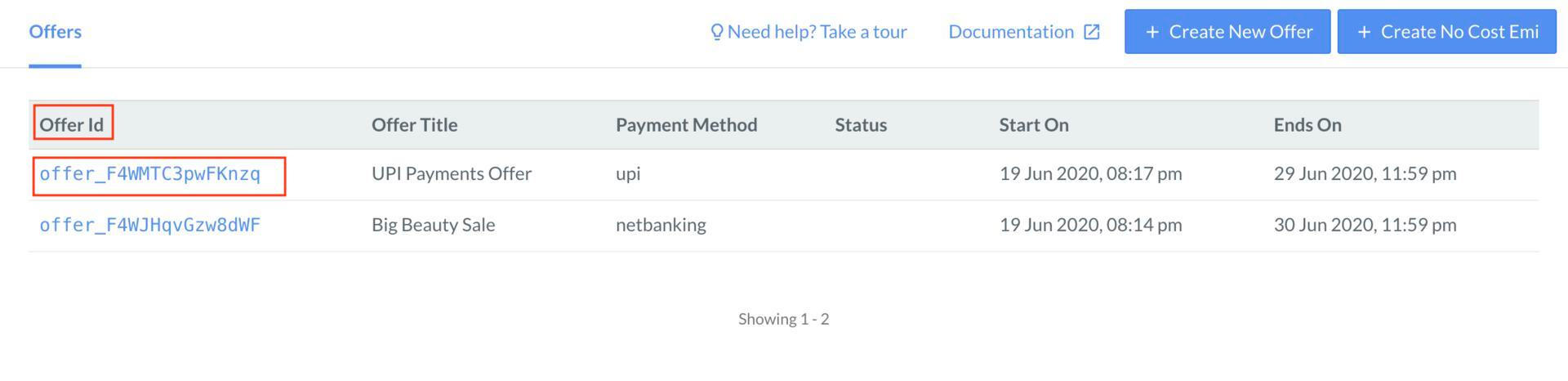 Let us say you have created an offer
 offer_ANZoaxsOww2X53, such that a discount of is applicable on all transactions done through AXIS netbanking only.
Step 2: Pass the Offer in Orders API
Create an order using the Orders API. Depending on the method, you can pass specific offers in the request or let Razorpay apply the default offers automatically.Handy TipsTo display specific offers at checkout, pass them in the
offers array (see the sample code below). If you don’t include anything in the offers array, the default offers will automatically appear at checkout.- For Default Offers (Method 1)
- For Limited Offers (Method 2)
- For Force Offer (Method 3)
You do not have to pass any offer id in the request. Razorpay automatically applies the offers created and enabled from the Dashboard.
Sample Code
Request Parameters
Request Parameters
amount mandatory
: integer Enter the amount for which the order is to be created in currency subunits. For example, for an amount of , enter 5000.currency mandatory
: string ISO code of the currency associated with the order amount. Here, it is INR.receipt optional
: string Your receipt id for this order.notes optional
: object Key-value pair that can be used to store additional information about the order.Response Parameters
Response Parameters
For a complete list of response parameters, refer to the Create an Order API
Step 3: Pass Order_id and Trigger the Checkout
Theorder_id obtained in the previous step can be passed to the Checkout form as follows:
Checkout
Next Steps
After the customer has availed the offers and made the payment at the Checkout, you can track the status of the payments:- From the Dashboard.
- By configuring webhooks.
- By polling our payment APIs.