

Activate International Bank Transfer
International Bank Transfer Dashboard
Advantages
Advantages
- For Your Business
- For Your Customers
-
Competitive Pricing
International bank tranfers cost only 1% with Zero Forex Markup vs traditional banks and other fintech platforms. -
Faster Settlement TAT
Receive your payments within 1 business day of the payment being captured vs traditional bank transfer that takes 5-7 business days. -
Complete Compliance
Receive your FIRC within minutes of the amount being credited to your INR account; built-in invoice management and buyer detail collection to ensure RBI and partner compliance. -
Hassle-free setup
Opening bank accounts in foreign countries typically requires extensive paperwork and physical presence. Razorpay offers a real-time, completely digital solution to activate foreign currency accounts across different geographies. -
Multi-currency support
Accept payments in 30+ currencies through USD, GBP and EUR virtual accounts, with support for ACH, FPS, SEPA and SWIFT transfers. -
Easy platform integration
Seamlessly connect your virtual accounts to Amazon Seller Central, Upwork, Deel and other marketplaces or freelancing platforms. -
Higher success rates
International card payments often fail due to fraud checks and risk validations. Bank transfers have significantly higher success rates, improving your conversion. -
No chargebacks
Bank transfers are authorised payments that cannot be reversed through chargebacks, protecting you from fraudulent disputes and providing better cash flow predictability.
How It Works
- Activate International Bank Transfer.
- New Razorpay user: Sign up for an account.
- Existing Razorpay user: Log in to the Dashboard. Navigate to Account & Settings → International payments (under Payment methods) → International bank transfers and click Activate.
- Receive virtual bank account details for USD, GBP, EUR, AUD, CAD, SWIFT and more.
- Share these account details with your international buyers.
- Accept payments when buyers transfer money using local payment methods.
- Upload invoices and buyer details for each transaction (not required for Amazon, Upwork and Freelancer platform transactions).
- Track payments through detailed timelines on your dashboard.
- Receive settlements in INR in your Indian bank account.
Supported Payment Methods
International Bank Transfer supports the following payment methods:Use Cases
International Bank Transfer is ideal for:- Freelancers and consultants providing services to international clients.
- SaaS companies selling software subscriptions globally.
- IT services providers working with overseas customers.
- Ecommerce sellers on Amazon, eBay, or their own websites.
- B2B exporters selling physical goods internationally.
- Digital content creators monetising international audiences.
- Professional services firms offering consulting, legal or accounting services globally.
Prerequisites
Before activating International Bank Transfer, ensure you meet the following requirements:- Active Razorpay account with KYC verification completed.
- PAN details of your business provided during onboarding.
- You must be an Indian business that falls under one of the following export purpose codes to use MoneySaver Export Account:
- You should have international payment via Payment Link enabled on your account if you want to receive payment from customers in foreign currency, such as USD. The money will be settled in your Indian current account in INR. Know how to enable international payments for your account.
Activate International Bank Transfer
The activation process differs based on whether you are a new or existing Razorpay user.New Razorpay User
New Razorpay User
- Sign up for a Razorpay account.
- On the onboarding screen, select Outside India (International) and click Start Onboarding.
- Fill up the following details to complete the onboarding:
- Basic Details:
- Name (Business or Individual).
- Phone number.
- Email address.
- Payment channels you want to enable.
- Business Details:
- Type of business: Individual, Sole Proprietorship, Partnership, Private Limited, Public Limited, LLP, NGO and so on.
- Personal PAN (for individuals) or Business PAN.
- Business Documents:
- GSTIN certificate (if GST registered).
- Udyam registration certificate (for MSMEs).
- Complete your KYC:
- Business address with proof.
- Authorised signatory details.
- Complete video KYC:
- Requires Aadhaar and PAN card.
- Live video verification with Razorpay agent.
- Takes approximately 3-4 minutes.
- Basic Details:
- Follow the on-screen instructions to provide any additional details or documentation required for activation.
Existing Razorpay User
Existing Razorpay User
- Log in to the Dashboard.
- Navigate to Account & Settings → International payments (under Payment methods).
- In the Local Currency Bank Transfer section, under the International bank transfers tab, click Activate.
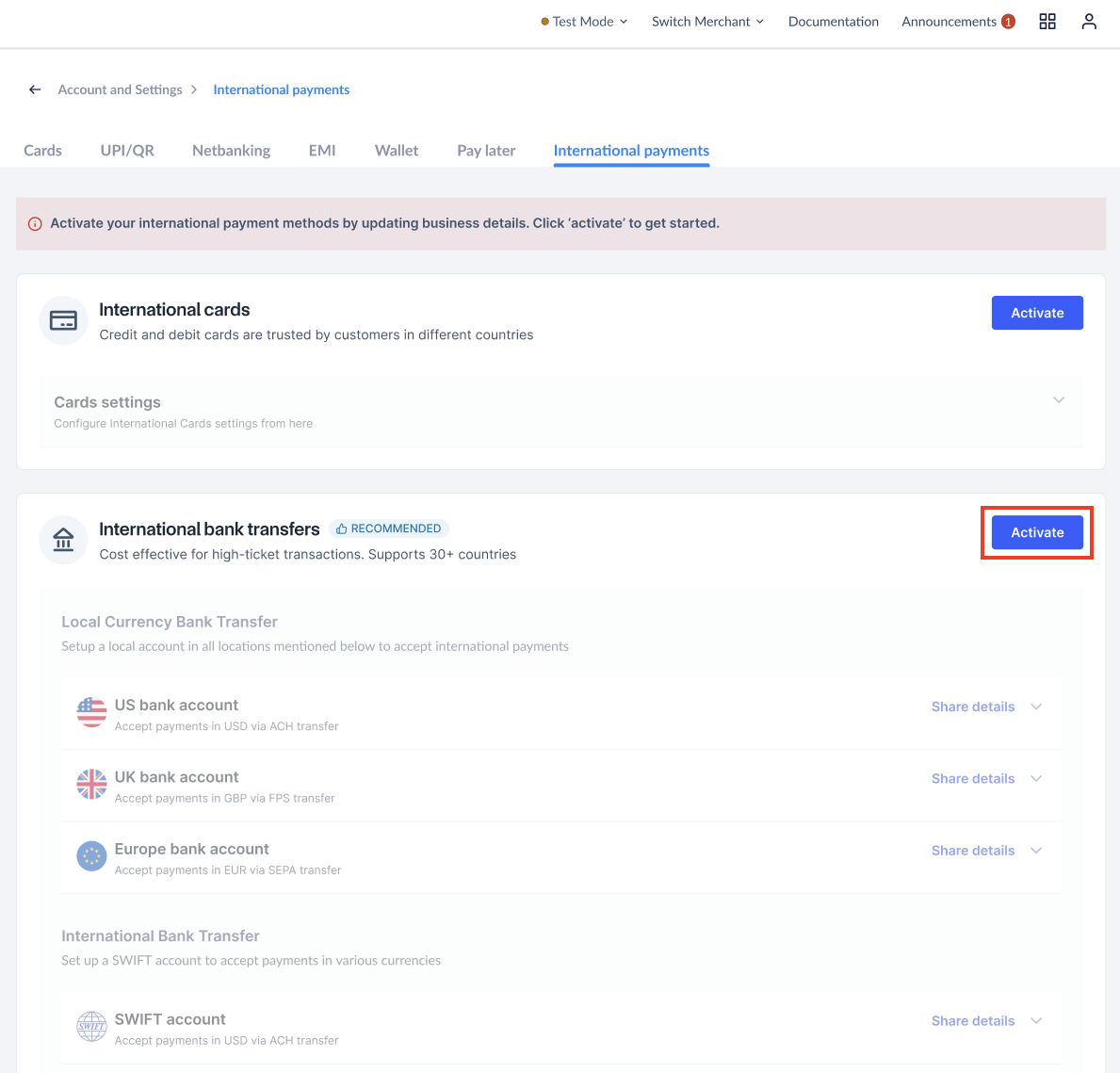
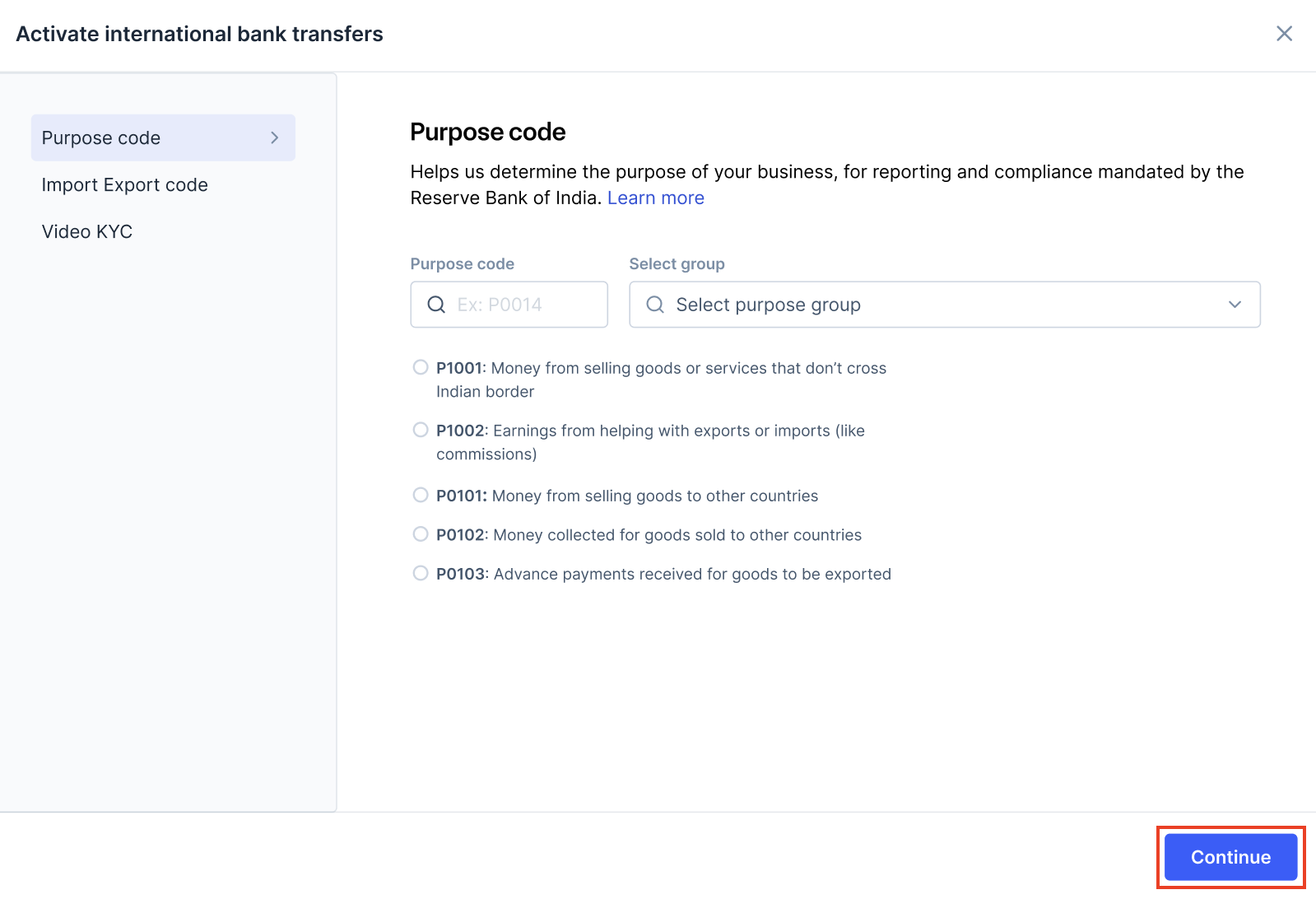
- On the Purpose code page, select the correct purpose code from the list and click Continue.
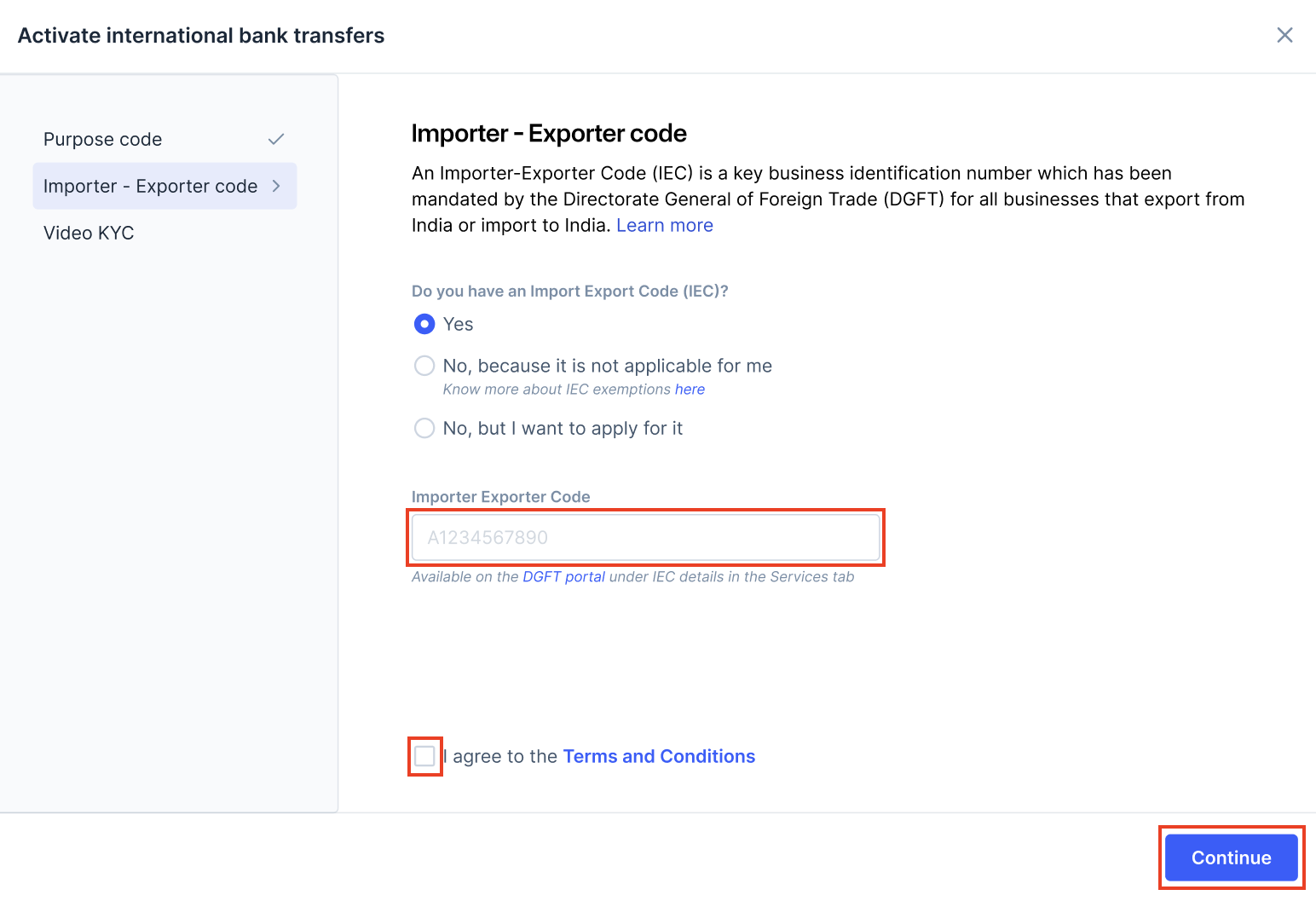
- On the Importer - Exporter code page:
- If you have an IE code, select Yes. Enter the 10-digit IE code and select I agree to the Terms and Conditions. Click Continue.
- If the IE code does not apply to you, select No, because it is not applicable for me and click Continue.
- If you do not have an IE code but want to apply, select No, but I want to apply for it, and click Apply now.
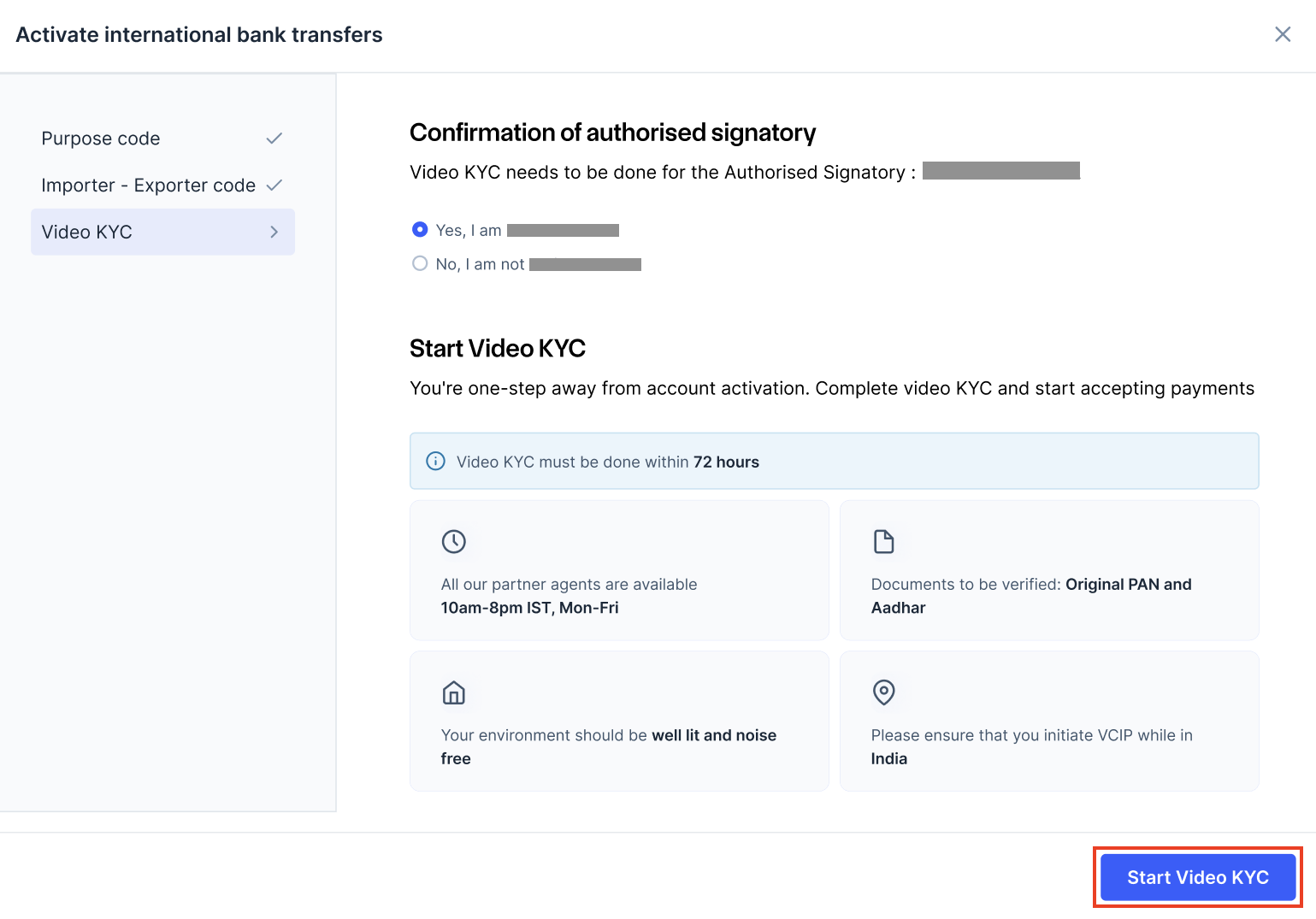
- On the Video KYC page, select Yes, I am Gaurav Kumar, and click Start Video KYC to proceed with the video KYC.
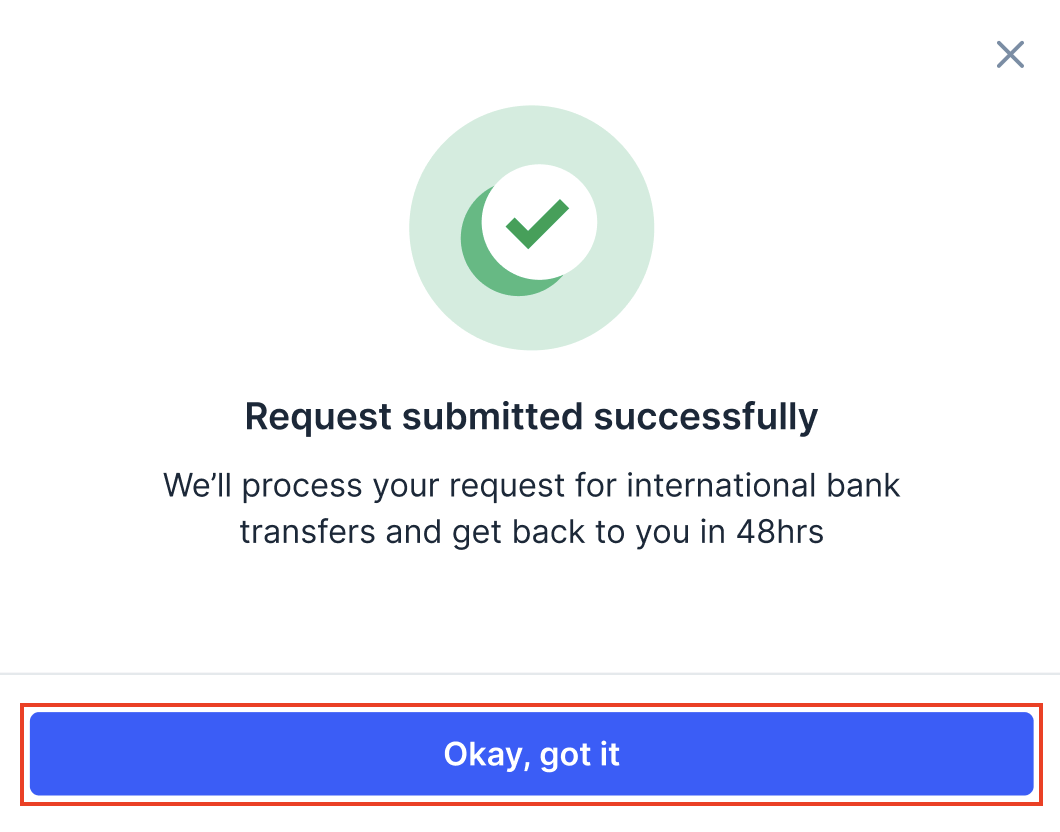
- Your request submitted successfully, click Okay, got it.
Accessing The Dashboard
After the International Bank Transfer account is activated, you can access your dashboard: If you are using only International Bank Transfer: You will automatically land on the International Bank Transfer homepage when you log in with all the international payment tools. If you are using multiple Razorpay products:- Log in to the Dashboard.
- On the left navigation, click Intl Bank Transfer.
- You will land on the dashboard homepage with all the international payment tools.
Dashboard Overview
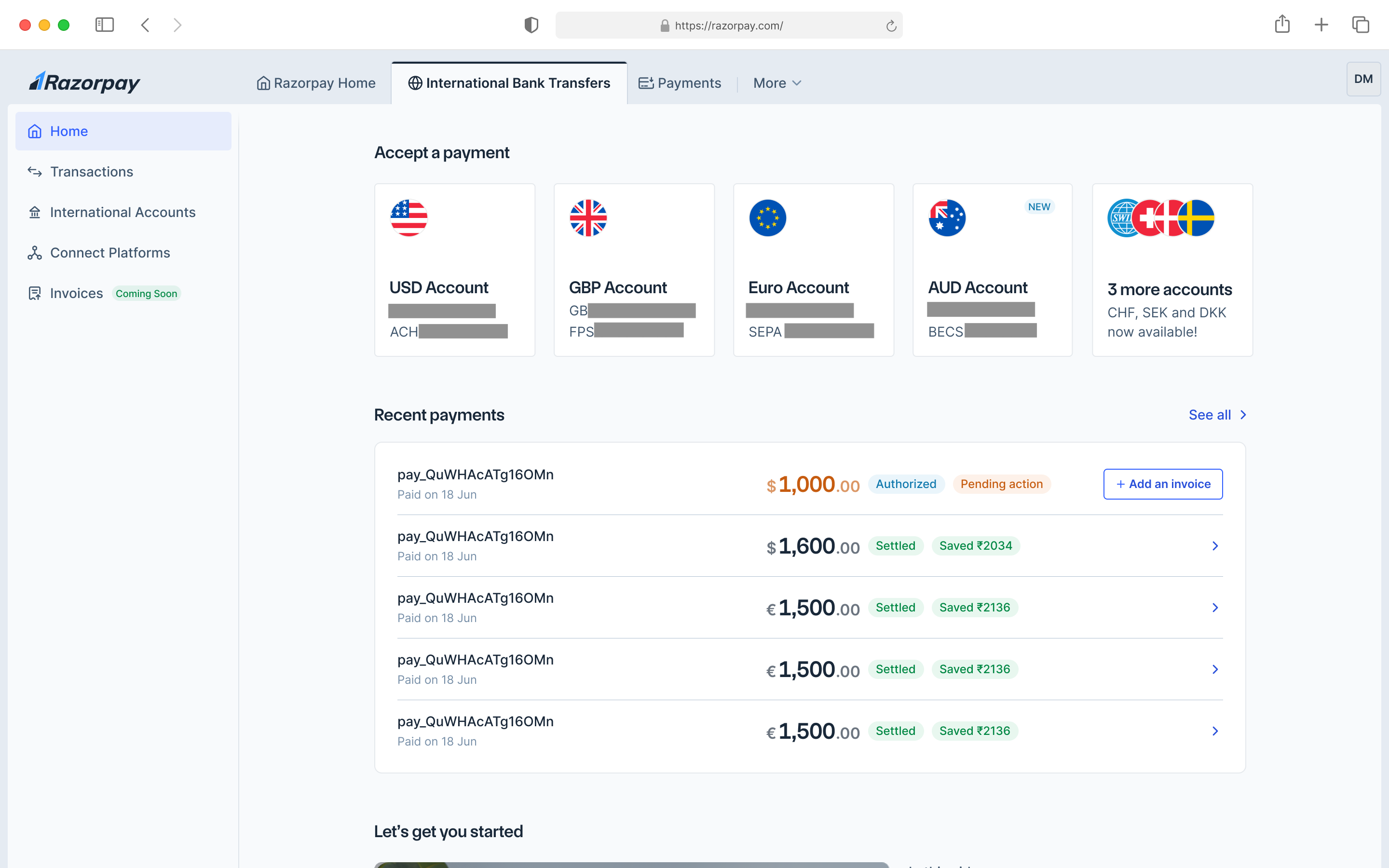
Dashboard homepage is organised into key sections:Virtual Bank Accounts
Virtual Bank Accounts
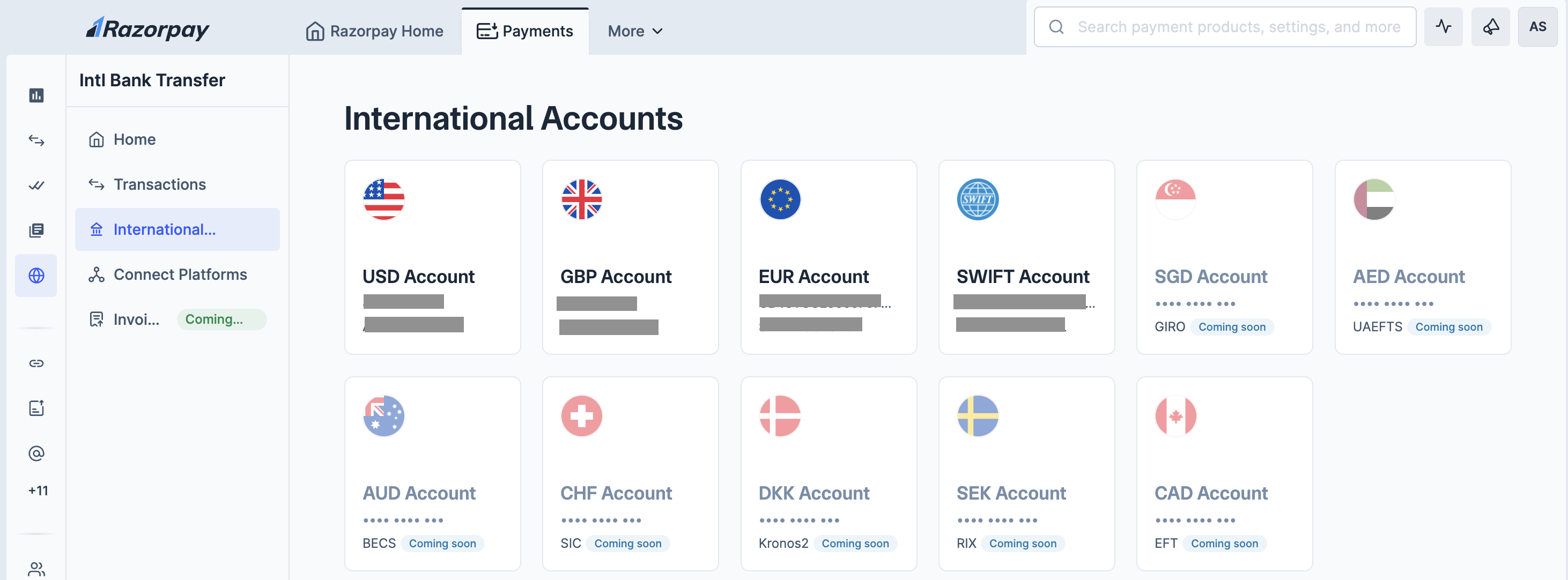
- USD Account (ACH)
- GBP Account (FPS)
- EUR Account (SEPA)
- SWIFT Account
- SGD, AED, AUD, CHF, DKK, SEK and CAD Accounts (Coming soon)
Accessing Your Account Details
Virtual Account Details
Virtual Account Details
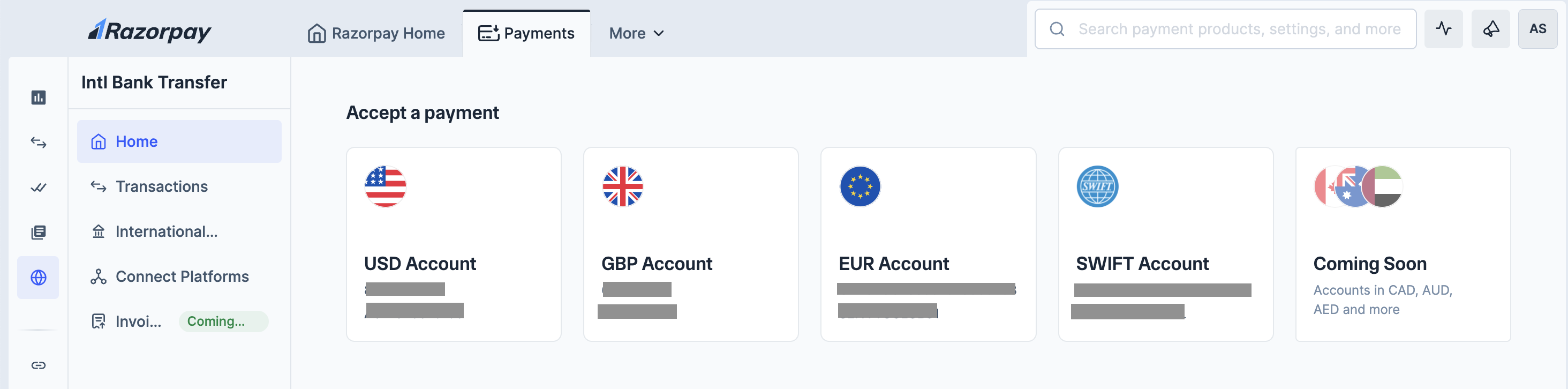
- Dashboard Homepage
- International Accounts Tab
- Log in to the Dashboard.
- Navigate to Intl Bank Transfer.
- On the homepage, you will see cards for all your virtual accounts.
- Click on any account card to view complete details.
Share Your Account Details
There are two ways to share your virtual account details with customers, depending on your preference and their requirements.- On your dashboard homepage or International Bank Accounts page, locate the account you want to share.
- On account card. Click Copy.
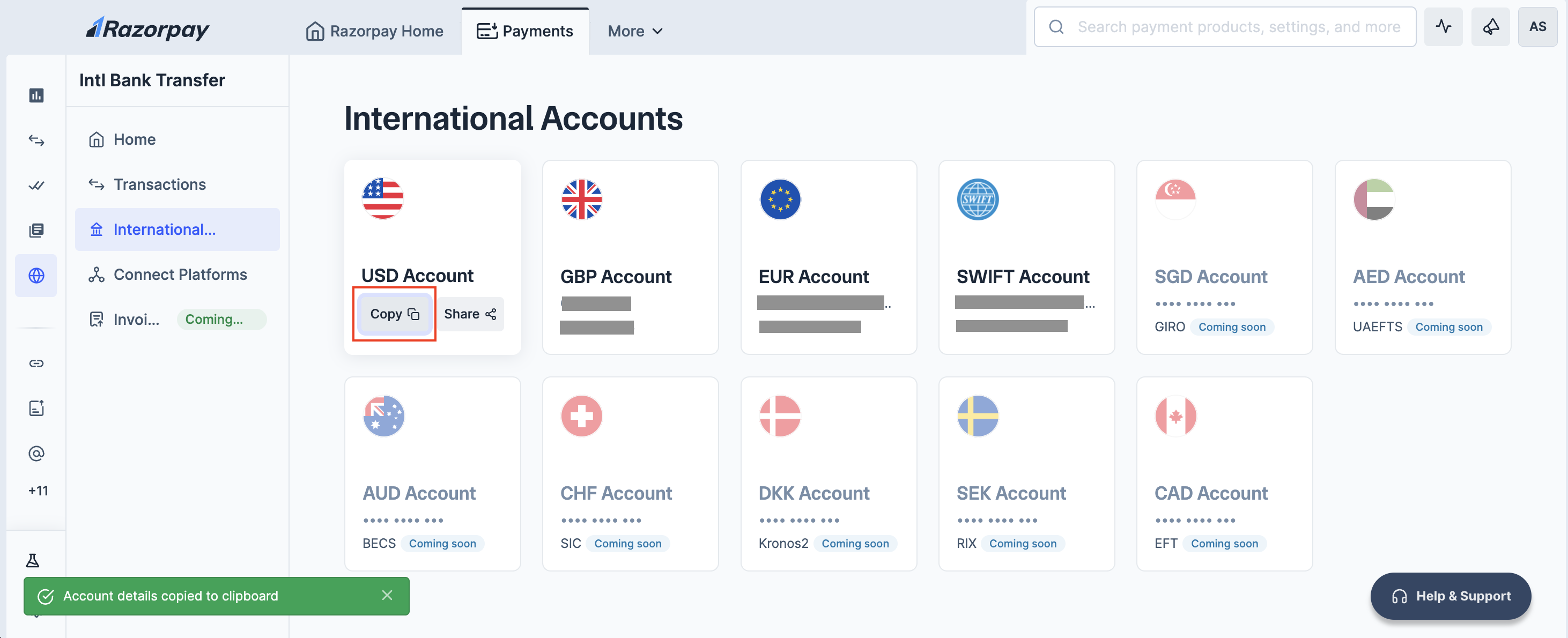
- Account details are copied to your clipboard. Paste the details into your email, WhatsApp message or other messaging platforms.
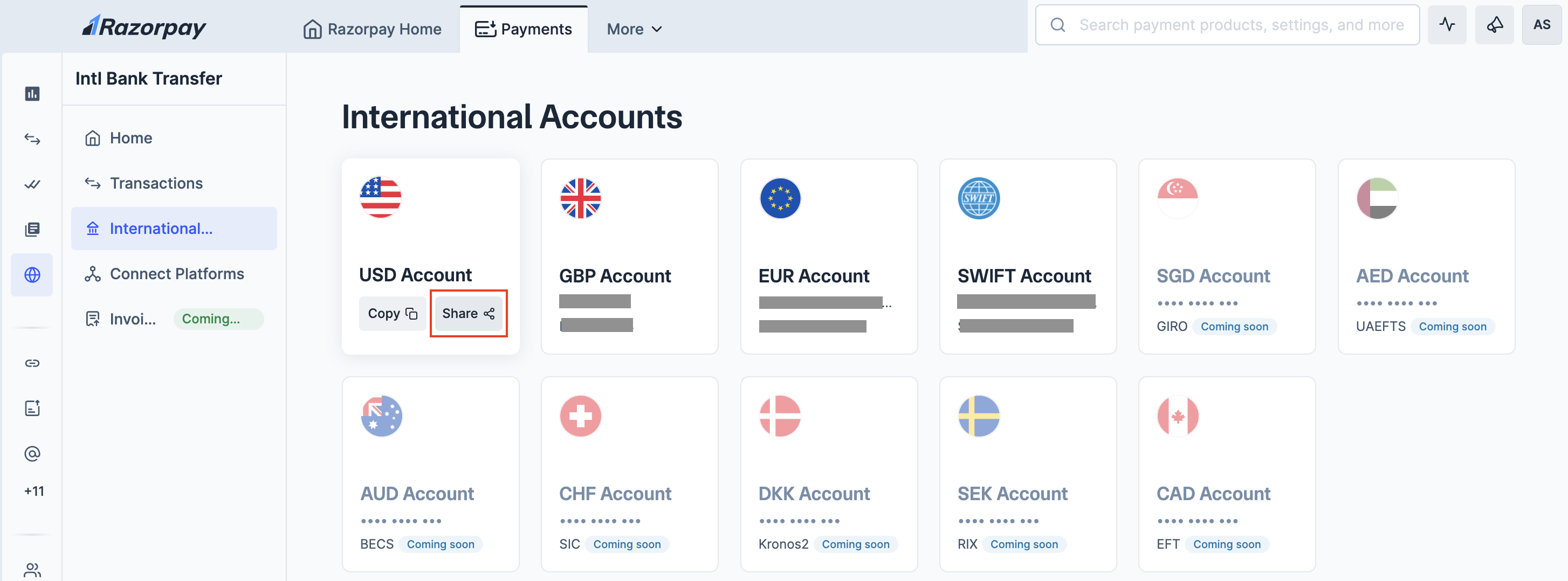
- On your dashboard homepage or International Bank Accounts page, locate the account you want to share.
- On account card. Click Share.
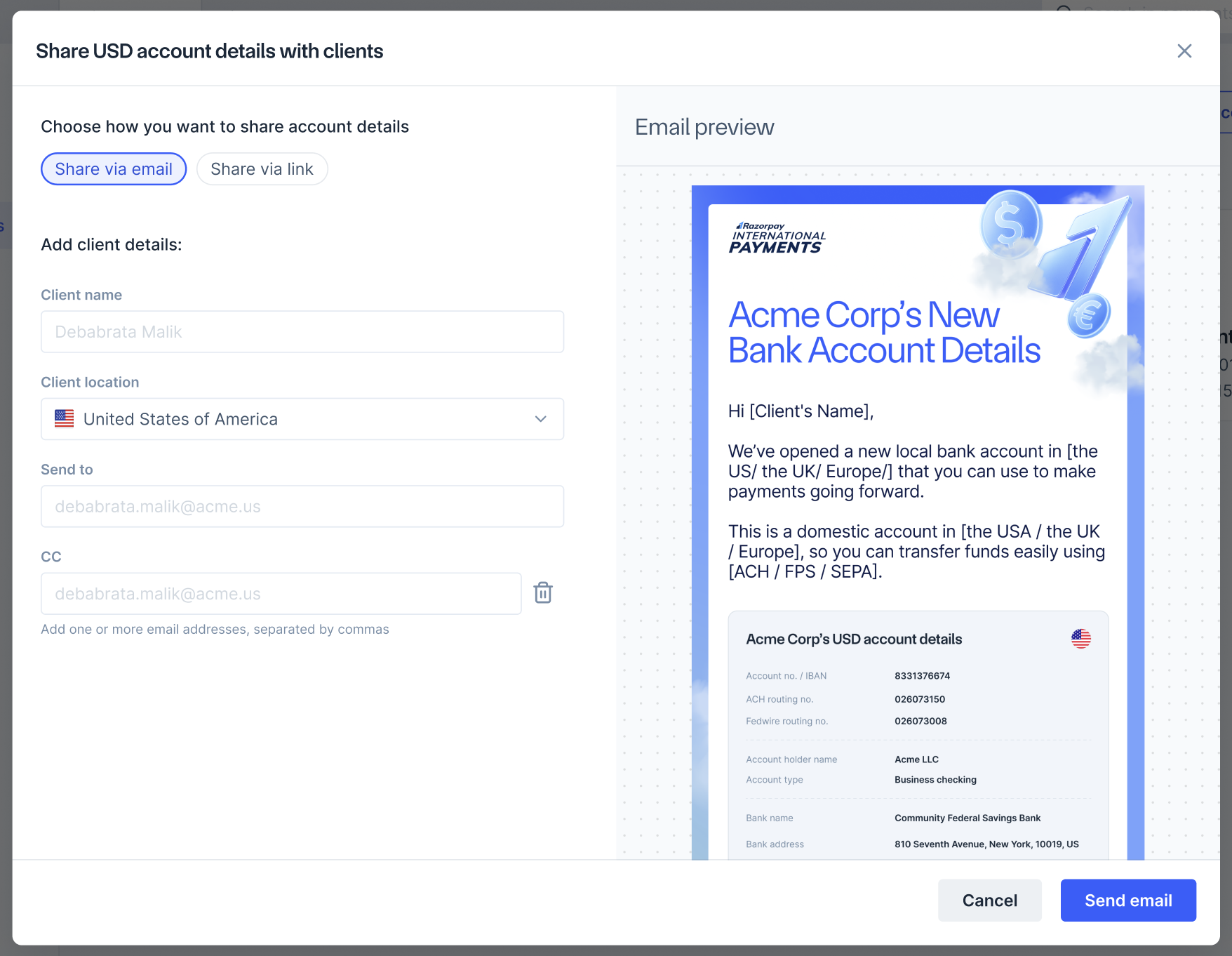
- Add Client details:
- In the Client name field, enter your client’s full name.
- In the Send to field, enter your client’s email address.
- (Optional) Click + Add CC if you want to copy additional email addresses.
- Click Send Email.
Recent Transactions
Recent Transactions
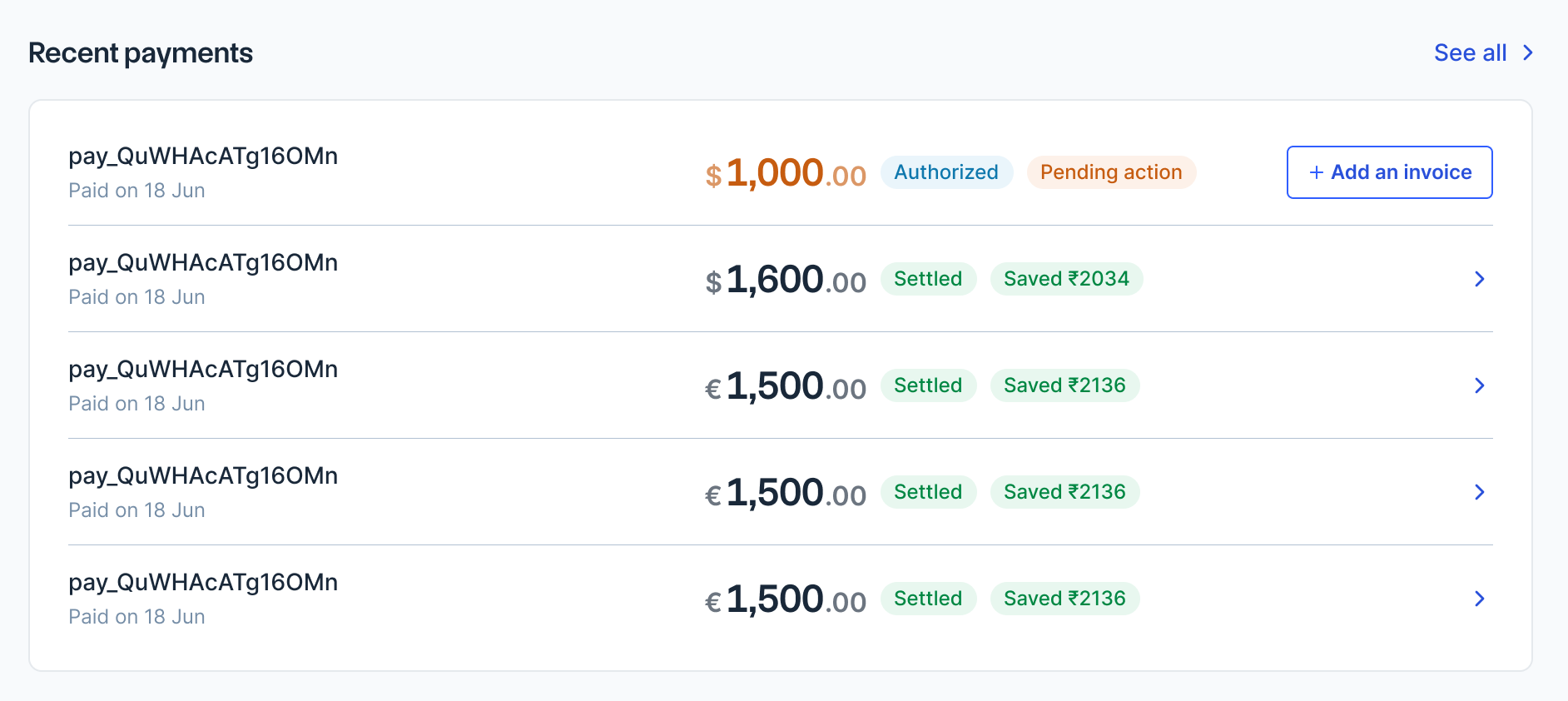
- Payment id and date.
- Amount in original currency.
- Payment status (Captured, Authorised, Failed).
- Amount saved compared to traditional methods.
- + Add Details button for transactions requiring invoice upload.
Video Guide
Video Guide
- Getting Started with MoneySaver Export Account.
- Accepting Your First Payment.
- Adding Invoices & Client Details.
- Tracking Payments.
- Managing Marketplace Payouts.
- Connecting to Freelancer Platforms.
Understanding Your Savings
Understanding Your Savings
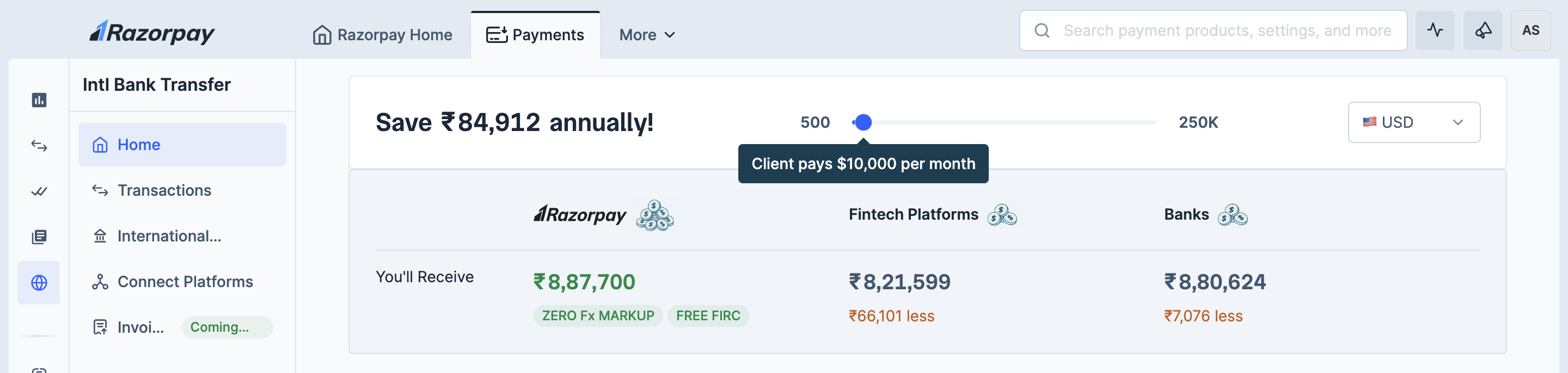
Savings Calculator
Savings Calculator
- Use the slider to set your monthly payment volume.
- View real-time comparison across three options:
- Razorpay: Amount you receive (with zero FX markup).
- Fintech Platforms: Amount after fees.
- Traditional Banks: Amount after bank charges.
- Exact amount you will receive in INR with each option.
- Your savings compared to alternatives.
- Annual savings projection.
- Razorpay: ₹8,77,700 (Zero FX markup, Free FIRC)
- Fintech Platforms: ₹8,21,599 (₹66,101 less)
- Banks: ₹8,80,642 (₹7,706 less)
Platform Integration
Platform Integration
- Online Marketplaces
- Freelancing Platforms
- Amazon.us (United States) - USD
- Amazon.co.uk (United Kingdom) - GBP
- Amazon EU (European Union) - EUR
- Amazon.com.au (Australia) - AUD
- Amazon DK (Denmark) - DKK
- SWIFT-based Marketplaces - Multiple currencies
- Amazon.ca (Canada) - CAD (Coming soon)
- Amazon.ae (United Arab Emirates) - AED (Coming soon)
- Amazon CH (Switzerland) - CHF (Coming soon)
- Amazon.se (Sweden) - SEK (Coming soon)
Unsupported Merchant Categories
International Bank Transfer does not support the following MCCs because of compliance reasons.Frequently Asked Questions (FAQs)
I have customers spread across the US, UK and Europe. I want to offer our customers a cheaper, more reliable, and better payment experience. Can I collect payments in USD, GBP or EUR currency?
I have customers spread across the US, UK and Europe. I want to offer our customers a cheaper, more reliable, and better payment experience. Can I collect payments in USD, GBP or EUR currency?
How can I transfer money from the local currency bank accounts to my current account with an Indian bank?
How can I transfer money from the local currency bank accounts to my current account with an Indian bank?
Can I keep funds in these local currency accounts for a month or more for other payouts in foreign currency?
Can I keep funds in these local currency accounts for a month or more for other payouts in foreign currency?
Does Razorpay need the buyer's address details along with the invoices?
Does Razorpay need the buyer's address details along with the invoices?
How can I provide invoices for these payment transactions?
How can I provide invoices for these payment transactions?
What is the pricing for using this method?
What is the pricing for using this method?
What is the settlement TAT?
What is the settlement TAT?
Does Razorpay support multiple settlement currencies for a seller?
Does Razorpay support multiple settlement currencies for a seller?
Will I get FIRS for these transactions for tax purposes?
Will I get FIRS for these transactions for tax purposes?
What if my end customer raises a dispute with Razorpay?
What if my end customer raises a dispute with Razorpay?
Are refunds supported on these transactions?
Are refunds supported on these transactions?
What is the payment flow for the consumer/buyer?
What is the payment flow for the consumer/buyer?
- The customer receives your virtual bank account details shared by you via email, WhatsApp or invoice.
- The customer adds your virtual bank account details as a beneficiary in their bank account or online banking portal.
- The customer initiates a local bank transfer to your account using their preferred payment method.
- The payment amount reflects on your Razorpay dashboard within a few hours of the customer initiating the transfer.