

Available in🇮🇳 India
When managing payroll, organisations need consistent salary frameworks across employee groups, some require basic structures, while others need complex multi-component setups. In Payroll, you can create both simple and advanced salary structures to match your organisation’s compensation strategy.
Salary Structures in Payroll is a template-based system that standardises employee compensation packages. It enables you to create reusable salary templates with predefined component breakdowns that can be applied to multiple employees. It also ensures consistency in salary calculations and simplifies payroll management.
Features
Features
- Create New Structure
- Create from Existing
A Create New Structure option allows you to build a salary template from scratch with custom component distributions.By creating new structures, you can design compensation packages tailored to specific roles, departments or employee levels while maintaining standardisation. You also get to test calculations before implementation.To create a new salary structure: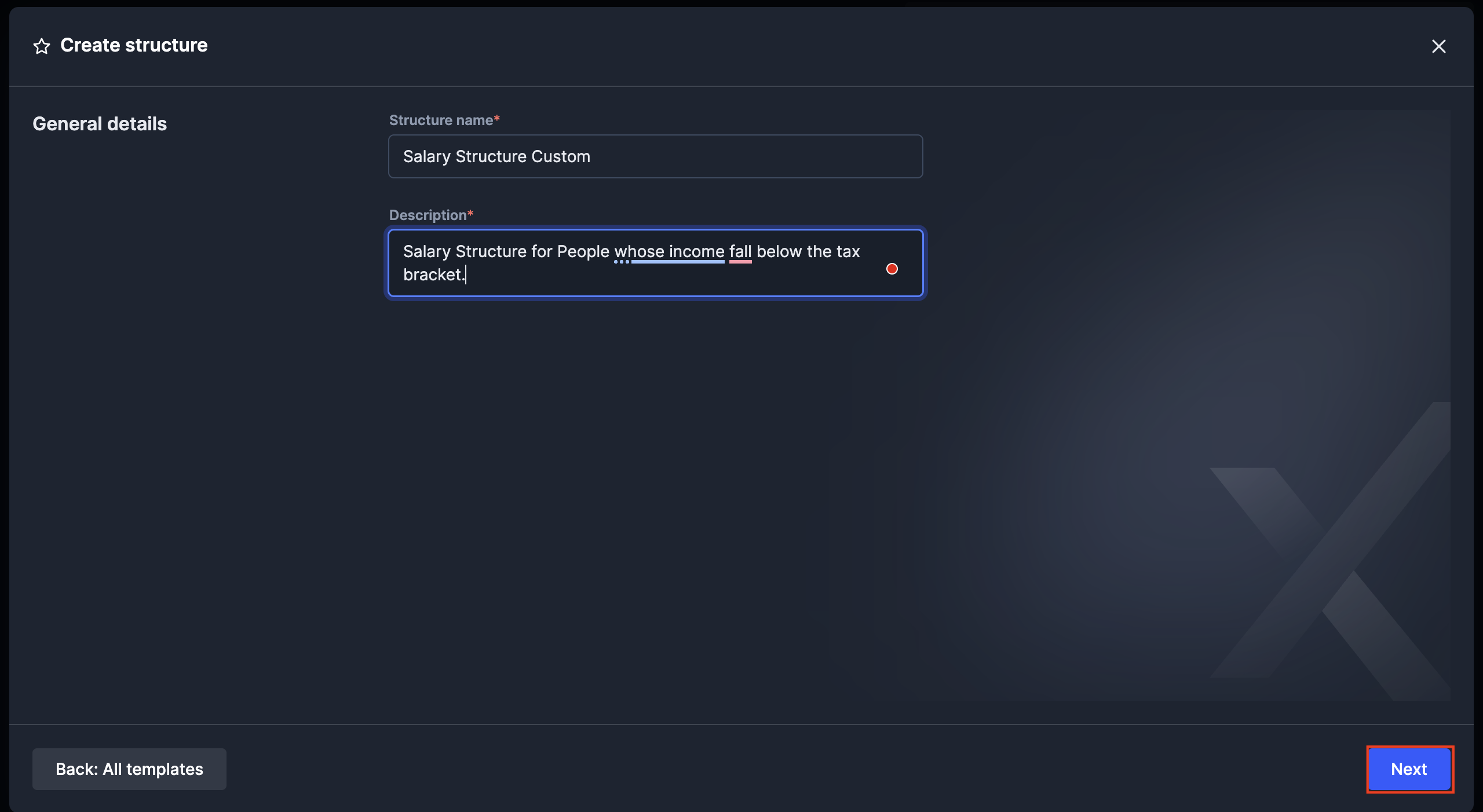
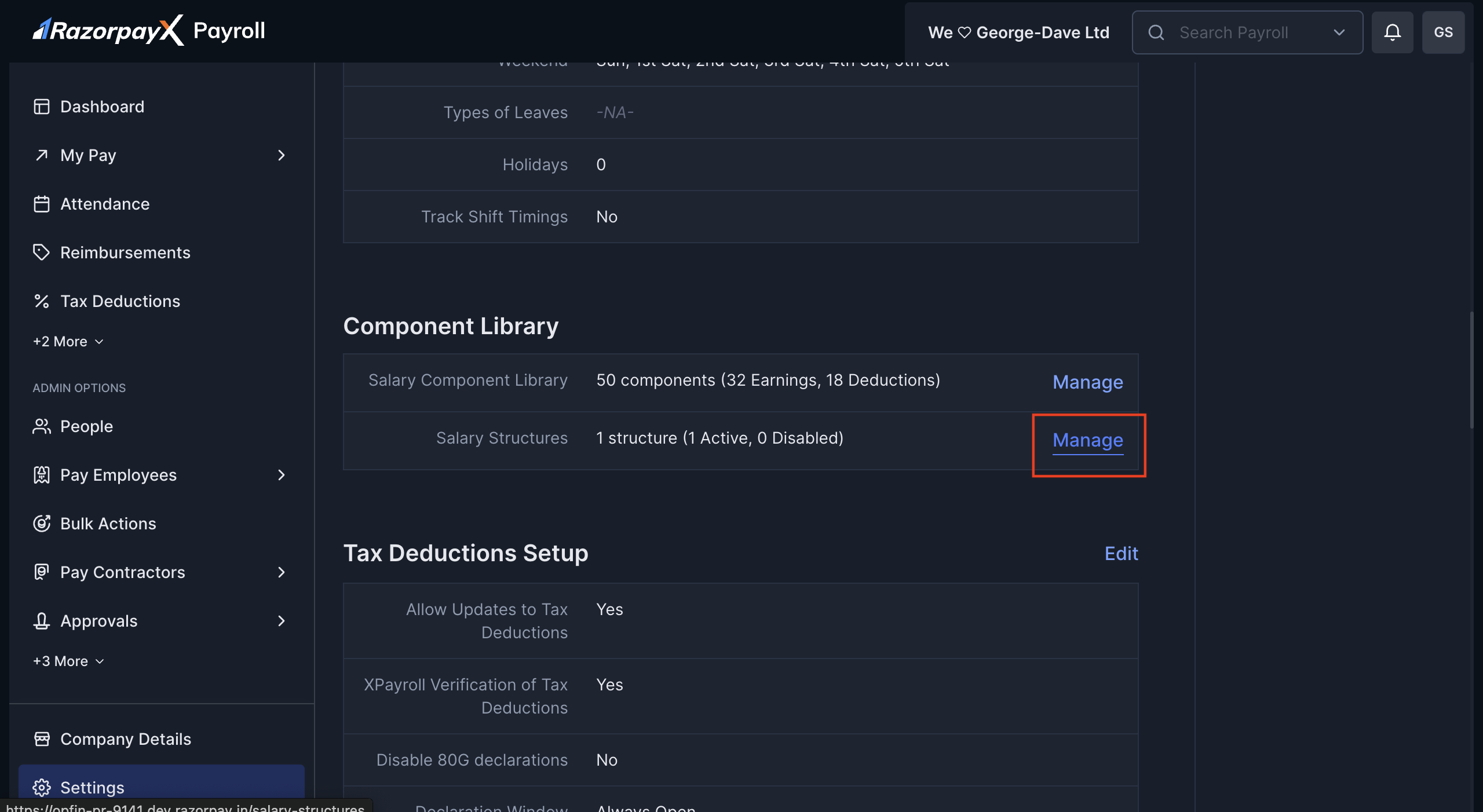
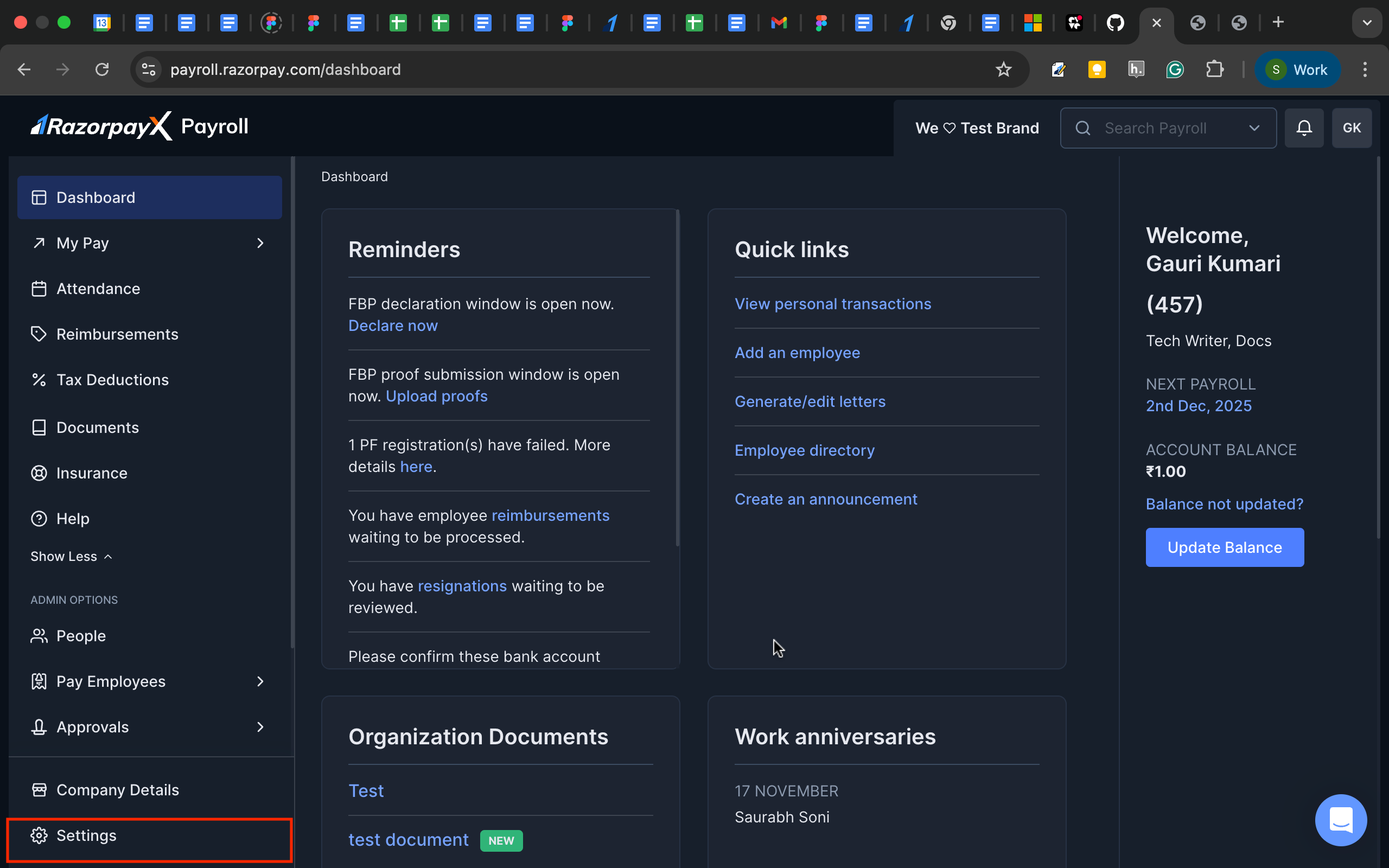
- Navigate to Settings → Salary Structures→ Manage.
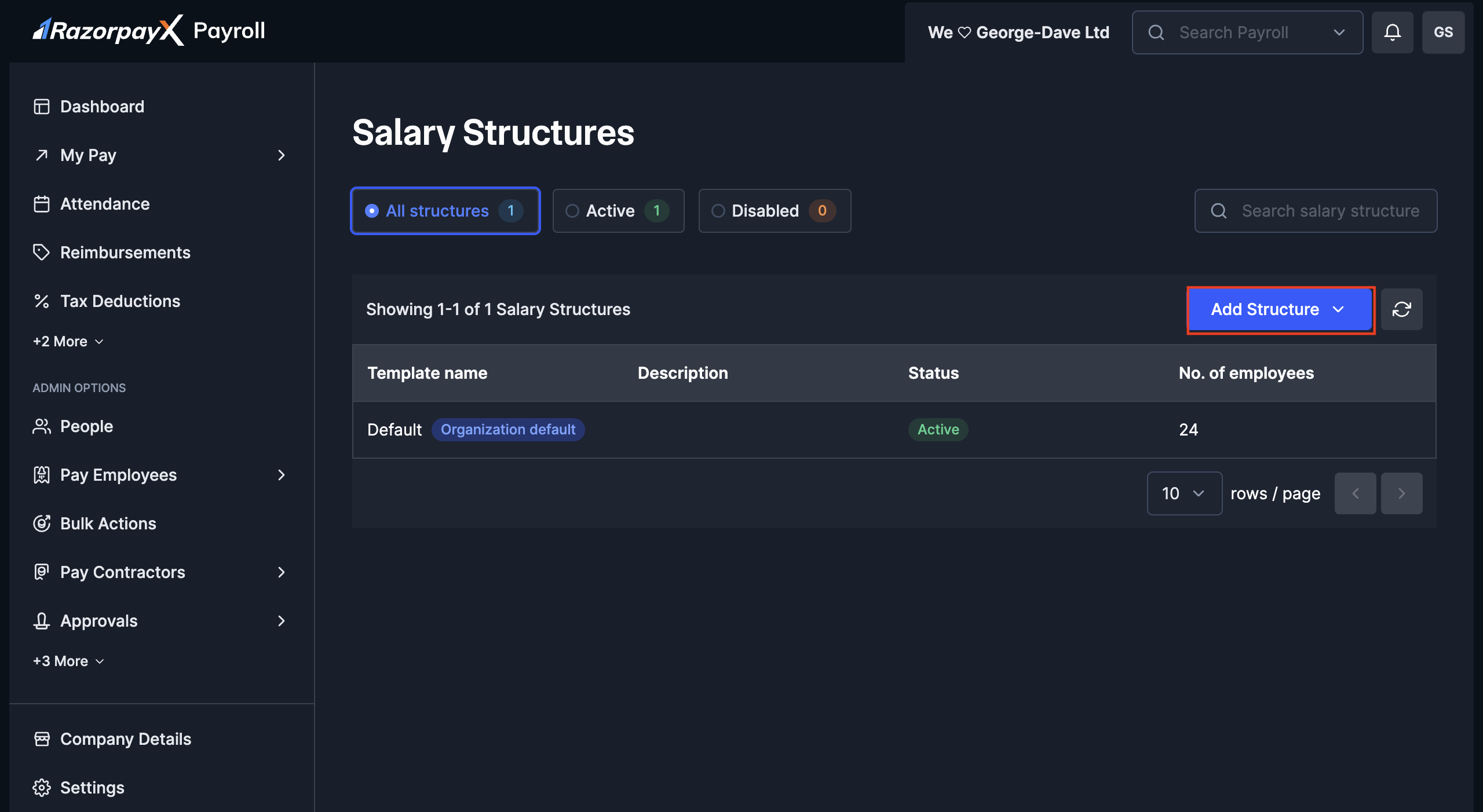
- Click Add Structure button in the top-right corner.
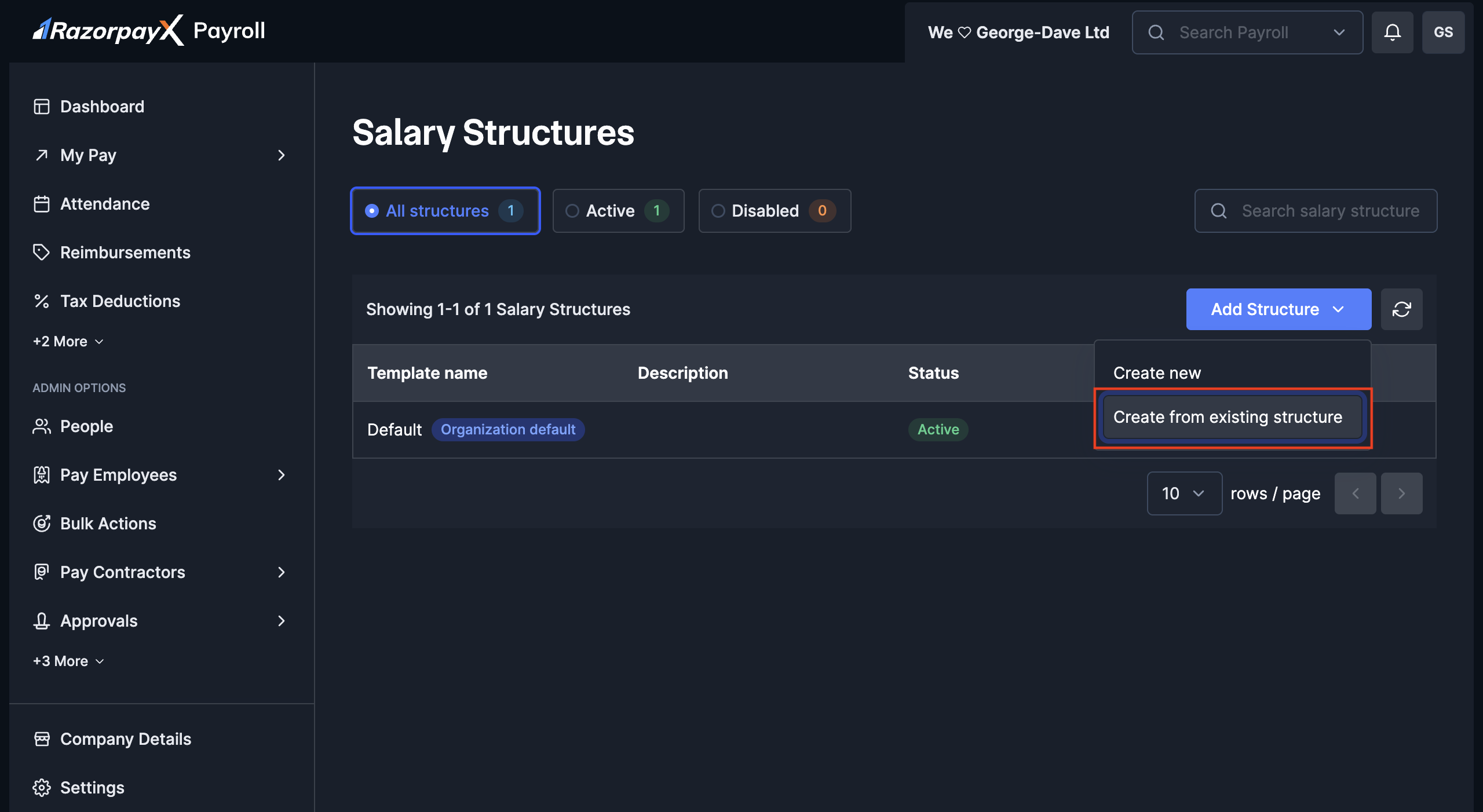
- Select Create new from the dropdown menu.
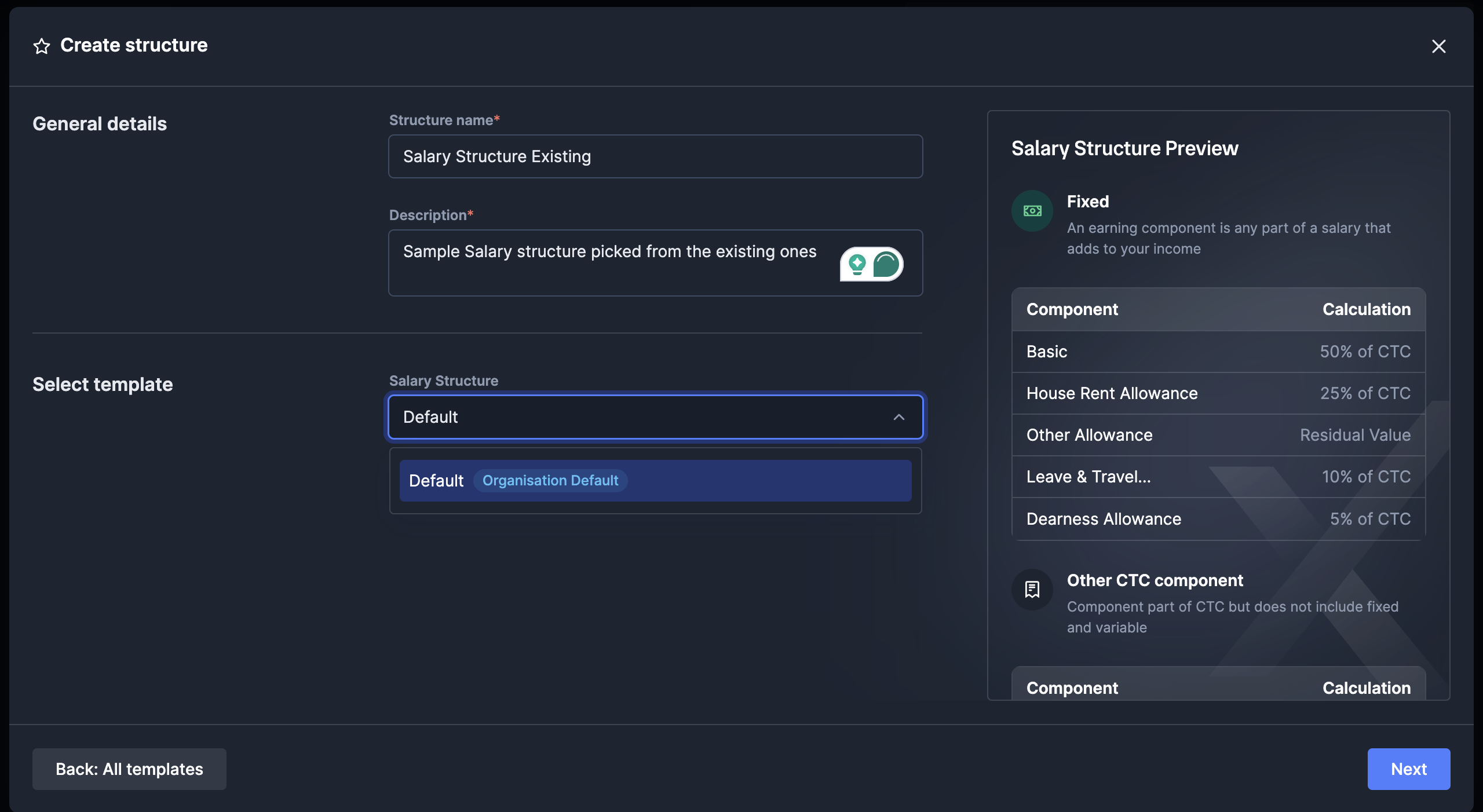
- Fill in the General details:
- Enter a Structure name (must be unique across all structures).
- Add a Description to explain the structure’s purpose (for example, ‘Salary structure for employees whose income falls below the tax bracket’).
- Click Next to proceed.
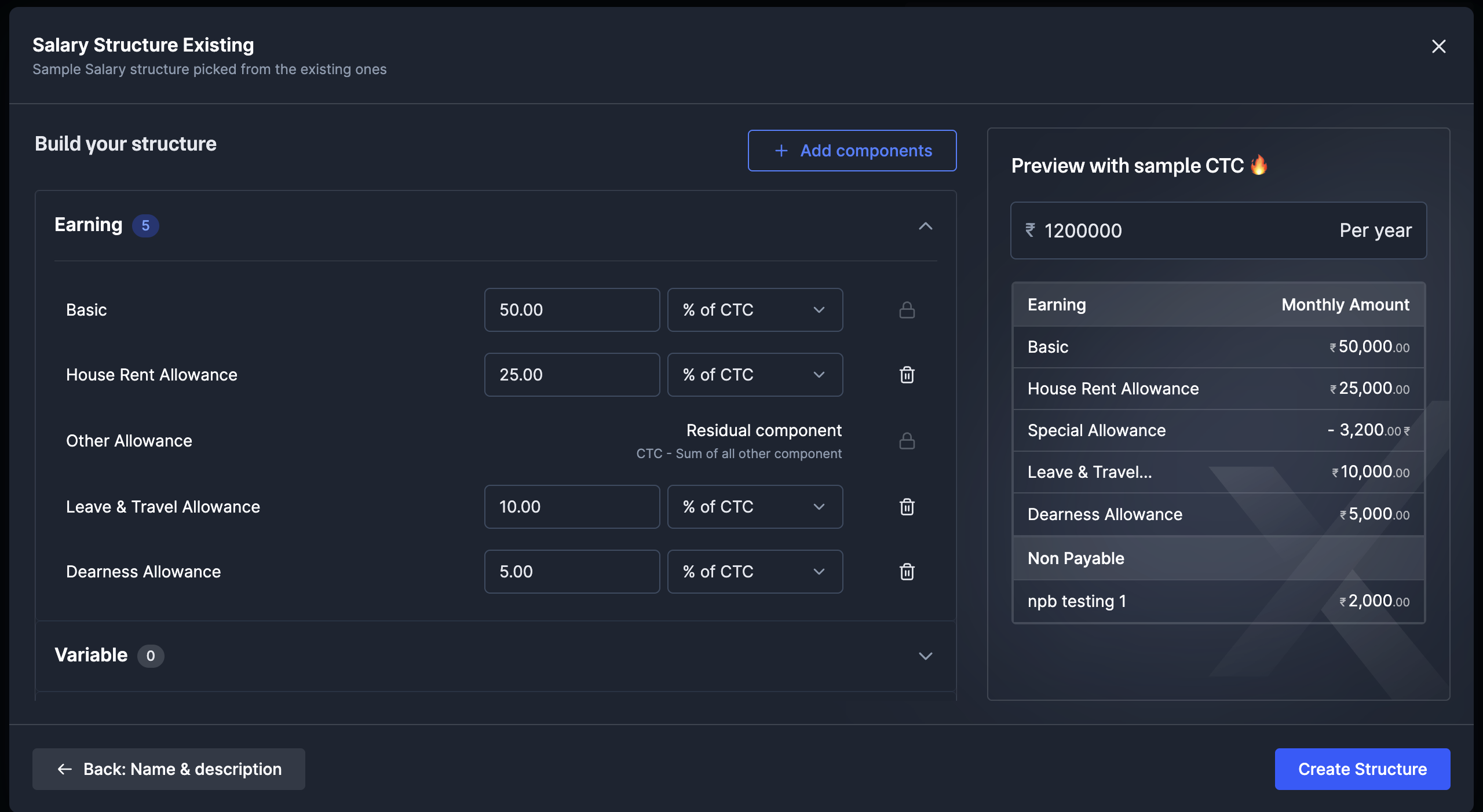
- Build your structure:
- The page displays existing components with input fields for values.
- Enter percentages or amounts for each component (for example, Basic: 50%, HRA: 25%).
- Components marked as “Residual component” auto-calculate to balance the CTC.
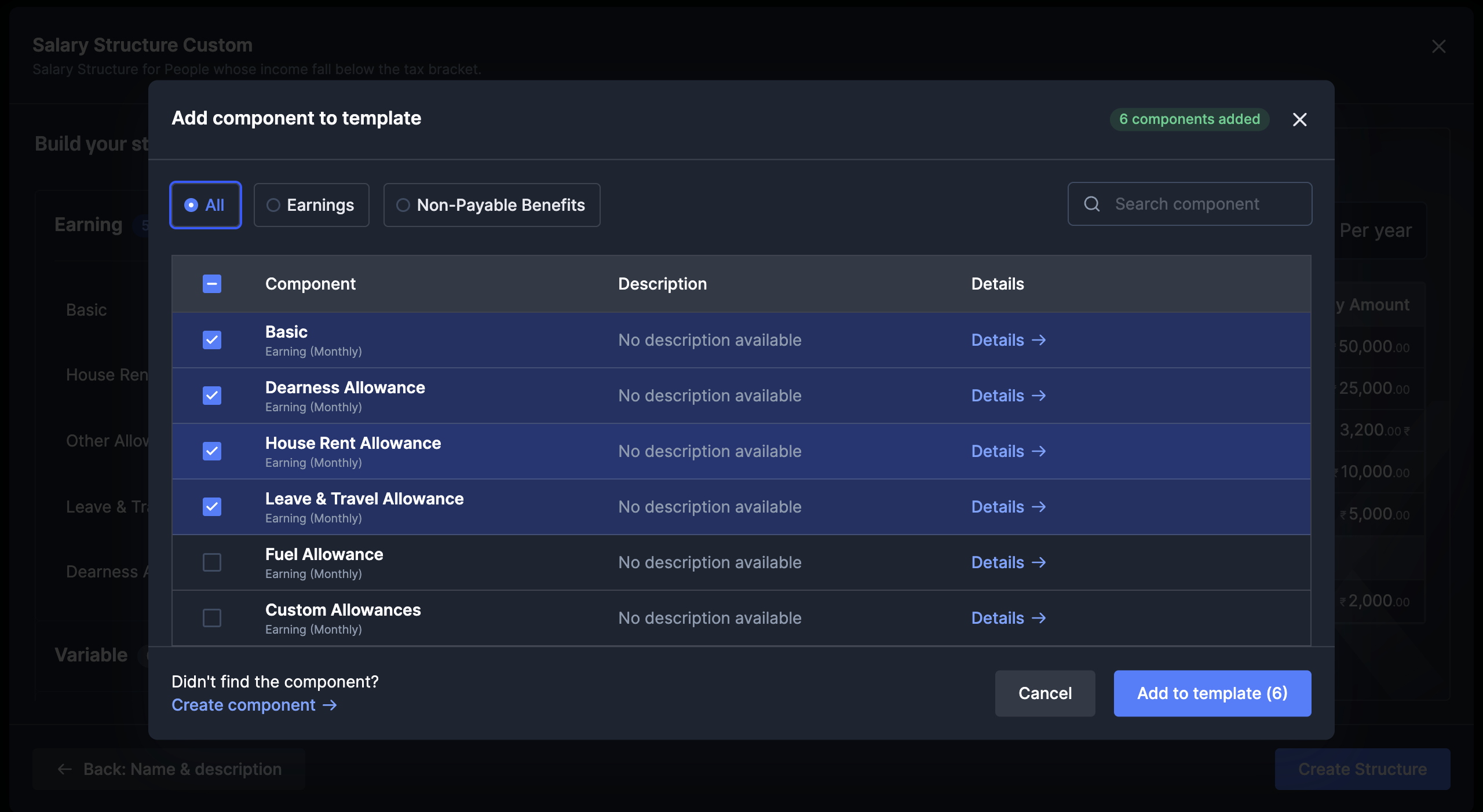
- Add additional components:
- Click Add components to include more salary elements.
- Select from All, Earnings or Non-Payable Benefits tabs.
- Check the components you want to add.
- Click Add to template to include selected components.
- Preview with sample CTC:
- Enter a test amount (for example, ₹12,00,000 per year).
- View the monthly breakdown for each component.
- Verify calculations are correct.
- Create the structure:
- Review all components and their distributions.
- Click Create Structure to save the template.
- Navigate to Salary Structures.
- Locate the structure you want to edit.
- Click on the structure name to view details.
- Click Edit to modify components.
- Make necessary changes to component values.
- Click Save Structure to apply changes.
- Follow steps 1-3 from the modification process.
- Click the Disable button.
Managing Salary Structures
Once you’ve created salary structures, you can view and manage them from the central dashboard. Payroll provides comprehensive tools to track structure usage and maintain templates.Structure Overview
Structure Overview
The Salary Structures page displays:
- Template name - Unique identifier for each structure.
- Description - Brief explanation of the structure’s purpose.
- Status - Active or Disabled state.
- No. of employees - Count of employees using this structure.
Filtering and Search
Filtering and Search
Use the filter tabs to view:
- All structures - Complete list showing 1 structure (1 Active, 0 Disabled).
- Active - Only currently usable templates.
- Disabled - Archived structures no longer in use.
Applying Structures to Employees
To assign a salary structure to employees:- Navigate to People → Employee Management.
- Select the employee to update.
- Click Edit Salary Details.
- Choose Salary Structure from the dropdown.
- The system automatically applies component distributions.
- Override specific amounts if needed while maintaining structure percentages.
- Save the changes.