Available in🇮🇳 India
For every international payment you receive through International Bank Transfer, you must upload an invoice and buyer details to comply with RBI and banking partner requirements. This guide explains how to manage invoices and track your transactions.
Uploading Invoices and Business/Buyer Details
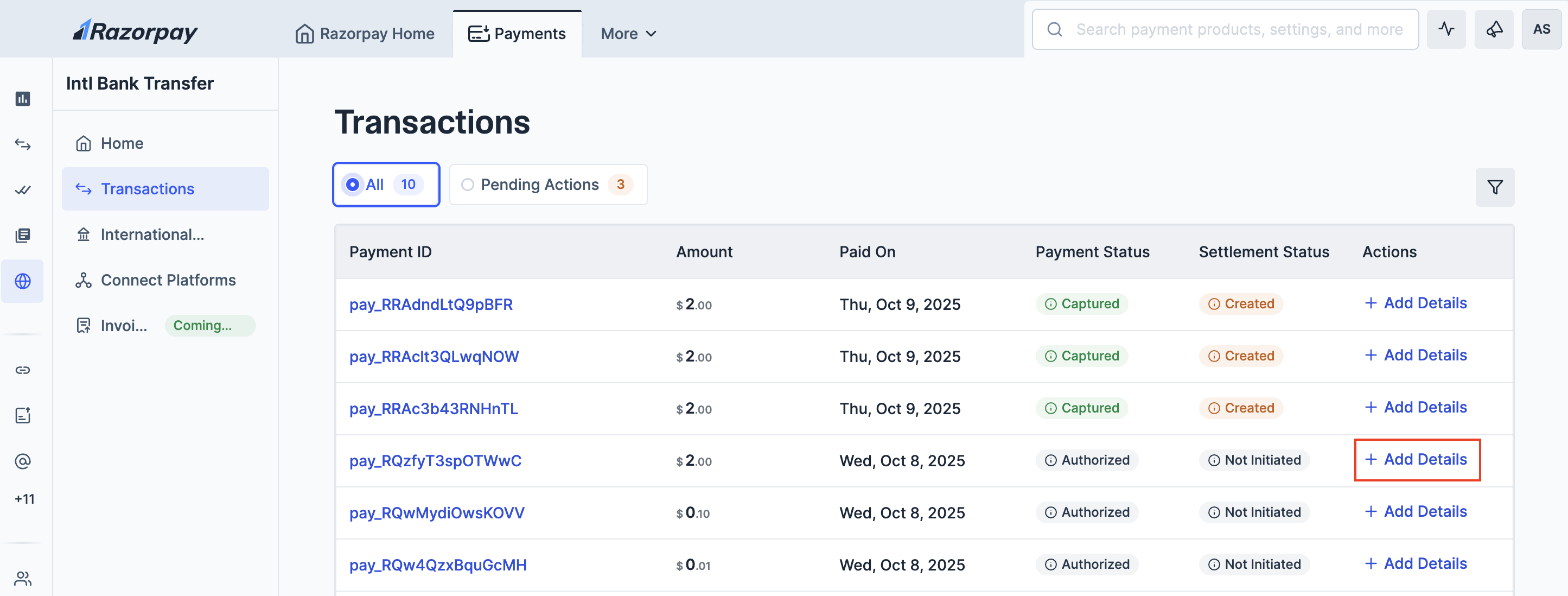
There are two ways to add invoice and buyer details for your payments:- Dashboard Homepage (Recent Transactions)
- Transactions Tab
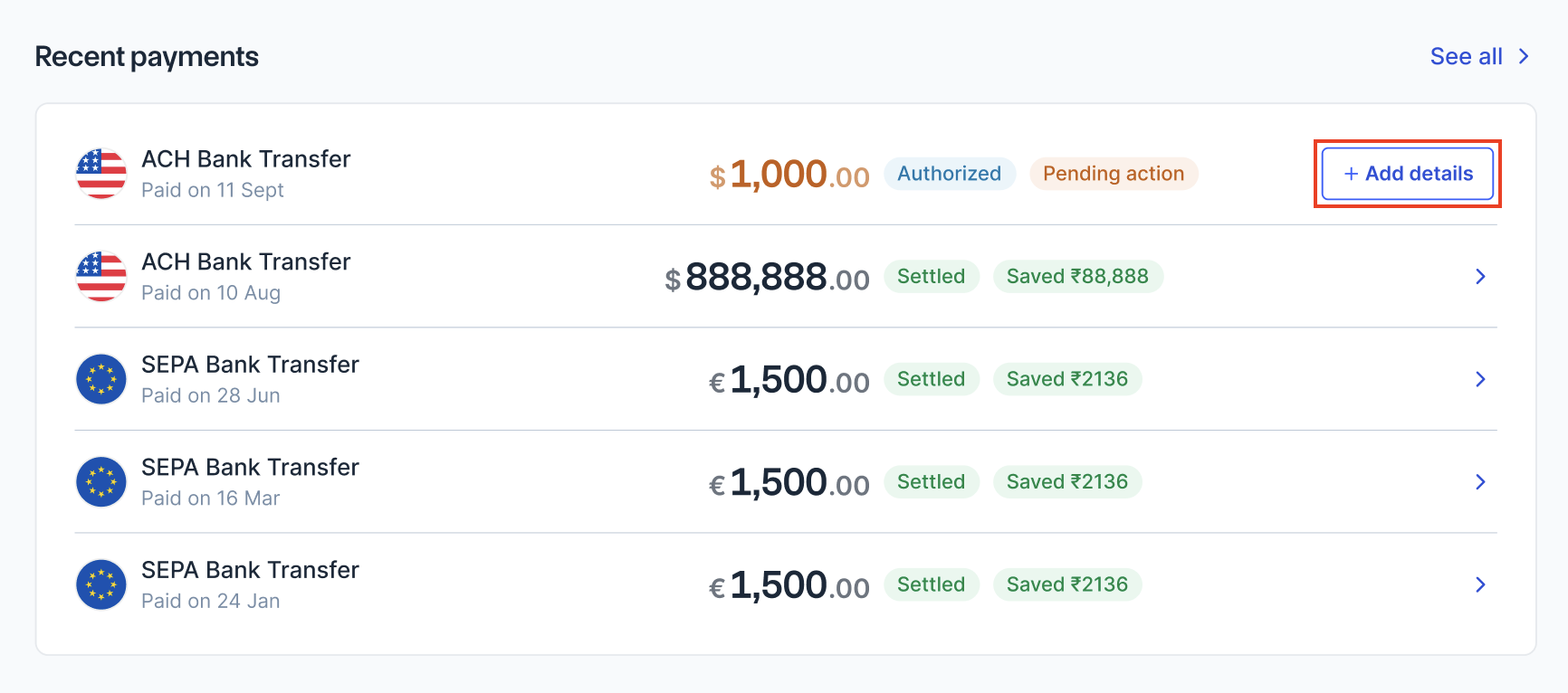
This is the quickest method when you are on your dashboard homepage:
- Log in to the Dashboard and navigate to Intl Bank Transfer.
- On the homepage, scroll to the Recent transactions section. You will see the list of your most recent transactions.
- Look for payments with a CTA - + Add Details. These payments require invoice details.
- On the right side, click + Add Details.
- On the dialog box, you can drag and drop or click Upload.
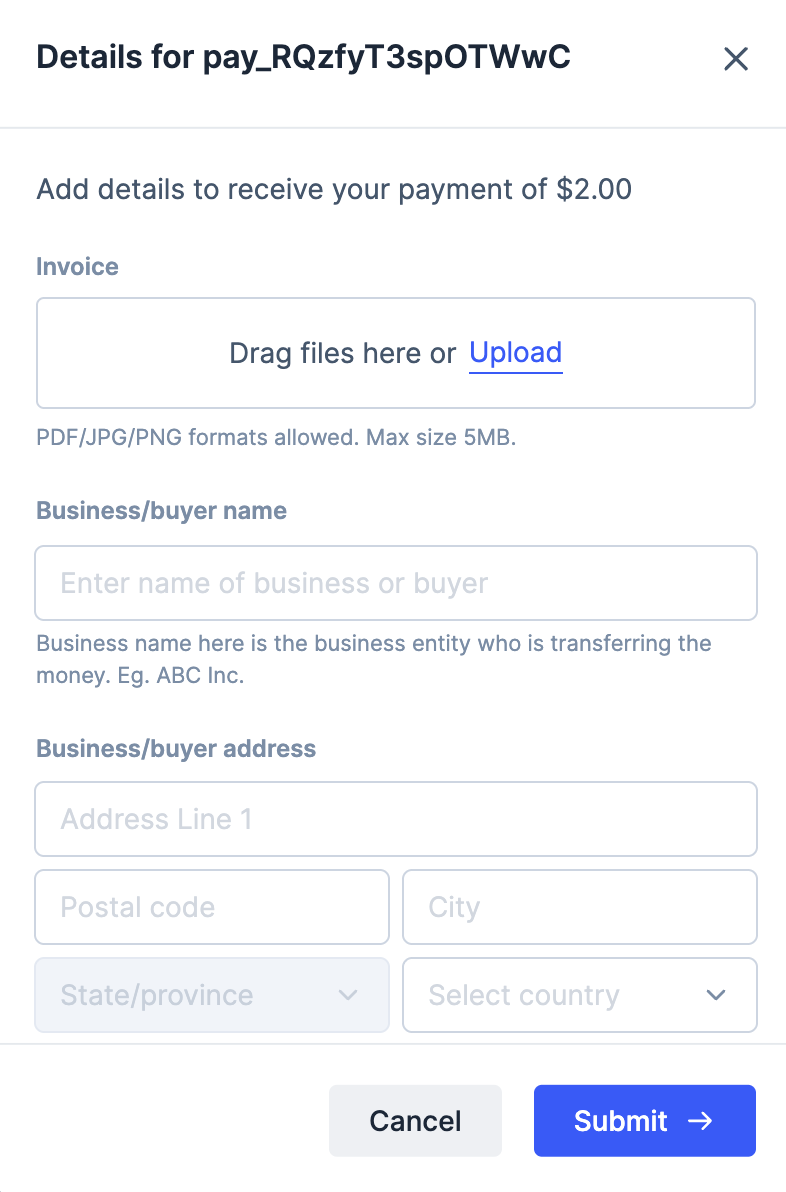
- Enter Business/buyer name and other required details.
- Click Submit.