

Available in🇮🇳 India
After successfully onboarding with COD & Magic Checkout, you can configure Cash on Delivery (COD) for your Shopify store.
To configure COD, on the Dashboard, navigate to Magic Checkout → Setup and Settings → Cash on Delivery. The page is organised into three tabs:
- COD and RTO Settings: Enable COD, turn on RTO Intelligence and set the basic rules that decide where COD is available, which shipping methods support it and how it appears at checkout.
- Advanced COD Workflows: Set up rule-based COD workflows, such as blocking risky orders, adding extra fees or converting COD to prepaid.
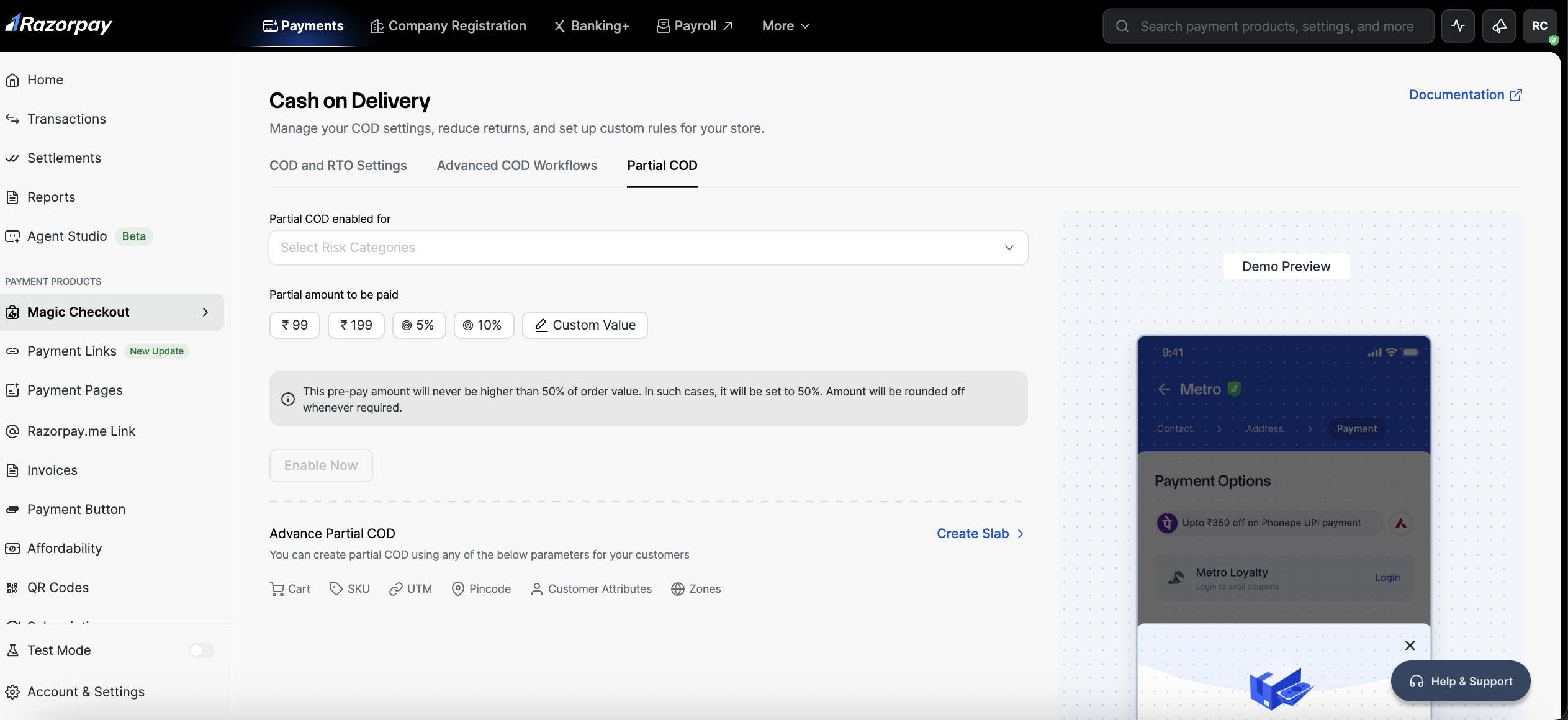
- Partial COD: Collect a partial amount upfront and the balance on delivery.
COD & RTO Intelligence Overview
Enable or disable COD and RTO Intelligence for your store.Enable COD as a payment option
Enable COD as a payment option
Toggle on Enable COD as a payment option to allow customers to choose COD at checkout.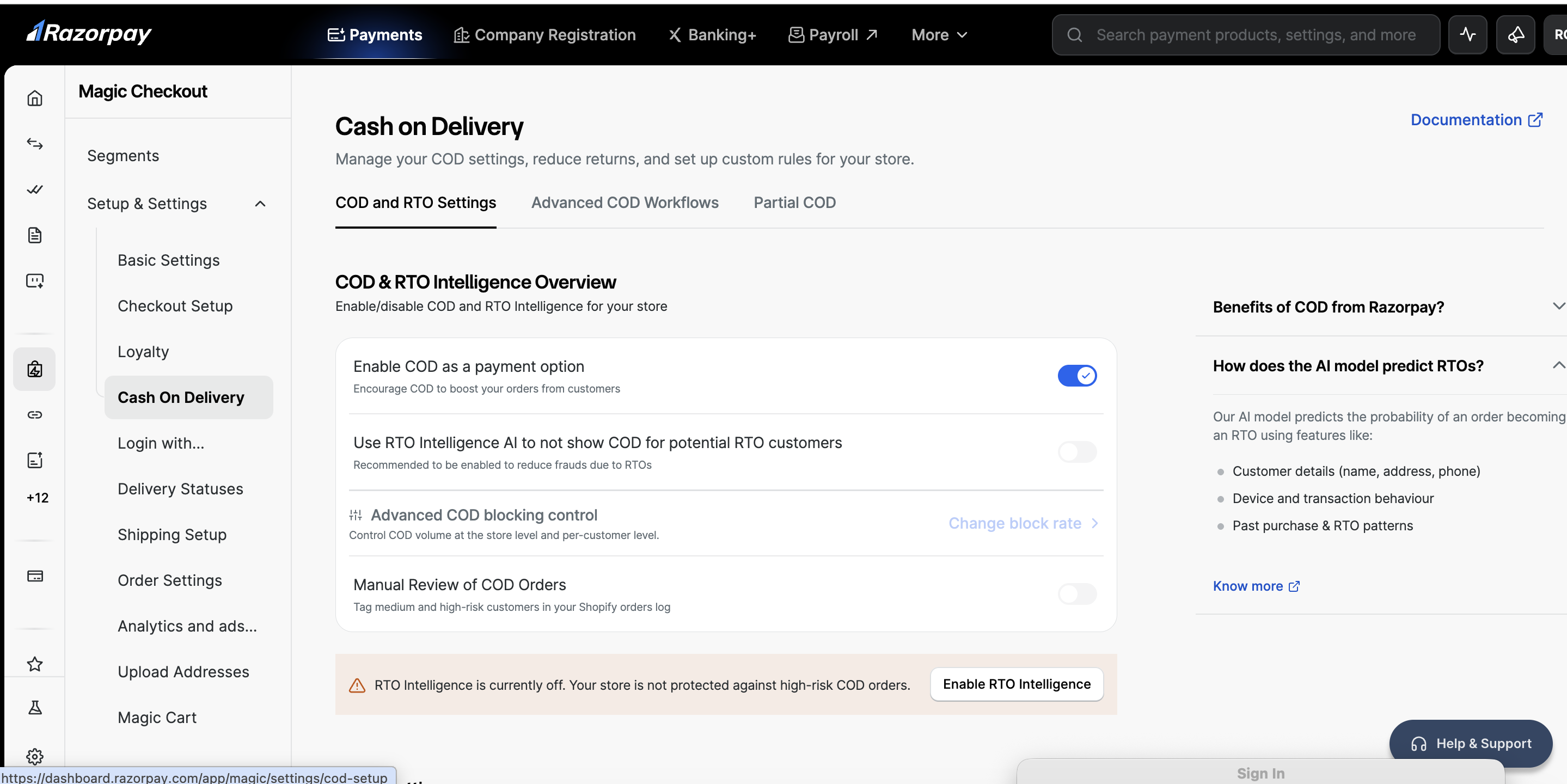
Enable RTO Intelligence
Enable RTO Intelligence
Razorpay’s RTO engine is a real-time ML system that scores every COD order at the moment of checkout — before the merchant commits inventory — and predicts how likely that specific order is to come back as an RTO.The hard part is that at COD checkout there is no payment instrument to identify the buyer with — no card, no bank authentication, no verified identity. So the first thing the engine does is construct a buyer identity from what is available, and judge it against everything Razorpay has seen across its network.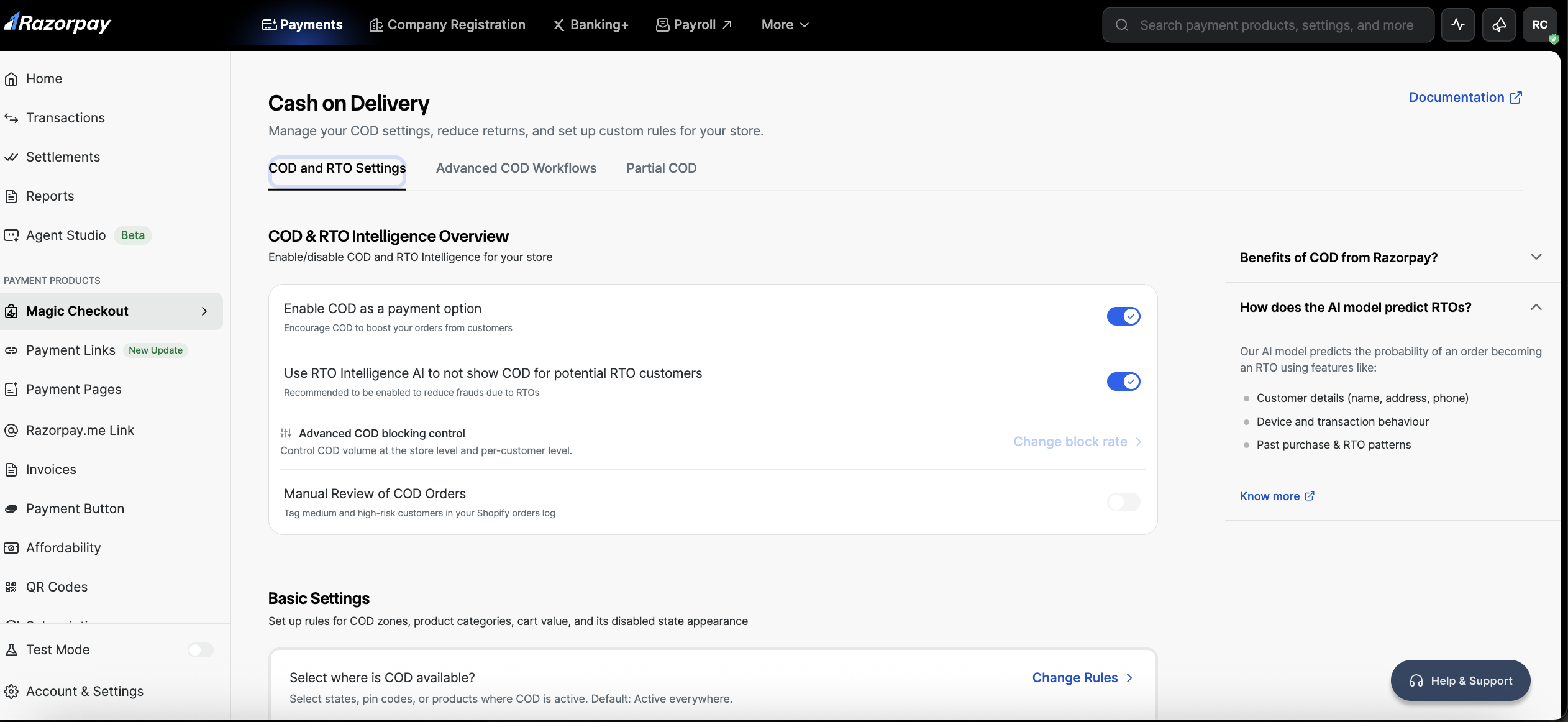
1. Where the engine sits
When a customer reaches checkout and COD is a candidate payment method, the merchant’s storefront calls the COD eligibility service. Within a fraction of a second, it:- assembles the buyer’s profile in real time,
- scores the order with the ML model,
- returns a risk score, a risk tier and a recommended action.
2. What the model actually looks at
Roughly six families of signal feed the model:a) Buyer’s own COD history across the network: how many COD orders this phone/email has placed, how many were delivered, how many came back, how recently the last refusal was, and whether there’s a streak of consecutive refusals — measured over multiple time windows (30/60/90/180 days) to distinguish a buyer who recently went bad from one with a single old incident.b) Payment behaviour on the Razorpay network: whether this buyer has ever successfully paid online, how long they’ve been present on the network, and across how many merchants. A genuine prepaid payment history is a fundamentally different signal than none, even for a buyer new to this merchant.c) Address and contact quality: automated checks for gibberish or keyboard-mashed addresses, incomplete addresses, mismatched PIN code/city/state combinations, disposable or placeholder email domains, and invalid phone number patterns — these catch “type anything to get through checkout” behaviour, which correlates strongly with refusal.d) Location and delivery difficulty: historical RTO behaviour at PIN code and city level, and how the likely shipping partner has historically performed on that route. Some delivery lanes are simply harder, and the model accounts for that rather than penalising the buyer.e) Order and basket context: order value relative to that merchant’s normal range, product category, quantity and variant patterns (e.g. multiple sizes of the same item), and time of day — this separates a routine repeat purchase from a high-risk impulse order.f) Merchant and category context: the merchant’s own RTO history and the behaviour of the category they operate in. The same buyer profile carries different risk on a fashion store than on an electronics store.3. Continuous feedback loop powered by last-mile logistics partnerships
One of Razorpay’s biggest advantages is access to post-checkout delivery outcomes. Razorpay has built long-term integrations with leading logistics providers (such as Shiprocket and Delhivery) and OMS platforms (such as Unicommerce). These partnerships let Razorpay automatically fetch order lifecycle events — delivered, RTO, cancelled or in-transit status — at scale. This verified last-mile data forms the ground truth used to continuously retrain and improve the ML models, so accuracy keeps improving as more delivery data flows through the system.Turn on Use RTO Intelligence AI to not show COD for potential RTO customers to check customer eligibility for COD based on their purchase history. If a customer is ineligible, the COD option is hidden, displaying only prepaid options at checkout. Click Enable COD Intelligence in the confirmation pop-up modal.Watch Out!To enable RTO Intelligence, you must activate Magic Checkout.
To activate Magic Checkout:
To activate Magic Checkout:
- Click Activate under Enable RTO Intelligence.
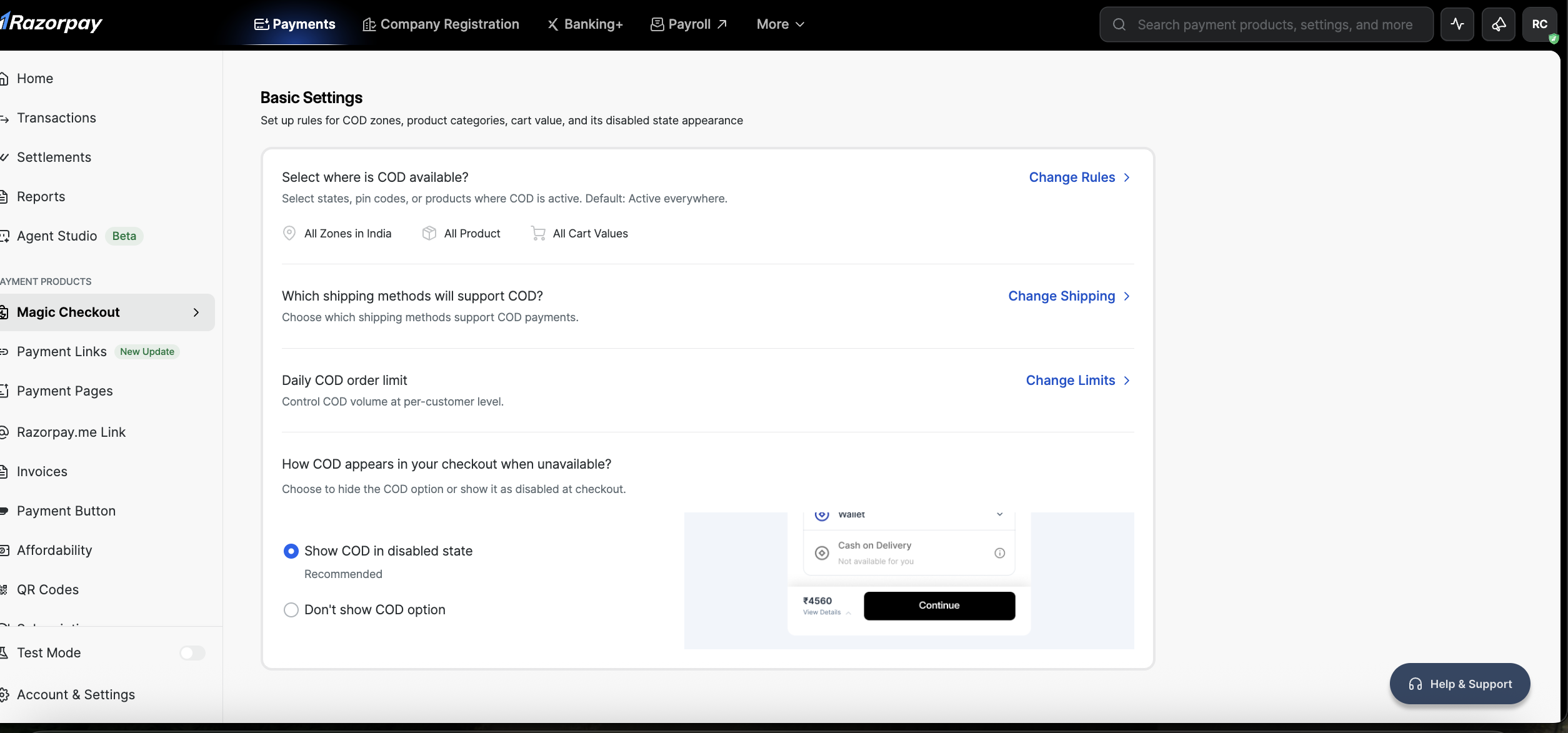
- On the Checkout Settings page, turn on Enable Magic Checkout.
- Click Save Settings.
Enable manual review of COD orders
Enable manual review of COD orders
Turn on Manual Review of COD Orders to tag medium-risk and high-risk customers in your Shopify orders log. This lets you manually review flagged orders and decide whether to approve, hold or cancel them before fulfilment.
Disable COD Intelligence
Disable COD Intelligence
To turn off RTO Intelligence, toggle off Use RTO Intelligence AI to not show COD for potential RTO customers and click Confirm in the pop-up modal.
COD and RTO Settings
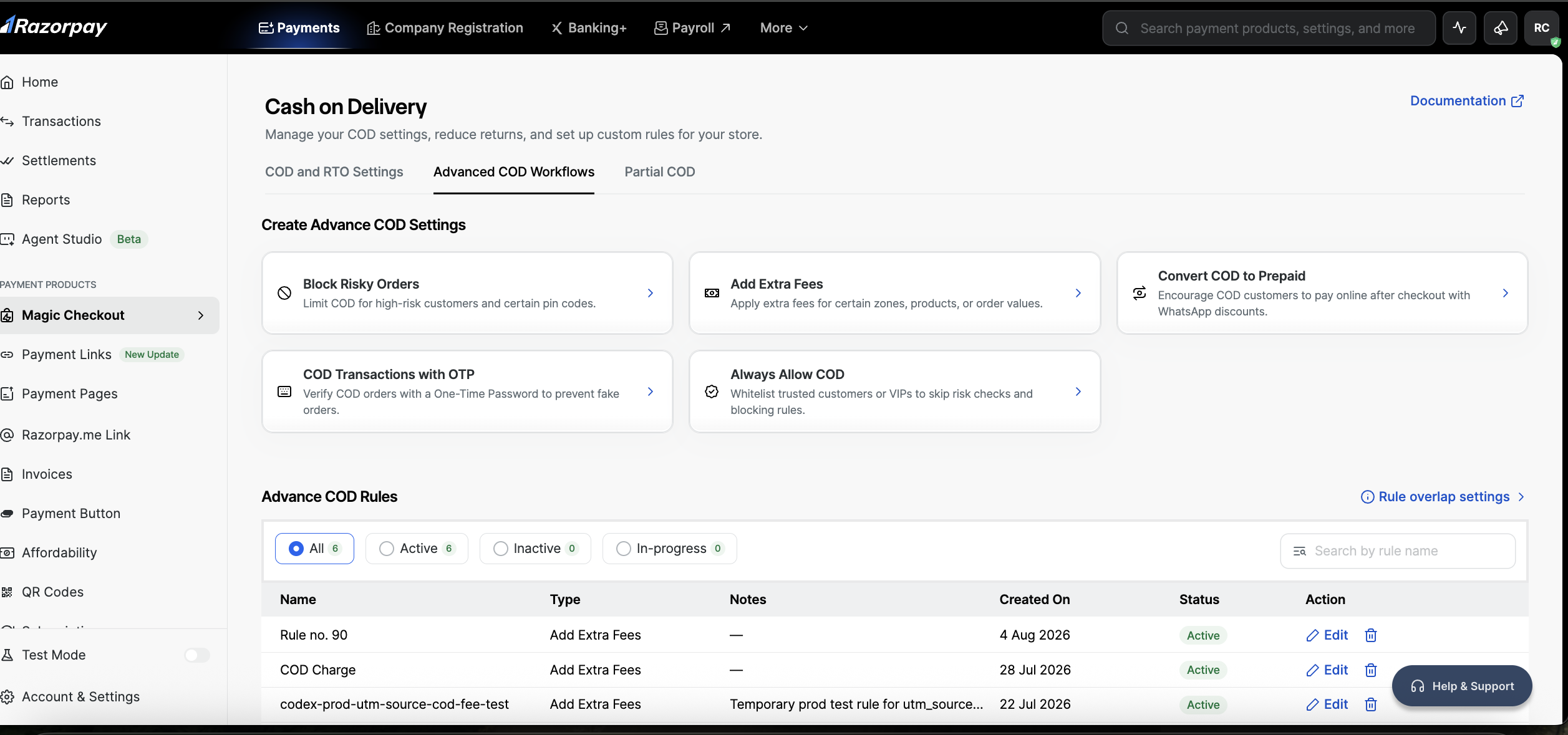
 Set up rules for COD zones, product categories, cart value and how COD appears at checkout. By default, COD is active everywhere.
Select where COD is available
Select where COD is available
Decide where COD is offered based on location, products or cart value. Click Change Rules next to Select where is COD available?, then click Create Rule and configure any of the following:
Handy TipsCOD is free for all cart values by default. Use Advanced COD Workflows to charge a COD fee or apply other conditions.
Select the shipping methods that support COD
Select the shipping methods that support COD
Choose which shipping methods support COD payments. Click Change Shipping next to Which shipping methods will support COD?.COD is enabled for all your shipping methods by default. Uncheck the shipping methods where you do not want to offer COD, then click Save.
Handy TipsClick Go to Shipping Setup to manage your shipping methods and rates. Know more about shipping options on Shopify.