Available in🇮🇳 India
Zoho is a web-based online office suite that contains software for word processing, spreadsheets, presentations, databases, note-taking, wikis, web conferencing, customer relationship management (CRM), project management, invoicing and other business activities.
Integrating your Zoho suite with Razorpay allows you to accept payments from customers via the Razorpay Payment Gateway. You can accept payments via debit card, credit card, netbanking, UPI or through any of our supported wallets.
Integration Steps
To integrate Razorpay with your Zoho suite:- Set up your Razorpay account.
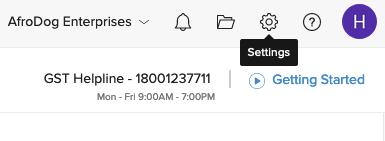
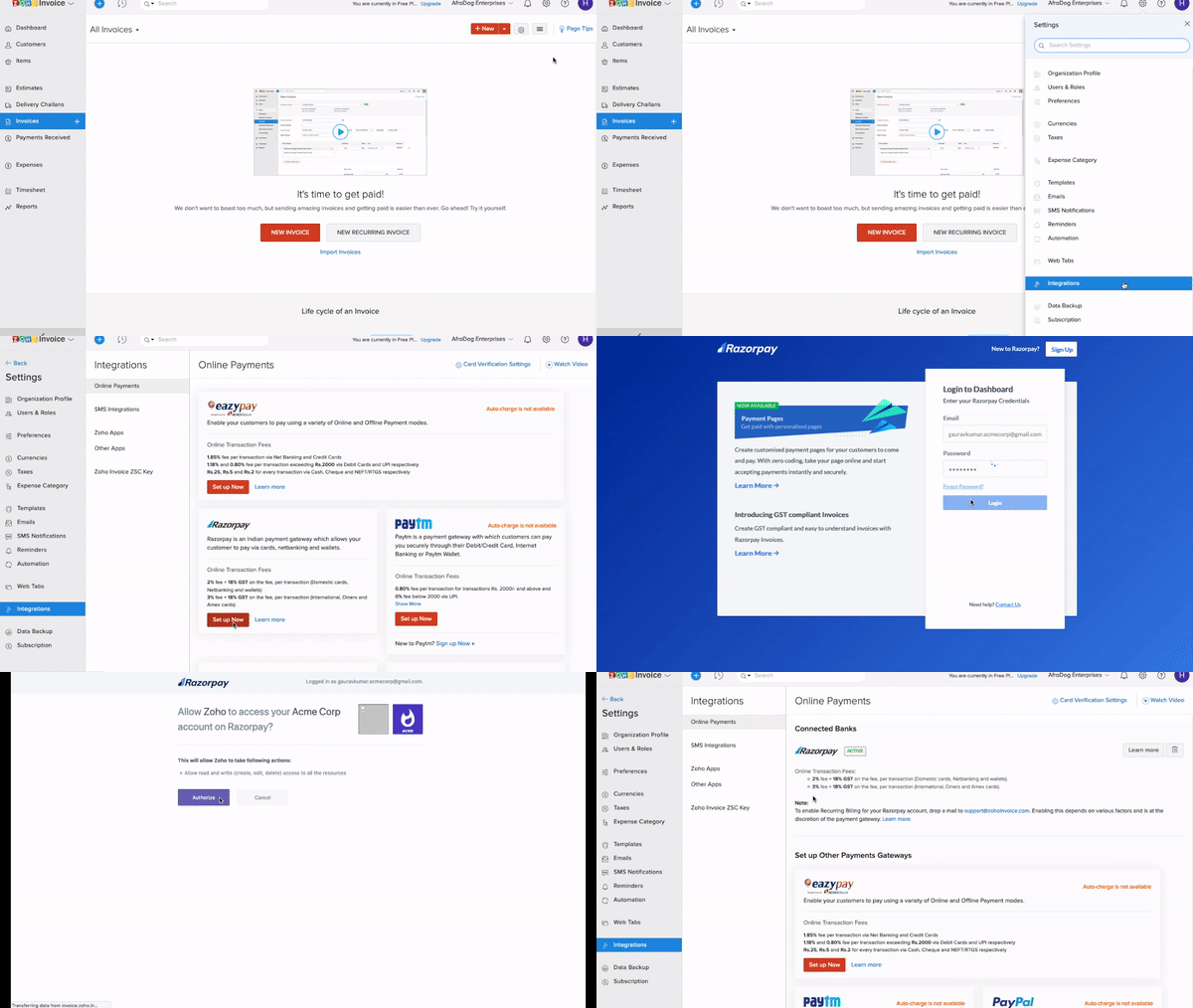
- Log in to your Zoho Dashboard and click Settings.
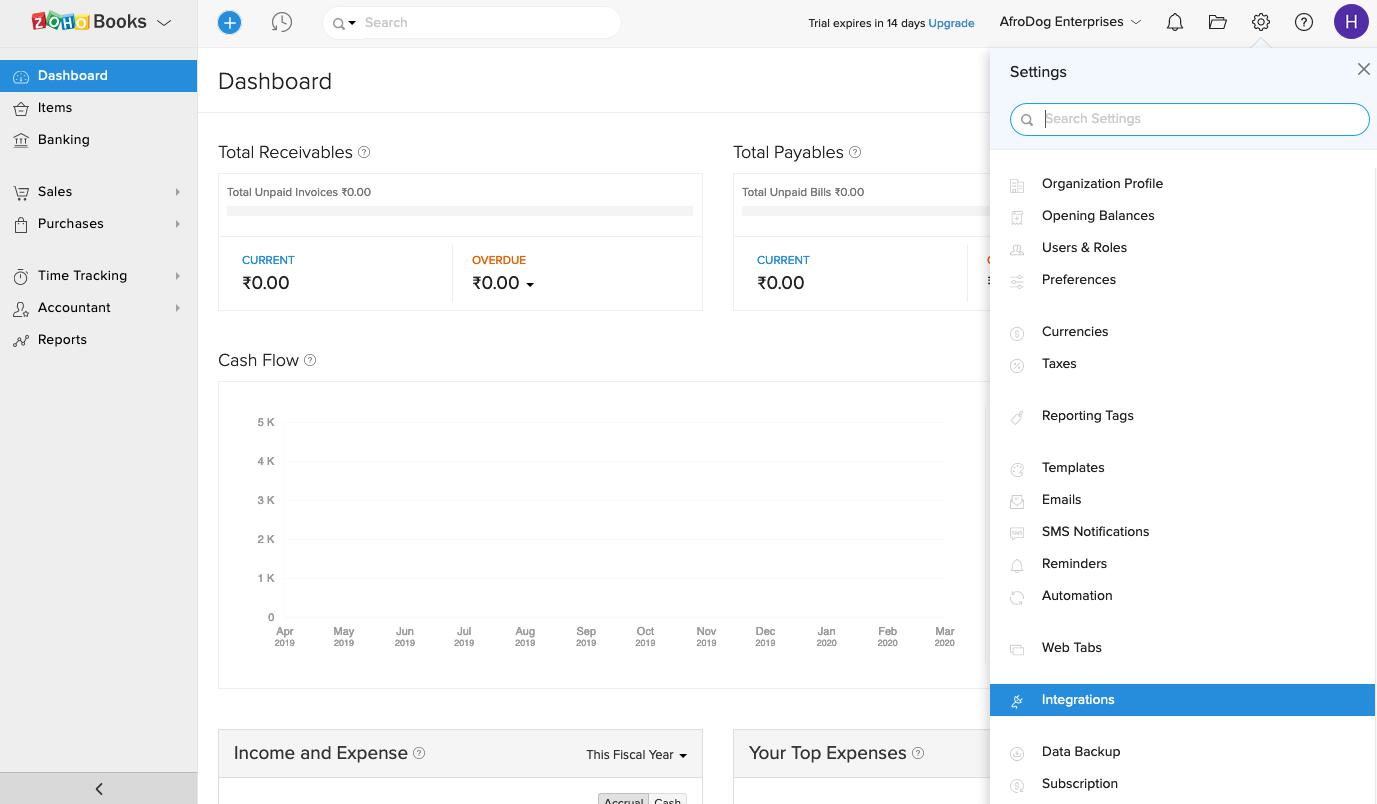
- Click Integrations.
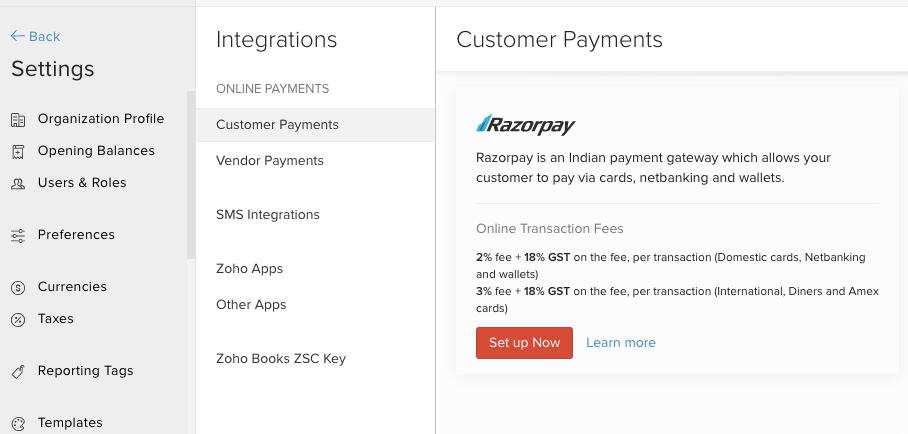
- Find Razorpay on the Customer Payments page and click Setup Now.
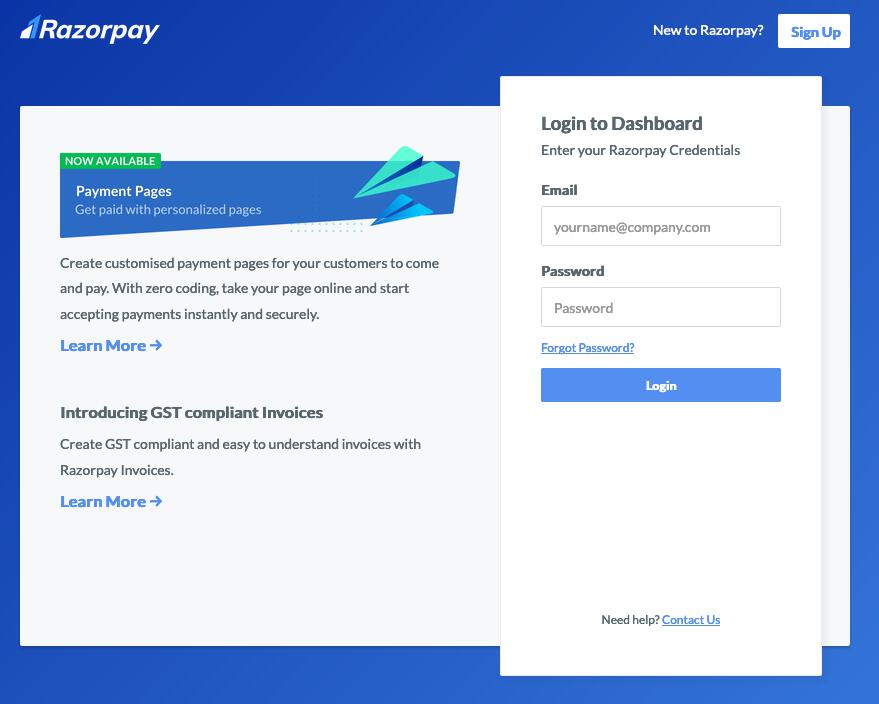
- You are redirected to the Razorpay login page. Enter your credentials on this page and click Login.
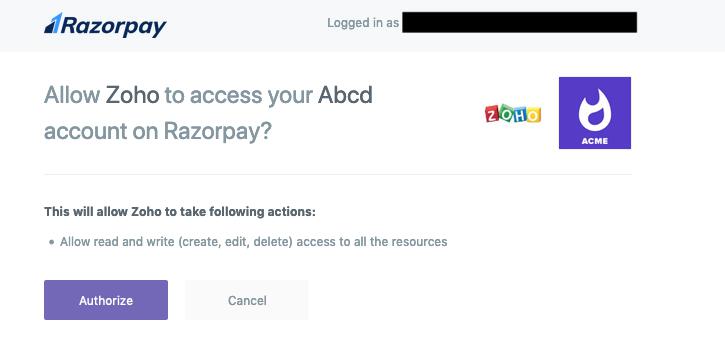
- Click Authorize.
- The integration is complete, Razorpay is marked as
Activeand you can start accepting payments from your customers using the Razorpay Payment Gateway.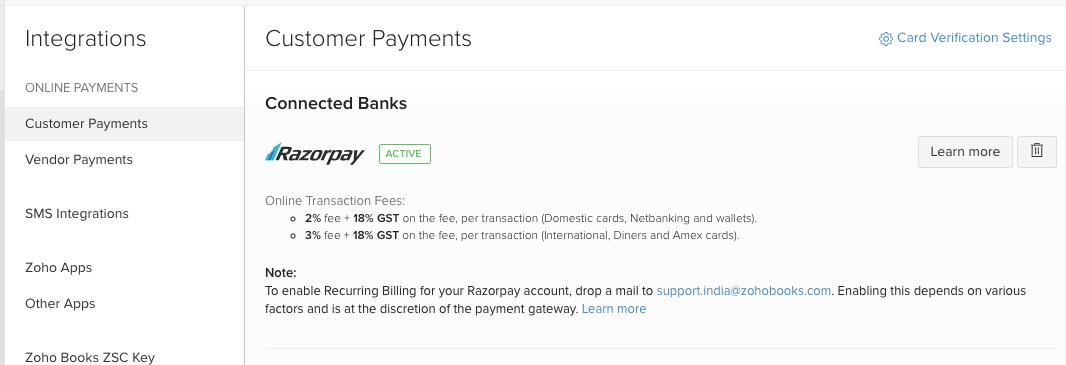
Recurring BillingTo enable Recurring Billing for your Razorpay account, email the Zoho Support Team for more details about this.
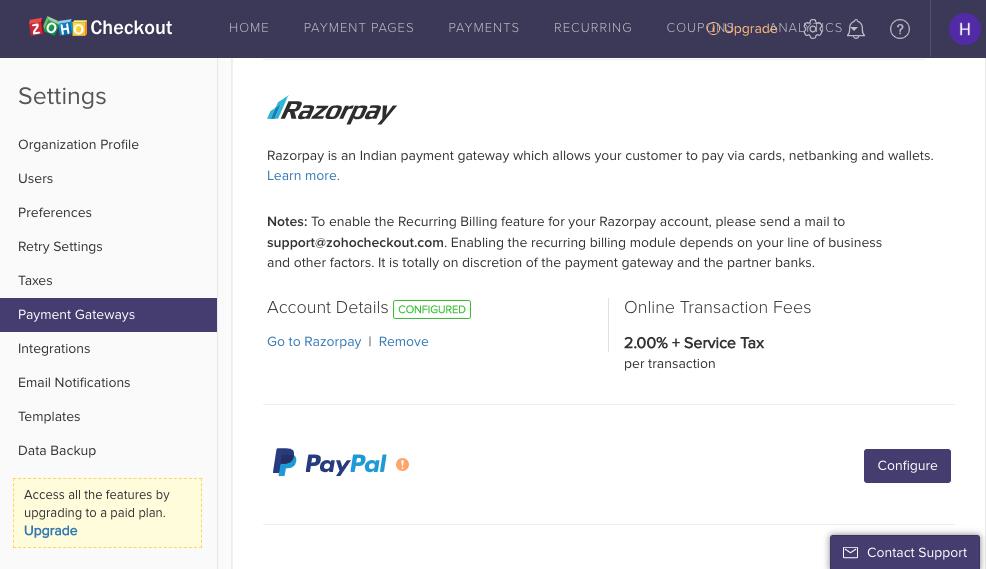
Zoho Checkout
To integrate Zoho Checkout with Razorpay:- Set up your Razorpay account.
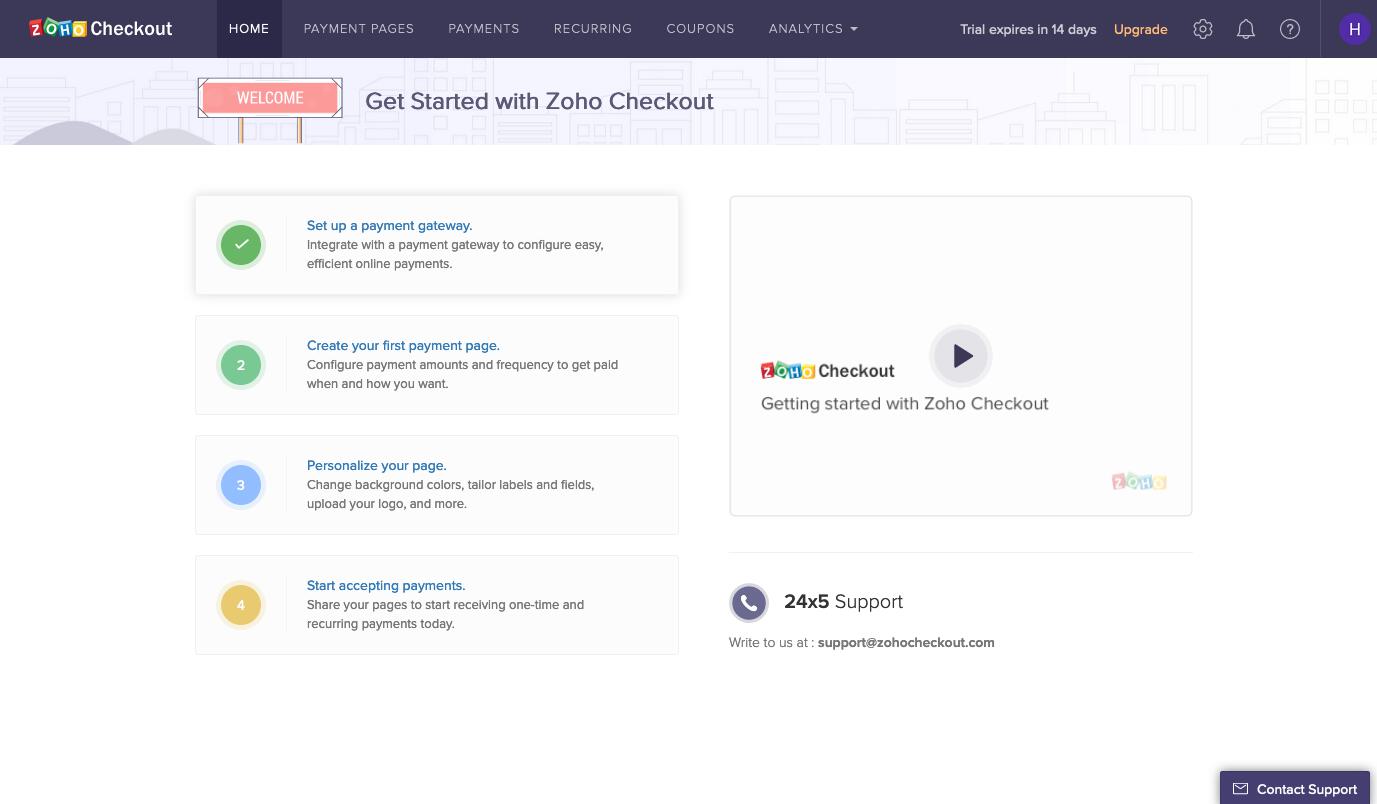
- Log in to Zoho Checkout and click Set up a payment gateway.
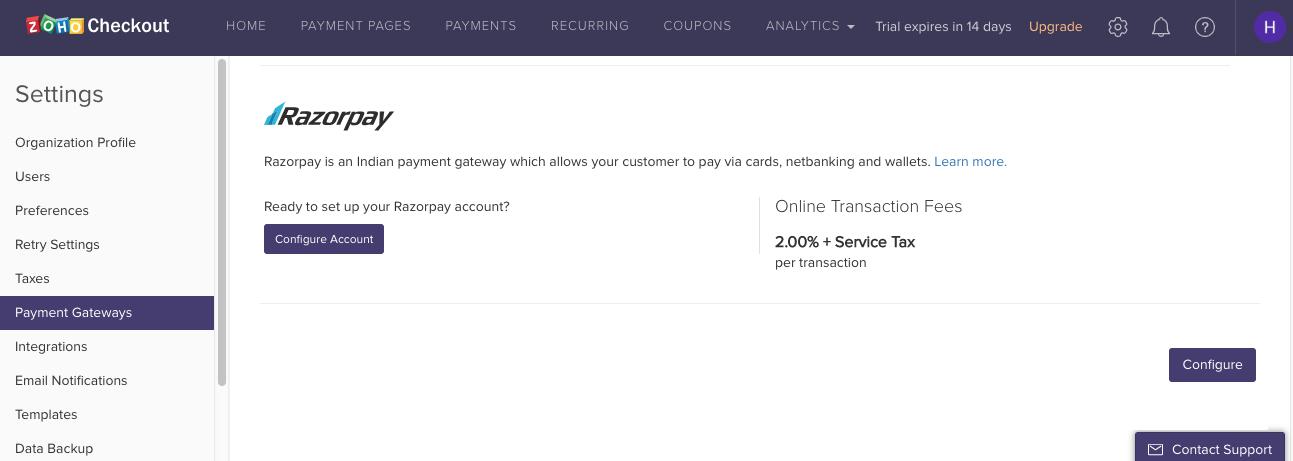
- Click Configure Account under Razorpay.
- You are redirected to the Razorpay login page. Enter your credentials on this page and click Login.
- Click Authorize.
- The integration is complete, Razorpay is marked as
Activeand you can start accepting payments from your customers using the Razorpay Payment Gateway.