> ## Documentation Index
> Fetch the complete documentation index at: https://razorpay-881012b3.mintlify.site/llms.txt
> Use this file to discover all available pages before exploring further.
# Bulk Payouts Approvals
> Explore the approvals process when you create bulk payout batches.
Available in
🇮🇳 India
After you set up an [approval workflow](/docs/x/manage-teams/approval-workflow) and [create bulk payout](/docs/x/bulk-payouts#create-bulk-payout), you can review the bulk payout batch files and approve them with a single OTP.
## How it Works
Assume you have set up an approval workflow where:
| Total Amount Condition | Action |
| ---------------------- | ----------------------------------------------------------- |
| 0 - ₹10,000 | No approval from Owner is needed. |
| ₹10,000 - ₹50,000 | Approval from the Finance role is needed. |
| Greater than ₹50,000 | Approval from the role Finance and Administrator is needed. |
Suppose you have created a bulk payout batch of 15 payouts each worth ₹1,000. The batch's total is ₹15,000. Approval workflow is applicable on:
* **The individual payout's amount in a batch**:
In this case, the bulk payout batch is not sent for approval as the individual payout's amount is not greater than ₹10,000.
Only if there are individual payouts greater than ₹10,000 in a batch file, you must approve each payout.
* **The sum of all the payout amounts in a batch**:
In this case, batch total is ₹15,000. This batch is sent for approval as the total batch amount is > ₹10,000.
Choose the second option in the [set up process](#set-up) to approve bulk payout batch with a single OTP.
## Set Up
To approve bulk payout batches with a single OTP, enable the setting:
1. Log in to the [RazorpayX Dashboard](https://x.razorpay.com/auth) as an [Owner/Admin](/docs/x/manage-teams) and go to **My Account & Settings** under the user profile icon.
2. Navigate to **Workflows** from the left menu.
3. Click the edit icon against **Approvals on Bulk Payouts** section.
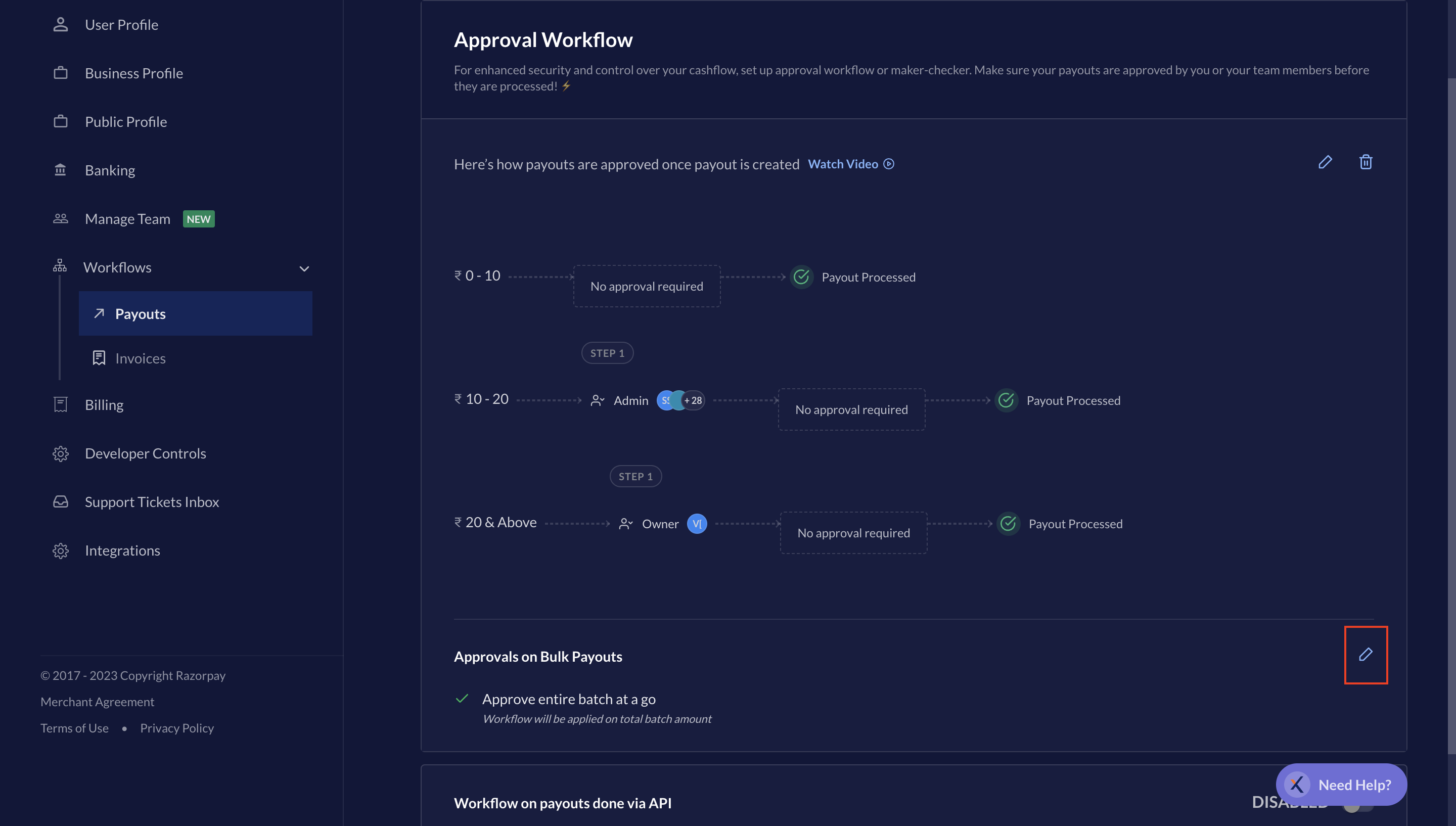 4. Select **Approve entire batch at a go** and click **Save**.
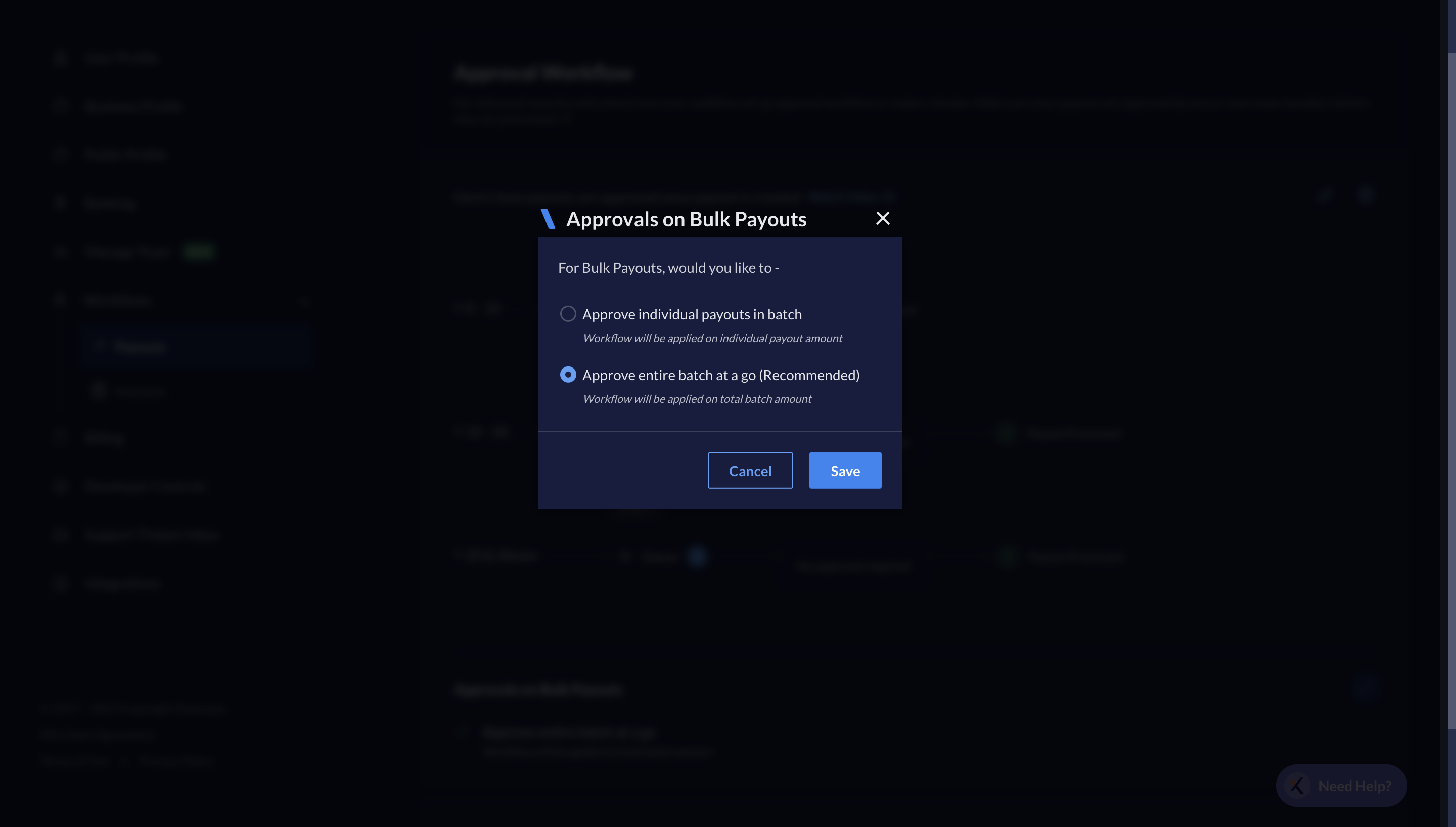 You have successfully enabled the setting to approve a batch of bulk payout with a single OTP. Your team can now create bulk payout batches using the [new templates](/docs/x/bulk-payouts#download-templates) and send them for approval.
## Review Bulk Payouts
To approve/reject the bulk payout batches pending on you:
1. Log in to the [RazorpayX Dashboard](https://x.razorpay.com/auth) as an [Owner/Approver](/docs/x/manage-teams).
2. To view bulk payout batches pending on the approver, you can:
1. Access the Dashboard from the approval request email sent to your registered email id.
2. Click the action items on the RazorpayX Dashboard Home Page.
You have successfully enabled the setting to approve a batch of bulk payout with a single OTP. Your team can now create bulk payout batches using the [new templates](/docs/x/bulk-payouts#download-templates) and send them for approval.
## Review Bulk Payouts
To approve/reject the bulk payout batches pending on you:
1. Log in to the [RazorpayX Dashboard](https://x.razorpay.com/auth) as an [Owner/Approver](/docs/x/manage-teams).
2. To view bulk payout batches pending on the approver, you can:
1. Access the Dashboard from the approval request email sent to your registered email id.
2. Click the action items on the RazorpayX Dashboard Home Page.
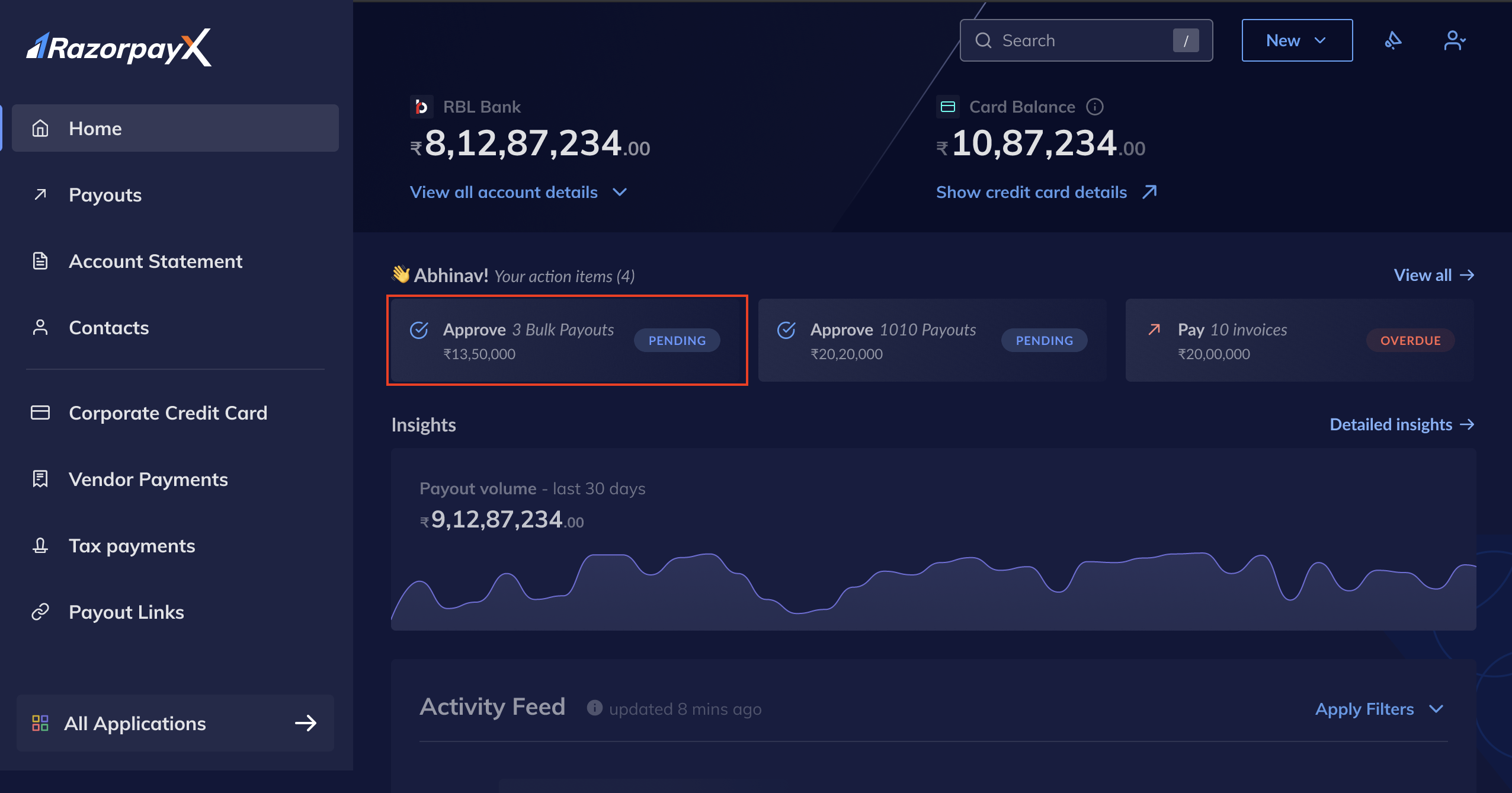 3. Go to **Payouts** in the left menu → **Bulk** tab. Check batches with the `pending` status.
You can now approve or reject the bulk payout batches as necessary.
## Approve Bulk Payout Batch
To approve bulk payout batches:
1. Hover on the batch item line to click **APPROVE**. You can also click the batch to view more details and take action on the bulk payout request.
2. Click **✓ Approve**.
3. Go to **Payouts** in the left menu → **Bulk** tab. Check batches with the `pending` status.
You can now approve or reject the bulk payout batches as necessary.
## Approve Bulk Payout Batch
To approve bulk payout batches:
1. Hover on the batch item line to click **APPROVE**. You can also click the batch to view more details and take action on the bulk payout request.
2. Click **✓ Approve**.
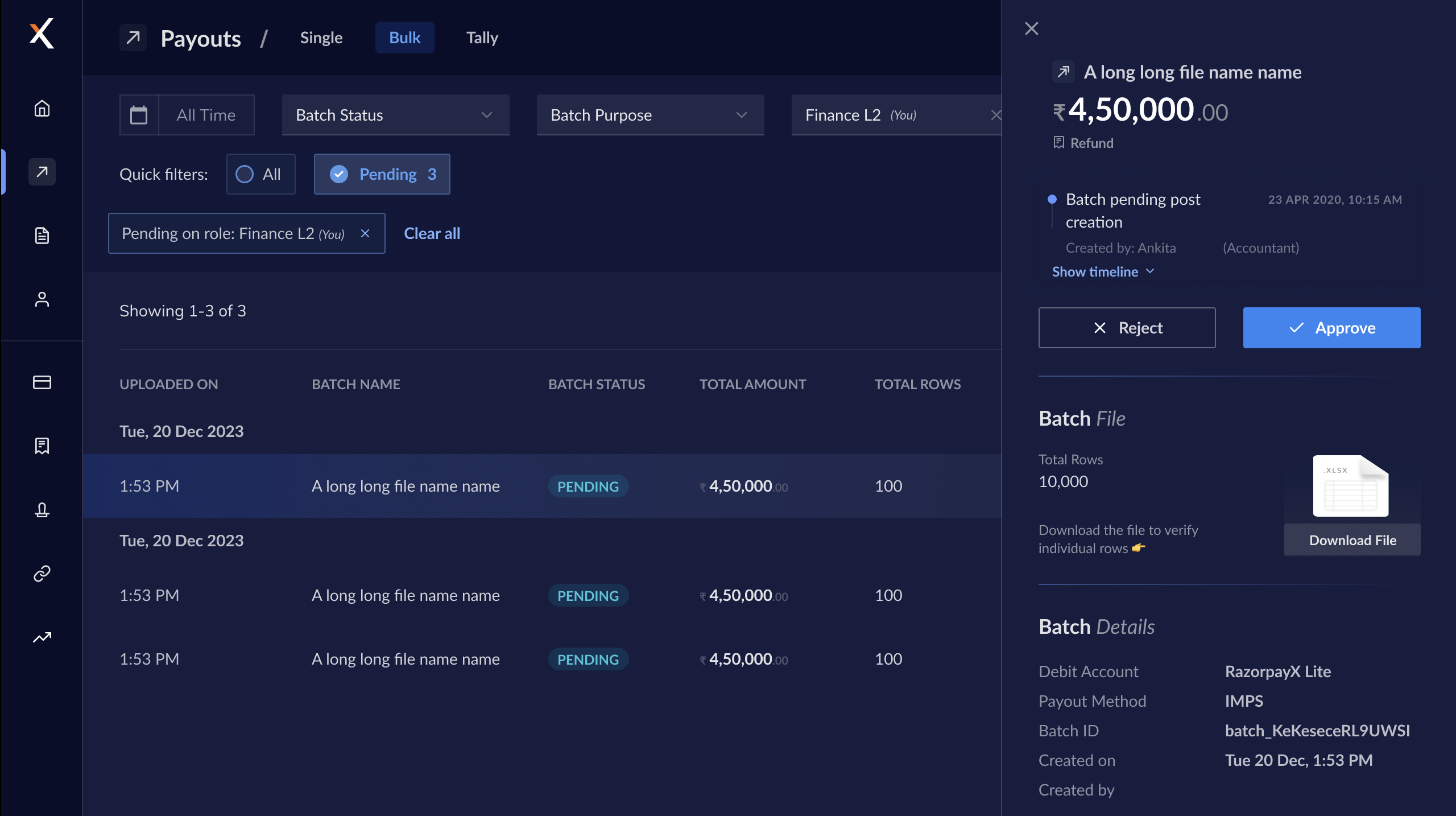 3. Review the batch file details and approval workflow in the **Approve Bulk Payout** pop-up window.
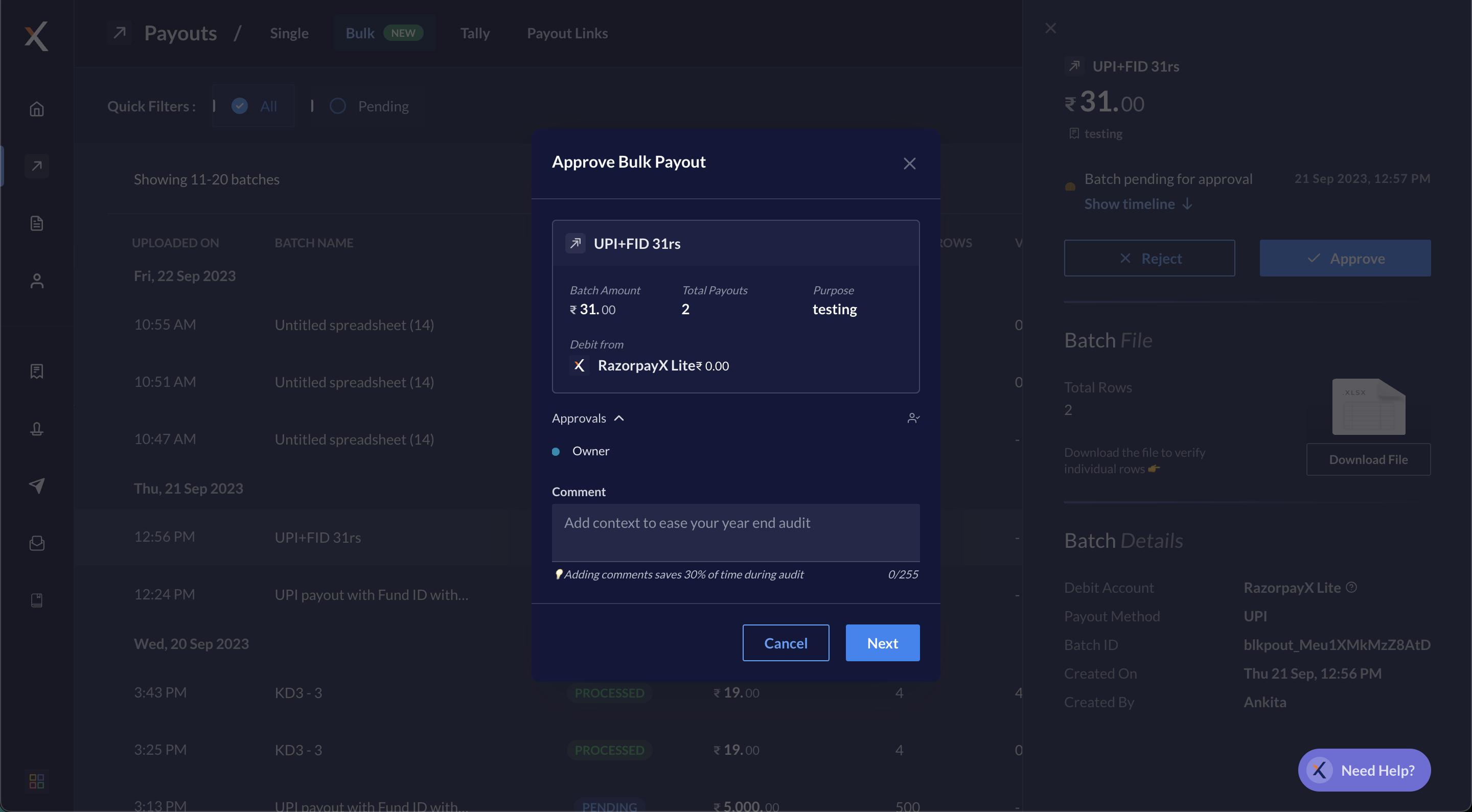 4. Click **Next** to enter the OTP and click **Approve**.
You have successfully approved the bulk payout batch file. After all the level of approvers have approved the batch, the file moves to the `processing` status.
**Watch Out!**
Only the bulk payout batch file moves to the `processing` status. Know more about [Bulk Payouts batch processing vs Payout processing](/docs/x/bulk-payouts#bulk-payouts-batch-processing-vs-payouts-processing).
## Reject Bulk Payout Batch
To reject the bulk payout batch file:
1. Hover on the batch item line to click **REJECT**. You can also click the batch to view more details and take action on the bulk payout request.
2. Click **× Reject**.
3. Review the batch file details in the **Reject Bulk Payout** pop-up window and provide remarks for rejecting the bulk payouts batch.
4. Click **Next** to enter the OTP and click **Approve**.
You have successfully approved the bulk payout batch file. After all the level of approvers have approved the batch, the file moves to the `processing` status.
**Watch Out!**
Only the bulk payout batch file moves to the `processing` status. Know more about [Bulk Payouts batch processing vs Payout processing](/docs/x/bulk-payouts#bulk-payouts-batch-processing-vs-payouts-processing).
## Reject Bulk Payout Batch
To reject the bulk payout batch file:
1. Hover on the batch item line to click **REJECT**. You can also click the batch to view more details and take action on the bulk payout request.
2. Click **× Reject**.
3. Review the batch file details in the **Reject Bulk Payout** pop-up window and provide remarks for rejecting the bulk payouts batch.
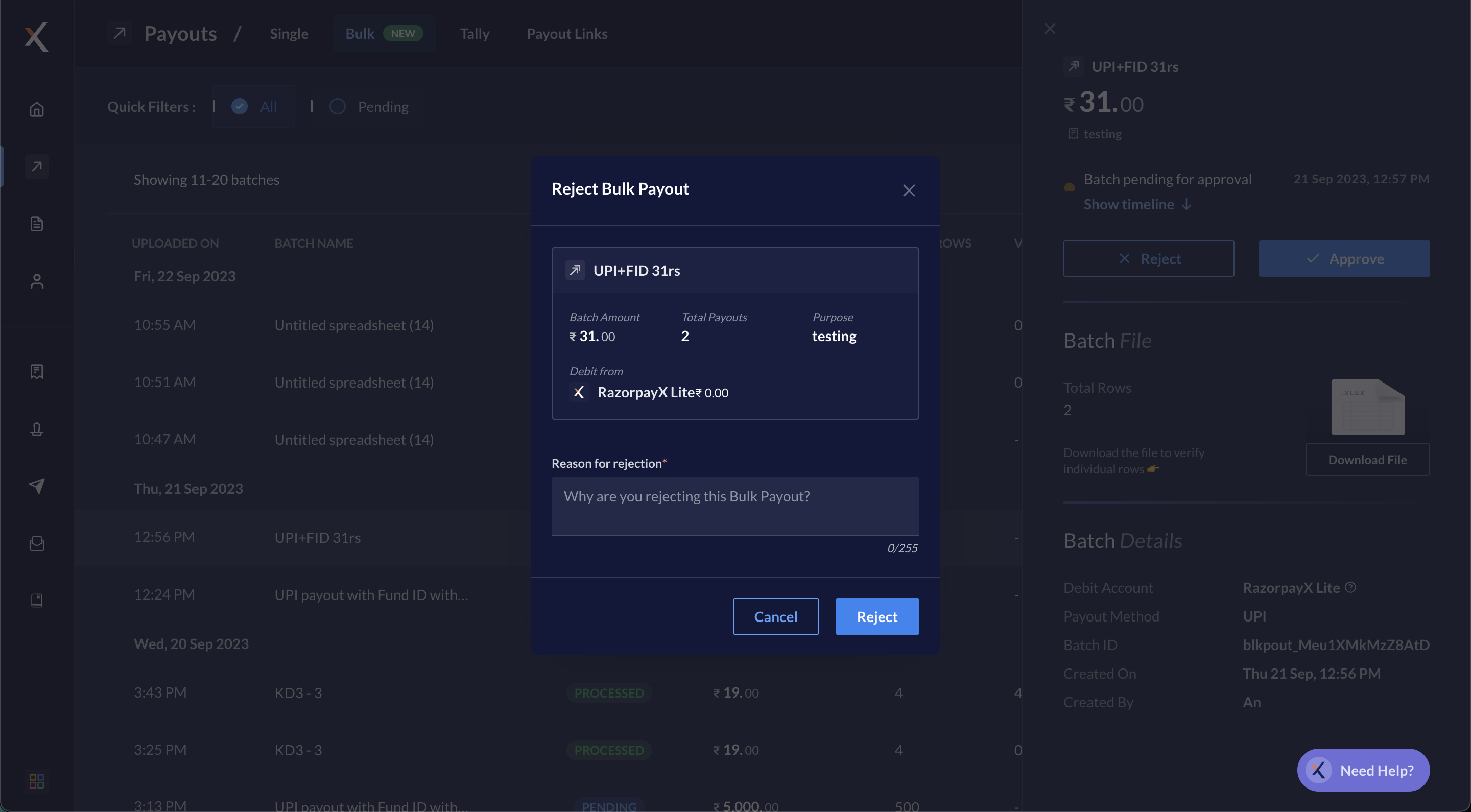 4. Click **Reject**.
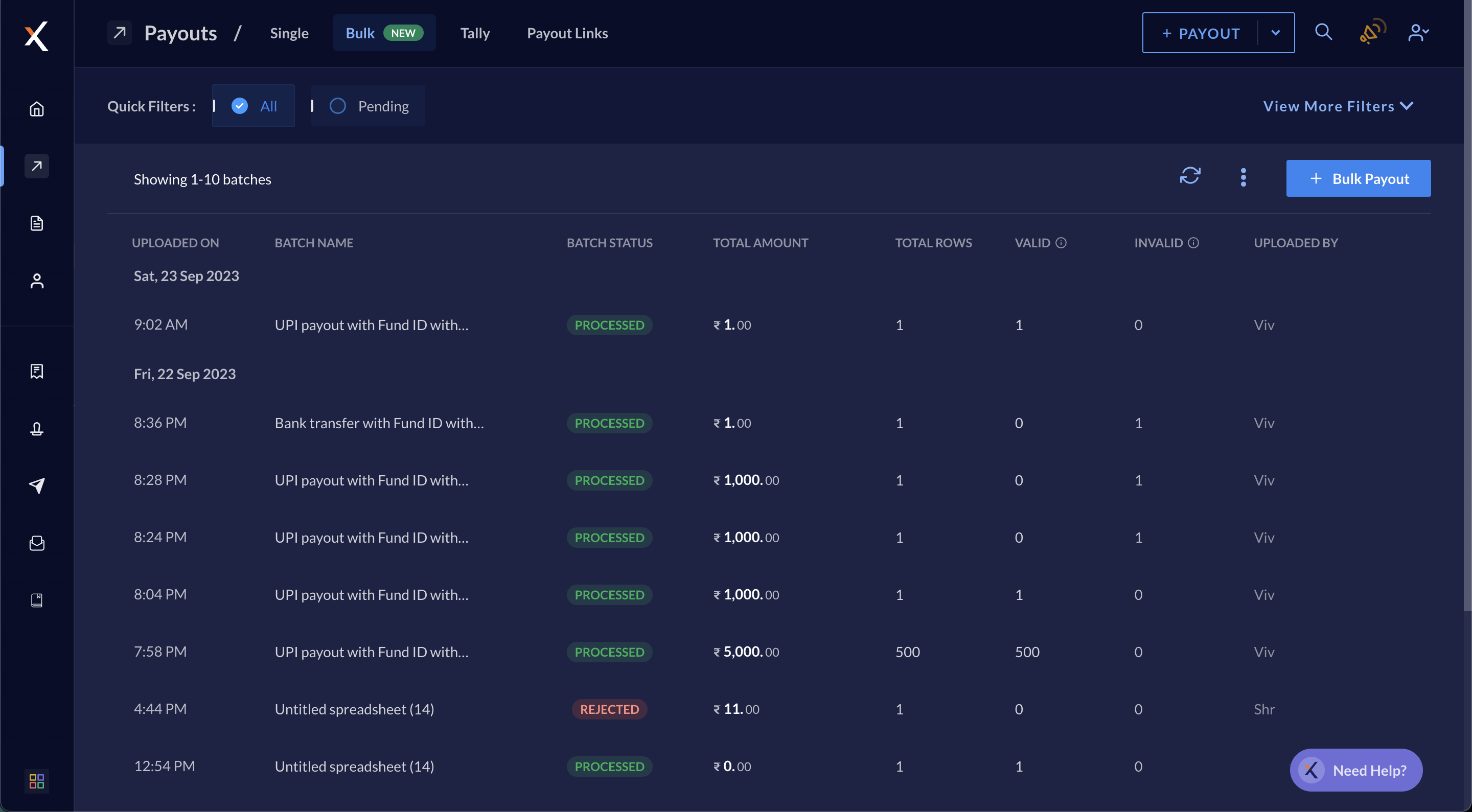
You have successfully rejected the bulk payout batch file post which the file moves to the `rejected` status.
You can view the bulk payout batch files' history on the Dashboard. Select **All** in **Quick Filters**.
4. Click **Reject**.
You have successfully rejected the bulk payout batch file post which the file moves to the `rejected` status.
You can view the bulk payout batch files' history on the Dashboard. Select **All** in **Quick Filters**.
 ### Related Information
* [Bulk Payouts Life Cycle](/docs/x/bulk-payouts/life-cycle)
* [Bulk Upload Report](/docs/x/bulk-payouts/report)
### Related Information
* [Bulk Payouts Life Cycle](/docs/x/bulk-payouts/life-cycle)
* [Bulk Upload Report](/docs/x/bulk-payouts/report)