> ## Documentation Index
> Fetch the complete documentation index at: https://razorpay-881012b3.mintlify.site/llms.txt
> Use this file to discover all available pages before exploring further.
# Integrate RazorpayX Vendor Payments with Tally
> Integrate and Sync RazorpayX Vendor Payments with Tally.
Available in
🇮🇳 India
Tally may require more information than originally provided while making a vendor payment. With this integration and the initial configuration, the process of filling up the required details is automated. You can make configurations with [**Rules & Configurations**](/docs/x/accounting/zohobooks#rules-configuration) under General, Account Mapping and Contact Mapping to start. [Vendor Payments](/docs/x/vendor-payments) are recorded as **Bills** under Accounting. They are recorded here as soon as the invoice is created. The invoice need not be in `paid` state for the sync to occur.
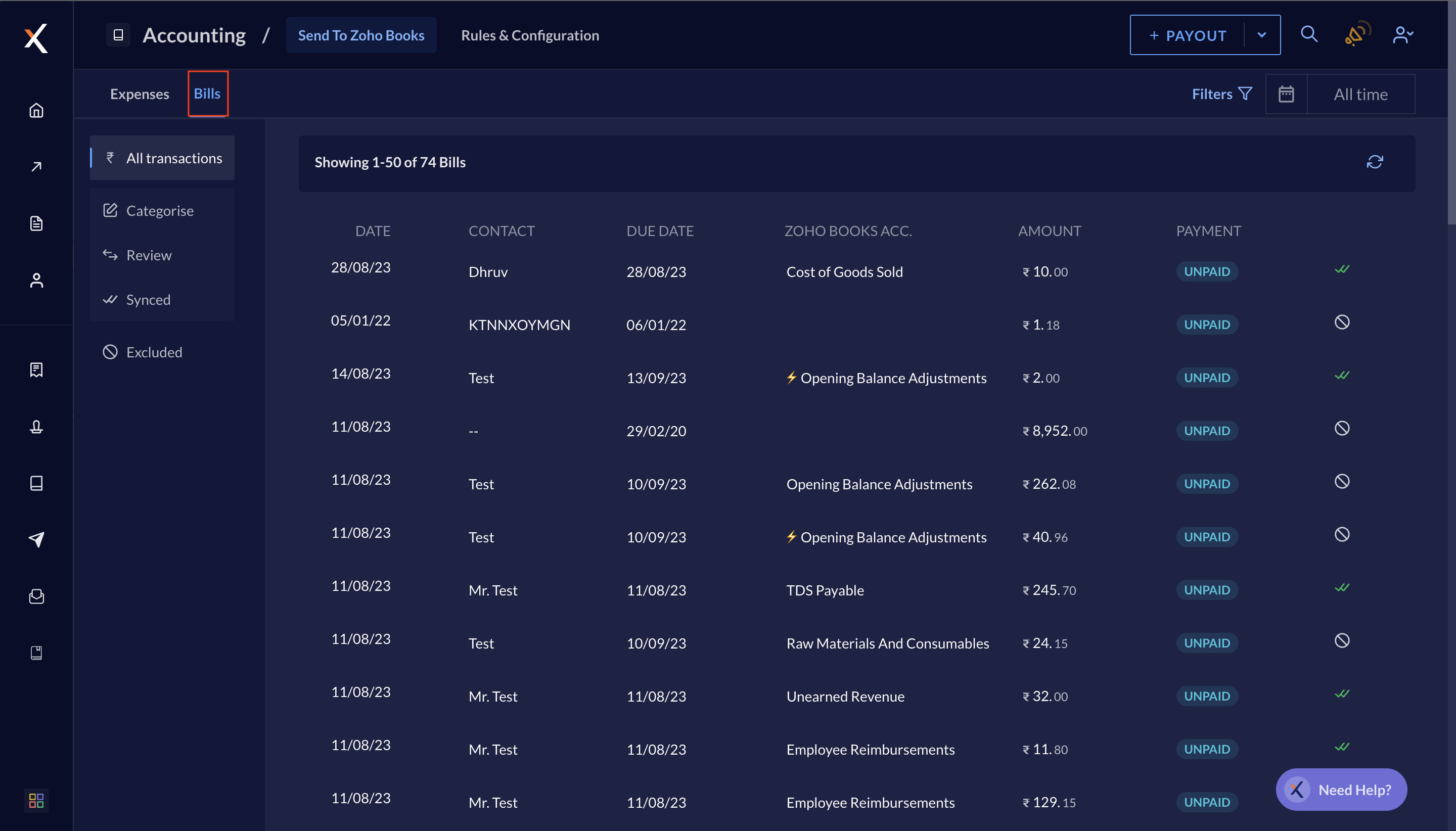 You can filter and view the **Bills** by:
* Payment Status
* Tally Account
## Life Cycle
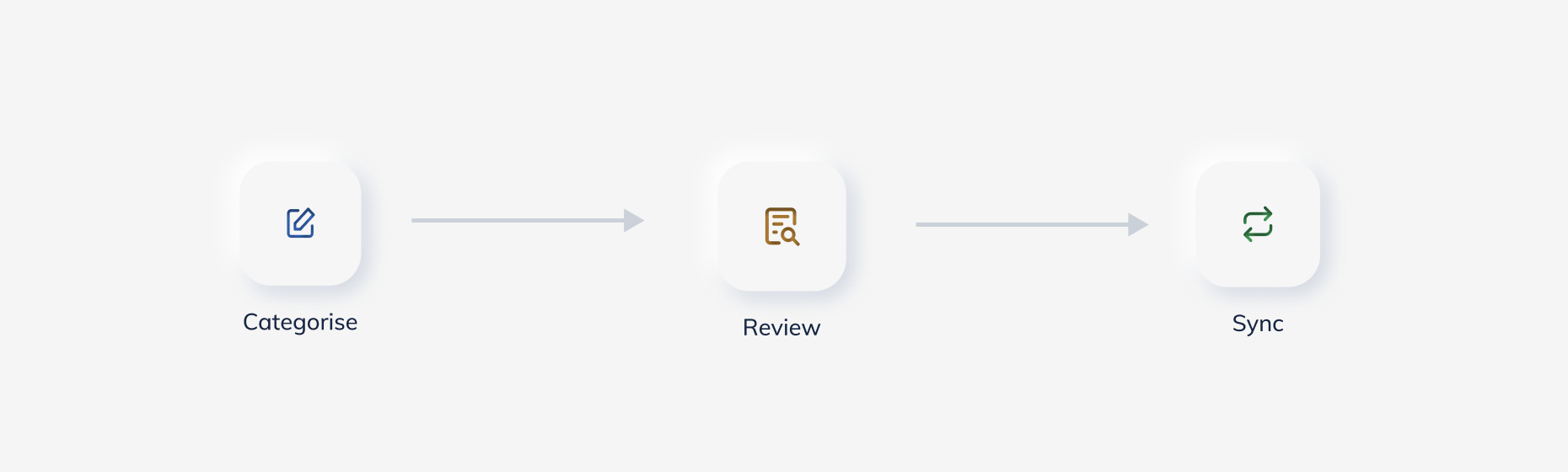
Each vendor payment appears under Accounting Bills after it is `processed`.
* It is first visible under the **Categorise** tab.
* Once you enter the required information, it moves to the **Review** tab.
* After you review the vendor payment, it moves to the **Sync** tab, which means that the particular vendor payment has been synced with your Tally account.
You can filter and view the **Bills** by:
* Payment Status
* Tally Account
## Life Cycle
Each vendor payment appears under Accounting Bills after it is `processed`.
* It is first visible under the **Categorise** tab.
* Once you enter the required information, it moves to the **Review** tab.
* After you review the vendor payment, it moves to the **Sync** tab, which means that the particular vendor payment has been synced with your Tally account.
 ## Categorise
Certain invoices are not synced with Tally due to information unavailability. These vendor payments show up in the **Categorise** tab. To provide complete information:
1. Click on the entry you want to categoise.
2. In the right-hand side pane, click **CATEGORISE**.
3. Select your Tally **Expense Account** and **Ledger** from the drop-down menu.
4. Select the **Tax Slab**.
The vendor payment moves to the **Review** tab.
You can automate this process to an extent by setting [**Contact Rules**](/docs/x/accounting/zohobooks#rules). This means that you can select a corresponding **Tally Expense Account** to which you want the vendor payments made to that particular vendor, to sync.
**Example**:
* Vendor **Contact** name: `Gaurav Kumar`
* **Tally Expenses Account** selected under Purpose Rules: `Regular Vendor`
This means, everytime a payment is made to `Gaurav Kumar` via RazorpayX, we automatically sync it to the `Regular Vendor` Expenses Account on Tally. Hence, the vendor payment directly appears on the **Review** tab instead of the **Categorise** tab and reduces the manual effort of categorising each time.
**Handy Tips**
* You can also choose to **EXCLUDE** the entry. With this, the vendor payment will not be categorised in RazorpayX. It will remain in an intermediatory state and you can categorise it later directly on Tally.
* It is also automatically excluded when the categorisation fails to sync. You can see the **Exclude** tab to check on any missed expenses on Tally.
## Review
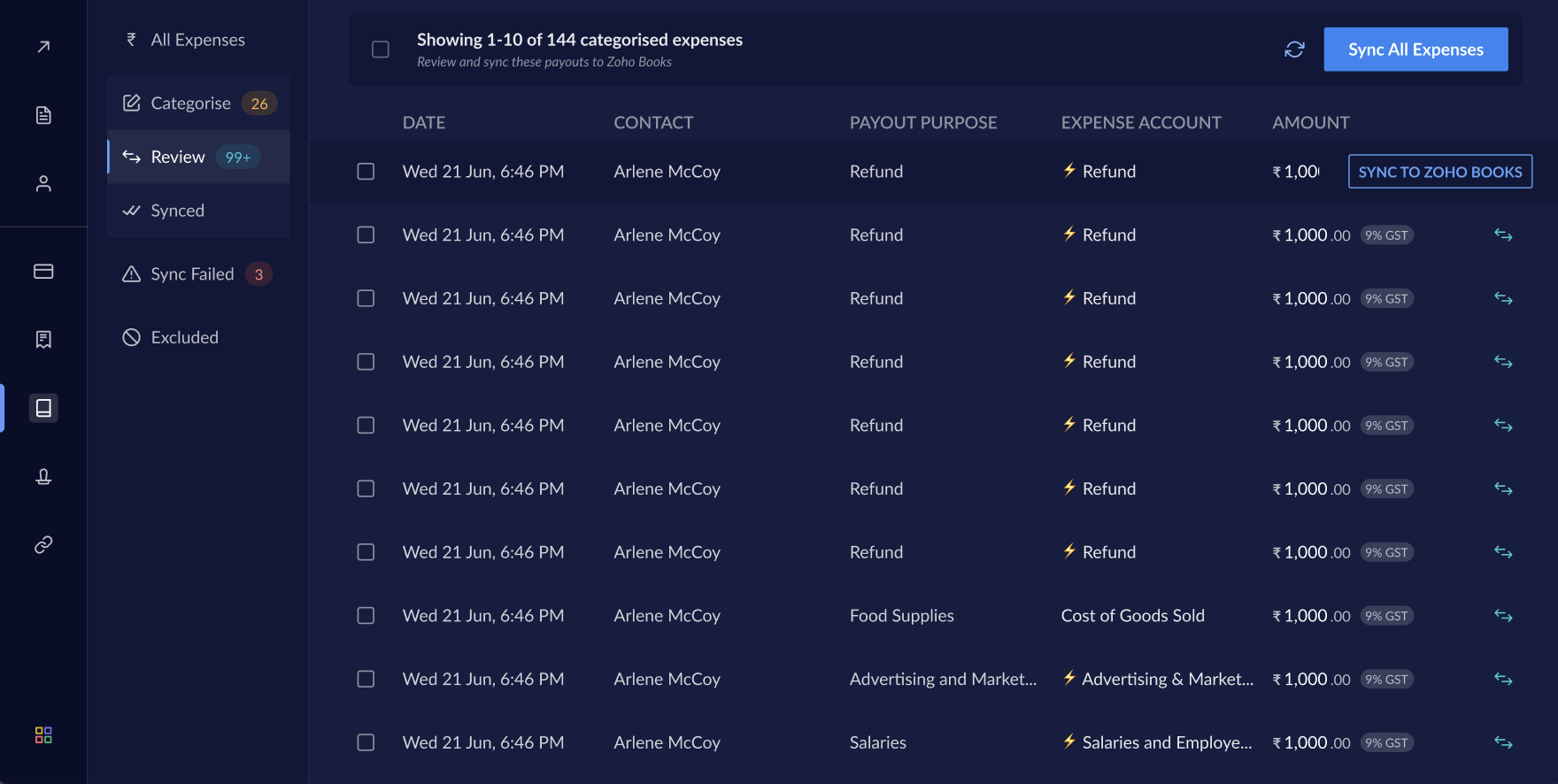
If all the information is present, the vendor payment is showed in the review tab. Select the vendor payment you want to review and click **SYNC NOW** to sync the vendor payment with Tally. You can also select multiple or all vendor payments in the Review tab and sync them.
## Categorise
Certain invoices are not synced with Tally due to information unavailability. These vendor payments show up in the **Categorise** tab. To provide complete information:
1. Click on the entry you want to categoise.
2. In the right-hand side pane, click **CATEGORISE**.
3. Select your Tally **Expense Account** and **Ledger** from the drop-down menu.
4. Select the **Tax Slab**.
The vendor payment moves to the **Review** tab.
You can automate this process to an extent by setting [**Contact Rules**](/docs/x/accounting/zohobooks#rules). This means that you can select a corresponding **Tally Expense Account** to which you want the vendor payments made to that particular vendor, to sync.
**Example**:
* Vendor **Contact** name: `Gaurav Kumar`
* **Tally Expenses Account** selected under Purpose Rules: `Regular Vendor`
This means, everytime a payment is made to `Gaurav Kumar` via RazorpayX, we automatically sync it to the `Regular Vendor` Expenses Account on Tally. Hence, the vendor payment directly appears on the **Review** tab instead of the **Categorise** tab and reduces the manual effort of categorising each time.
**Handy Tips**
* You can also choose to **EXCLUDE** the entry. With this, the vendor payment will not be categorised in RazorpayX. It will remain in an intermediatory state and you can categorise it later directly on Tally.
* It is also automatically excluded when the categorisation fails to sync. You can see the **Exclude** tab to check on any missed expenses on Tally.
## Review
If all the information is present, the vendor payment is showed in the review tab. Select the vendor payment you want to review and click **SYNC NOW** to sync the vendor payment with Tally. You can also select multiple or all vendor payments in the Review tab and sync them.
 ## Sync
The **Sync** tab has all the vendor payments that were synced to your Tally account. Select the particular vendor payment to view more details, including the timelines and find them in the right pane. You can also find the sync status of an entry under the **Vendor Payments** tab.
## Sync
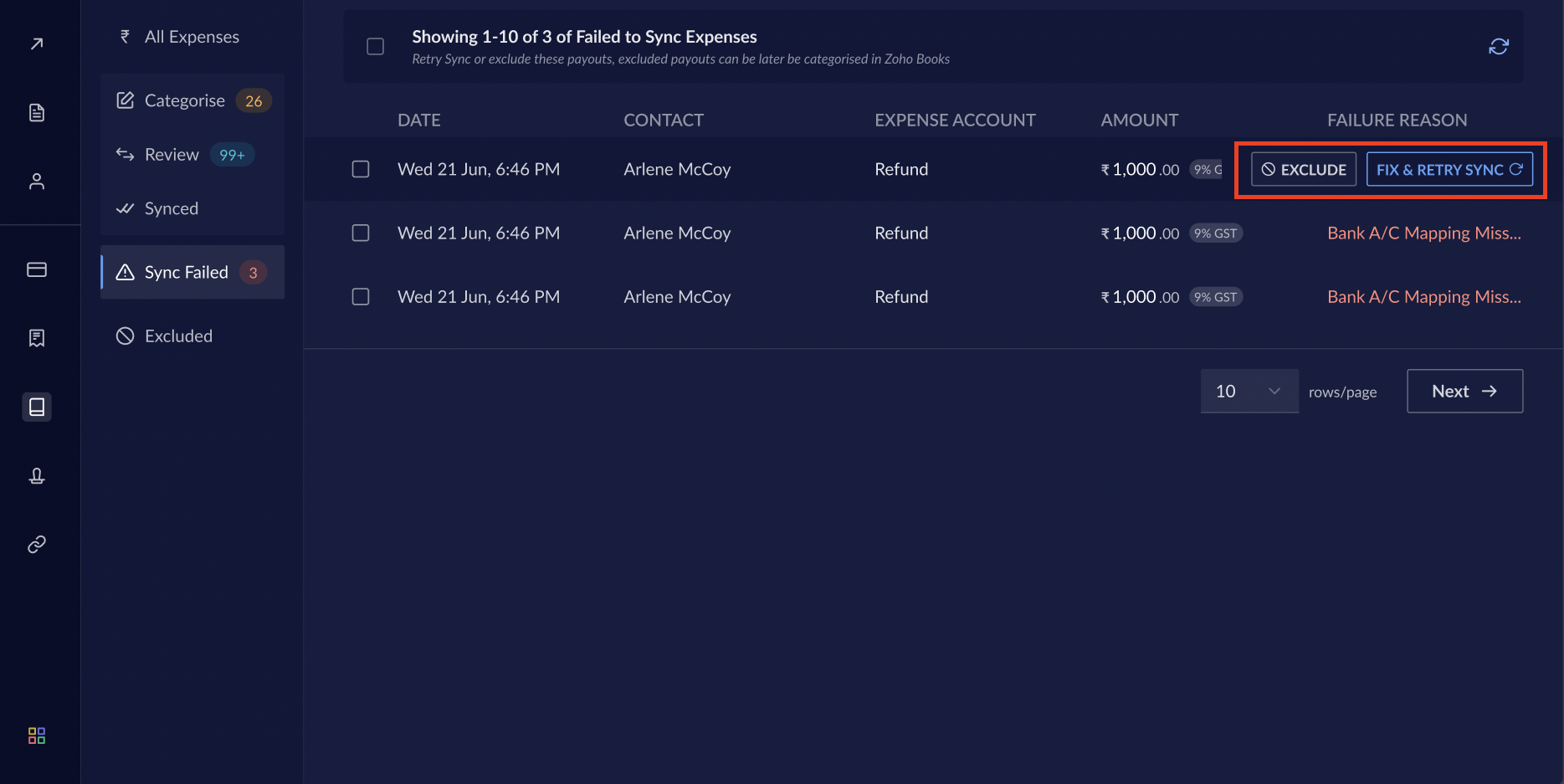
The **Sync** tab has all the vendor payments that were synced to your Tally account. Select the particular vendor payment to view more details, including the timelines and find them in the right pane. You can also find the sync status of an entry under the **Vendor Payments** tab.
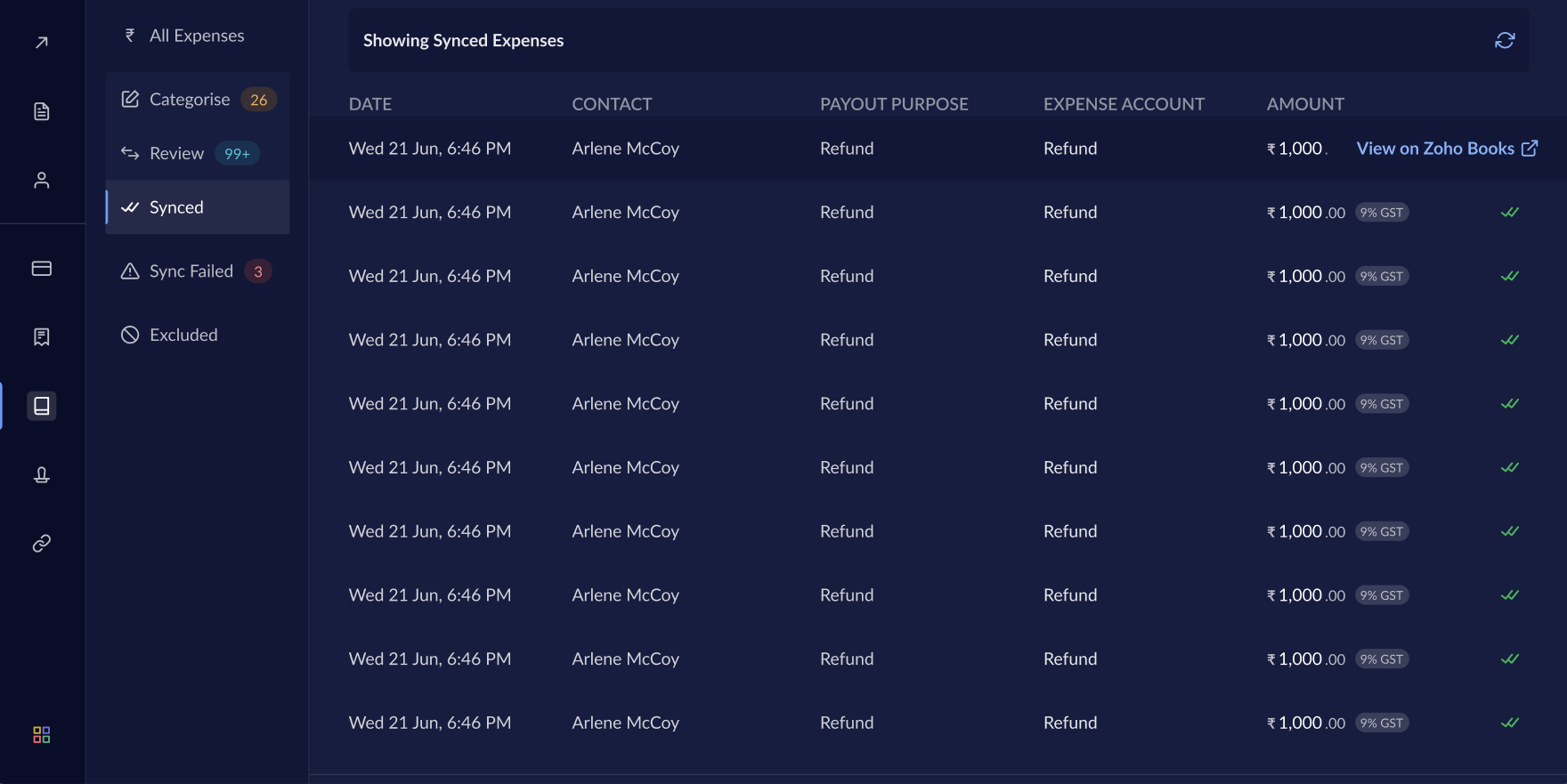 In case the sync fails, you can either **FIX & RETRY SYNC** or **EXCLUDE** the entry. If you choose to exclude, the payout will not be categorised. It will remain in an intermediatory state and you can categorise it later directly on Tally.