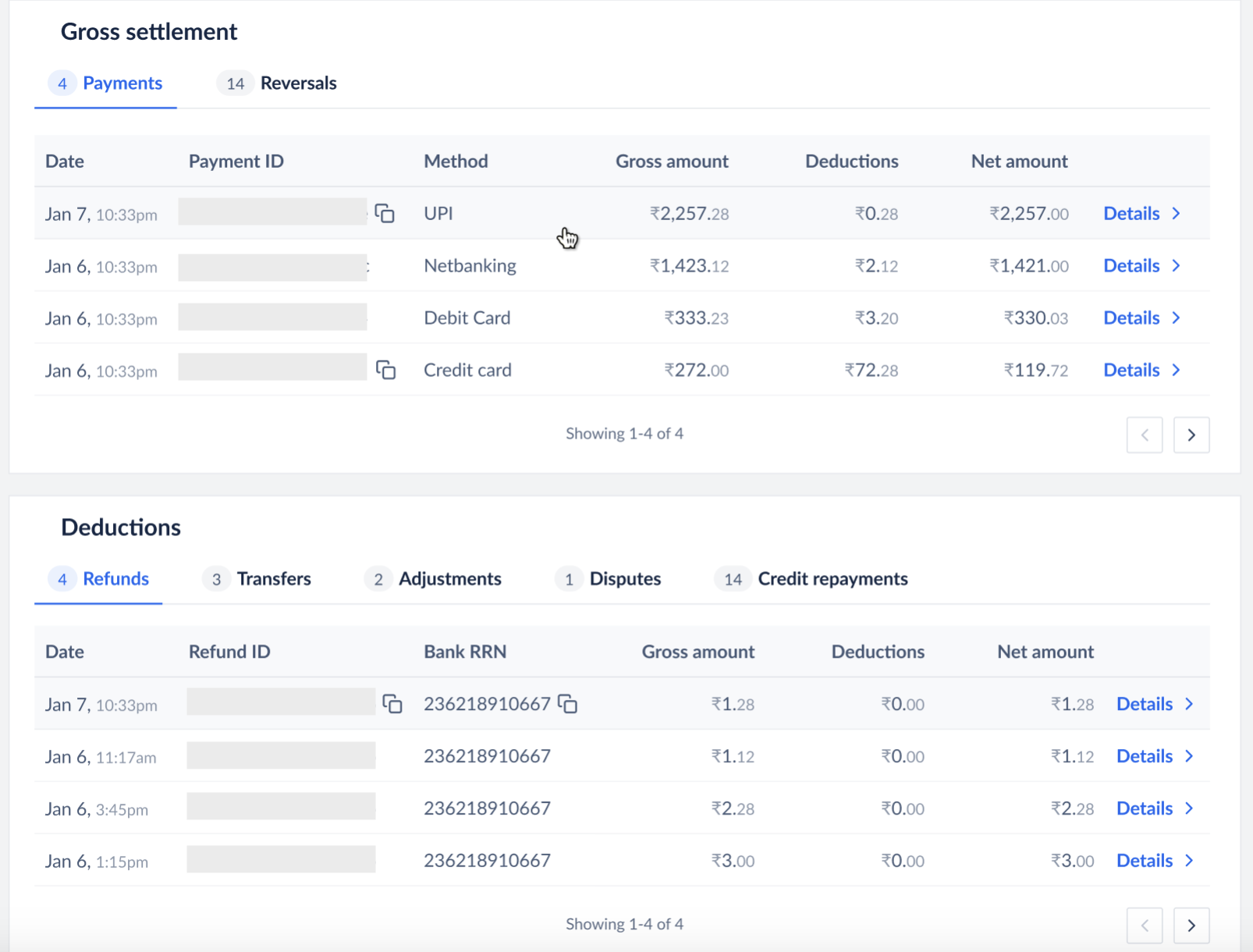
 The gross settlements and deductions calculations only apply to merchants on the prepaid model.
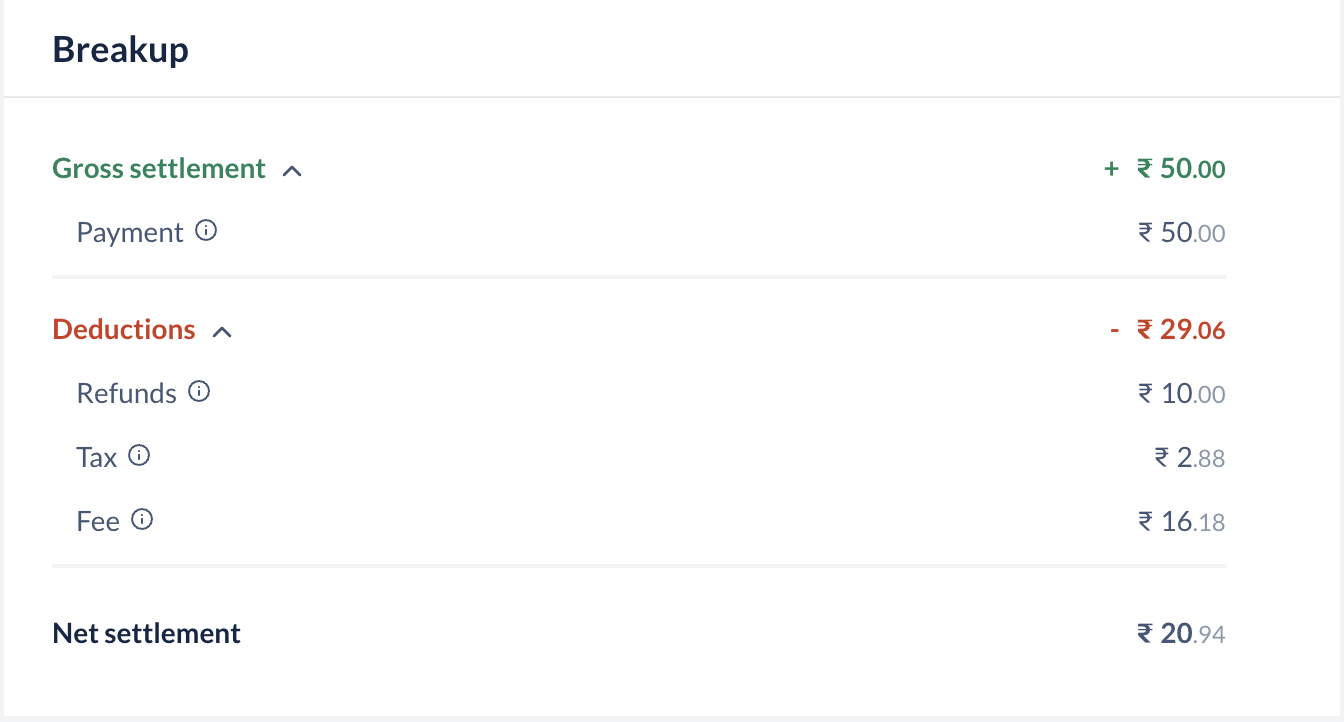 A settlement has the following components:
`Payment`
: The total payment amount that is being settled before deductions.
`Adjustment`
: Adjustments to transactions, if any.
`Tax`
: Tax deducted on the payment.
`Fee`
: Fees deducted by Razorpay for the transactions.
`Transfer`
: Transfers made if any, Transfers are payouts made to your [linked accounts](/docs/payments/route/linked-account).
Linked accounts are accounts created for third-party sellers by you after onboarding them onto the Razorpay platform.
`Refunds`
: Refunds made if any, are refunds you have issued to your customer.
The gross settlements and deductions calculations only apply to merchants on the prepaid model.
A settlement has the following components:
`Payment`
: The total payment amount that is being settled before deductions.
`Adjustment`
: Adjustments to transactions, if any.
`Tax`
: Tax deducted on the payment.
`Fee`
: Fees deducted by Razorpay for the transactions.
`Transfer`
: Transfers made if any, Transfers are payouts made to your [linked accounts](/docs/payments/route/linked-account).
Linked accounts are accounts created for third-party sellers by you after onboarding them onto the Razorpay platform.
`Refunds`
: Refunds made if any, are refunds you have issued to your customer.
The gross settlements and deductions calculations only apply to merchants on the prepaid model.
 ## Enable Settlements Placed On Hold
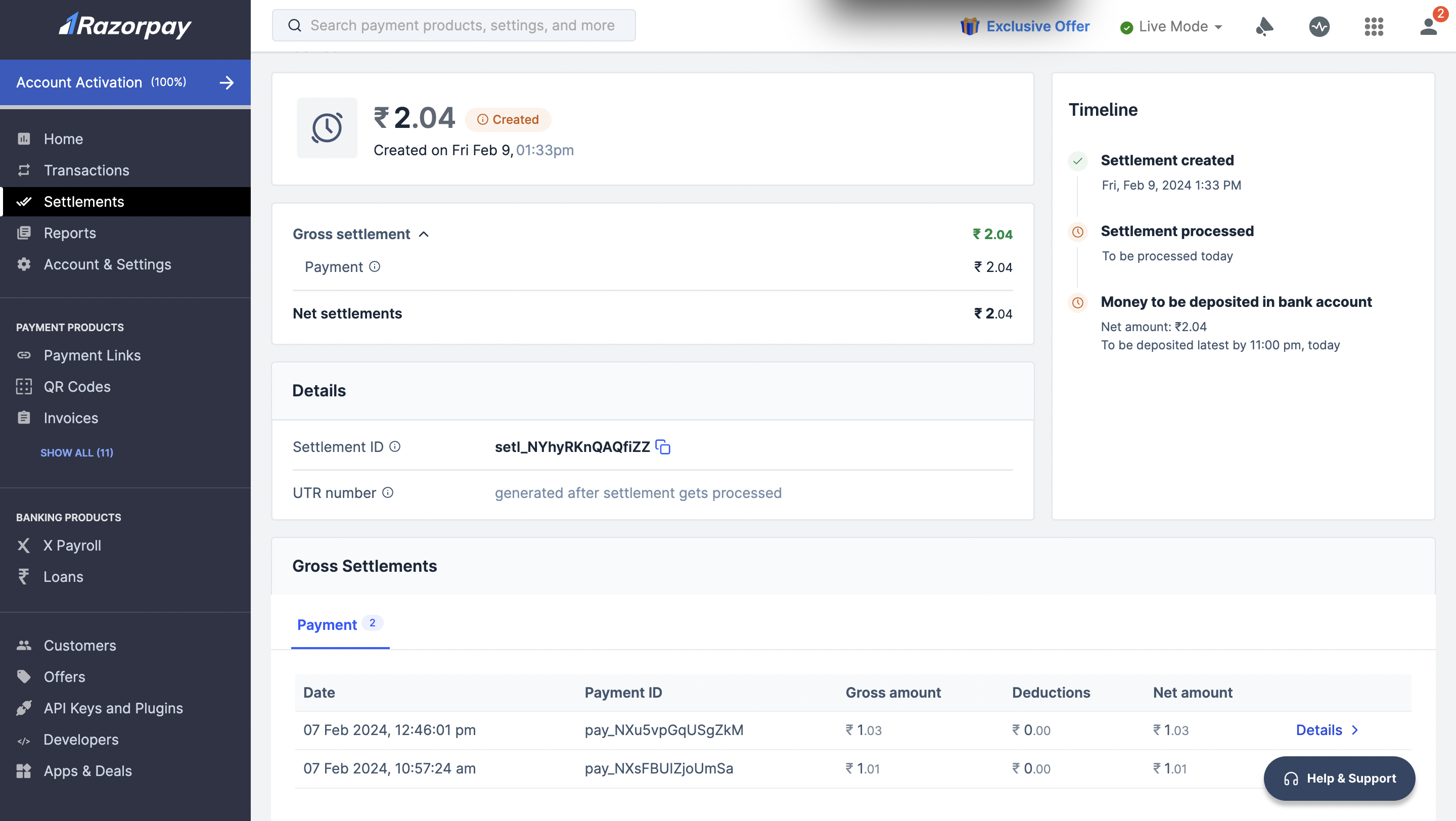
Your settlement can be placed on hold if we detect some risk with your payments or with your Razorpay account. You are notified about this on your Dashboard.
Contact the [support team](https://razorpay.com/support) to enable settlements that are placed on hold.
## Enable Settlements Placed On Hold
Your settlement can be placed on hold if we detect some risk with your payments or with your Razorpay account. You are notified about this on your Dashboard.
Contact the [support team](https://razorpay.com/support) to enable settlements that are placed on hold.
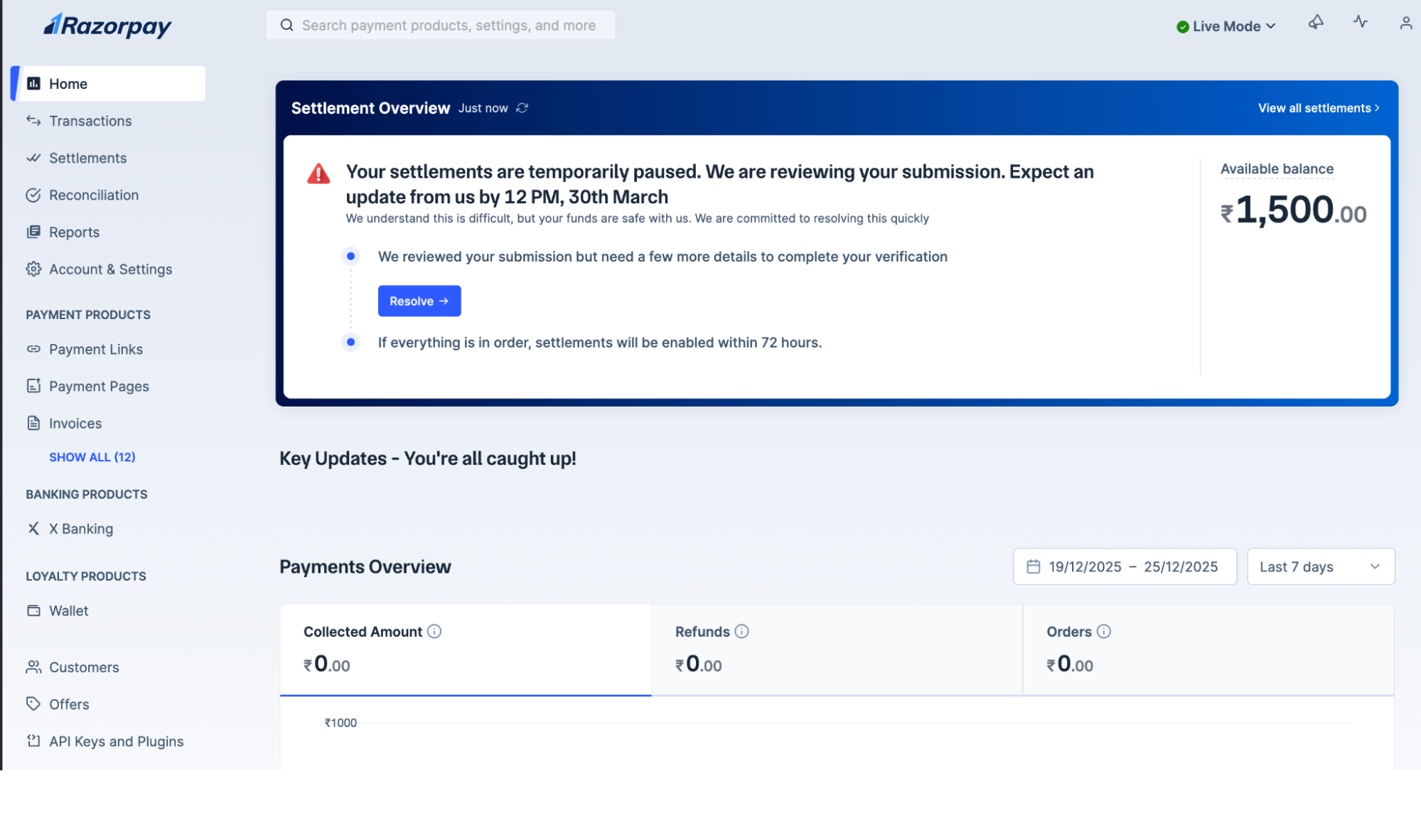 To enable settlements when they are put on hold:
1. Log in to the Dashboard.
2. Navigate to **Home**.
3. Click **Resolve** on the notification as shown above..
## Reports
Detailed insights can be gained using reports and real-time data on the Dashboard. These reports can then be used for accounting and reconciliation purposes. Know more about [reports.](/docs/pos/dashboard/reports)
### Related Information
* [About Settlements](/docs/pos/settlements)
* [Settlement FAQs](/docs/pos/settlements/faqs)
To enable settlements when they are put on hold:
1. Log in to the Dashboard.
2. Navigate to **Home**.
3. Click **Resolve** on the notification as shown above..
## Reports
Detailed insights can be gained using reports and real-time data on the Dashboard. These reports can then be used for accounting and reconciliation purposes. Know more about [reports.](/docs/pos/dashboard/reports)
### Related Information
* [About Settlements](/docs/pos/settlements)
* [Settlement FAQs](/docs/pos/settlements/faqs)