> ## Documentation Index
> Fetch the complete documentation index at: https://razorpay-881012b3.mintlify.site/llms.txt
> Use this file to discover all available pages before exploring further.
# Dashboard Actions
> View payment details, issue a refund or view settlement details of a payment from the Razorpay Dashboard.
Available in
🇮🇳 India
You can use the Dashboard to perform the following actions:
* [View Payment Details](#view-payment-details)
* [View Settlement Details of a Payment](#view-settlement-details-of-a-payment)
## View Payment Details
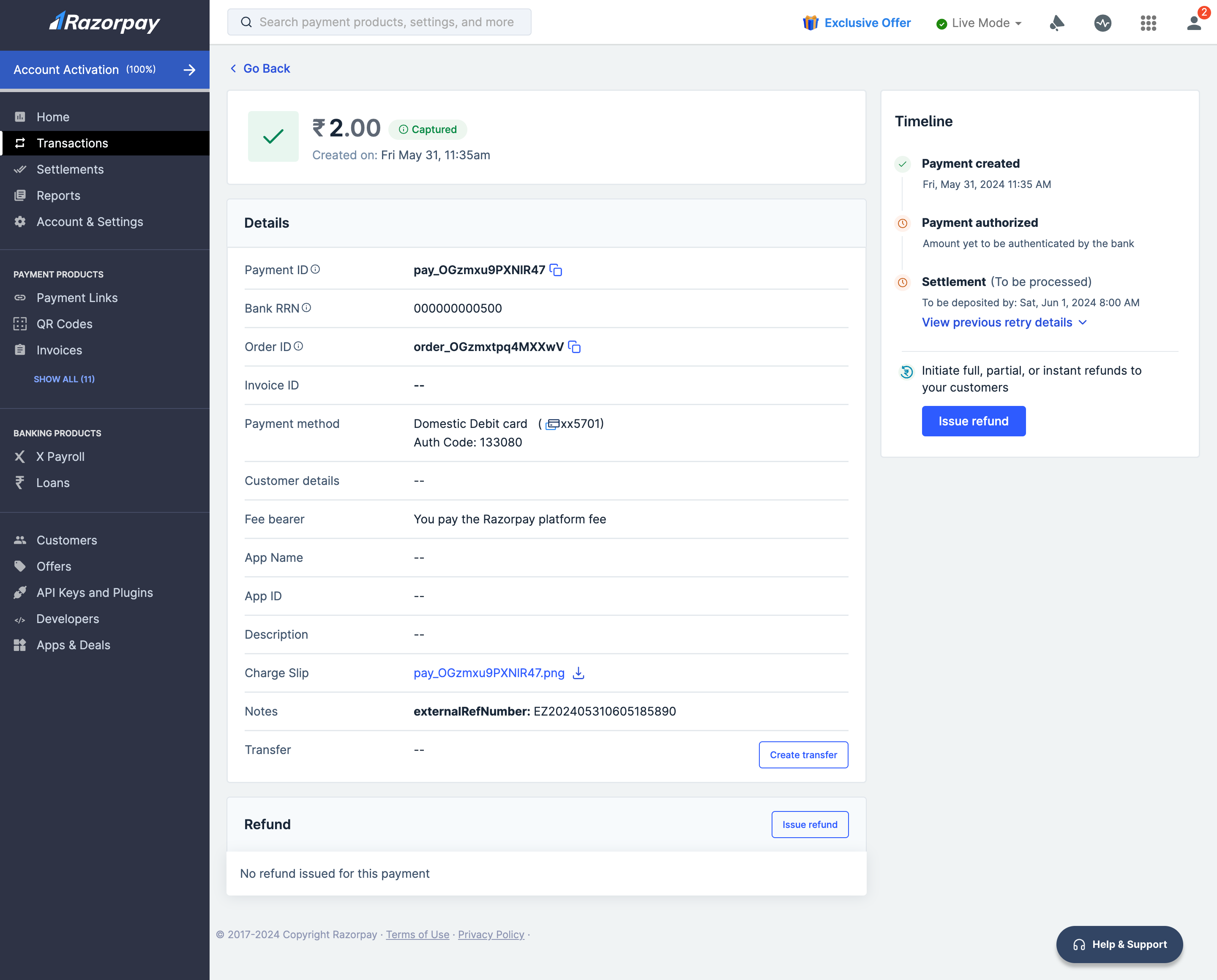
To view the details of a payment made to your account:
1. Log in to your Dashboard.
2. Click **Transactions** → **Payments**.
3. Click **Details** for the selected Payment ID.
**Handy Tips**
Click on the **Charge Slip** file name to view it. Click the download icon next to the **Charge Slip** file name to save it on your system.
 ## View Settlement Details of a Payment
To view a detailed break-down of a settlement made to your account:
1. Log in to your Dashboard.
2. Navigate to **Transactions** → **Payments**.
3. Click on the specific **Payment Id** for which you want to view the settlement details.
4. In the **Payment Details** view, you can view the settlement details.
5. Click on the **settlement\_id** to view the detailed breakdown.
### Related Information
* [About Payments](/docs/pos/payments)
## View Settlement Details of a Payment
To view a detailed break-down of a settlement made to your account:
1. Log in to your Dashboard.
2. Navigate to **Transactions** → **Payments**.
3. Click on the specific **Payment Id** for which you want to view the settlement details.
4. In the **Payment Details** view, you can view the settlement details.
5. Click on the **settlement\_id** to view the detailed breakdown.
### Related Information
* [About Payments](/docs/pos/payments)