> ## Documentation Index
> Fetch the complete documentation index at: https://razorpay-881012b3.mintlify.site/llms.txt
> Use this file to discover all available pages before exploring further.
# Cash on Delivery
> Offer Cash on Delivery (COD) as a payment method on the Razorpay Checkout page.
Available in
🇮🇳 India
You can now offer Cash on Delivery (COD) as a payment method on the Razorpay Checkout page. Customers can choose COD directly on the Checkout page, alongside UPI, cards, netbanking and more. This flow increases accessibility and builds trust among first-time buyers and high-value orders.
**Handy Tips**
[Razorpay Magic Checkout](/docs/payments/magic-checkout) supports Cash on Delivery (COD) by default. For a simplified experience without the address section, use this flow that directly opens the payment page. Both flows support COD as a payment method.
## Prerequisites
* [Create a Razorpay account](https://dashboard.razorpay.com/).
* Generate [API Keys](/docs/payments/dashboard/account-settings/api-keys#generate-api-keys) from the Dashboard. To go live with the integration and start accepting real payments, generate Live Mode API Keys and replace them in the integration.
* Integrate with Razorpay Magic Checkout:
* [Native (Web)](/docs/payments/magic-checkout/web)
* [Android](/docs/payments/magic-checkout/android-integration)
* [iOS](/docs/payments/magic-checkout/ios-integration)
* [React Native: Android](/docs/payments/magic-checkout/react-native-android-integration)
* [React Native: iOS](/docs/payments/magic-checkout/react-native-ios-integration)
* [Flutter](/docs/payments/magic-checkout/flutter-integration)
* [Capacitor](/docs/payments/magic-checkout/capacitor-integration)
**Watch Out!**
This feature is currently supported only for native Razorpay integrations. It is not available on third-party platforms such as Shopify, WooCommerce and so on.
## Integration Steps
Follow the integration steps given below:
1. Use your existing Magic Checkout integration. While configuring the checkout options, pass the `show_address` parameter as shown below to control the visibility of the address section:
```javascript json theme={null}
"options": {
"show_address": false
}
```
`show_address`
: `boolean` Determines whether the shipping address section appears on the Checkout page. Possible values
* `true` (default): Show the address form.
* `false`: Hide the address form.
**Handy Tips**
Magic Checkout supports **Cash on Delivery (COD)** by default and the checkout flow includes an address section. Use the `show_address` parameter to remove this step and maintain a simplified checkout experience.
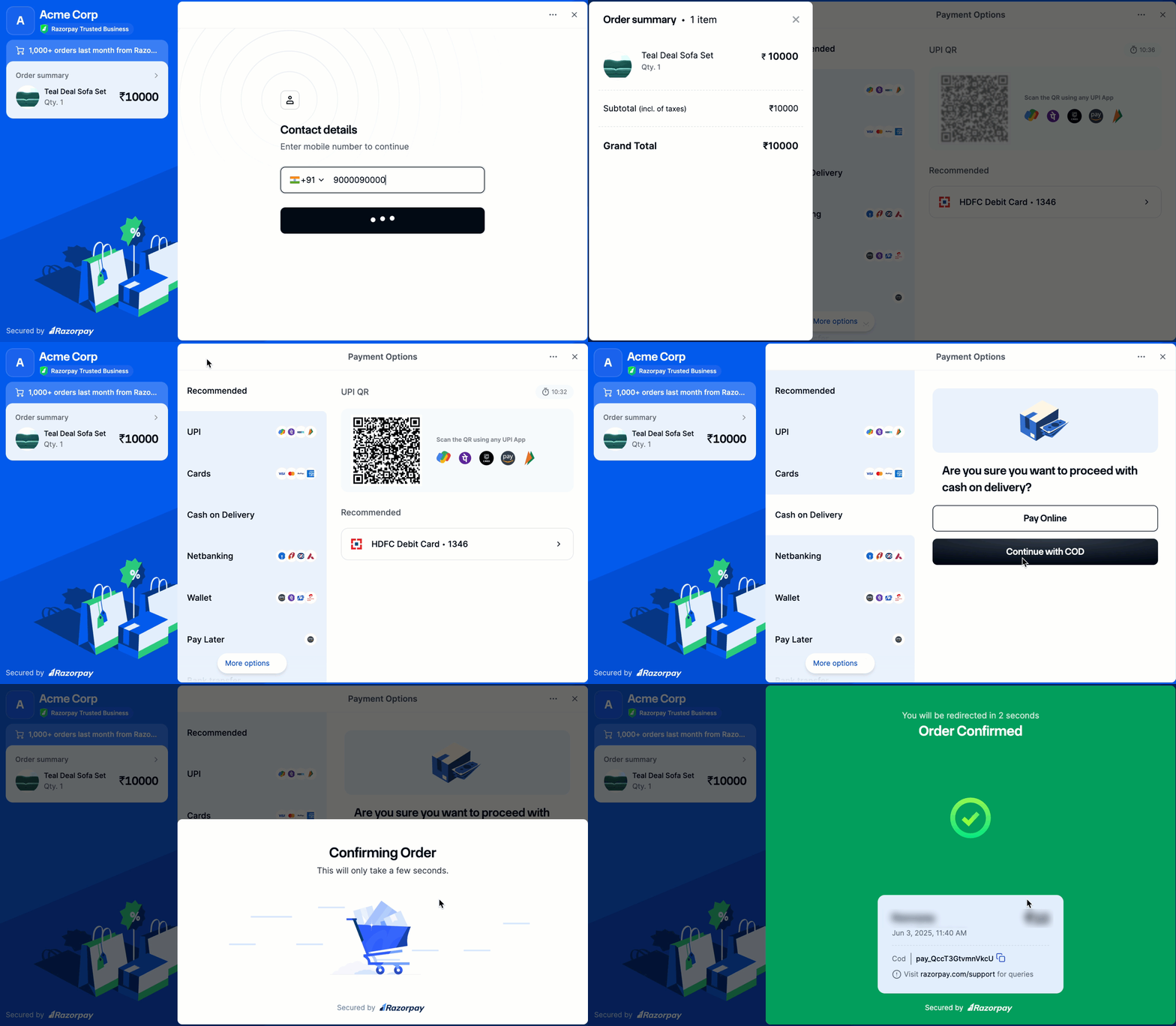
2. **Cash on Delivery** appears as one of the available payment methods on the Checkout interface. Customers can select COD and confirm the order.
## Customer Experience
The flow below displays how customers can view and select **Cash on Delivery** during Checkout:
 ### Related Information
[Payment Configuration](/docs/payments/dashboard/account-settings/payment-configuration#configure-payment-options)
### Related Information
[Payment Configuration](/docs/payments/dashboard/account-settings/payment-configuration#configure-payment-options)