> ## Documentation Index
> Fetch the complete documentation index at: https://razorpay-881012b3.mintlify.site/llms.txt
> Use this file to discover all available pages before exploring further.
# Cash on Delivery
> Offer Cash on Delivery (COD) as a payment method on Razorpay Standard Checkout.
Available in
🇮🇳 India
Standard Checkout offers prepaid payment methods such as UPI, cards, netbanking, wallets and EMI. With Cash on Delivery (COD) activated on your account, **Cash on Delivery appears as an additional payment method inside the same checkout**.
You do not need to build and maintain a separate COD flow outside Razorpay Checkout. You get one integration, one checkout surface and one set of order events.
## What Happens When a Customer Chooses COD
1. The customer selects **Cash on Delivery** on the Checkout page.
2. Checkout displays the COD convenience fee you configured and the total payable on delivery.
3. Razorpay records the selection and marks the order as placed with COD.
4. Razorpay notifies you with the `payment.pending` webhook, with `method=cod`.
5. You begin fulfilment. Your delivery partner collects cash at the doorstep.
**Watch Out!**
A COD order is *placed* through Razorpay Checkout, but the amount is *collected by you* (or your logistics partner) in cash at delivery. No payment is processed through Razorpay for a COD order, so **no settlement is generated for it**. Use the COD webhook and the Dashboard order view to reconcile.
## COD Capabilities
COD comes in three layers. The first is the foundation. The other two recover orders that would otherwise be lost when a prepaid payment fails.
| **#** | **Capability** | **What It Does** | **Activation** |
| - | - | - | - |
| **1** | **COD as a payment method** | **Cash on Delivery** appears in the Checkout payment method list, with the convenience fee you configured. | Activated with COD on your account. |
| **2** | **COD on the retry screen** | When a prepaid payment fails, COD is surfaced at the top of the retry screen, alongside the option to try the failed method again. | Included with capability 1. No separate request needed. |
| **3** | **Automatic COD placement** | Instead of waiting for the customer to pick COD from the retry screen, Checkout moves them straight into the COD flow after a failure. | **Requires separate activation.** See [Automatic COD Placement on Payment Failure](#automatic-cod-placement-on-payment-failure). |
**Handy Tips**
Run capabilities 1 and 2 in production for at least a week before enabling capability 3. Automatic placement changes customer behaviour on failures and should only be introduced once your COD fulfilment and reconciliation are proven.
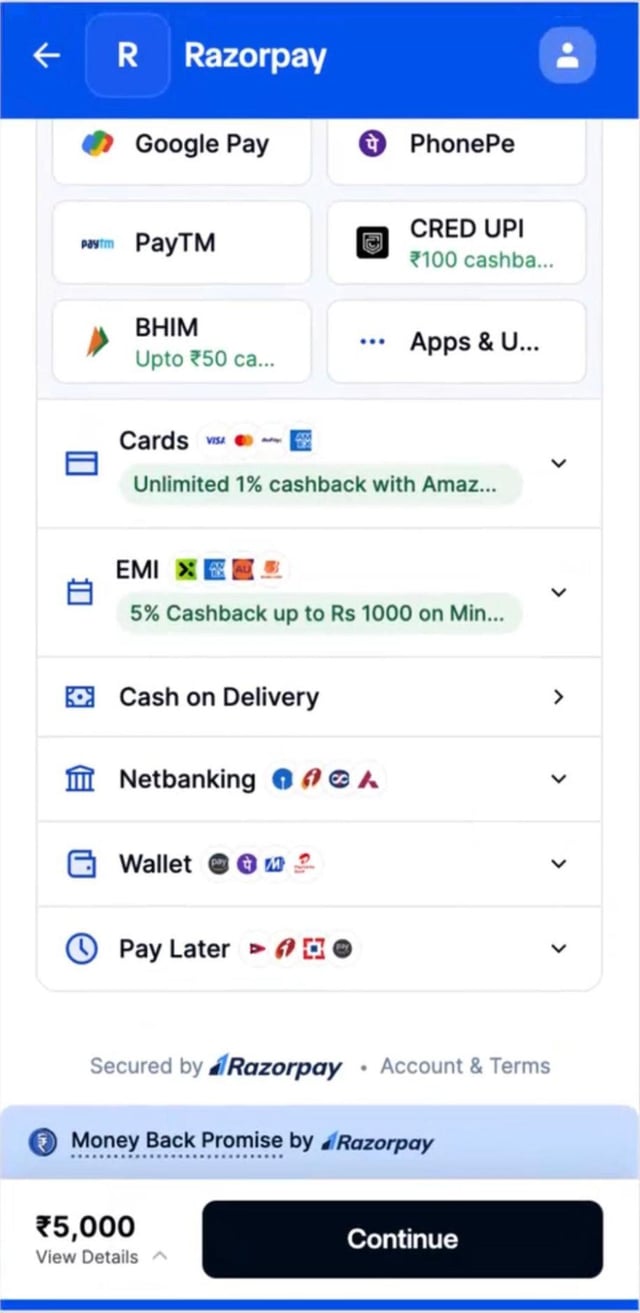
Given below is how **Cash on Delivery** appears in the payment method list when no `cod_fee` is passed on the order:
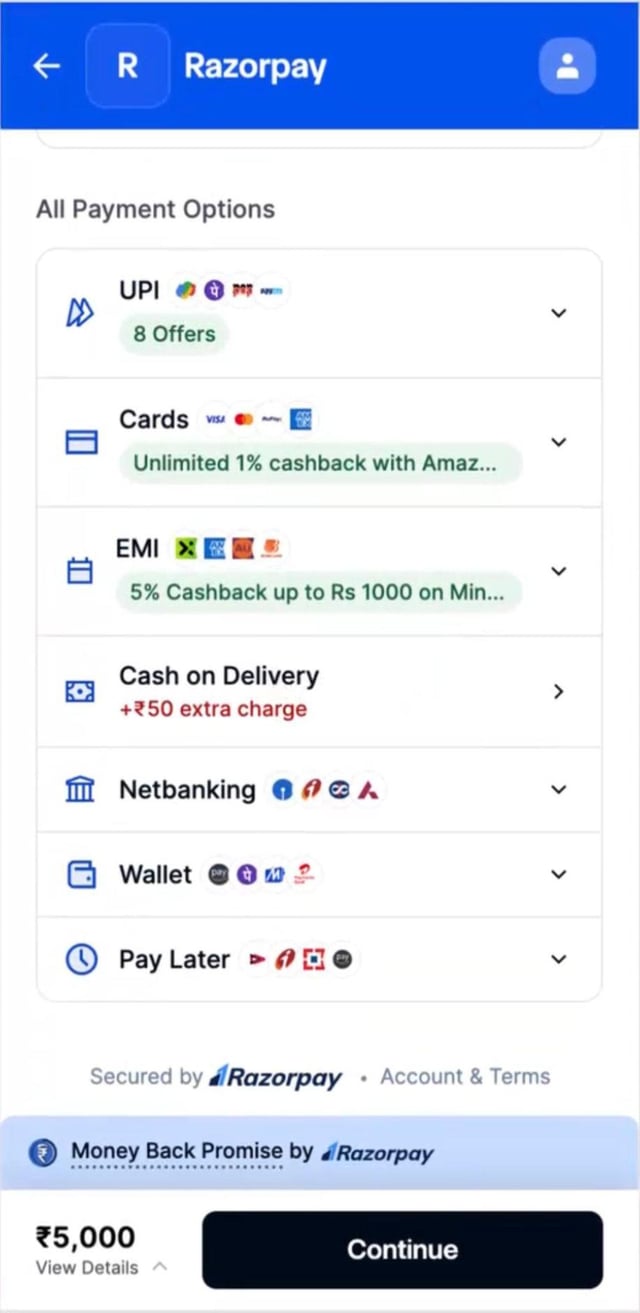
 When you pass a `cod_fee`, the fee appears against the method:
 ## Responsibilities
COD splits cleanly between you and Razorpay.
| **Area** | **Owner** | **Details** |
| - | - | - |
| **COD eligibility** | **You** | You decide which orders and which customers get COD, based on your own logic such as pincode serviceability, order value, customer history or risk rules. Razorpay does not apply eligibility intelligence on Standard Checkout. It renders what you configure per order. |
| **COD convenience fee** | **You** | You set the fee per order. Razorpay displays it. |
| **Rendering COD in Checkout** | Razorpay | COD appears in the payment method list and on the retry screen, with the fee and total payable on delivery. |
| **COD order placement signal** | Razorpay | Delivered as the `payment.pending` webhook with `method=cod`. |
| **Collecting cash at delivery** | **You** | Directly or through your logistics partner. |
| **Reconciliation** | **You** | Razorpay does not settle COD amounts. |
| **Fulfilment lifecycle** | **You** | Packing, shipping, delivery and returns. |
| **Return-to-origin (RTO) risk and cost** | **You** | Razorpay does not absorb RTO losses on COD orders. |
## Prerequisites
| **Requirement** | **Details** |
| - | - |
| **Checkout product** | Razorpay **Standard Checkout**. COD on [Custom Checkout](/docs/payments/payment-gateway/web-integration/custom) and [Magic Checkout](/docs/payments/magic-checkout) is handled separately. Contact your Account Manager if you use either. |
| **Business type** | Physical goods sold and delivered to the customer. For example, ecommerce, D2C, grocery, food and beverage. |
| **Currency** | **INR only.** Orders in any other currency cannot use COD. |
| **Account activation** | COD is **off by default** and must be activated on your merchant account. See [Activate COD](#activate-cod). |
| **Technical readiness** | Server-side ability to set the COD fee when creating an order, and a [webhook](/docs/webhooks) endpoint that can receive and verify COD order events. |
## Activate COD
Write to your Razorpay Account Manager or Partner Manager to request activation. If you do not have an Account Manager, [raise a request](https://razorpay.com/support/) with our support team.
Share the following details in your request:
| **Detail** | **Example** | **Why It Is Needed** |
| - | - | - |
| Merchant ID (MID) | `ABC123xyz456` | The account COD will be activated on. List all MIDs if you operate several. |
| Business category | Fashion / D2C apparel | What you sell and how it is delivered. |
| Checkout product | Standard Checkout | Confirms the integration you use today. |
| Expected COD share | \~30% of monthly orders | A rough estimate of the volume you expect on COD. |
| Automatic COD placement | Yes / No | Capability 3. Request it explicitly if you want it. |
### What Happens Next
| **Stage** | **What Happens** | **Typical Duration** |
| - | - | - |
| 1. Request received | Razorpay acknowledges and reviews your details. | 1-2 business days |
| 2. Test activation | COD is activated on your test MID so you can integrate and run the [testing checklist](#test-your-integration). | 2-3 business days |
| 3. Verification | Joint verification of order creation, Checkout rendering, fee display and webhooks. | Depends on your integration |
| 4. Live activation | COD is activated on your live MID. Automatic COD placement is enabled after this runs cleanly. | 1-2 business days after verification |
End to end, expect roughly **7-10 business days** from a complete request to live activation, assuming your integration is ready. If any details are missing, our team reaches out before activating.
## Integration at a Glance
If COD is already active on your account, integration is four steps and touches only your order creation call and your webhook handler. **No change is needed to your Checkout initialisation code.**
| **Step** | **What You Do** | **Where** |
| - | - | - |
| 1 | Decide whether COD should appear for this customer, and hide it if not. | Client-side Checkout options |
| 2 | Create the Razorpay order, passing `cod_fee` if a fee applies. | Server-side [Orders API](/docs/api/orders/create) |
| 3 | Open Checkout exactly as you do today. | No change |
| 4 | Handle the `payment.pending` webhook and start fulfilment. | Your webhook endpoint |
## 1. Control Where COD Appears
**Once COD is active on your account, it is shown on every Checkout session by default.** Razorpay does not filter it for you. If an order is not COD-eligible under your own rules, such as an unserviceable pincode, an order value above your COD cap or a customer with prior RTOs, **you must hide it explicitly**.
Run your eligibility checks before you open Checkout, then pass `cod` in the `hide` array of the [display configuration](/docs/payments/payment-gateway/web-integration/standard/configure-payment-methods/display-configuration):
```javascript Checkout options theme={null}
let options = {
// ...your existing Checkout options
config: {
display: {
hide: [
{ method: "cod" }
]
}
}
};
```
The `hide` array sits alongside the other display controls, `blocks`, `sequence` and `preferences`, described in [Understand the Configuration](/docs/payments/payment-gateway/web-integration/standard/configure-payment-methods/understand-configuration). You only need the `hide` entry to suppress COD.
**Watch Out!**
Hiding always wins. If you hide COD, it does not render even if you passed a `cod_fee` on the order.
## 2. Create the Order With a COD Fee
Pass `cod_fee` in the [Orders API](/docs/api/orders/create) when a convenience fee applies to the order. Omit it entirely when no fee applies. Do not pass `0` explicitly.
All amounts are in paise.
```bash Curl theme={null}
curl -u [YOUR_KEY_ID]:[YOUR_KEY_SECRET] \
-X POST https://api.razorpay.com/v1/orders \
-H "content-type: application/json" \
-d '{
"amount": 129900,
"currency": "INR",
"receipt": "rcpt_00123",
"cod_fee": 4900
}'
```
```python Python theme={null}
import razorpay
client = razorpay.Client(auth=("YOUR_ID", "YOUR_SECRET"))
client.order.create({
"amount": 129900,
"currency": "INR",
"receipt": "rcpt_00123",
"cod_fee": 4900
})
```
```php PHP theme={null}
$api = new Api($key_id, $secret);
$api->order->create(array(
'amount' => 129900,
'currency' => 'INR',
'receipt' => 'rcpt_00123',
'cod_fee' => 4900
));
```
In this example, the customer sees an item total of ₹1,299, a COD fee of ₹49 and ₹1,348 payable on delivery.
### cod\_fee Attribute
`cod_fee`
: `integer` The convenience fee added when the customer pays by COD, in paise. Optional. Pass a value of `0` or more. It must not exceed `amount`. If you pass a negative value and COD is active on your account, COD is offered with no convenience fee.
### What the Customer Sees
| **`cod_fee` in Orders API** | **COD hidden in Checkout options** | **Customer sees** |
| - | - | - |
| Absent | No | COD offered, no fee |
| Absent | Yes | COD not offered |
| Present (> 0) | No | COD offered, with the fee and total payable on delivery |
| Present (> 0) | Yes | COD not offered |
| Negative | No | COD offered, no fee |
| Negative | Yes | COD not offered |
## 3. Open Checkout
No change to your Checkout initialisation code. When COD is active on your account and is not hidden for the order, Standard Checkout renders **Cash on Delivery** alongside the other payment methods, with the fee passed in `cod_fee`.
## 4. Receive the COD Webhook and Start Fulfilment
**A COD order does not generate a payment.** There is no `payment.captured` event and no settlement. Treat the [`payment.pending`](/docs/webhooks/payments#payment-pending) webhook with `method=cod` as your signal to begin fulfilment.
[Verify the signature](/docs/webhooks/validate-test) exactly as you do for your existing Razorpay webhooks.
**Handy Tips**
Your existing webhooks are unaffected. Current subscriptions continue to fire exactly as before. You will see the option to subscribe to `payment.pending` on the Dashboard once COD is activated on your MID.
Given below is a sample `payment.pending` payload for a COD order:
```json payment.pending theme={null}
{
"entity": "event",
"account_id": "acc_94tLpgbojcR85O",
"event": "payment.pending",
"contains": ["payment"],
"payload": {
"payment": {
"entity": {
"id": "pay_TFiPwbovHgmKM0",
"entity": "payment",
"amount": 50100,
"currency": "INR",
"status": "pending",
"order_id": "order_TFiIUNpKRvnZo7",
"international": false,
"method": "cod",
"captured": false,
"amount_refunded": 0,
"email": "gaurav.kumar@example.com",
"contact": "+919000090000",
"created_at": 1784541436
}
}
},
"created_at": 1784541436
}
```
### Fields to Key Your Logic On
| **Field** | **Value for a COD order** | **Use It To** |
| - | - | - |
| `event` | `payment.pending` | Route the event. |
| `payload.payment.entity.method` | `cod` | Distinguish COD from other pending-payment methods. |
| `payload.payment.entity.status` | `pending` | Confirm the order is placed but uncollected. |
| `payload.payment.entity.order_id` | `order_...` | Match the event to the order in your system. |
| `payload.payment.entity.amount` | `integer` (paise) | Read the total amount payable, including `cod_fee`. |
**Watch Out!**
The `amount` field in the webhook is the total amount payable, **including** the `cod_fee`. The `cod_fee` is not sent separately in the webhook, because you set it yourself for every order.
## 5. Reconcile
Razorpay does not settle COD amounts. Track each COD order in your system with three values:
* The order amount.
* The COD fee.
* The total payable on delivery.
Reconcile the cash collected by your delivery partner against the total payable. The Dashboard order view and the `payment.pending` webhook are your two sources of truth for what was placed.
## Automatic COD Placement on Payment Failure
**Watch Out!**
This requires separate activation on your MID. Ask your Account Manager explicitly.
Without automatic placement, a failed prepaid payment lands the customer on the retry screen with COD surfaced at the top. With it, Checkout moves the customer directly into the COD flow.
### Behaviour on the Retry Screen
This is capability 2 and is included by default with COD.
| **Scenario** | **Customer experience** |
| - | - |
| Payment fails, COD is active on the MID and not hidden in Checkout options | The retry screen shows the available methods with COD surfaced at the top, using the same fee breakdown you sent in `cod_fee`. |
| Payment fails, COD is not active on the MID | Standard retry screen. COD is not offered. |
| Payment fails, COD is active on the MID but hidden in Checkout options | Standard retry screen. COD is not offered. |
| Customer selects COD from the retry screen | The order is placed with COD. |
## Responsibilities
COD splits cleanly between you and Razorpay.
| **Area** | **Owner** | **Details** |
| - | - | - |
| **COD eligibility** | **You** | You decide which orders and which customers get COD, based on your own logic such as pincode serviceability, order value, customer history or risk rules. Razorpay does not apply eligibility intelligence on Standard Checkout. It renders what you configure per order. |
| **COD convenience fee** | **You** | You set the fee per order. Razorpay displays it. |
| **Rendering COD in Checkout** | Razorpay | COD appears in the payment method list and on the retry screen, with the fee and total payable on delivery. |
| **COD order placement signal** | Razorpay | Delivered as the `payment.pending` webhook with `method=cod`. |
| **Collecting cash at delivery** | **You** | Directly or through your logistics partner. |
| **Reconciliation** | **You** | Razorpay does not settle COD amounts. |
| **Fulfilment lifecycle** | **You** | Packing, shipping, delivery and returns. |
| **Return-to-origin (RTO) risk and cost** | **You** | Razorpay does not absorb RTO losses on COD orders. |
## Prerequisites
| **Requirement** | **Details** |
| - | - |
| **Checkout product** | Razorpay **Standard Checkout**. COD on [Custom Checkout](/docs/payments/payment-gateway/web-integration/custom) and [Magic Checkout](/docs/payments/magic-checkout) is handled separately. Contact your Account Manager if you use either. |
| **Business type** | Physical goods sold and delivered to the customer. For example, ecommerce, D2C, grocery, food and beverage. |
| **Currency** | **INR only.** Orders in any other currency cannot use COD. |
| **Account activation** | COD is **off by default** and must be activated on your merchant account. See [Activate COD](#activate-cod). |
| **Technical readiness** | Server-side ability to set the COD fee when creating an order, and a [webhook](/docs/webhooks) endpoint that can receive and verify COD order events. |
## Activate COD
Write to your Razorpay Account Manager or Partner Manager to request activation. If you do not have an Account Manager, [raise a request](https://razorpay.com/support/) with our support team.
Share the following details in your request:
| **Detail** | **Example** | **Why It Is Needed** |
| - | - | - |
| Merchant ID (MID) | `ABC123xyz456` | The account COD will be activated on. List all MIDs if you operate several. |
| Business category | Fashion / D2C apparel | What you sell and how it is delivered. |
| Checkout product | Standard Checkout | Confirms the integration you use today. |
| Expected COD share | \~30% of monthly orders | A rough estimate of the volume you expect on COD. |
| Automatic COD placement | Yes / No | Capability 3. Request it explicitly if you want it. |
### What Happens Next
| **Stage** | **What Happens** | **Typical Duration** |
| - | - | - |
| 1. Request received | Razorpay acknowledges and reviews your details. | 1-2 business days |
| 2. Test activation | COD is activated on your test MID so you can integrate and run the [testing checklist](#test-your-integration). | 2-3 business days |
| 3. Verification | Joint verification of order creation, Checkout rendering, fee display and webhooks. | Depends on your integration |
| 4. Live activation | COD is activated on your live MID. Automatic COD placement is enabled after this runs cleanly. | 1-2 business days after verification |
End to end, expect roughly **7-10 business days** from a complete request to live activation, assuming your integration is ready. If any details are missing, our team reaches out before activating.
## Integration at a Glance
If COD is already active on your account, integration is four steps and touches only your order creation call and your webhook handler. **No change is needed to your Checkout initialisation code.**
| **Step** | **What You Do** | **Where** |
| - | - | - |
| 1 | Decide whether COD should appear for this customer, and hide it if not. | Client-side Checkout options |
| 2 | Create the Razorpay order, passing `cod_fee` if a fee applies. | Server-side [Orders API](/docs/api/orders/create) |
| 3 | Open Checkout exactly as you do today. | No change |
| 4 | Handle the `payment.pending` webhook and start fulfilment. | Your webhook endpoint |
## 1. Control Where COD Appears
**Once COD is active on your account, it is shown on every Checkout session by default.** Razorpay does not filter it for you. If an order is not COD-eligible under your own rules, such as an unserviceable pincode, an order value above your COD cap or a customer with prior RTOs, **you must hide it explicitly**.
Run your eligibility checks before you open Checkout, then pass `cod` in the `hide` array of the [display configuration](/docs/payments/payment-gateway/web-integration/standard/configure-payment-methods/display-configuration):
```javascript Checkout options theme={null}
let options = {
// ...your existing Checkout options
config: {
display: {
hide: [
{ method: "cod" }
]
}
}
};
```
The `hide` array sits alongside the other display controls, `blocks`, `sequence` and `preferences`, described in [Understand the Configuration](/docs/payments/payment-gateway/web-integration/standard/configure-payment-methods/understand-configuration). You only need the `hide` entry to suppress COD.
**Watch Out!**
Hiding always wins. If you hide COD, it does not render even if you passed a `cod_fee` on the order.
## 2. Create the Order With a COD Fee
Pass `cod_fee` in the [Orders API](/docs/api/orders/create) when a convenience fee applies to the order. Omit it entirely when no fee applies. Do not pass `0` explicitly.
All amounts are in paise.
```bash Curl theme={null}
curl -u [YOUR_KEY_ID]:[YOUR_KEY_SECRET] \
-X POST https://api.razorpay.com/v1/orders \
-H "content-type: application/json" \
-d '{
"amount": 129900,
"currency": "INR",
"receipt": "rcpt_00123",
"cod_fee": 4900
}'
```
```python Python theme={null}
import razorpay
client = razorpay.Client(auth=("YOUR_ID", "YOUR_SECRET"))
client.order.create({
"amount": 129900,
"currency": "INR",
"receipt": "rcpt_00123",
"cod_fee": 4900
})
```
```php PHP theme={null}
$api = new Api($key_id, $secret);
$api->order->create(array(
'amount' => 129900,
'currency' => 'INR',
'receipt' => 'rcpt_00123',
'cod_fee' => 4900
));
```
In this example, the customer sees an item total of ₹1,299, a COD fee of ₹49 and ₹1,348 payable on delivery.
### cod\_fee Attribute
`cod_fee`
: `integer` The convenience fee added when the customer pays by COD, in paise. Optional. Pass a value of `0` or more. It must not exceed `amount`. If you pass a negative value and COD is active on your account, COD is offered with no convenience fee.
### What the Customer Sees
| **`cod_fee` in Orders API** | **COD hidden in Checkout options** | **Customer sees** |
| - | - | - |
| Absent | No | COD offered, no fee |
| Absent | Yes | COD not offered |
| Present (> 0) | No | COD offered, with the fee and total payable on delivery |
| Present (> 0) | Yes | COD not offered |
| Negative | No | COD offered, no fee |
| Negative | Yes | COD not offered |
## 3. Open Checkout
No change to your Checkout initialisation code. When COD is active on your account and is not hidden for the order, Standard Checkout renders **Cash on Delivery** alongside the other payment methods, with the fee passed in `cod_fee`.
## 4. Receive the COD Webhook and Start Fulfilment
**A COD order does not generate a payment.** There is no `payment.captured` event and no settlement. Treat the [`payment.pending`](/docs/webhooks/payments#payment-pending) webhook with `method=cod` as your signal to begin fulfilment.
[Verify the signature](/docs/webhooks/validate-test) exactly as you do for your existing Razorpay webhooks.
**Handy Tips**
Your existing webhooks are unaffected. Current subscriptions continue to fire exactly as before. You will see the option to subscribe to `payment.pending` on the Dashboard once COD is activated on your MID.
Given below is a sample `payment.pending` payload for a COD order:
```json payment.pending theme={null}
{
"entity": "event",
"account_id": "acc_94tLpgbojcR85O",
"event": "payment.pending",
"contains": ["payment"],
"payload": {
"payment": {
"entity": {
"id": "pay_TFiPwbovHgmKM0",
"entity": "payment",
"amount": 50100,
"currency": "INR",
"status": "pending",
"order_id": "order_TFiIUNpKRvnZo7",
"international": false,
"method": "cod",
"captured": false,
"amount_refunded": 0,
"email": "gaurav.kumar@example.com",
"contact": "+919000090000",
"created_at": 1784541436
}
}
},
"created_at": 1784541436
}
```
### Fields to Key Your Logic On
| **Field** | **Value for a COD order** | **Use It To** |
| - | - | - |
| `event` | `payment.pending` | Route the event. |
| `payload.payment.entity.method` | `cod` | Distinguish COD from other pending-payment methods. |
| `payload.payment.entity.status` | `pending` | Confirm the order is placed but uncollected. |
| `payload.payment.entity.order_id` | `order_...` | Match the event to the order in your system. |
| `payload.payment.entity.amount` | `integer` (paise) | Read the total amount payable, including `cod_fee`. |
**Watch Out!**
The `amount` field in the webhook is the total amount payable, **including** the `cod_fee`. The `cod_fee` is not sent separately in the webhook, because you set it yourself for every order.
## 5. Reconcile
Razorpay does not settle COD amounts. Track each COD order in your system with three values:
* The order amount.
* The COD fee.
* The total payable on delivery.
Reconcile the cash collected by your delivery partner against the total payable. The Dashboard order view and the `payment.pending` webhook are your two sources of truth for what was placed.
## Automatic COD Placement on Payment Failure
**Watch Out!**
This requires separate activation on your MID. Ask your Account Manager explicitly.
Without automatic placement, a failed prepaid payment lands the customer on the retry screen with COD surfaced at the top. With it, Checkout moves the customer directly into the COD flow.
### Behaviour on the Retry Screen
This is capability 2 and is included by default with COD.
| **Scenario** | **Customer experience** |
| - | - |
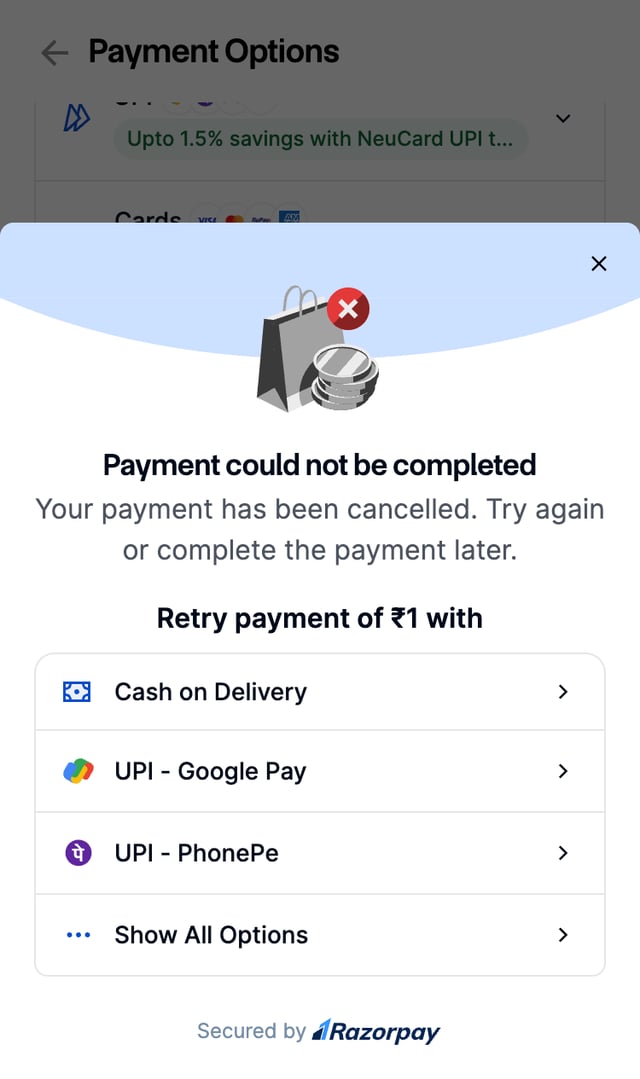
| Payment fails, COD is active on the MID and not hidden in Checkout options | The retry screen shows the available methods with COD surfaced at the top, using the same fee breakdown you sent in `cod_fee`. |
| Payment fails, COD is not active on the MID | Standard retry screen. COD is not offered. |
| Payment fails, COD is active on the MID but hidden in Checkout options | Standard retry screen. COD is not offered. |
| Customer selects COD from the retry screen | The order is placed with COD. |
 ### Behaviour With Automatic Placement
This is capability 3. What the customer sees depends on whether a COD fee applies to the order.
In both cases, a sheet replaces the retry screen offering **Pay Online** and **Pay on Delivery**. What differs is whether the COD order is placed on its own.
| **Condition** | **Customer experience** | **Action required from customer** |
| - | - | - |
| **No COD fee on the order** | The **Pay on Delivery** button fills over 15 seconds and is labelled **Pay on Delivery - Click to Stop**. | None. If the customer does not stop it within 15 seconds, the order is placed with COD. |
| **COD fee greater than 0** | The sheet names the extra charge and waits. Nothing is placed automatically. | Explicit confirmation. The order is placed only after the customer taps **Pay on Delivery**. |
#### Flow A: No COD Fee on the Order
The sheet tells the customer the order can still be placed with Cash on Delivery at no extra charge. The **Pay on Delivery** button fills over 15 seconds, and the customer can stop it by tapping it.
| **What the customer does** | **Outcome** |
| - | - |
| Taps **Pay on Delivery - Click to Stop** within 15 seconds | Automatic placement stops. No order is placed. |
| Taps **Pay Online** | The customer returns to the payment methods to try a prepaid method again. |
| Does nothing for 15 seconds | The order is placed with COD. |
### Behaviour With Automatic Placement
This is capability 3. What the customer sees depends on whether a COD fee applies to the order.
In both cases, a sheet replaces the retry screen offering **Pay Online** and **Pay on Delivery**. What differs is whether the COD order is placed on its own.
| **Condition** | **Customer experience** | **Action required from customer** |
| - | - | - |
| **No COD fee on the order** | The **Pay on Delivery** button fills over 15 seconds and is labelled **Pay on Delivery - Click to Stop**. | None. If the customer does not stop it within 15 seconds, the order is placed with COD. |
| **COD fee greater than 0** | The sheet names the extra charge and waits. Nothing is placed automatically. | Explicit confirmation. The order is placed only after the customer taps **Pay on Delivery**. |
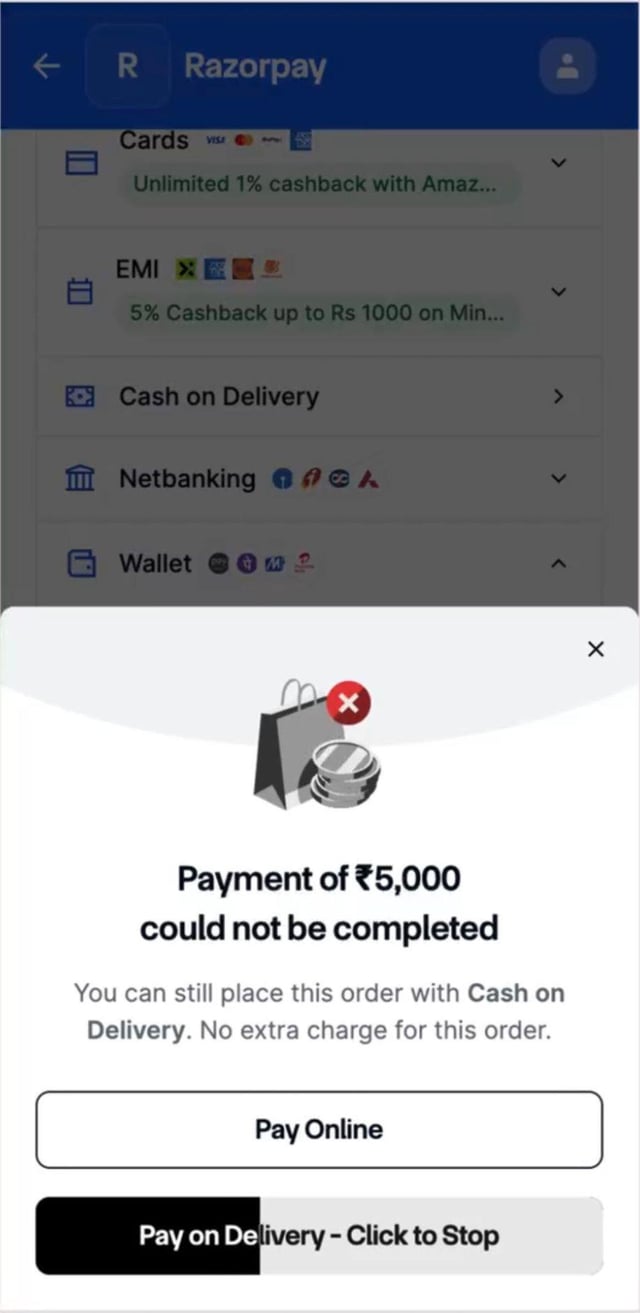
#### Flow A: No COD Fee on the Order
The sheet tells the customer the order can still be placed with Cash on Delivery at no extra charge. The **Pay on Delivery** button fills over 15 seconds, and the customer can stop it by tapping it.
| **What the customer does** | **Outcome** |
| - | - |
| Taps **Pay on Delivery - Click to Stop** within 15 seconds | Automatic placement stops. No order is placed. |
| Taps **Pay Online** | The customer returns to the payment methods to try a prepaid method again. |
| Does nothing for 15 seconds | The order is placed with COD. |
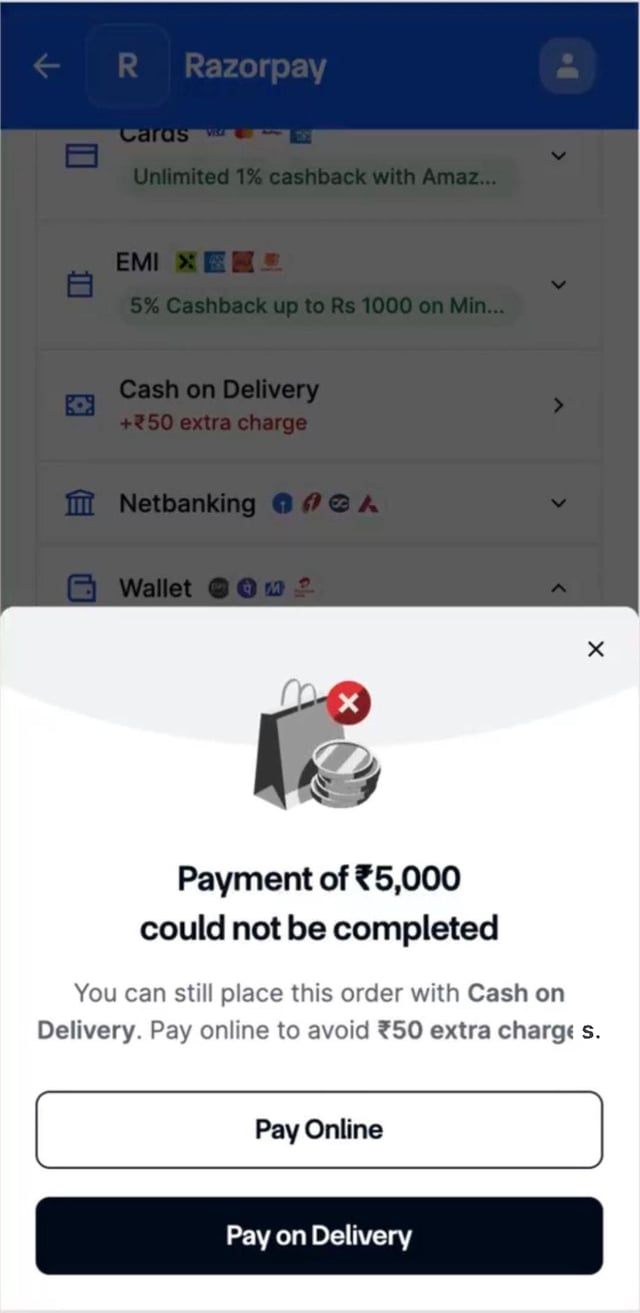
 #### Flow B: COD Fee Applies
The sheet names the extra charge the customer pays if they continue with COD. Nothing is placed automatically. The customer must tap **Pay on Delivery**.
| **What the customer does** | **Outcome** |
| - | - |
| Taps **Pay on Delivery** | The order is placed with COD, including the fee. |
| Taps **Pay Online** | The customer returns to the payment methods to try a prepaid method again. |
#### Flow B: COD Fee Applies
The sheet names the extra charge the customer pays if they continue with COD. Nothing is placed automatically. The customer must tap **Pay on Delivery**.
| **What the customer does** | **Outcome** |
| - | - |
| Taps **Pay on Delivery** | The order is placed with COD, including the fee. |
| Taps **Pay Online** | The customer returns to the payment methods to try a prepaid method again. |
 ### Guardrails
* Automatic placement fires **only on a genuine, confirmed payment failure** returned by the payment processor. It does not fire when the customer abandons Checkout, cancels the payment themselves, or the session times out.
* If the customer refreshes during the automatic placement screen, they see the same screen. **The order is never placed twice.**
* RTO risk on automatically placed COD orders sits with you, as it does for all COD orders.
## Validation and Errors
How the Orders API handles each `cod_fee` and currency condition is given below:
| **Condition** | **Result** |
| - | - |
| `cod_fee` exceeds `amount` | Rejected with `400 Bad Request` |
| Order currency is not INR | Rejected with `400 Bad Request` |
| `cod_fee` is negative | Accepted. COD is offered with no convenience fee. |
**Watch Out!**
A negative `cod_fee` is not rejected. The order is created and COD is offered with no convenience fee, which means you collect only the order amount at delivery. Validate the fee on your side before you create the order so a calculation error does not silently drop your COD fee.
## Test Your Integration
Run the checks below on your test MID with your test credentials before you go live. Ask our team to activate COD on your test account first.
* An order created **with** `cod_fee` succeeds.
* An order created **without** `cod_fee`, with COD active, succeeds.
* A negative `cod_fee` succeeds, and COD is offered with no convenience fee.
* A `cod_fee` greater than `amount` is rejected with `400`.
* A non-INR currency is rejected with `400`.
* COD appears in the payment method list, labelled **Cash on Delivery**.
* When `cod_fee` was passed, the fee and total payable on delivery display against COD.
* When COD is hidden using the display configuration, it does not render.
* A COD order can be placed successfully.
* After a prepaid failure with COD active, COD is surfaced on the retry screen.
* If automatic placement is active, the no-fee flow shows the 15-second loader and **Cancel** works.
* If automatic placement is active, the with-fee flow shows the consent sheet and requires confirmation.
* `payment.pending` is received with `method=cod` when a COD order is placed.
* Signature verification passes.
* Your fulfilment trigger fires exactly once per COD order.
### Related Information
* [Cash on Delivery Payment Method](/docs/payments/payment-methods/cod)
* [Display the Configuration](/docs/payments/payment-gateway/web-integration/standard/configure-payment-methods/display-configuration)
* [Create an Order](/docs/api/orders/create)
* [Payments Webhooks](/docs/webhooks/payments)
### Guardrails
* Automatic placement fires **only on a genuine, confirmed payment failure** returned by the payment processor. It does not fire when the customer abandons Checkout, cancels the payment themselves, or the session times out.
* If the customer refreshes during the automatic placement screen, they see the same screen. **The order is never placed twice.**
* RTO risk on automatically placed COD orders sits with you, as it does for all COD orders.
## Validation and Errors
How the Orders API handles each `cod_fee` and currency condition is given below:
| **Condition** | **Result** |
| - | - |
| `cod_fee` exceeds `amount` | Rejected with `400 Bad Request` |
| Order currency is not INR | Rejected with `400 Bad Request` |
| `cod_fee` is negative | Accepted. COD is offered with no convenience fee. |
**Watch Out!**
A negative `cod_fee` is not rejected. The order is created and COD is offered with no convenience fee, which means you collect only the order amount at delivery. Validate the fee on your side before you create the order so a calculation error does not silently drop your COD fee.
## Test Your Integration
Run the checks below on your test MID with your test credentials before you go live. Ask our team to activate COD on your test account first.
* An order created **with** `cod_fee` succeeds.
* An order created **without** `cod_fee`, with COD active, succeeds.
* A negative `cod_fee` succeeds, and COD is offered with no convenience fee.
* A `cod_fee` greater than `amount` is rejected with `400`.
* A non-INR currency is rejected with `400`.
* COD appears in the payment method list, labelled **Cash on Delivery**.
* When `cod_fee` was passed, the fee and total payable on delivery display against COD.
* When COD is hidden using the display configuration, it does not render.
* A COD order can be placed successfully.
* After a prepaid failure with COD active, COD is surfaced on the retry screen.
* If automatic placement is active, the no-fee flow shows the 15-second loader and **Cancel** works.
* If automatic placement is active, the with-fee flow shows the consent sheet and requires confirmation.
* `payment.pending` is received with `method=cod` when a COD order is placed.
* Signature verification passes.
* Your fulfilment trigger fires exactly once per COD order.
### Related Information
* [Cash on Delivery Payment Method](/docs/payments/payment-methods/cod)
* [Display the Configuration](/docs/payments/payment-gateway/web-integration/standard/configure-payment-methods/display-configuration)
* [Create an Order](/docs/api/orders/create)
* [Payments Webhooks](/docs/webhooks/payments)