> ## Documentation Index
> Fetch the complete documentation index at: https://razorpay-881012b3.mintlify.site/llms.txt
> Use this file to discover all available pages before exploring further.

# About Turbo UPI

> Integrate with Turbo UPI to provide a 2-step UPI payment experience.

<div style={{display:"flex",flexWrap:"wrap",alignItems:"center",gap:"0.35rem 0.9rem",border:"1px solid rgba(128,128,128,0.28)",borderRadius:"0.5rem",padding:"0.45rem 0.75rem",margin:"0 0 1.25rem",fontSize:"0.875rem"}}>
  <span style={{fontWeight:600}}>Available in</span>
  <span>🇮🇳 India</span>
</div>

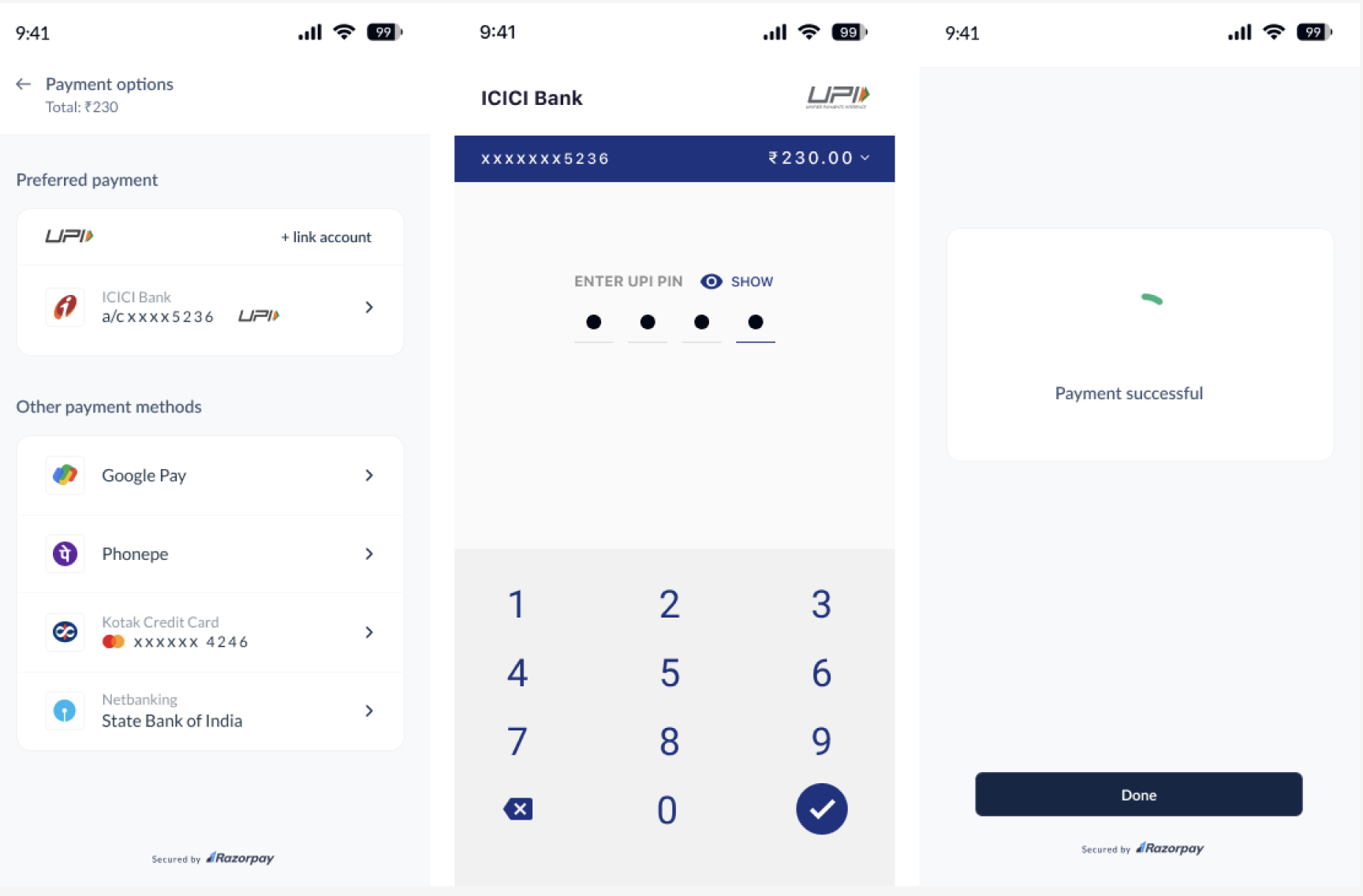
Use Razorpay Turbo UPI to make UPI payments faster. Following are the sample screens while making payments using Turbo UPI.

<img src="https://razorpay.com/docs/build/browser/assets/images/upi-turbo-in-app-transaction-flow.jpg" alt="Razorpay Turbo UPI Payment Flow" width="800" />

<Warning>
  **Watch Out!**

  Currently, Flutter SDK is supported only for Android.
</Warning>

## Advantages

<Tabs>
  <Tab title="For Customers">
    * Simplified payment process with just two steps.
    * Higher success rate.
    * One stop for refunds and disputes.
  </Tab>

  <Tab title="For Businesses">
    * Higher success rates with a smoother payment experience.
    * Complete in-app flow with no redirections gives better control over the user journey.
    * Prevent timeouts effectively, as customers never leave your app.
  </Tab>
</Tabs>

<Warning>
  **Watch Out!**

  Due to the sensitive nature of the added libraries, we must ensure that the app is running in a proper environment. Therefore, after integration, the app will not run on Android emulators.
</Warning>

<Warning>
  **Watch Out!**

  * Use the `rzp_test_0wFRWIZnH65uny` merchant key for testing on the UAT environment and the [Razorpay live keys](/docs/api/authentication#live-mode-api-keys) for prod testing.
  * As a compliance requirement, you need to get approval from Google for **READ\_SMS** permission. Refer [to this link](https://support.google.com/googleplay/android-developer/answer/10208820?hl=en) for more details.
</Warning>

## Customer Onboarding

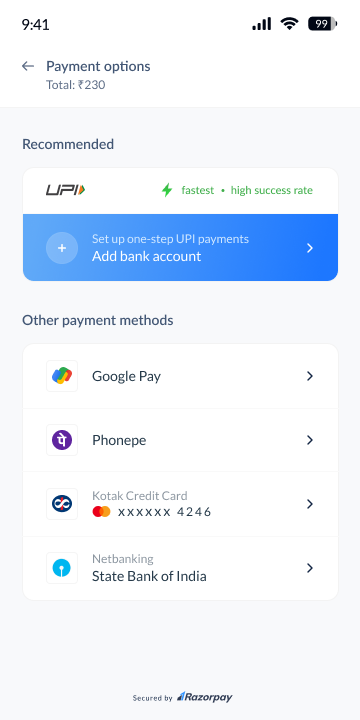
Your customers can link their bank accounts to your app with these steps:

1. The customer navigates to your app's checkout screen and taps **Add bank account**.
   <img src="https://razorpay.com/docs/build/browser/assets/images/upi-turbo-custom-add-bank-account.jpg" alt="Turbo UPI Add Bank Account" width="300" />

<Info>
  **Handy Tips**

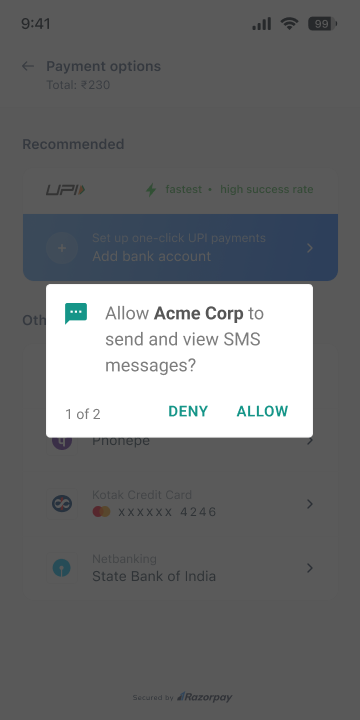
  The customer needs to give **allow SMS permission** so that we can validate the phone number with the bank.

  <img src="https://razorpay.com/docs/build/browser/assets/images/upi-turbo-custom-sms-verification.jpg" alt="Turbo UPI SMS Verification" width="200" />
</Info>

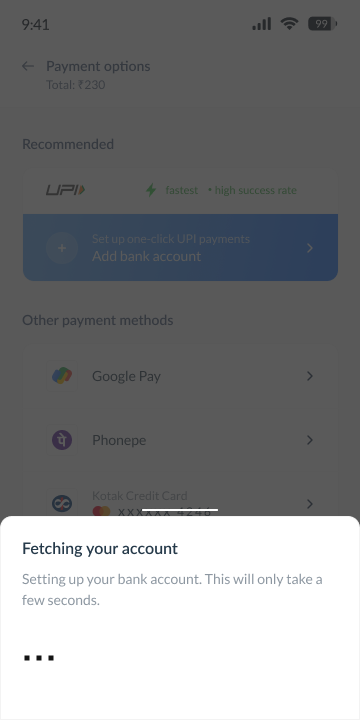
2. The customer's bank details are fetched and linked to the bank account.

   <img src="https://razorpay.com/docs/build/browser/assets/images/upi-turbo-custom-fetch-account.jpg" alt="Turbo UPI Fetch Bank Account" width="300" />

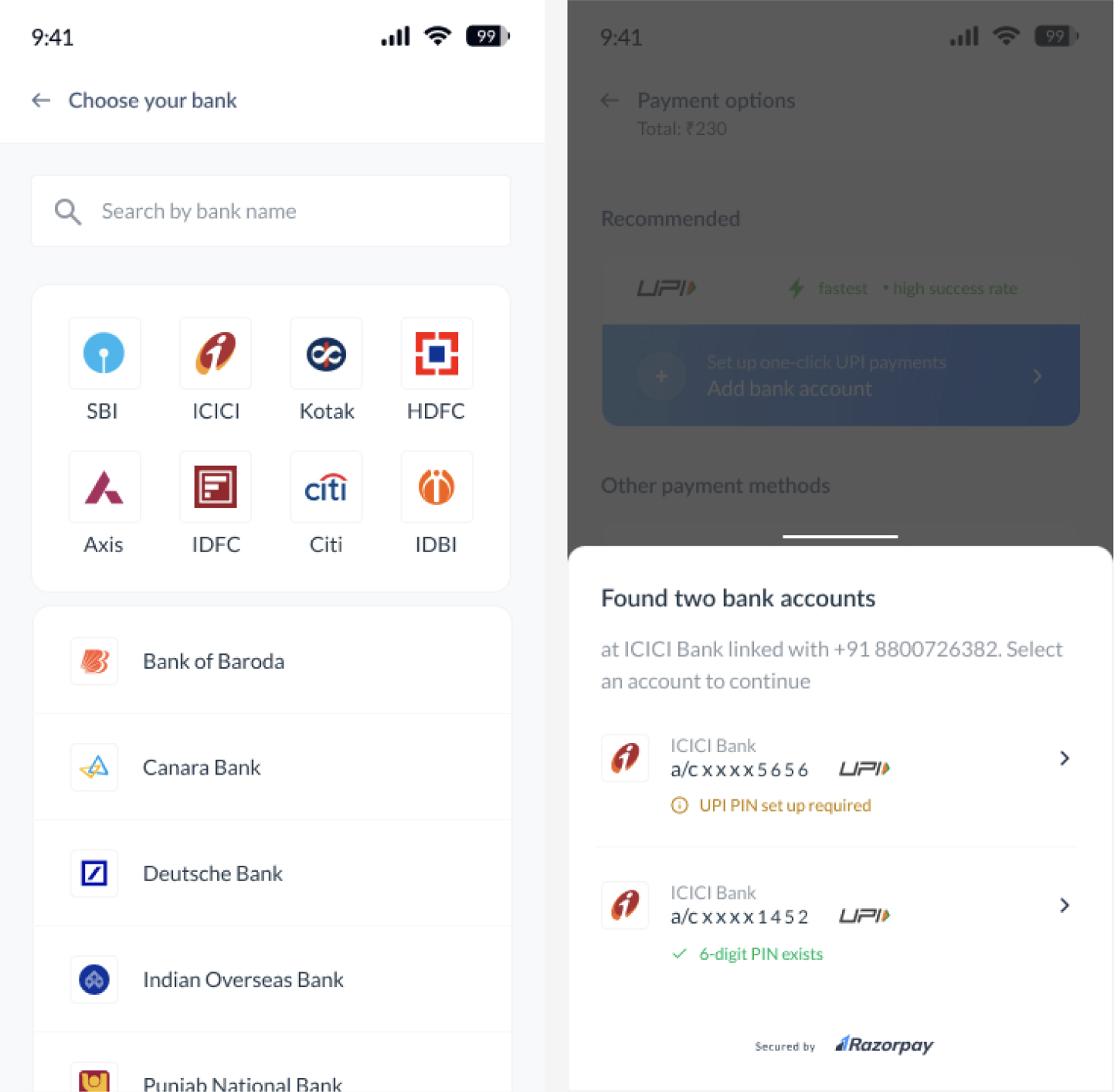
3. The customer selects a bank from the list of banks. The top 8 banks are displayed for easier selection.
   <img src="https://razorpay.com/docs/build/browser/assets/images/upi-turbo-custom-select-bank-account.jpg" alt="Turbo UPI Select Bank Account" width="300" />

<Info>
  **Handy Tips**

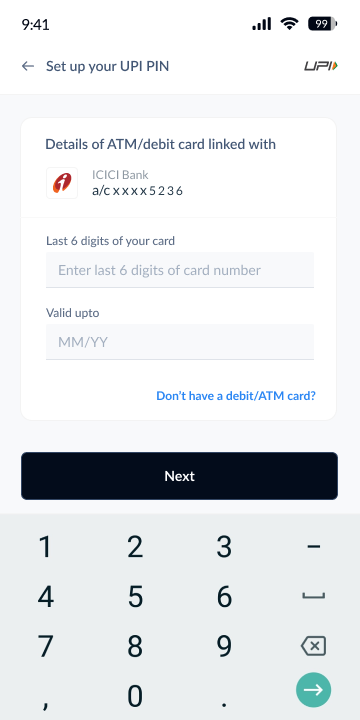
  If no UPI PIN is set, the customers are prompted to provide their card details, enter an OTP and complete the setup.

  <img src="https://razorpay.com/docs/build/browser/assets/images/upi-turbo-custom-card-details.jpg" alt="Turbo UPI Enter Card Details" width="300" />
</Info>

This completes the onboarding.

## Transaction Flow

After the customer is onboarded, on the checkout page of your app:

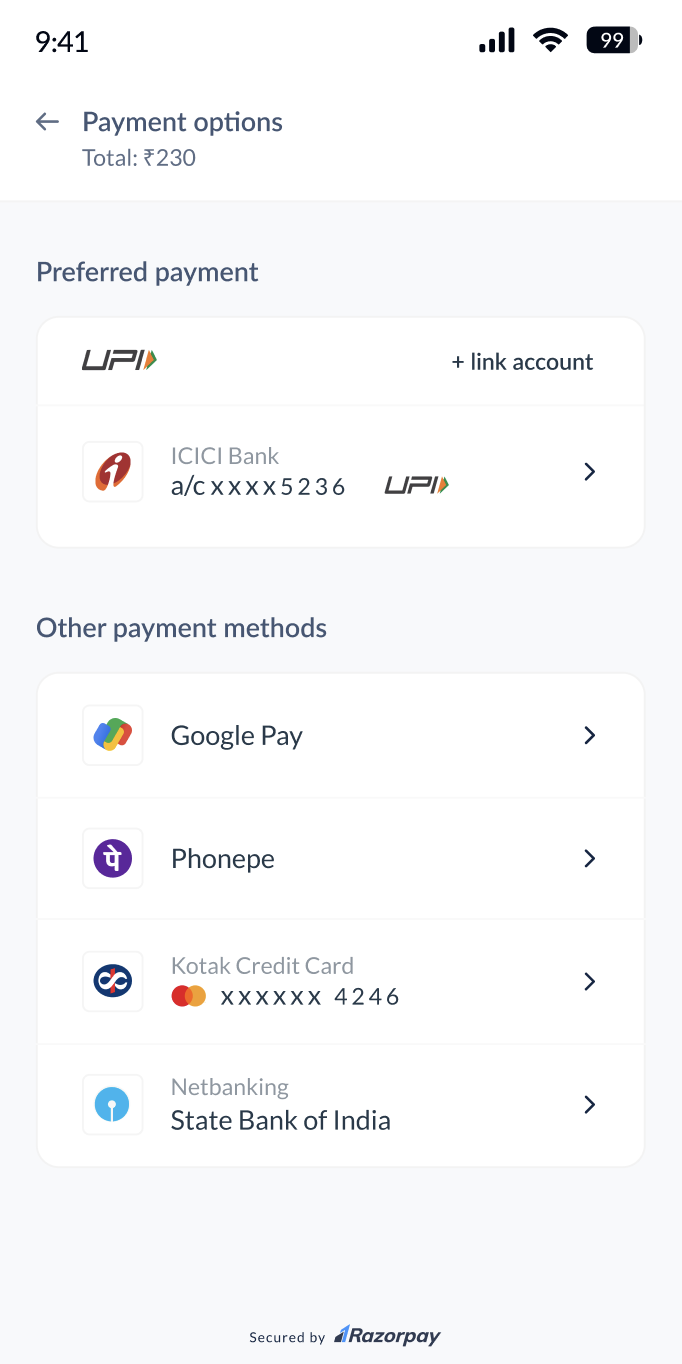
1. The customer selects the linked bank account.
   <img src="https://razorpay.com/docs/build/browser/assets/images/upi-turbo-linked-bank.jpg" alt="Razorpay Turbo UPI Payment Flow" width="300" />
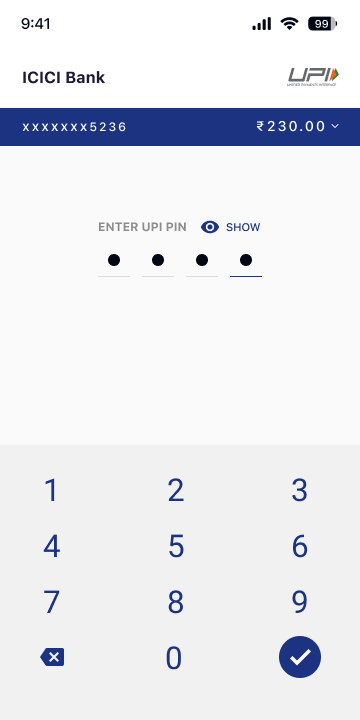
2. The customer enters the UPI PIN to complete the payment.
   <img src="https://razorpay.com/docs/build/browser/assets/images/upi-turbo-custom-enter-pin.jpg" alt="Turbo UPI Payment Successful" width="300" />

### Related Information

* [Turbo UPI Headless](/docs/payments/payment-gateway/flutter-integration/custom/payment-methods/turbo-upi/integration-noui)