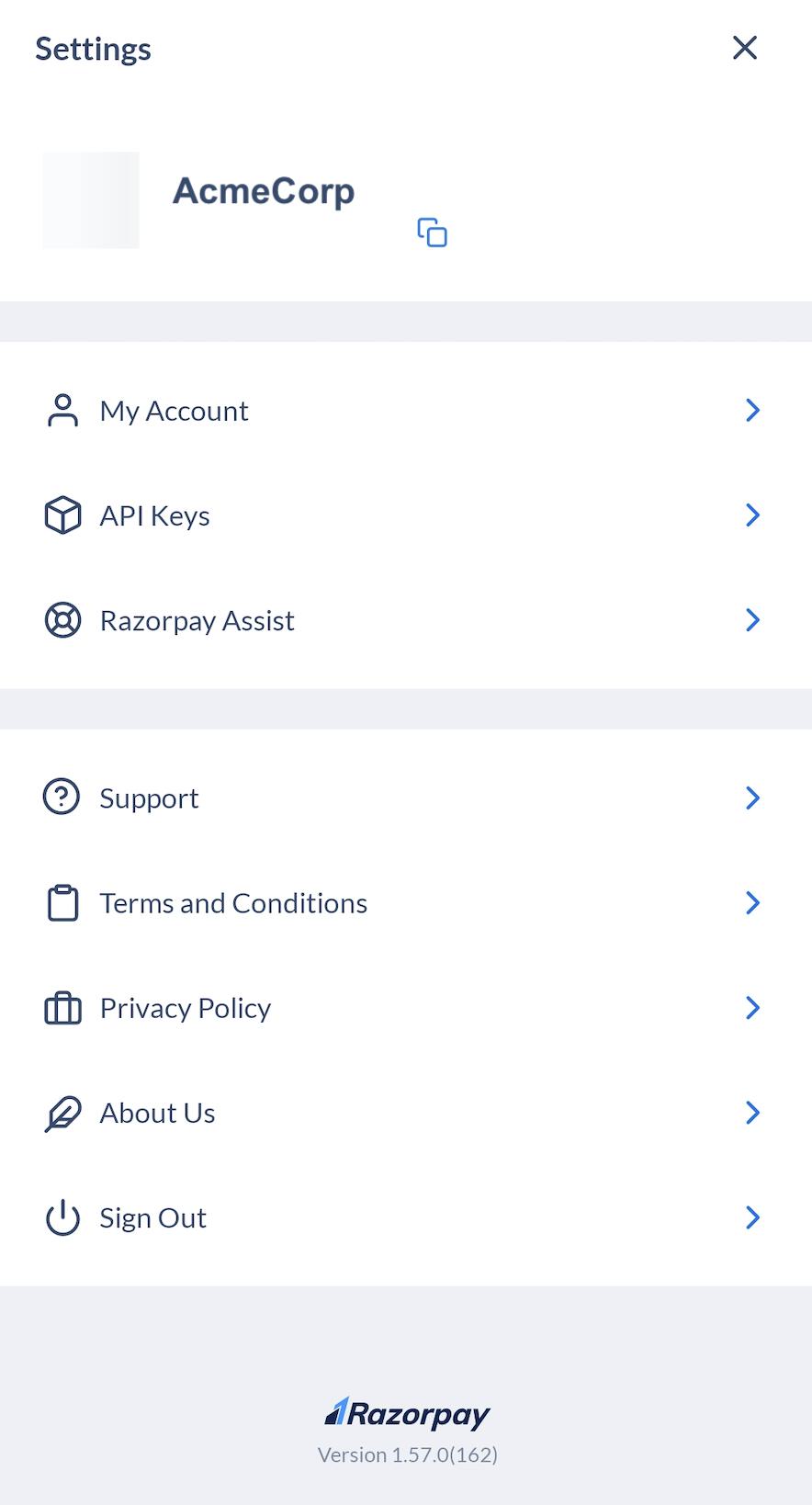
 ## Contact Support
If you are a registered Razorpay user and need help, connect with our best-in-class support team.
## Contact Support
If you are a registered Razorpay user and need help, connect with our best-in-class support team.
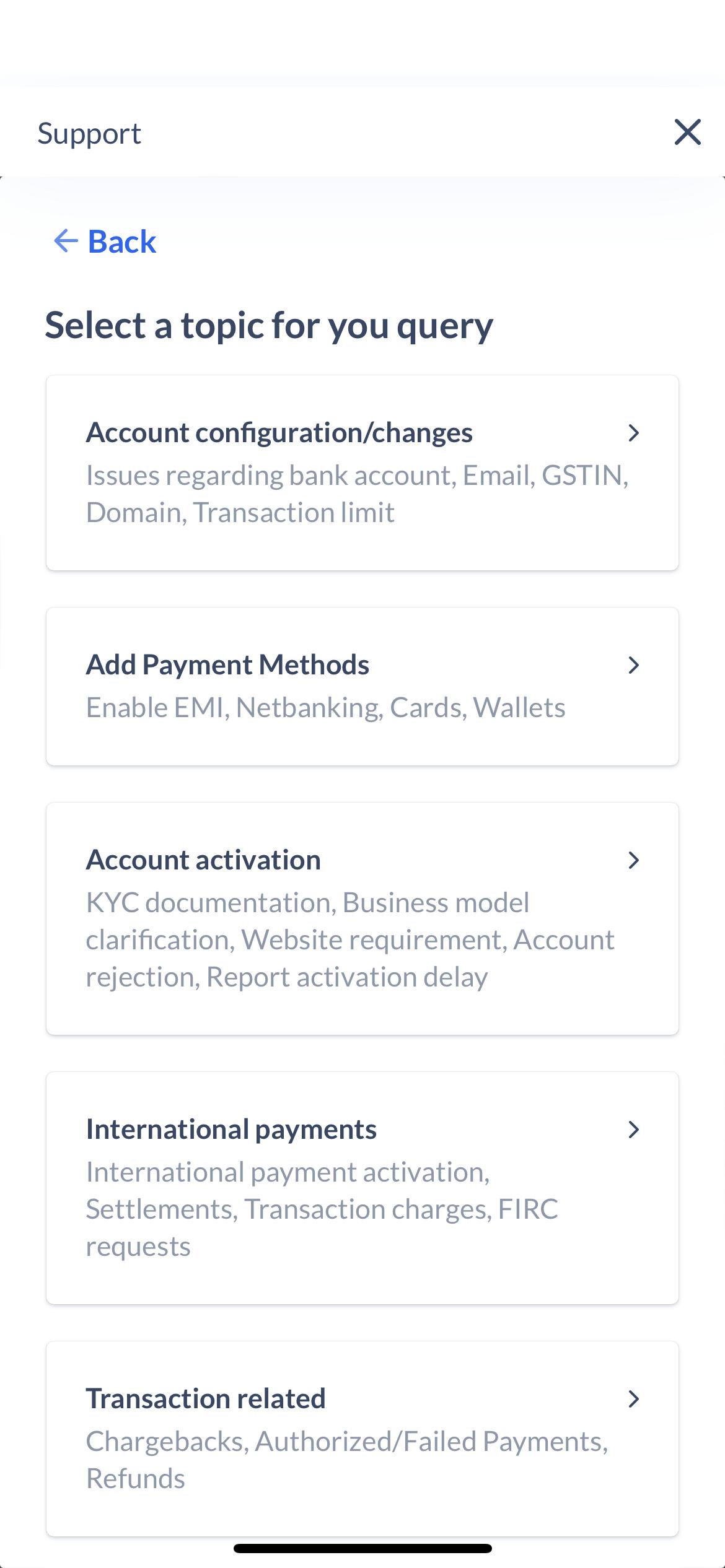 5. Select the sub-category for which you wish to raise a ticket.
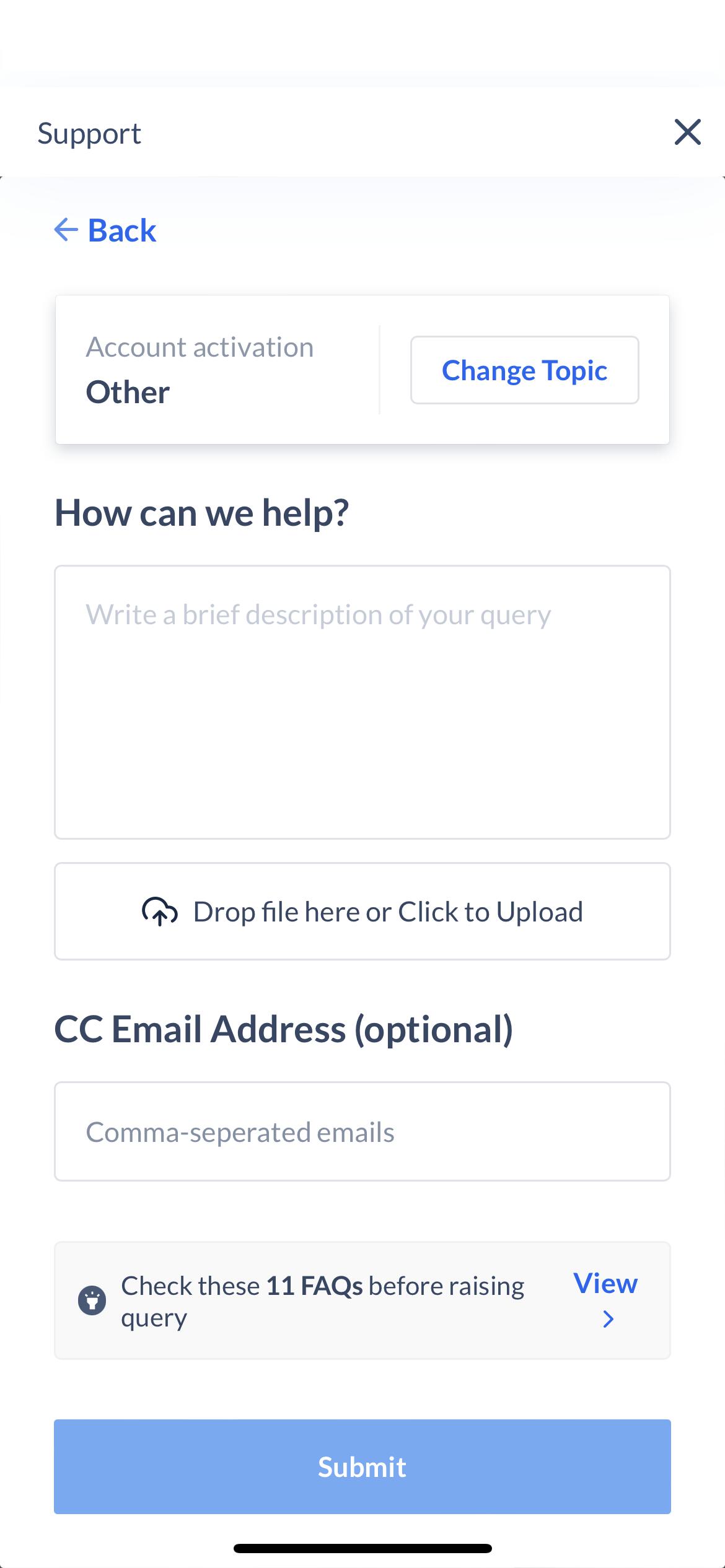
6. Check out the existing [Mobile App FAQs](/docs/payments/mobile-app/faqs) before raising the ticket. If your concern is not addressed, then explain your issue and attach relevant documents or screenshots if possible and tap **Submit**.
5. Select the sub-category for which you wish to raise a ticket.
6. Check out the existing [Mobile App FAQs](/docs/payments/mobile-app/faqs) before raising the ticket. If your concern is not addressed, then explain your issue and attach relevant documents or screenshots if possible and tap **Submit**.
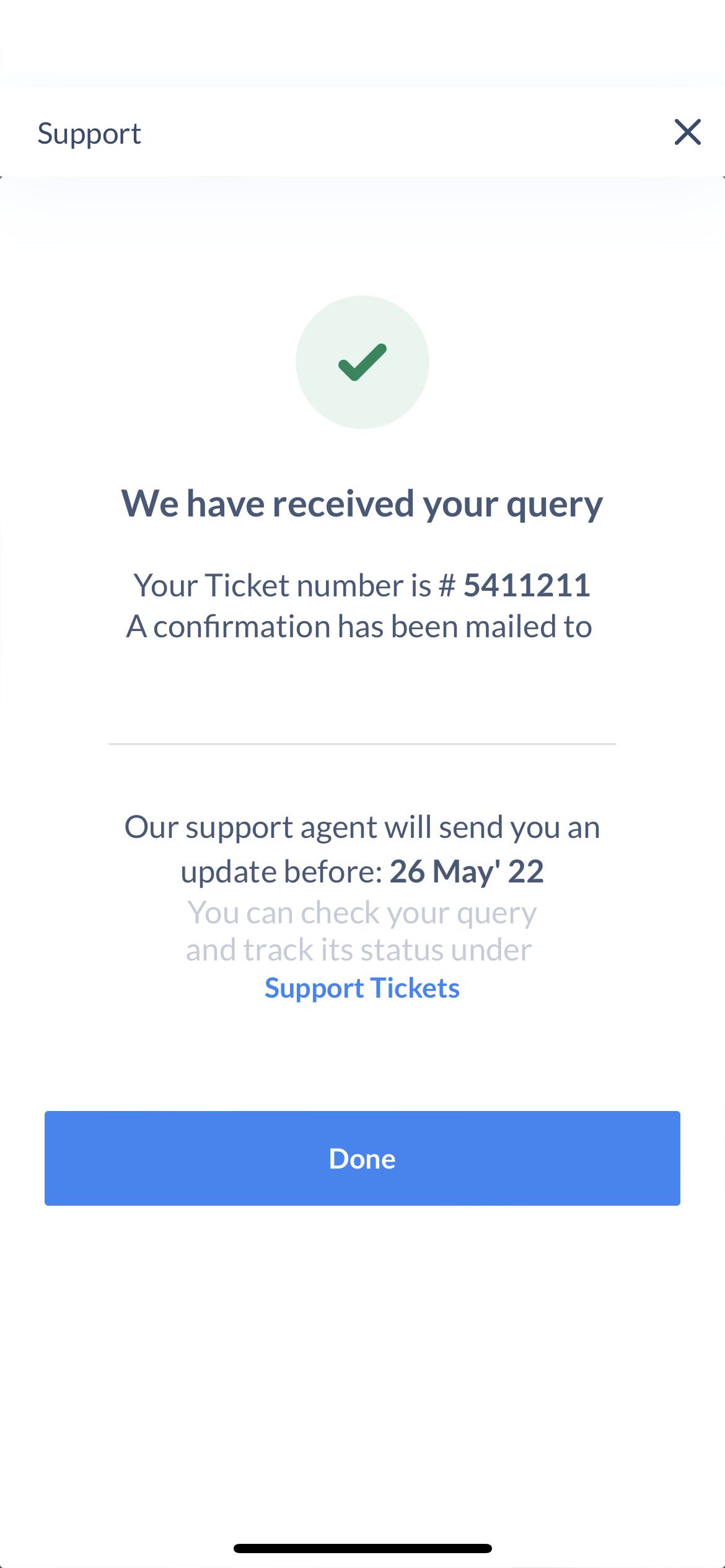
 7. Once you submit your query, you will receive a confirmation mail with your ticket number.
 You can also refer to the [Razorpay Docs](https://razorpay.com/docs) about the various Razorpay offerings, integrations and APIs.
### Track Status of Open Tickets
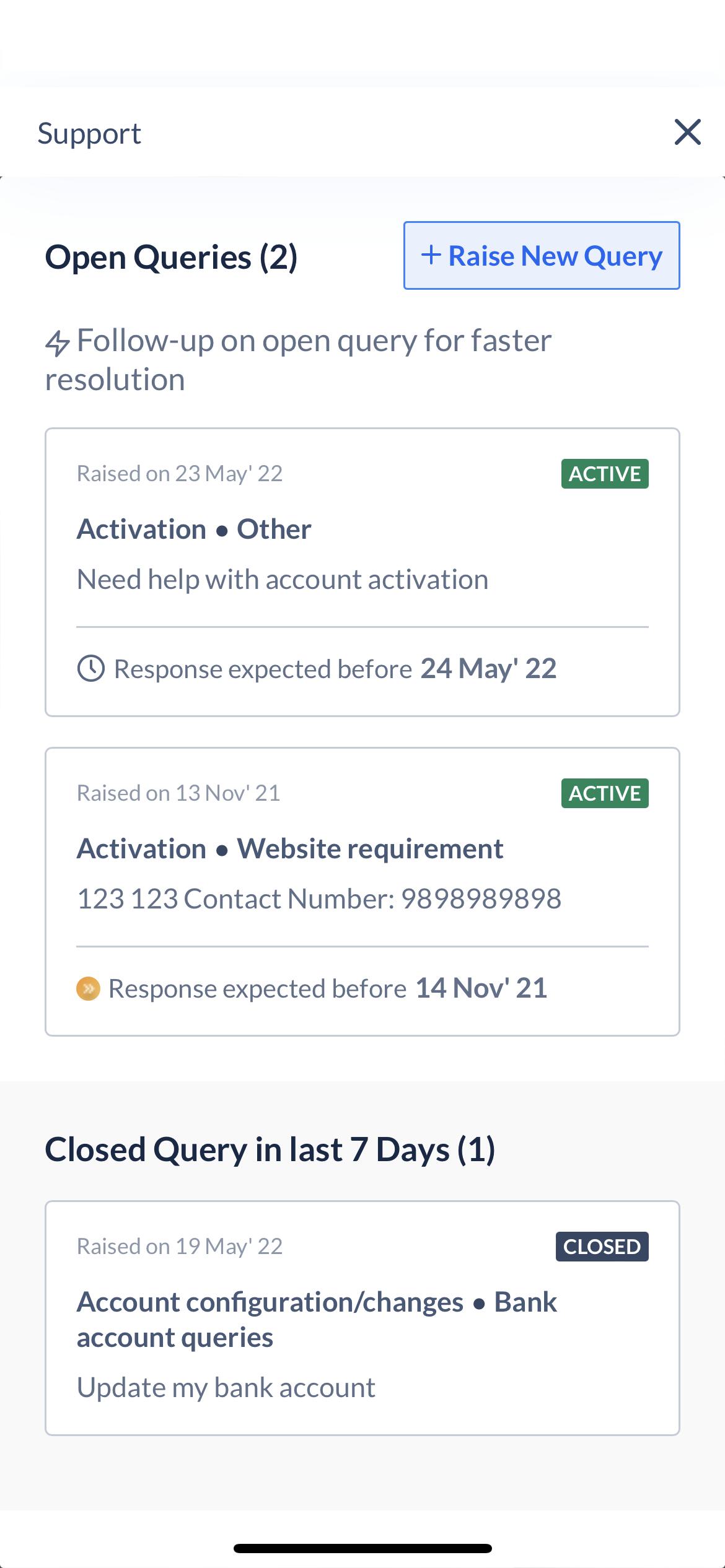
You can view only those tickets that were raised using the Dashboard. To track the status of your open support tickets:
1. Log in with your Dashboard credentials.
2. Tap more options (⋮) and tap **Support**.
3. Select the relevant ticket to view ticket details.
You can also refer to the [Razorpay Docs](https://razorpay.com/docs) about the various Razorpay offerings, integrations and APIs.
### Track Status of Open Tickets
You can view only those tickets that were raised using the Dashboard. To track the status of your open support tickets:
1. Log in with your Dashboard credentials.
2. Tap more options (⋮) and tap **Support**.
3. Select the relevant ticket to view ticket details.
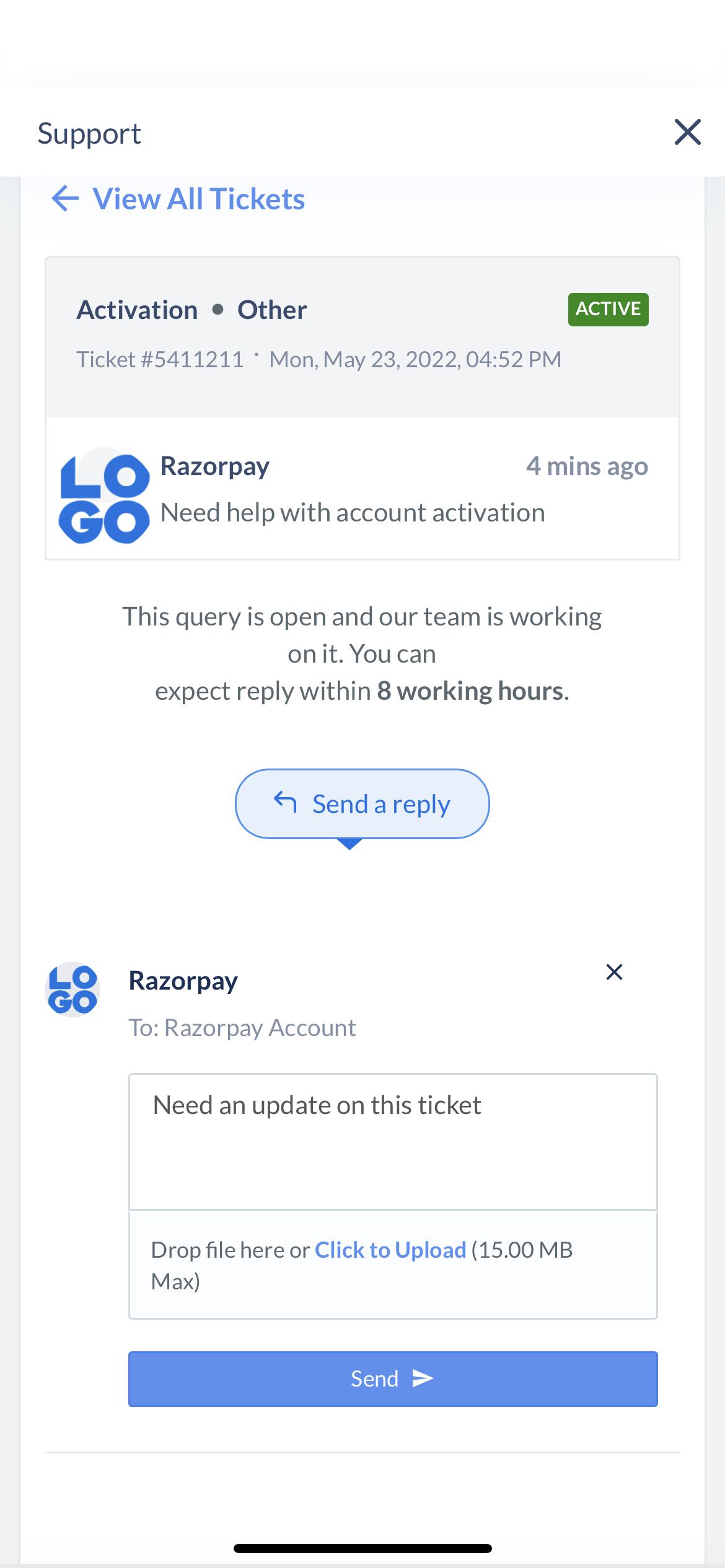
 4. You can request an update, provide information or add attachments such as an error screenshot. Provide the details and click **Send**.
 ### Related Information
* [Razorpay Mobile App](/docs/payments/mobile-app)
### Related Information
* [Razorpay Mobile App](/docs/payments/mobile-app)