
> ## Documentation Index
> Fetch the complete documentation index at: https://razorpay-881012b3.mintlify.site/llms.txt
> Use this file to discover all available pages before exploring further.

# Delete a Saved Address on Magic Checkout

> Remove a delivery address you saved while shopping on a store that uses Razorpay Magic Checkout. No payment or order is needed.

<div style={{display:"flex",flexWrap:"wrap",alignItems:"center",gap:"0.35rem 0.9rem",border:"1px solid rgba(128,128,128,0.28)",borderRadius:"0.5rem",padding:"0.45rem 0.75rem",margin:"0 0 1.25rem",fontSize:"0.875rem"}}>
  <span style={{fontWeight:600}}>Available in</span>
  <span>🇮🇳 India</span>
</div>

You can remove any delivery address you saved while shopping on a store that uses Razorpay Magic Checkout. It takes about a minute, and you do not need to pay or place an order.

## Delete an address

1. Open the [Razorpay demo page](https://razorpay.com/demopg3/). At the bottom of the page, select **Magic Checkout** and **Mobile**, then click **Buy Now**.

   <img src="https://mintcdn.com/razorpay-881012b3/hMzr3nWQPXZ-Z_tH/static/docs-home/assets/magic-checkout-delete-address-demo-toggle.png?fit=max&auto=format&n=hMzr3nWQPXZ-Z_tH&q=85&s=55964211a6225aaadd82ecc30b57d843" alt="Demo page toggles with Magic Checkout and Mobile selected" width="500" data-path="static/docs-home/assets/magic-checkout-delete-address-demo-toggle.png" />

2. Enter the mobile number you shop with, then enter the OTP you receive.

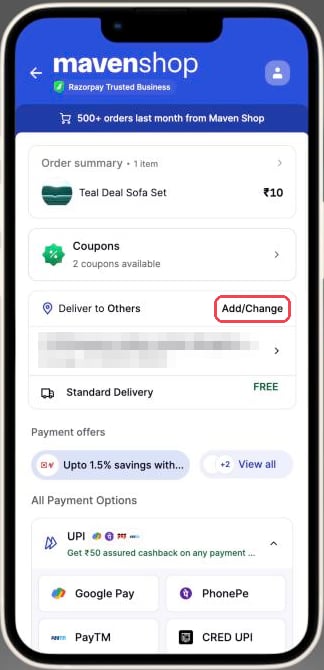
3. Tap **Add/Change** next to the delivery address.
   <img src="https://mintcdn.com/razorpay-881012b3/hMzr3nWQPXZ-Z_tH/static/docs-home/assets/magic-checkout-delete-address-add-change.png?fit=max&auto=format&n=hMzr3nWQPXZ-Z_tH&q=85&s=117fdbef5208b241fdece08cd29a754e" alt="Magic Checkout order summary with the Add/Change link next to the delivery address highlighted" width="300" style={{borderRadius:"0.5rem"}} data-path="static/docs-home/assets/magic-checkout-delete-address-add-change.png" />

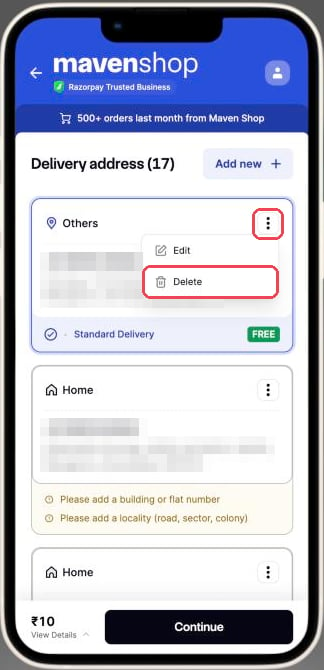
4. Tap **⋮** on the address you want to remove, then tap **Delete**.
   <img src="https://mintcdn.com/razorpay-881012b3/hMzr3nWQPXZ-Z_tH/static/docs-home/assets/magic-checkout-delete-address-menu.png?fit=max&auto=format&n=hMzr3nWQPXZ-Z_tH&q=85&s=7779dabf7d9e332c0a5d14ca8886266a" alt="Saved delivery addresses list with the three-dot menu open and the Delete option highlighted" width="300" style={{borderRadius:"0.5rem"}} data-path="static/docs-home/assets/magic-checkout-delete-address-menu.png" />

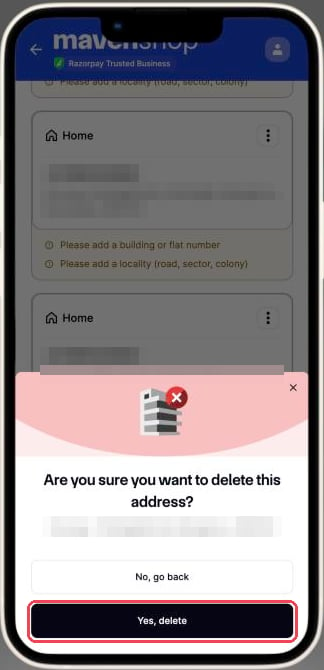
5. Tap **Yes, delete**. The address disappears from your list.
   <img src="https://mintcdn.com/razorpay-881012b3/hMzr3nWQPXZ-Z_tH/static/docs-home/assets/magic-checkout-delete-address-confirm.png?fit=max&auto=format&n=hMzr3nWQPXZ-Z_tH&q=85&s=93fe0d10ed8dc2ef4e495d1b3dc205c2" alt="Confirmation prompt asking if you want to delete this address, with the Yes, delete button highlighted" width="300" style={{borderRadius:"0.5rem"}} data-path="static/docs-home/assets/magic-checkout-delete-address-confirm.png" />

Repeat steps 4 and 5 for each address you want to remove. Close the page when you have finished. You do not need to complete the payment.

<Info>
  After you delete an address, it no longer appears at checkout on any store that uses Razorpay Magic Checkout.
</Info>
