> ## Documentation Index
> Fetch the complete documentation index at: https://razorpay-881012b3.mintlify.site/llms.txt
> Use this file to discover all available pages before exploring further.
# View Reports
> Generate and download Magic Checkout Order and Checkout Reports to analyse order performance, customer behaviour and abandoned cart recovery metrics.
Available in
🇮🇳 India
You can generate Magic Checkout reports from the Dashboard to analyse order performance and customer behaviour on your store. Magic Checkout offers two types of reports:
* **Order Reports**: Track completed orders placed through Magic Checkout. Use these reports to calculate conversion rates, identify top-performing products and promotions and analyse payment method preferences.
* **Checkout Reports**: Analyse both completed orders and abandoned checkouts to understand the complete customer journey. Use these reports for abandoned cart recovery, checkout funnel analysis and identifying customer drop-off points.
## Generate Reports
To generate reports:
1. Log in to the [Dashboard](https://dashboard.razorpay.com/app) and navigate to **Reports**.
2. In the **Overview** section, click **Download Report**.
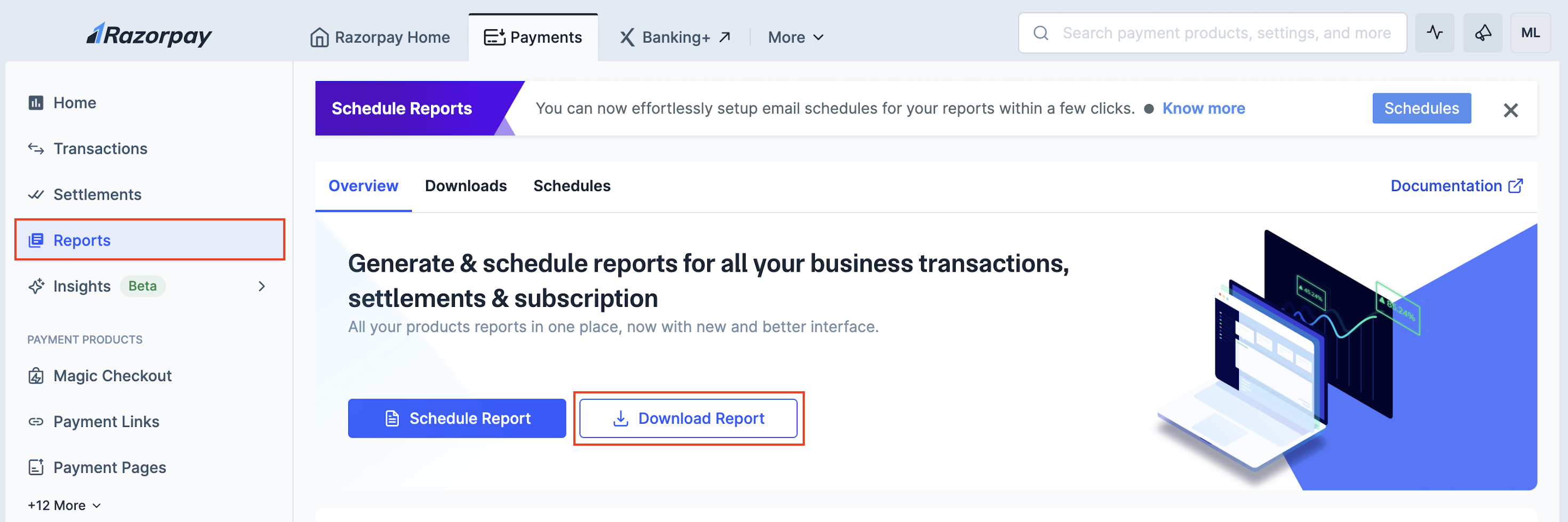 3. Configure report settings:
1. Select the report from the drop-down list.
* **Magic Checkout Orders Report** for completed orders only.
* **Magic Checkout Checkout Report** for completed orders and abandoned checkouts.
2. Enter a file name *(optional)*.
3. 3. Select the file format. Only `CSV` format is supported for Magic Checkout reports.
3. Configure report settings:
1. Select the report from the drop-down list.
* **Magic Checkout Orders Report** for completed orders only.
* **Magic Checkout Checkout Report** for completed orders and abandoned checkouts.
2. Enter a file name *(optional)*.
3. 3. Select the file format. Only `CSV` format is supported for Magic Checkout reports.
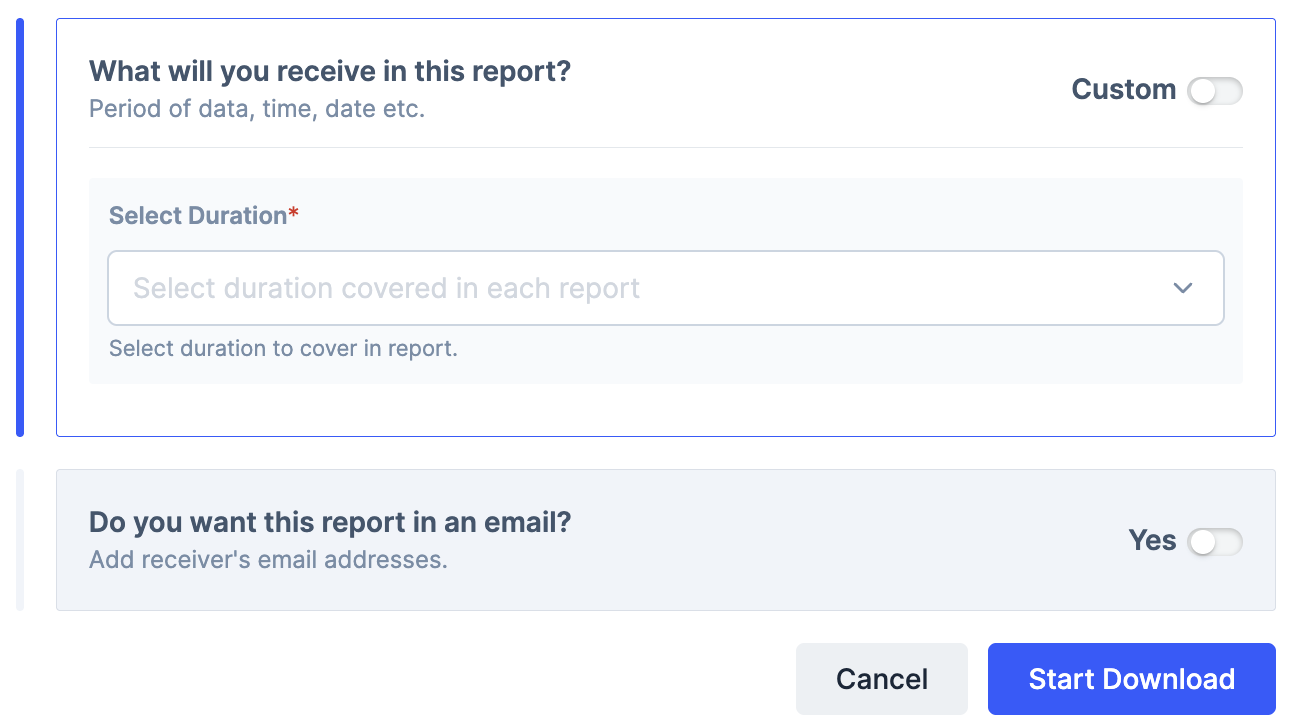
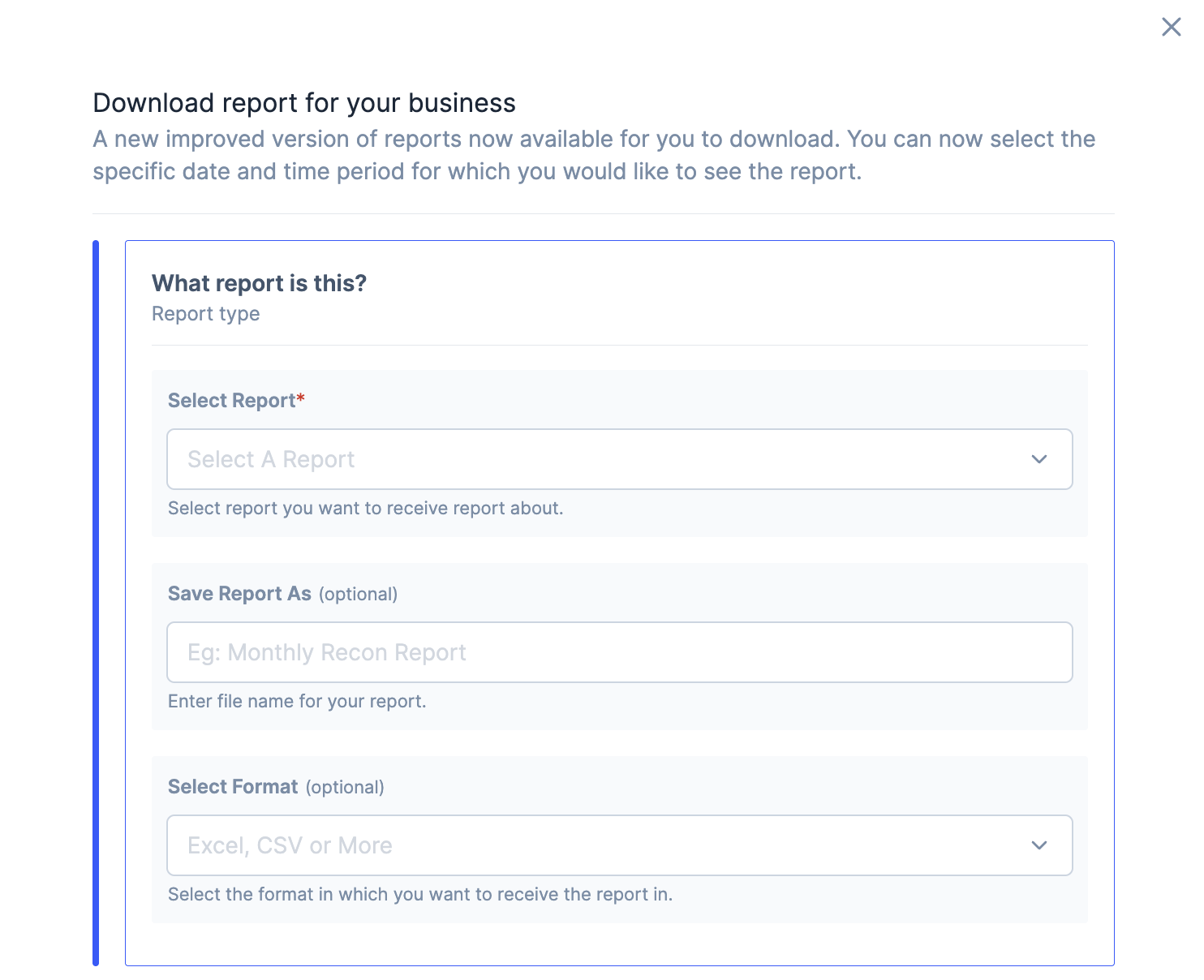 4. Choose the duration from the drop-down or toggle **Custom** to set a specific date range.
5. To receive the report via email, toggle **Yes** in the **Do you want this report in an email?** section and enter email addresses for all recipients.
4. Click **Start Download**.
4. Choose the duration from the drop-down or toggle **Custom** to set a specific date range.
5. To receive the report via email, toggle **Yes** in the **Do you want this report in an email?** section and enter email addresses for all recipients.
4. Click **Start Download**.
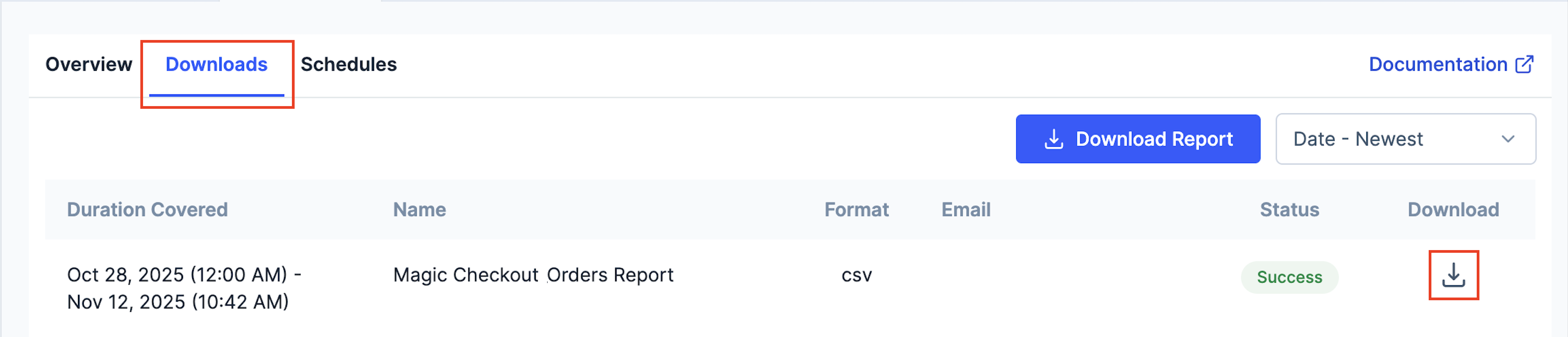
 5. Navigate to the **Downloads** section to track the download status and click the download icon to download the report.
 **Schedule Reports**
You can also schedule reports to receive them automatically at regular intervals. This ensures you get timely data for consistent decision-making without manual downloads. Know more about how to [schedule reports](/docs/payments/dashboard/reports#schedule-reports).
## Data Fields
The reports contain the following data fields:
Order reports contain the following data fields:
| Field | Description |
| ----------------------- | ---------------------------------------------------------------------------------------------------------------------------------------------------- |
| `order_id` | Unique identifier for the order in your system. |
| `razorpay_order_id` | Unique Razorpay order identifier. |
| `razorpay_payment_id` | Unique Razorpay payment identifier. |
| `order_amount` | Total order amount in the smallest currency unit - paise for INR (for example: `12000` is ₹120). |
| `order_status` | Status of the order. Know more about [Order Status](/docs/payments/orders#order-states). |
| `payment_method` | Code of the payment method used. Know more about [Razorpay Payment Methods](/docs/payments/payment-methods). |
| `payment_amount` | Amount paid through the payment method in smallest currency unit. |
| `payment_status` | Status of payment. Know more about [Payment Status](/docs/payments/payments#payment-life-cycle). |
| `payment_currency` | Currency code for the payment. |
| `payment_refund_status` | Refund status of the payment. |
| `customer_contact` | Customer's contact number. |
| `customer_email` | Customer's email address. |
| `shipping_address` | JSON object containing shipping address details including name, contact, address lines, city, state, zipcode, country and landmark. |
| `promotions` | Array of applied promotions with details like type, code, description, value and reference id. |
| `utm_parameters` | JSON object containing UTM tracking parameters including source, campaign, medium, content, landing page URL and additional tracking ids like gclid. |
| `line_items` | Array of product names included in the order. |
| `line_items_total` | Total value of all line items in the smallest currency unit. |
| `checkout_created_time` | Timestamp when the checkout was initiated. |
| `checkout_closed_time` | Timestamp when the checkout was completed. |
Checkout reports contain all the fields from Order reports plus one additional field:
| Field | Description |
| ------------------------ | ----------------------------------------------------------------------------------- |
| `abandoned_checkout_url` | URL to recover abandoned checkout. This is only populated for incomplete checkouts. |
**Handy Tips**
* Checkout reports include both completed orders and abandoned checkouts, while order reports only show completed orders.
* The `abandoned_checkout_url` field is only populated for customers who initiated checkout but did not complete the purchase.
* For completed orders, the `abandoned_checkout_url` field will remain empty.
**Schedule Reports**
You can also schedule reports to receive them automatically at regular intervals. This ensures you get timely data for consistent decision-making without manual downloads. Know more about how to [schedule reports](/docs/payments/dashboard/reports#schedule-reports).
## Data Fields
The reports contain the following data fields:
Order reports contain the following data fields:
| Field | Description |
| ----------------------- | ---------------------------------------------------------------------------------------------------------------------------------------------------- |
| `order_id` | Unique identifier for the order in your system. |
| `razorpay_order_id` | Unique Razorpay order identifier. |
| `razorpay_payment_id` | Unique Razorpay payment identifier. |
| `order_amount` | Total order amount in the smallest currency unit - paise for INR (for example: `12000` is ₹120). |
| `order_status` | Status of the order. Know more about [Order Status](/docs/payments/orders#order-states). |
| `payment_method` | Code of the payment method used. Know more about [Razorpay Payment Methods](/docs/payments/payment-methods). |
| `payment_amount` | Amount paid through the payment method in smallest currency unit. |
| `payment_status` | Status of payment. Know more about [Payment Status](/docs/payments/payments#payment-life-cycle). |
| `payment_currency` | Currency code for the payment. |
| `payment_refund_status` | Refund status of the payment. |
| `customer_contact` | Customer's contact number. |
| `customer_email` | Customer's email address. |
| `shipping_address` | JSON object containing shipping address details including name, contact, address lines, city, state, zipcode, country and landmark. |
| `promotions` | Array of applied promotions with details like type, code, description, value and reference id. |
| `utm_parameters` | JSON object containing UTM tracking parameters including source, campaign, medium, content, landing page URL and additional tracking ids like gclid. |
| `line_items` | Array of product names included in the order. |
| `line_items_total` | Total value of all line items in the smallest currency unit. |
| `checkout_created_time` | Timestamp when the checkout was initiated. |
| `checkout_closed_time` | Timestamp when the checkout was completed. |
Checkout reports contain all the fields from Order reports plus one additional field:
| Field | Description |
| ------------------------ | ----------------------------------------------------------------------------------- |
| `abandoned_checkout_url` | URL to recover abandoned checkout. This is only populated for incomplete checkouts. |
**Handy Tips**
* Checkout reports include both completed orders and abandoned checkouts, while order reports only show completed orders.
* The `abandoned_checkout_url` field is only populated for customers who initiated checkout but did not complete the purchase.
* For completed orders, the `abandoned_checkout_url` field will remain empty.