> ## Documentation Index
> Fetch the complete documentation index at: https://razorpay-881012b3.mintlify.site/llms.txt
> Use this file to discover all available pages before exploring further.
# International Debit and Credit Cards
> Enable/disable international payments using foreign cards. Check the eligibility criteria, prerequisites and the application process.
Available in
🇮🇳 India
🇸🇬 Singapore
🇺🇸 United States
Accept international payments from foreign bank cards by enabling international payments on your Dashboard..
**Feature Enablement**
International payments require special security and risk checks. We enable this feature only after our banking partners have approved it, ensuring compliance and protecting against fraud.
## Enable Payments from International Debit and Credit Cards
To enable international payments for the first time, place a request from the Dashboard.
You must meet the following eligibility criteria set by our banking partners to accept international payments:
* You must have an active Razorpay account with KYC verification completed.
* You must have a valid website with the following sections/pages clearly defined:
* **Terms and Conditions**
* **Privacy policy**
* **Refund and Cancellation policy**
* **Shipping policy**
**Watch Out!**
International payments cannot be enabled for your account without these sections/pages on your website.
* Check the list for the [business categories not supported by Razorpay](https://razorpay.com/terms/).
To request international payments:
1. Log in to the Dashboard.
2. Navigate to **Account & Settings** → **International payments** (under Payment methods).
3. Click **Activate** to enable the International cards.
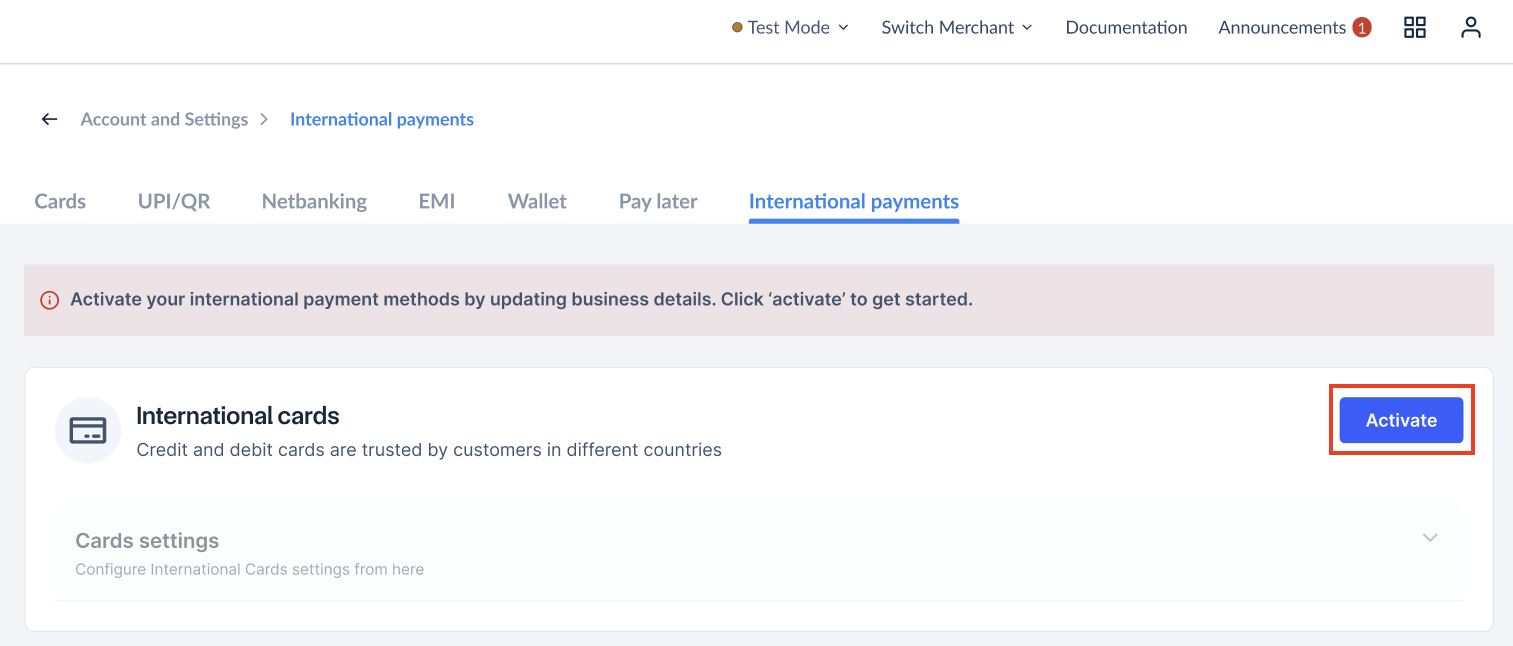 4. Follow the on-screen instructions to provide any additional details or documentation required for activation.
1. In case of sales of tangible products, Import/Export code is required.
2. If you have past international transaction experience, the following documents are accepted:
* Bank statement for inward remittance.
* Settlement record from the current payment partner.
## Disable Payments from International Debit and Credit Cards
You can disable the **International payments** option on your account from your Dashboard.
1. Log in to the Dashboard.
2. Navigate to **Account & Settings** → **International payments** (under Payment methods).
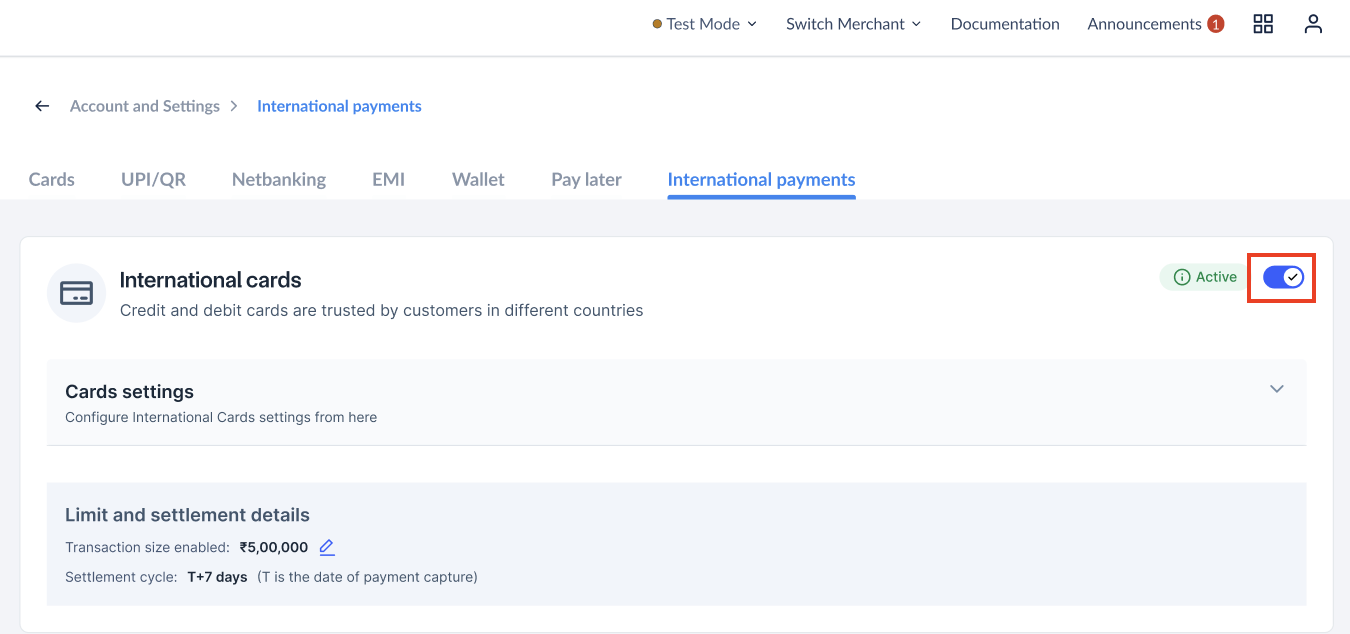
3. Use the toggle button to enable or disable international card payments.
4. Follow the on-screen instructions to provide any additional details or documentation required for activation.
1. In case of sales of tangible products, Import/Export code is required.
2. If you have past international transaction experience, the following documents are accepted:
* Bank statement for inward remittance.
* Settlement record from the current payment partner.
## Disable Payments from International Debit and Credit Cards
You can disable the **International payments** option on your account from your Dashboard.
1. Log in to the Dashboard.
2. Navigate to **Account & Settings** → **International payments** (under Payment methods).
3. Use the toggle button to enable or disable international card payments.