> ## Documentation Index
> Fetch the complete documentation index at: https://razorpay-881012b3.mintlify.site/llms.txt
> Use this file to discover all available pages before exploring further.
# Create Custom Reports
> Build Custom Reports from your Razorpay data. Gain deeper insights, streamlining financial operations for your business.
Available in
🇮🇳 India
Custom Reports lets you build personalised reports that precisely match your business needs. This feature offers deeper insights, streamlining your reconciliation and overall business analysis.
## Create a Custom Report
1. Log in to the Dashboard.
2. Go to **Reports**.
3. Click **Create Custom Report**.
4. Select a report type from the **Select Base Report Type** field. 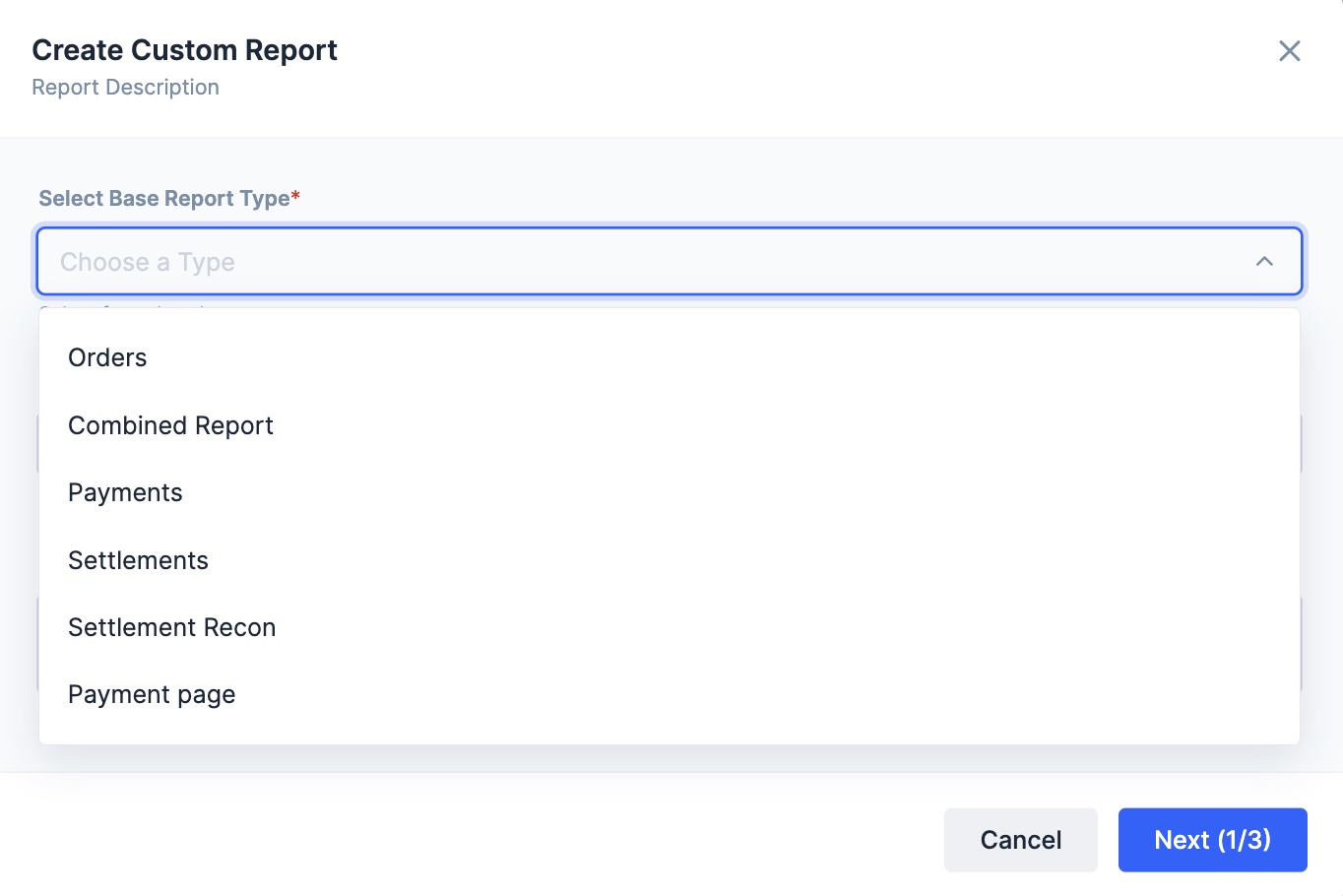 5. Enter a report name for your custom report in the **Report Name** field.
6. Add a description for your custom report in the **Report Description** for this report. Click **Next**.
5. Enter a report name for your custom report in the **Report Name** field.
6. Add a description for your custom report in the **Report Description** for this report. Click **Next**. 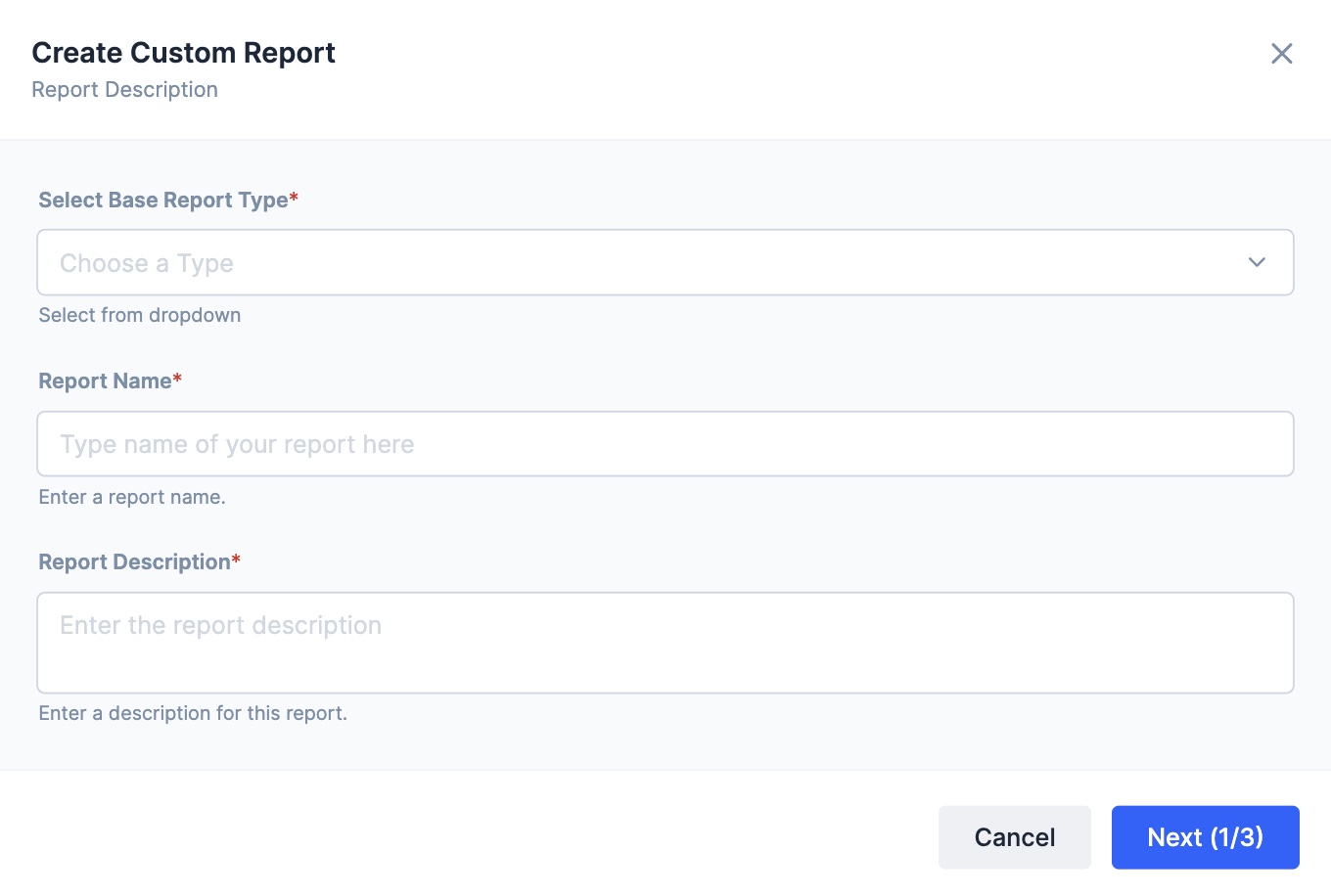 7. In the **Column selection and arrangement** view, drag and drop the columns to rearrange them in the order you want them to appear in your report. Click **Next**.
 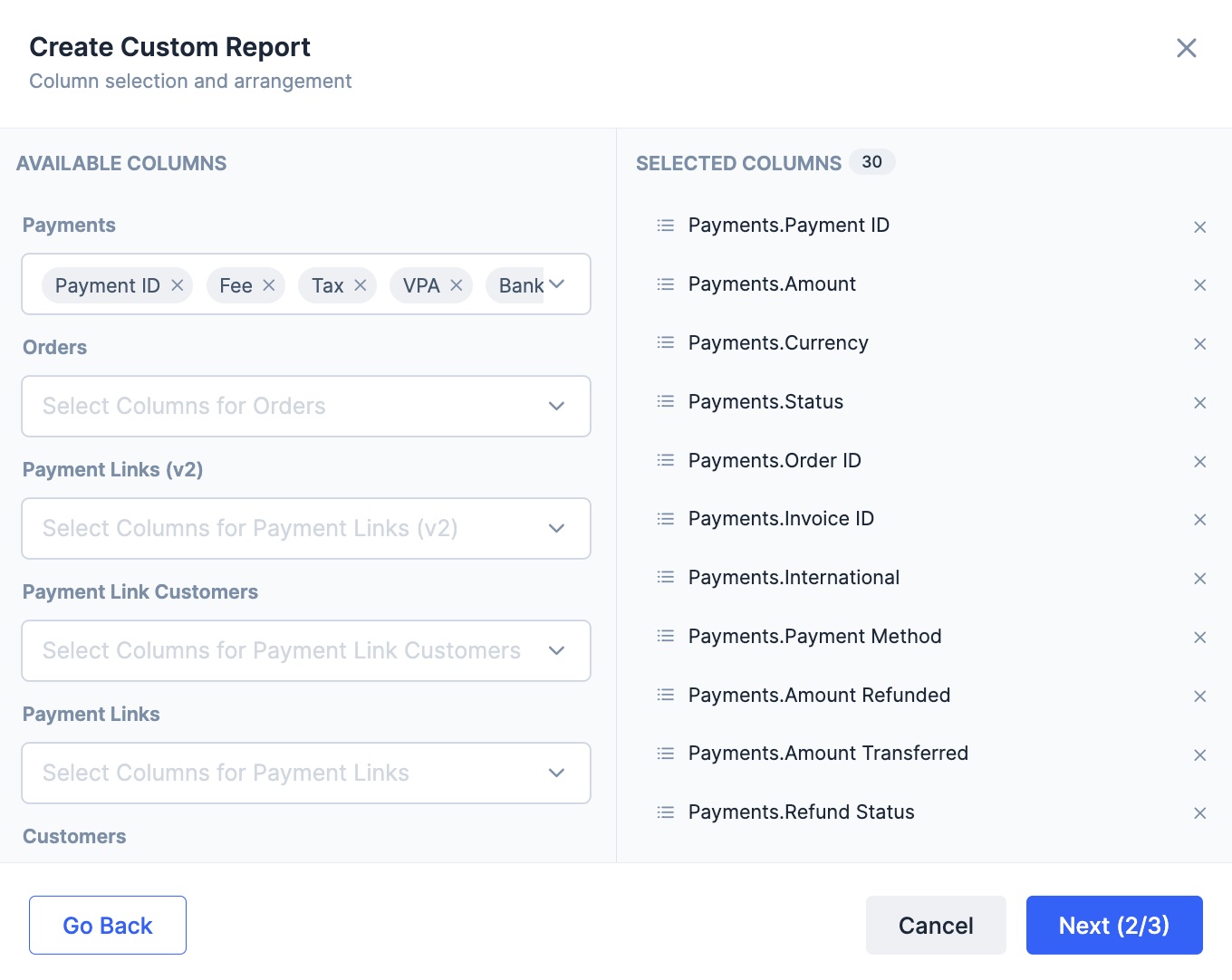 8. Rename column names for each selected column. Remove a column if required. Click **Create**.
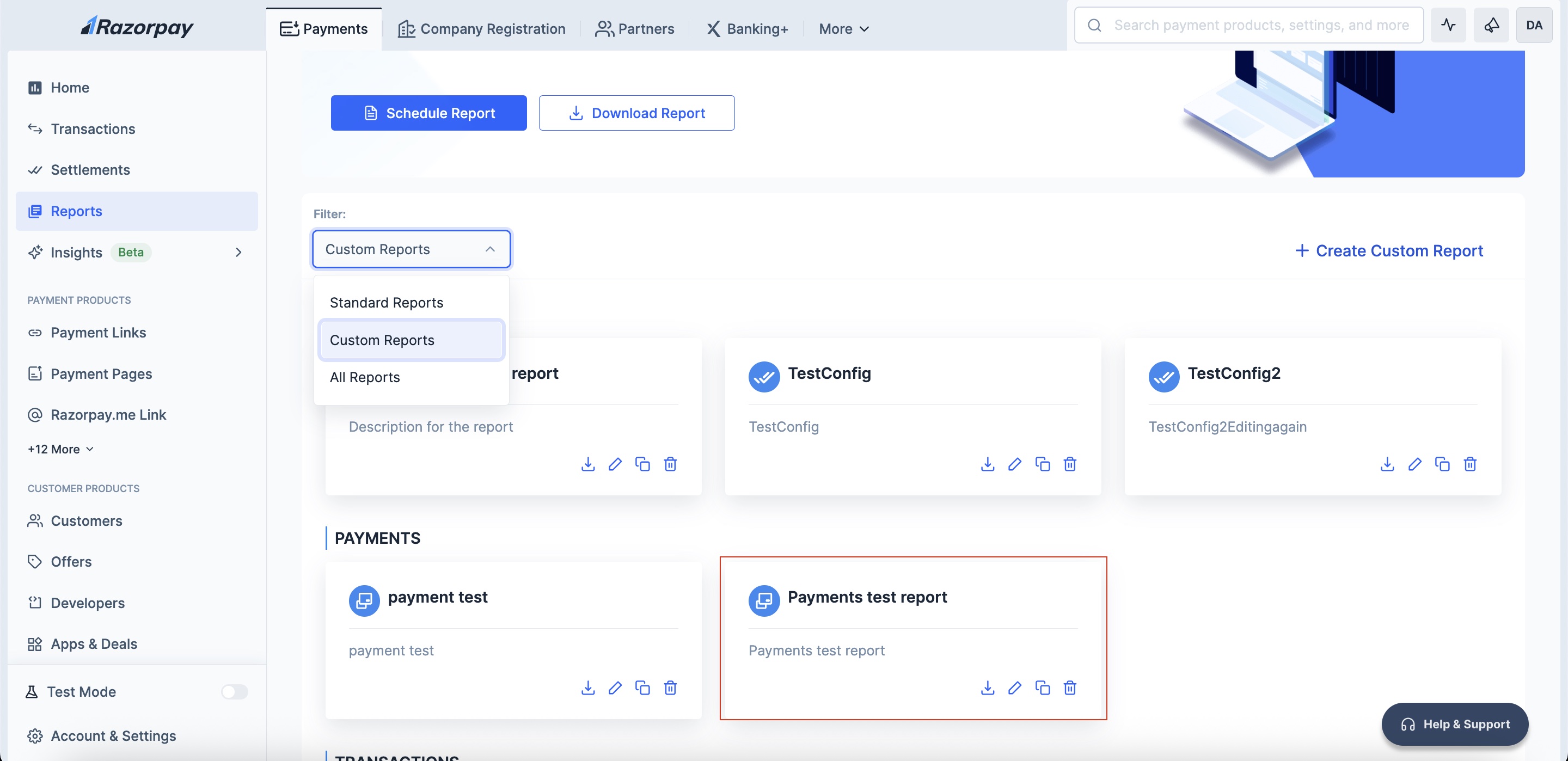
 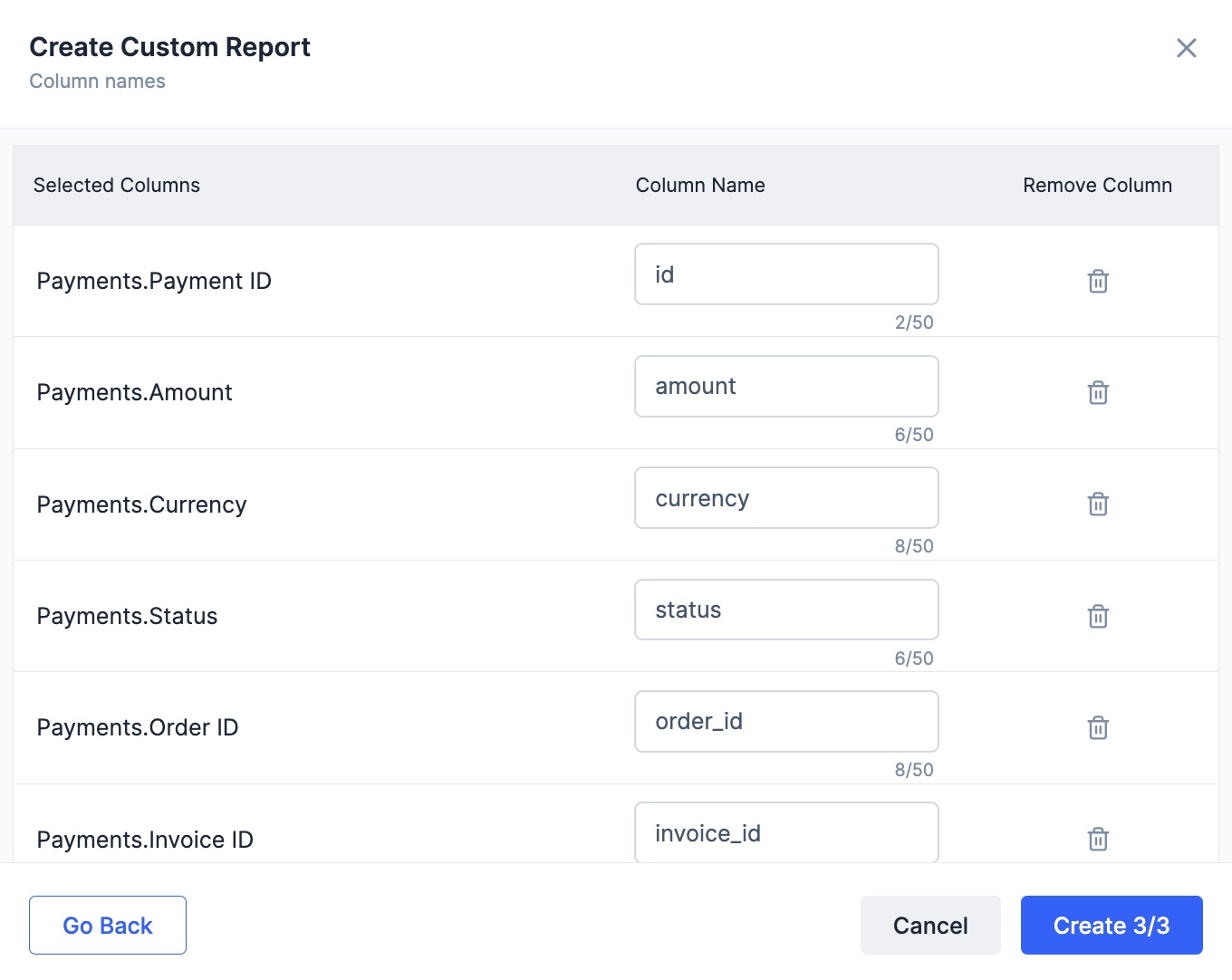 9. Once your custom report is created, select **Custom Reports** in the **Filter** dropdown.
  **Watch Out!**
You can only modify reports you have created. You can make 15 custom reports, with up to 50 columns each.
You have successfully created a custom report.
## Download a Custom Report
1. Click the **download** icon on your custom report's card.
2. Use the **Select report** option to choose which report you wish to download.
3. Enter a preferred file name in the **Save Report As** field (optional).
4. Select your preferred file format: **CSV, Excel or Txt** (optional).
5. Select a linked account in the **Select an Account** field.
**Watch Out!**
You can only modify reports you have created. You can make 15 custom reports, with up to 50 columns each.
You have successfully created a custom report.
## Download a Custom Report
1. Click the **download** icon on your custom report's card.
2. Use the **Select report** option to choose which report you wish to download.
3. Enter a preferred file name in the **Save Report As** field (optional).
4. Select your preferred file format: **CSV, Excel or Txt** (optional).
5. Select a linked account in the **Select an Account** field. 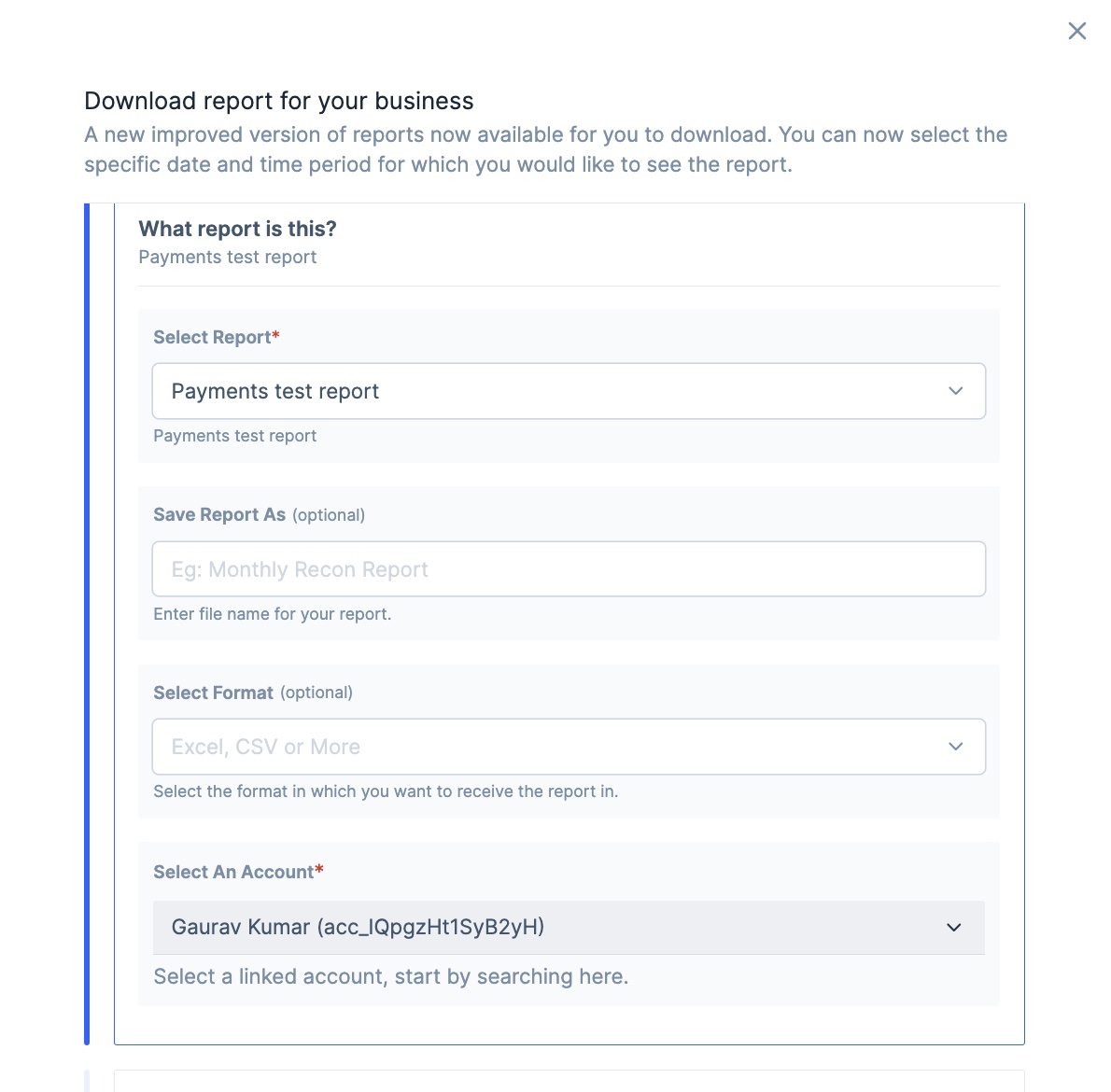 6. **Select duration** for the data coverage of the report from these options:
* Today
* Yesterday
* Past Week
* Past 15 days
* Past Month
* Past Quarter
Toggle the **Custom** option to select a custom date range.
6. **Select duration** for the data coverage of the report from these options:
* Today
* Yesterday
* Past Week
* Past 15 days
* Past Month
* Past Quarter
Toggle the **Custom** option to select a custom date range. 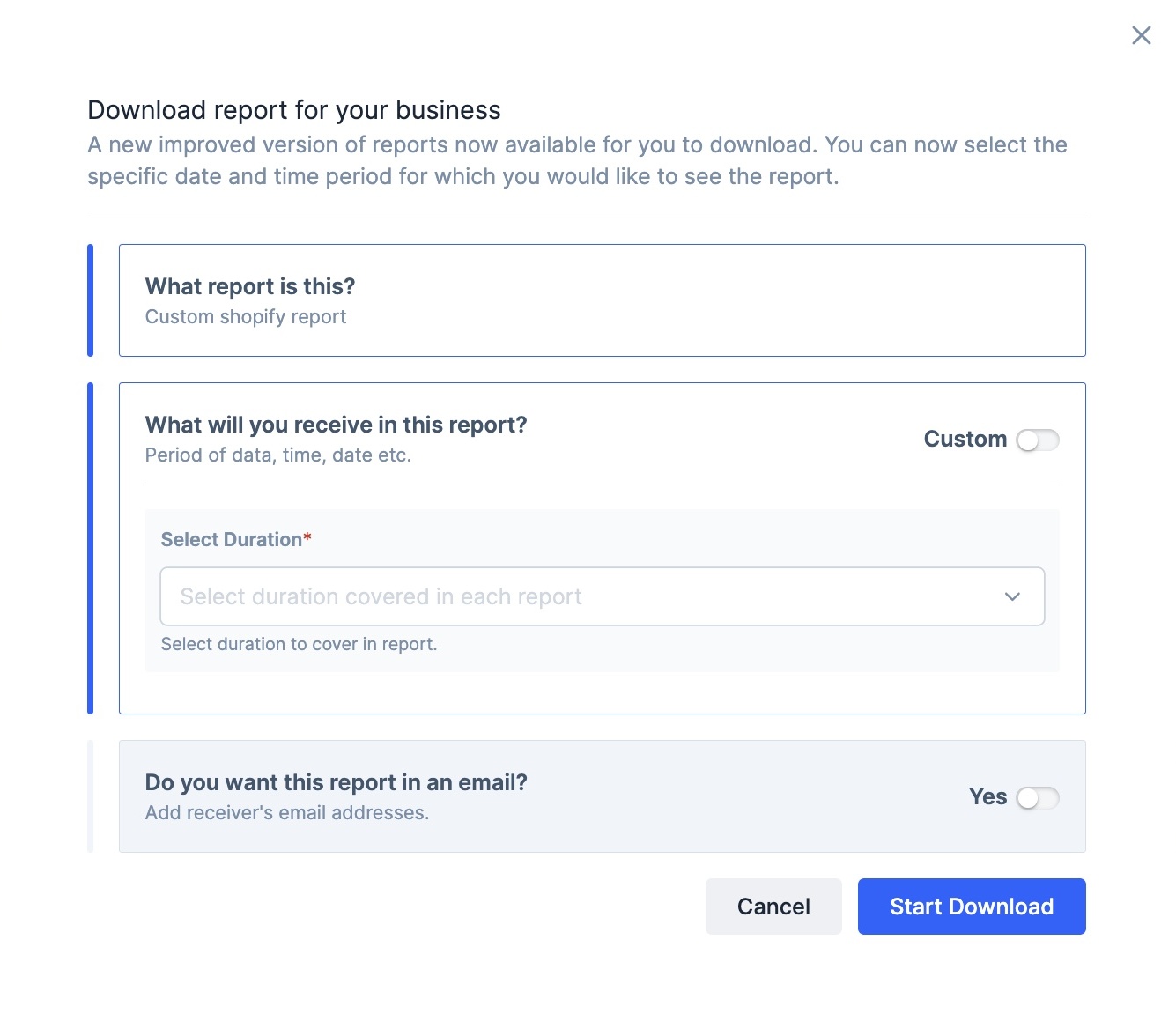 7\. To receive your custom report via email, toggle **Yes** for the **Do you want this report in an email?** section.
 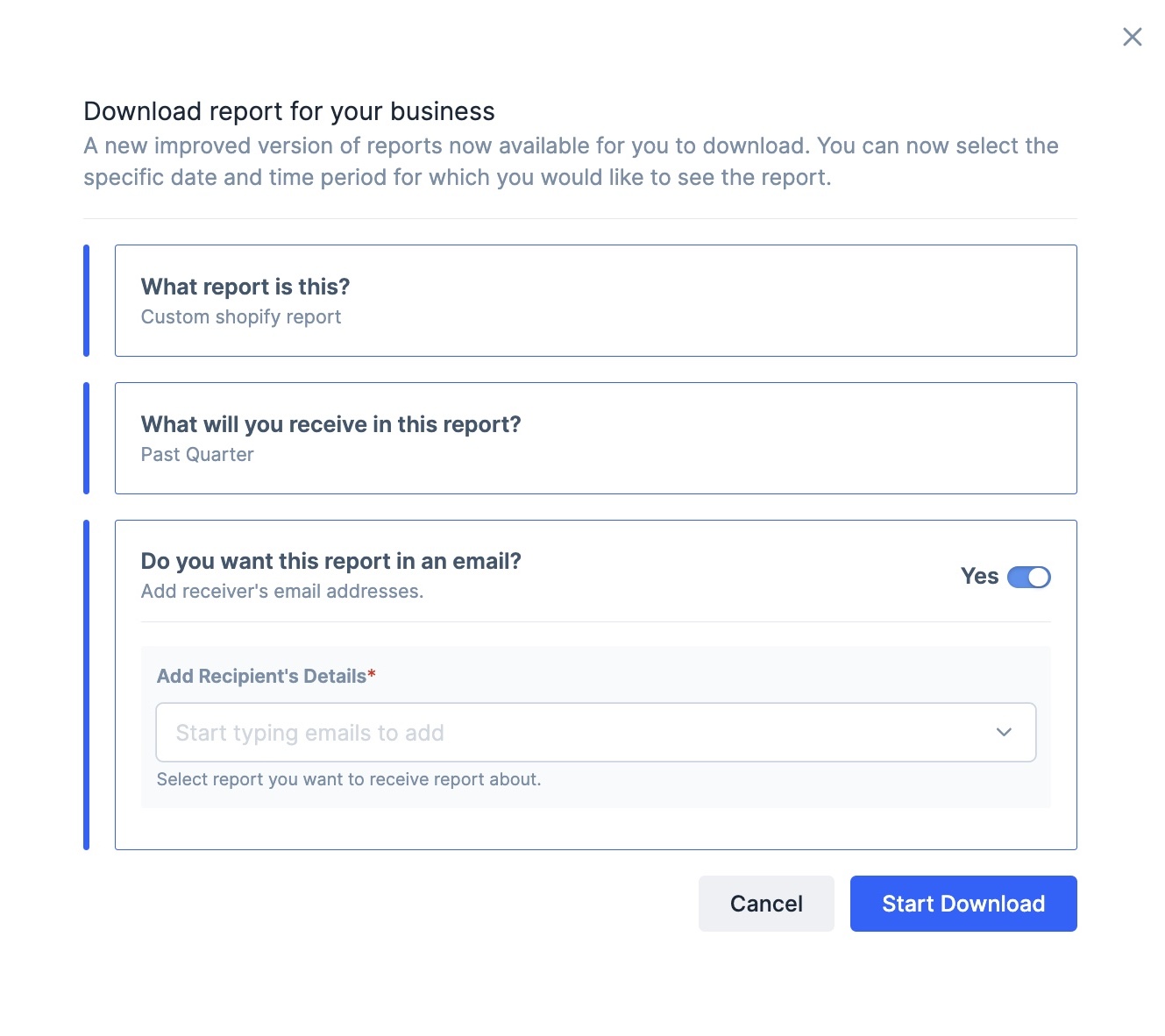 8\. Click **Start Download**.
9\. Navigate to the **Downloads** tab and click **Download**.
8\. Click **Start Download**.
9\. Navigate to the **Downloads** tab and click **Download**. 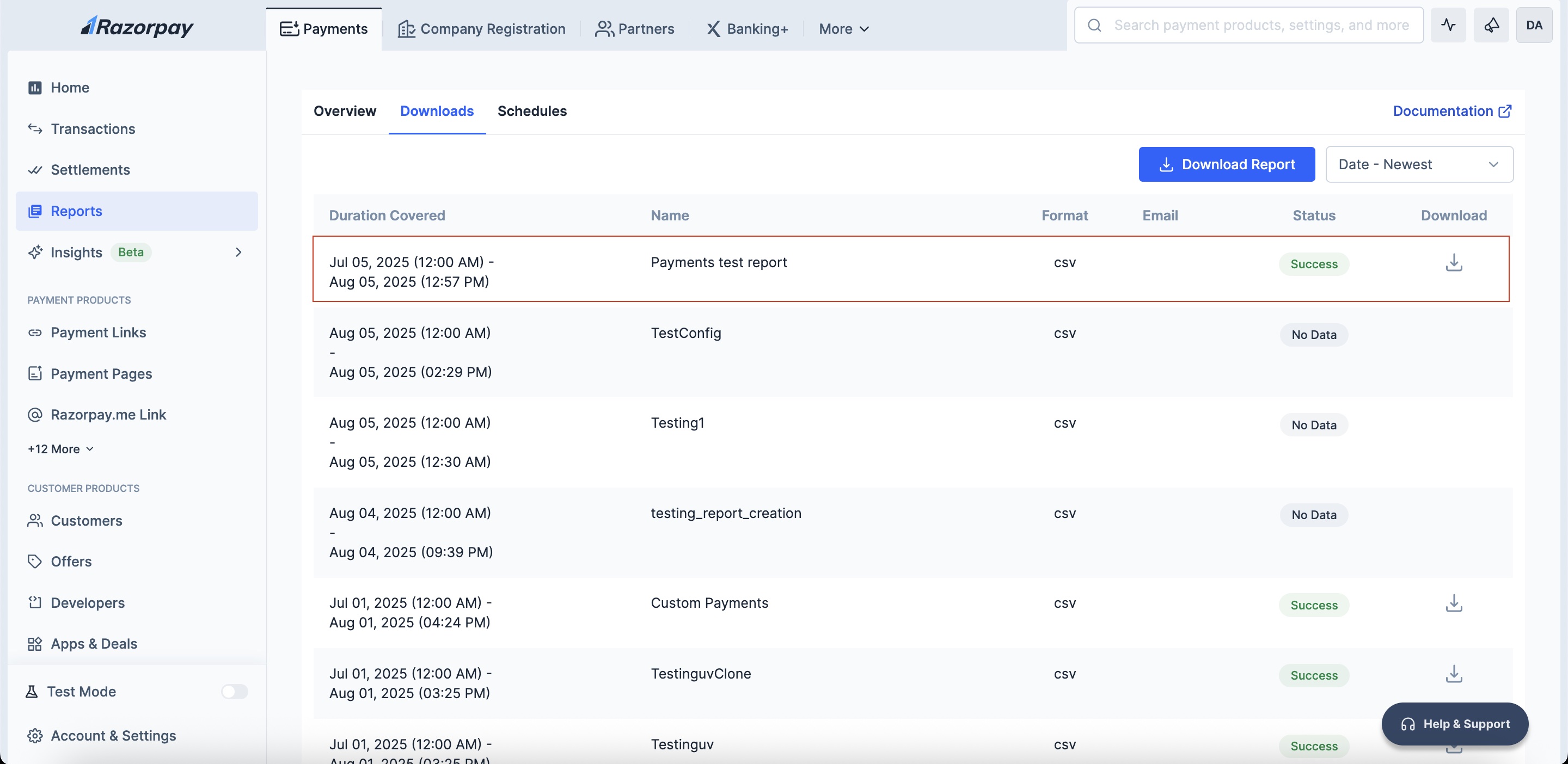 You have successfully downloaded your custom report.
## Sample Use Case
Here is a sample use case to demonstrate how you can use custom reports:
* **Company**: Acme Gadgets - An online electronics retailer
* **Challenge**: The finance team spends 15+ hours monthly compiling data from multiple Standard Reports for board presentations
* **Goal**: Create a unified custom report for comprehensive monthly business analysis
#### Report Configuration
* **Report Name**: Monthly Business Performance Dashboard
* **Base Report Type**: Payments
* **Reporting Period**: Past Month
#### Selected Data Fields
| Entity | Selected Columns | Business Purpose |
| ----------- | --------------------------------------------------------------------------------------------------------------------------------------- | ------------------------- |
| Payments | Payment ID, Amount, Currency, Status, Method, Customer Email, Customer Contact, Created At, Captured At, Fee, Tax, Net Amount, Order ID | Core transaction analysis |
| Orders | Order ID, Amount, Status, Amount Paid, Amount Due, Created At | Order completion tracking |
| Refunds | Refund ID, Payment ID, Amount, Status, Created At, Fees, Tax | Refund impact analysis |
| Settlements | Settlement ID, Amount, Status, Created At, Fees, Tax, UTR | Cash flow tracking |
| Customers | Customer ID, Name, Email, Contact | Customer segmentation |
| Cards | Card Type, Network, Issuer, Last 4 Digits | Payment method insights |
## Fields and Columns
To find details about the available list of fields, columns and fields go through the Custom Reports Data Schema documentation.
You have successfully downloaded your custom report.
## Sample Use Case
Here is a sample use case to demonstrate how you can use custom reports:
* **Company**: Acme Gadgets - An online electronics retailer
* **Challenge**: The finance team spends 15+ hours monthly compiling data from multiple Standard Reports for board presentations
* **Goal**: Create a unified custom report for comprehensive monthly business analysis
#### Report Configuration
* **Report Name**: Monthly Business Performance Dashboard
* **Base Report Type**: Payments
* **Reporting Period**: Past Month
#### Selected Data Fields
| Entity | Selected Columns | Business Purpose |
| ----------- | --------------------------------------------------------------------------------------------------------------------------------------- | ------------------------- |
| Payments | Payment ID, Amount, Currency, Status, Method, Customer Email, Customer Contact, Created At, Captured At, Fee, Tax, Net Amount, Order ID | Core transaction analysis |
| Orders | Order ID, Amount, Status, Amount Paid, Amount Due, Created At | Order completion tracking |
| Refunds | Refund ID, Payment ID, Amount, Status, Created At, Fees, Tax | Refund impact analysis |
| Settlements | Settlement ID, Amount, Status, Created At, Fees, Tax, UTR | Cash flow tracking |
| Customers | Customer ID, Name, Email, Contact | Customer segmentation |
| Cards | Card Type, Network, Issuer, Last 4 Digits | Payment method insights |
## Fields and Columns
To find details about the available list of fields, columns and fields go through the Custom Reports Data Schema documentation.