> ## Documentation Index
> Fetch the complete documentation index at: https://razorpay-881012b3.mintlify.site/llms.txt
> Use this file to discover all available pages before exploring further.
# Overview
> Overview in the Analytics suite is designed for the key metrics you track daily in your business. You can pin key metrics for quick reference, check success rate trends, analyse how payments flow across touchpoints and get a better understanding on transaction errors. All widgets support data download for further analysis.
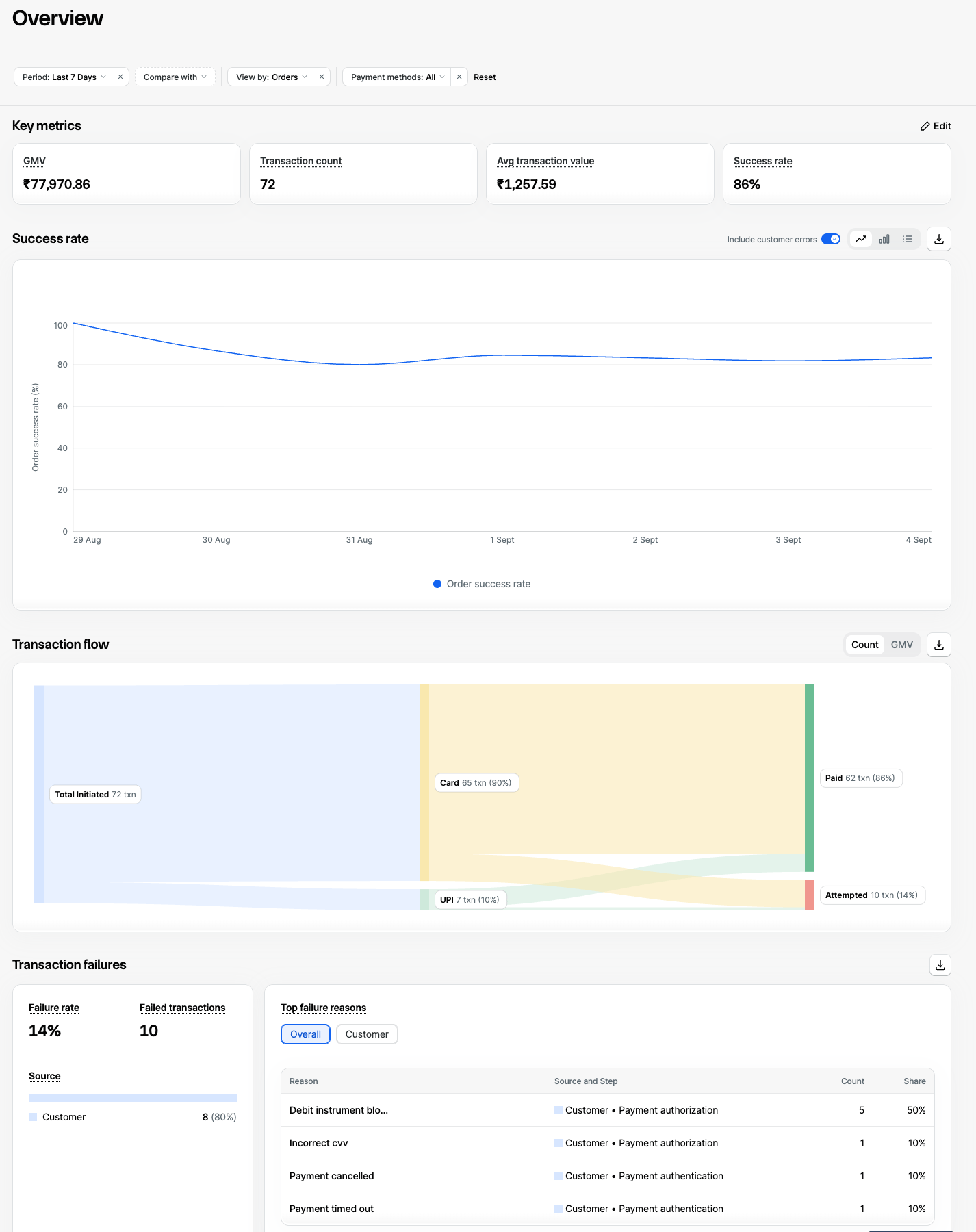 ### **Apply Global Filters**
 Please note data will be available since the time Analytics has been enabled on your account.
Global filters apply to all elements on the Dashboard. You can:
1. Select the **Date Range**.
2. Click **Compare with** to compare the selected range against another date range.
3. Set **View by** to **Orders** or **Payments**.
* **Orders** (default) groups data by order, counting each order once even with multiple payment attempts.
* **Payments** groups data by individual payment attempts, including retries.
* Learn more on [Orders](/docs/payments/orders.mdx) and [Payments](/docs/payments.mdx).
4. For Optimizer Merchants (routing to external PA/PGs): Filter by **Gateway** (specific gateway, **No Gateway**, or All).
5. Filter by **Payment methods** (specific method or All).
6. Click **Clear Filter** to clear all selections and return to default.
No Gateway refers to transactions where the customer abandoned checkout before a gateway was selected for routing. These are not attributed to any gateway.
Your selection for global filters persist across sessions.
### **Pin Key Metrics**
You can pin upto 4 of your most-tracked metrics as KPI chips to the top of the Dashboard. By defualt, GMV, Transaction count,
Average Transaction Value, and Success Rate are pinned. Please note, each KPI value reflects your Global Filter selection.
Please note data will be available since the time Analytics has been enabled on your account.
Global filters apply to all elements on the Dashboard. You can:
1. Select the **Date Range**.
2. Click **Compare with** to compare the selected range against another date range.
3. Set **View by** to **Orders** or **Payments**.
* **Orders** (default) groups data by order, counting each order once even with multiple payment attempts.
* **Payments** groups data by individual payment attempts, including retries.
* Learn more on [Orders](/docs/payments/orders.mdx) and [Payments](/docs/payments.mdx).
4. For Optimizer Merchants (routing to external PA/PGs): Filter by **Gateway** (specific gateway, **No Gateway**, or All).
5. Filter by **Payment methods** (specific method or All).
6. Click **Clear Filter** to clear all selections and return to default.
No Gateway refers to transactions where the customer abandoned checkout before a gateway was selected for routing. These are not attributed to any gateway.
Your selection for global filters persist across sessions.
### **Pin Key Metrics**
You can pin upto 4 of your most-tracked metrics as KPI chips to the top of the Dashboard. By defualt, GMV, Transaction count,
Average Transaction Value, and Success Rate are pinned. Please note, each KPI value reflects your Global Filter selection.
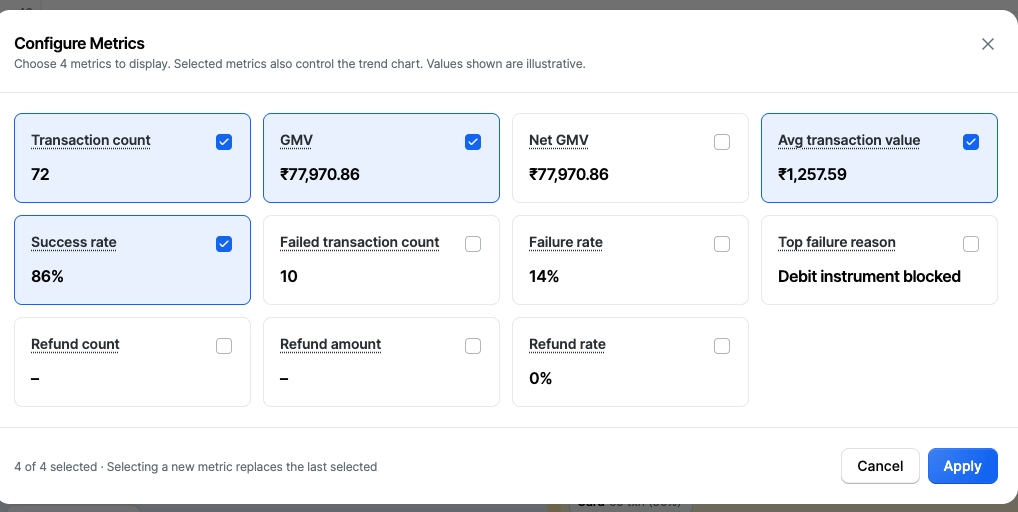 Each Metric is defined based on your View By selection in the Global Filter.
* Click **Edit** to choose from the full metric list. Please refer the table below for complete Metric definitions:
| Metric | Orders View | Payments View |
| :--------------------------- | :---------------------------------------------------------------------------------------------------------------------------- | :-------------------------------------------------------------------------------------- |
| **Transaction Count** | Total orders where at least one payment was attempted. Each order is counted once, even if your customer retries the payment. | Total payment attempts in the selected period, including retries on the same order. |
| **GMV** | Total value of Orders successfully Paid in the selected period. | Total value of payments successfully authorised in the selected period. |
| **Net GMV** | GMV minus refunds. Revenue retained after all refunds. | GMV minus refunds. Revenue retained after all refunds. |
| **Avg Transaction Value** | GMV divided by total transactions. Shows your average order size. | GMV divided by total transactions. Shows your average successful payment amount. |
| **Success Rate** | Percentage of attempted orders that resulted in a successful payment. Each order is counted once, regardless of retries. | Percentage of payment attempts that were successfully authorised. |
| **Failed Transaction Count** | Orders where every payment attempt failed. | Number of payment attempts that failed. |
| **Failure Rate** | Percentage of attempted orders where no payment succeeded. | Percentage of payment attempts that failed. |
| **Top Failure Reason** | Most common error reason across failed payments in the selected period. | Most common error reason across failed payments in the selected period. |
| **Refund Rate** | Percentage of orders paid in the selected period that have had at least one payment refunded. | Percentage of payments authorised in the selected period that have since been refunded. |
| **Refund Count** | Orders with at least one refunded payment. | Refund transactions initiated in the selected period. |
| **Refund Amount** | Total value of refunds processed in the selected period. | Total value of refunds processed in the selected period. |
### Track Success Rate Trends
Each Metric is defined based on your View By selection in the Global Filter.
* Click **Edit** to choose from the full metric list. Please refer the table below for complete Metric definitions:
| Metric | Orders View | Payments View |
| :--------------------------- | :---------------------------------------------------------------------------------------------------------------------------- | :-------------------------------------------------------------------------------------- |
| **Transaction Count** | Total orders where at least one payment was attempted. Each order is counted once, even if your customer retries the payment. | Total payment attempts in the selected period, including retries on the same order. |
| **GMV** | Total value of Orders successfully Paid in the selected period. | Total value of payments successfully authorised in the selected period. |
| **Net GMV** | GMV minus refunds. Revenue retained after all refunds. | GMV minus refunds. Revenue retained after all refunds. |
| **Avg Transaction Value** | GMV divided by total transactions. Shows your average order size. | GMV divided by total transactions. Shows your average successful payment amount. |
| **Success Rate** | Percentage of attempted orders that resulted in a successful payment. Each order is counted once, regardless of retries. | Percentage of payment attempts that were successfully authorised. |
| **Failed Transaction Count** | Orders where every payment attempt failed. | Number of payment attempts that failed. |
| **Failure Rate** | Percentage of attempted orders where no payment succeeded. | Percentage of payment attempts that failed. |
| **Top Failure Reason** | Most common error reason across failed payments in the selected period. | Most common error reason across failed payments in the selected period. |
| **Refund Rate** | Percentage of orders paid in the selected period that have had at least one payment refunded. | Percentage of payments authorised in the selected period that have since been refunded. |
| **Refund Count** | Orders with at least one refunded payment. | Refund transactions initiated in the selected period. |
| **Refund Amount** | Total value of refunds processed in the selected period. | Total value of refunds processed in the selected period. |
### Track Success Rate Trends
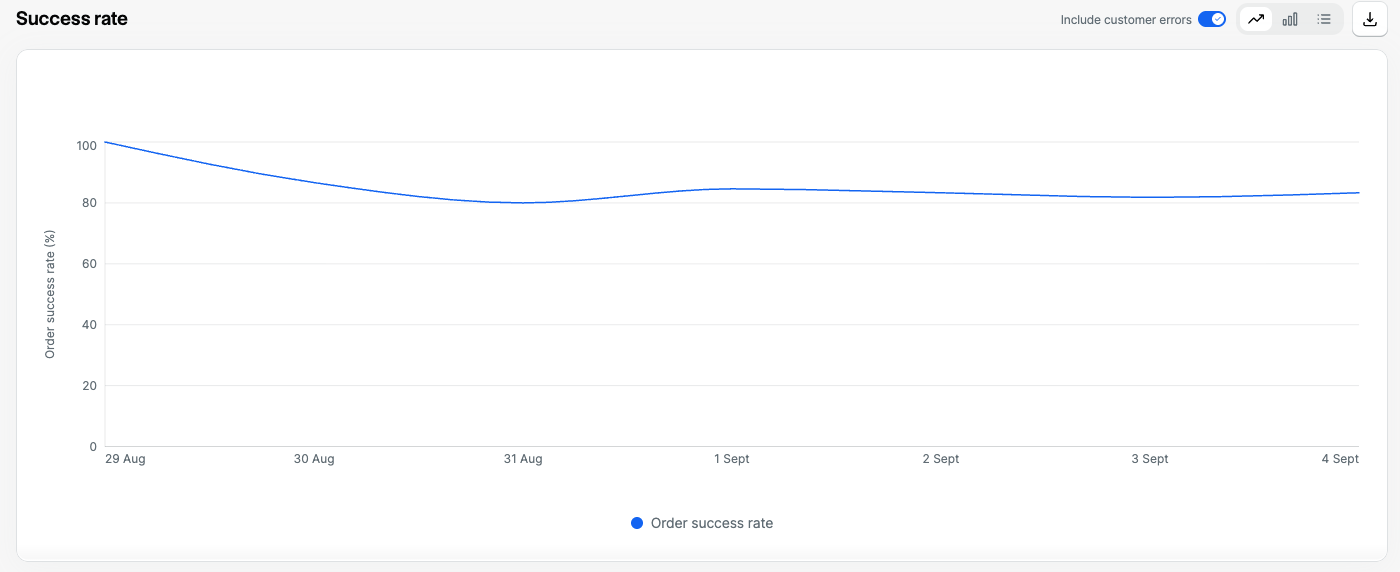 The Success rate chart plots order success rate over time for the selected filters.
* Group by **Hourly, Daily, Weekly or Monthly** (default: Daily).
* Use **Compare with** (Global Filters) to compare against another date range.
* Toggle **Include customer errors** to view actionable success rate excluding customer-side errors (chart-level filter only).
* Switch views: **Trend line, Bar chart, Data table**.
* **Download** as CSV.
Customer-side errors are payment failures caused by the customer rather than your integration or the gateway, such as the customer abandoning the payment, entering an incorrect OTP or having insufficient funds. These are usually outside your control, so excluding them shows your actionable success rate. To learn more about customer errors, see the full list of [Payment Errors](/docs/errors.mdx) .
### Analyse Transaction Flow
The Success rate chart plots order success rate over time for the selected filters.
* Group by **Hourly, Daily, Weekly or Monthly** (default: Daily).
* Use **Compare with** (Global Filters) to compare against another date range.
* Toggle **Include customer errors** to view actionable success rate excluding customer-side errors (chart-level filter only).
* Switch views: **Trend line, Bar chart, Data table**.
* **Download** as CSV.
Customer-side errors are payment failures caused by the customer rather than your integration or the gateway, such as the customer abandoning the payment, entering an incorrect OTP or having insufficient funds. These are usually outside your control, so excluding them shows your actionable success rate. To learn more about customer errors, see the full list of [Payment Errors](/docs/errors.mdx) .
### Analyse Transaction Flow
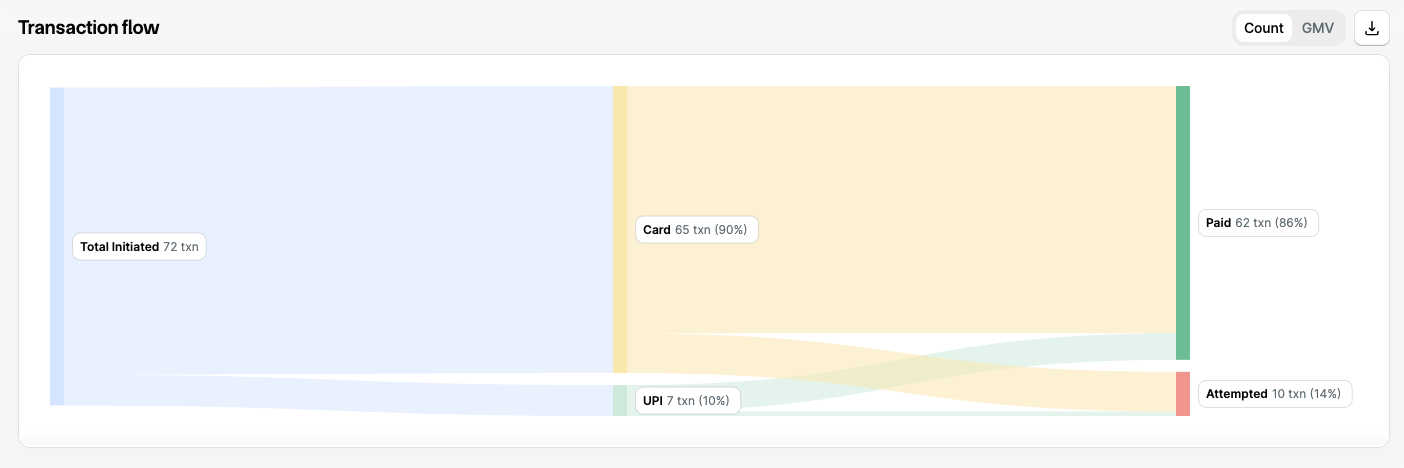 The Transaction flow chart visualises how payments move across payment method, gateway, and final status.
* Toggle between Count and GMV for a different view of transaction flow
* Final transaction status updates by View by:
* Payments: Authorised, Failed, Refunded, Captured
* Orders: Attempted, Paid
* **Download** via the top-right option.
The gateway stage is shown only for merchants using [Optimizer](/docs/payments/optimizer.mdx) . It is not applicable for payments processed directly through Razorpay.
### **Transaction Failures Deep Dive**
The Transaction flow chart visualises how payments move across payment method, gateway, and final status.
* Toggle between Count and GMV for a different view of transaction flow
* Final transaction status updates by View by:
* Payments: Authorised, Failed, Refunded, Captured
* Orders: Attempted, Paid
* **Download** via the top-right option.
The gateway stage is shown only for merchants using [Optimizer](/docs/payments/optimizer.mdx) . It is not applicable for payments processed directly through Razorpay.
### **Transaction Failures Deep Dive**
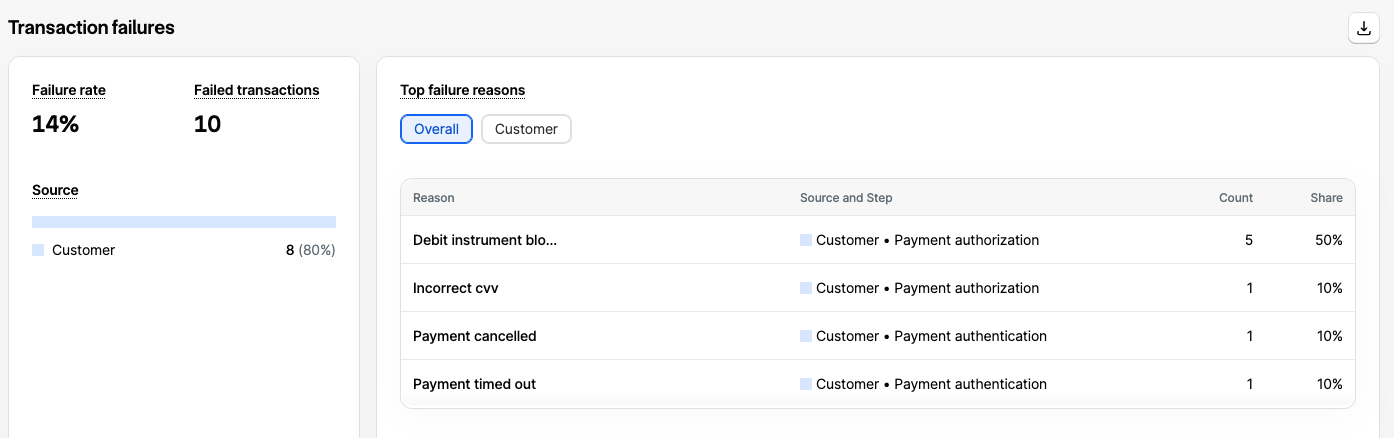 Helps identify why payments fail. You can:
* View overall **Failure rate** and **Failed transactions** count for selected filters.
* Quick summary of failure sources click a source to filter the table below, double-click to remove.
* Table of **Source, Step, Reason** for deep-dives
* View each combination's share (%) of overall failures.
* **Compare with** adds a trend column showing lift vs. selected time range, plus delta on top metrics.
* **Download** the data.
See Payment Errors for the full list of Razorpay error codes.
Failure rate calculation by View by:
* Orders: (orders where all linked attempts failed) ÷ (all orders attempted)
* Payments: failed payments ÷ all payments created
Helps identify why payments fail. You can:
* View overall **Failure rate** and **Failed transactions** count for selected filters.
* Quick summary of failure sources click a source to filter the table below, double-click to remove.
* Table of **Source, Step, Reason** for deep-dives
* View each combination's share (%) of overall failures.
* **Compare with** adds a trend column showing lift vs. selected time range, plus delta on top metrics.
* **Download** the data.
See Payment Errors for the full list of Razorpay error codes.
Failure rate calculation by View by:
* Orders: (orders where all linked attempts failed) ÷ (all orders attempted)
* Payments: failed payments ÷ all payments created