> ## Documentation Index
> Fetch the complete documentation index at: https://razorpay.com/docs/llms.txt
> Use this file to discover all available pages before exploring further.
# About Dashboard
> Overview of the Razorpay Curlec Dashboard home page with key features including payments overview, insights, and product recommendations for managing your payment operations.
Available in
🇮🇳 India
🇲🇾 Malaysia
🇸🇬 Singapore
🇺🇸 United States
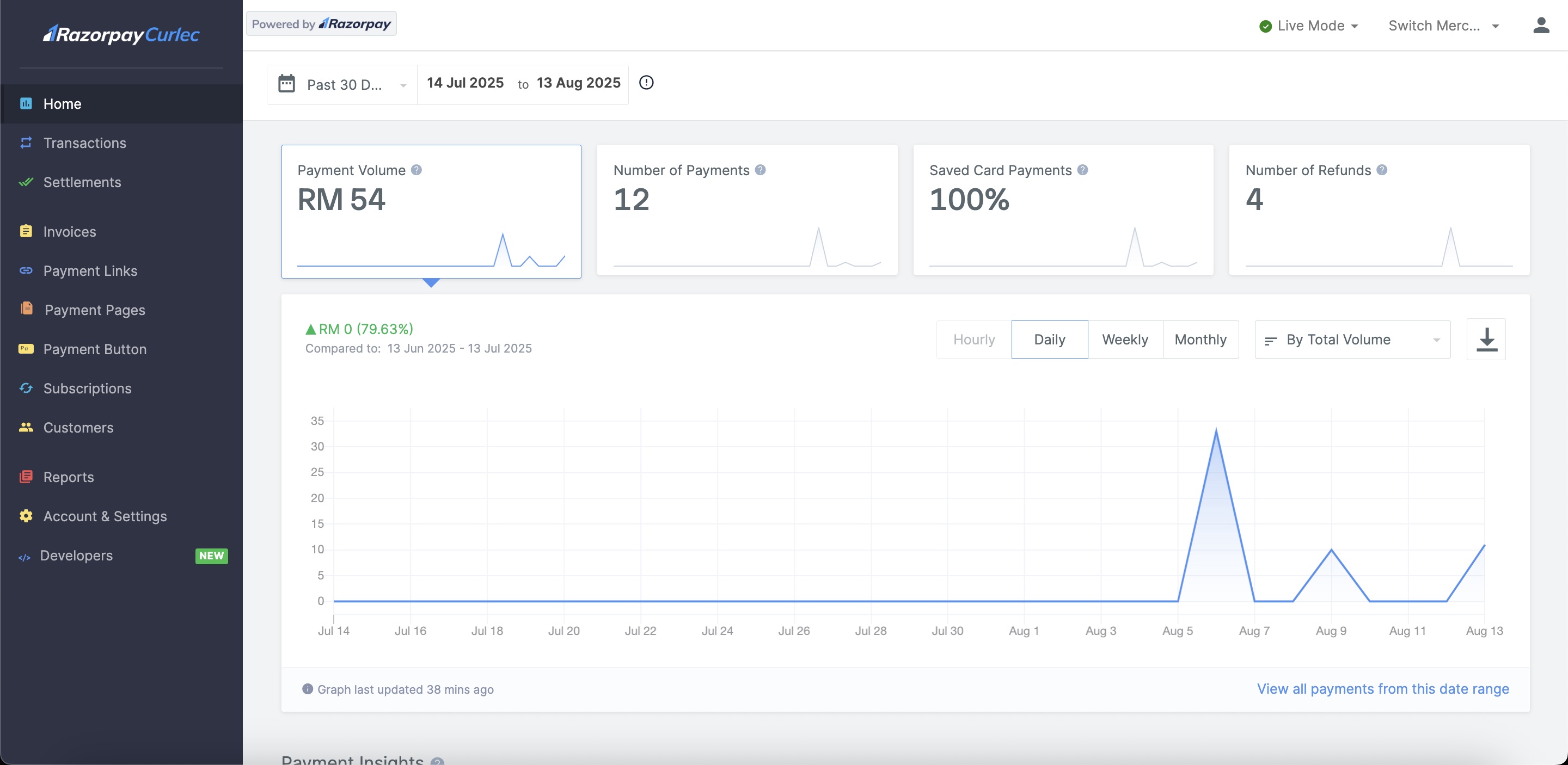
The Dashboard Home page serves as your central command center for managing payment operations on Razorpay Curlec. It provides a comprehensive overview of your account status, recent payment activity, key insights and personalised product recommendations to help you optimise your payment infrastructure.
The Dashboard offers a wide range of features, such as:
* **Analytics** and **real-time charts** that provide valuable insight into your business performance.
* List of **recent activities** that may require your action.
* **Configure, operate, and manage** your Payment Gateway (PG) account and other Razorpay Curlec products.
* An overview of recent **payments, settlements and refunds**.
> [!NOTE]
>
> **Handy Tips**
>
> You must have a Razorpay Curlec account to access the Dashboard. Do not have a Razorpay Curlec account? [Sign up with Razorpay Curlec](https://curlec.com/onboarding/my/?).
## Key Section of Payments Dashboard Home Page
The following information is shown on the Payments Dashboard Home page.
> [accordion] Account Balance and Payment Information
>
> Your current account balance is displayed on the Dashboard. Payment Overview data provides an overview of the total collected amount in you current balance, total number of **Refunds** made and the total number of Orders created by your customers for the selected time range.
> [accordion] Payment Information
>
> Payment Volume data provides an overview of the Payment Volume and Number of Payments received for the selected date range.
> [accordion] Analytics
>
> You can view detailed information about your account activities. This includes a wide range of analytics and real-time charts that provide insight into the performance of your business and help you take informed actions if necessary.
>
> You can view the following information:
>
> * Successful and failed payment count.
> * Successful and failed refund count.
> * Filter data to display it on a Daily, Weekly or Monthly basis.
> * Group data by Payment Methods.
> * Hover over the pie diagram to view the amount split for each payment method.
> * **Payment method split** data displays the distribution of various payment methods for collected payments for the selected duration.
> [accordion] Recent Activity
>
> This section displays recent Payment related activities. Click the respective payment id for more information about the transaction.
## Key Tabs of Payments Dashboard
Following are the key tabs of the Payments Dashboard.
> [accordion] Transactions
>
> Given below are the tabs and supported actions under Transactions:
>
> | Tab | Actions |
> | - | - |
> | Payments | - [Manually capture a payment](https://razorpay.com/docs/my/payments/payments/dashboard.md#manually-capture-payments)
- [View details of a payment](https://razorpay.com/docs/my/payments/payments/dashboard.md#view-payment-details)
|
> | Orders | [View details of an order](https://razorpay.com/docs/my/payments/orders/dashboard.md#view-order-details-using-api) |
> [accordion] Reports
>
> Given below are the actions supported for Reports:
>
> * [Download a Report](https://razorpay.com/docs/my/payments/dashboard/reports.md#download-reports)
> * [Increase report generation limit](https://razorpay.com/docs/my/payments/dashboard/reports.md#limit-on-reports)
> [accordion] Account & Settings
>
> Given below are the sections and actions supported under Account & Settings:
>
> | Tabs and Actions |
> | - |
> | **Website and app settings** - [Add or update business website/app details](https://razorpay.com/docs/my/payments/dashboard/account-settings/business-website-details.md)
- [Generate or regenerate API keys](https://razorpay.com/docs/my/payments/dashboard/account-settings/api-keys.md)
- [Configure Webhooks](https://razorpay.com/docs/my/payments/dashboard/account-settings/webhooks.md)
|
> | **Business settings** - [Update account details such as email, phone and more](https://razorpay.com/docs/my/payments/dashboard/account-settings/account-details.md)
- [View business details](https://razorpay.com/docs/my/payments/dashboard/account-settings/business-details.md)
- [Add or update customer support details](https://razorpay.com/docs/my/payments/dashboard/account-settings/customer-support-details.md)
- [View account activation details](https://razorpay.com/docs/my/payments/dashboard/account-settings/activation-details.md)
- [Raise support ticket](https://razorpay.com/docs/my/payments/dashboard/account-settings/support-tickets.md)
- [Manage team](https://razorpay.com/docs/my/payments/dashboard/account-settings/manage-team.md)
|
> | **Payments and refunds** - View and add credits
- [View and add balances](https://razorpay.com/docs/my/payments/dashboard/account-settings/balances.md)
- [Set reminders for Payment Links](https://razorpay.com/docs/my/payments/payment-links/reminders.md)
- [Update transaction limits](https://razorpay.com/docs/my/payments/dashboard/account-settings/transaction-limits.md)
- [Configure payments capture and refund settings](https://razorpay.com/docs/my/payments/dashboard/account-settings/capture-refund.md)
|
> | **Bank accounts and settlements** - [Update bank account details](https://razorpay.com/docs/my/payments/dashboard/account-settings/bank-account-details.md)
- [View settlement details](https://razorpay.com/docs/my/payments/dashboard/account-settings/settlement-details.md)
|
> | **Notification Settings** - [Configure email settings](https://razorpay.com/docs/my/payments/dashboard/account-settings/email-sms-whatsapp.md#manage-email-notifications)
- [Configure SMS settings](https://razorpay.com/docs/my/payments/dashboard/account-settings/email-sms-whatsapp.md#manage-sms-notifications)
- [Configure WhatsApp settings](https://razorpay.com/docs/my/payments/dashboard/account-settings/email-sms-whatsapp.md#manage-whatsapp-notifications)
|
> | **Checkout Settings** - Configure branding-related settings for Checkout
- Configure flash checkout settings
- Configure mandate summary page
- Check eligibility for Razorpay Curlec Trusted Business badge
|
> | **International Payment Settings** - Generate FIRS certificate
- Configure international payment codes (purpose code, IEC code, HS code)
|
> | **Payment Methods** - [Request for and manage payment methods](https://razorpay.com/docs/my/payments/dashboard/account-settings/payment-methods.md)
|
> [accordion] Payments Products
>
> Given below are the payments products and supported actions:
>
> | Product | Action |
> | - | - |
> | Invoices | [Create and manage Invoices](https://razorpay.com/docs/my/payments/invoices/create.md) |
> | Payment Button | [Create and manage Payment Button](https://razorpay.com/docs/my/payments/payment-button) |
> | Payment Pages | [Create and manage Payment Page](https://razorpay.com/docs/my/payments/payment-pages/create.md) |
> | Payment Links | [Create and manage Payment Links](https://razorpay.com/docs/my/payments/payment-links/create.md) |
> [accordion] Customers
>
> Given below are the actions supported for Customers:
>
> * [Create a Customer](https://razorpay.com/docs/my/payments/customers#create-a-customer)
> * [Edit Customer Details](https://razorpay.com/docs/my/payments/customers#edit-customer-details)