> ## Documentation Index
> Fetch the complete documentation index at: https://razorpay.com/docs/llms.txt
> Use this file to discover all available pages before exploring further.
# New Sub-Merchant Invite Flow
> Know how the process of adding sub-merchants has changed with Razorpay's new update.
Available in
🇮🇳 India
🇲🇾 Malaysia
We have recently rolled out a new process for Service Partners to add sub-merchants. This document highlights the major changes in the invitation process.
> [!NOTE]
>
> **Changes Only for Payments**
>
> These changes are only for referrals of `Payment` products and **NOT** for `Current Account`. The invitation process for RazorpayX remains the same.
## Create Account Link vs Invite Link
| Before | Now |
| - | - |
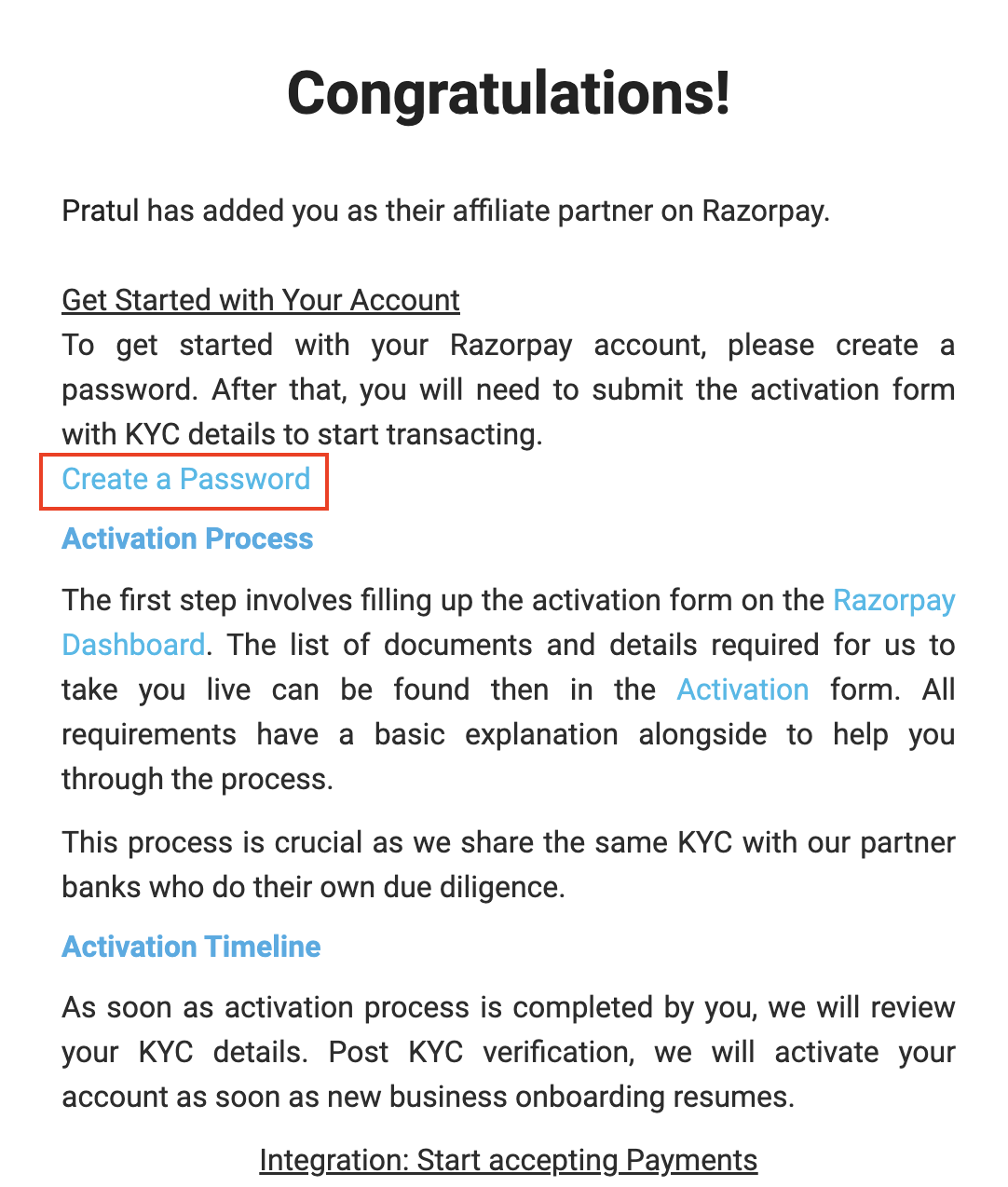
| - After inviting your contacts, they received a **Create a Password** link via email to reset the password.
- The sub-merchant's Razorpay account is already created and they just have to log in. Their account will be linked to you as a sub-merchant instantly.
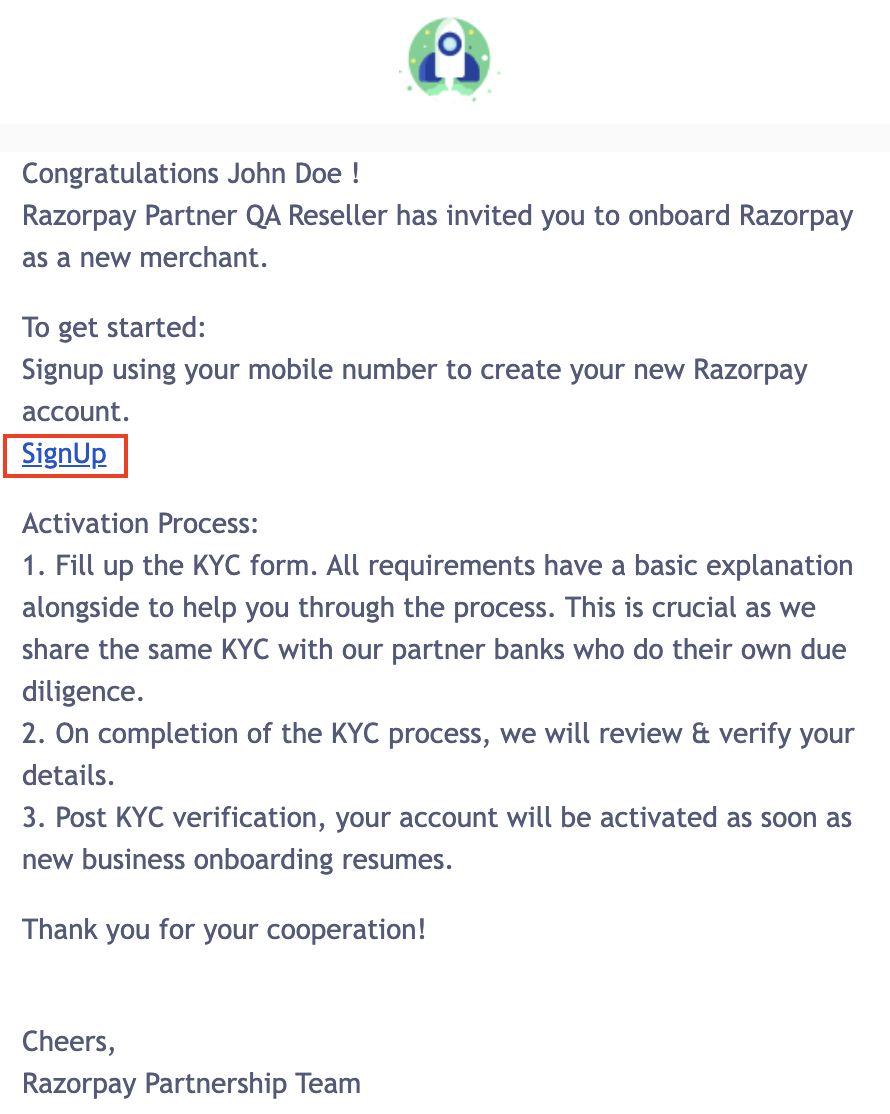
| - After inviting your contacts, they receive a **Create Account** link that will take them to our onboarding page.
- The invitees/contacts should complete the onboarding process with Razorpay by verifying mobile number. The accounts will be added as your sub-merchant after this verification.
|
|  |  |
## Invite Link via SMS
| Before | Now |
| - | - |
| The invite and **Create a Password** link was sent to the contact only via email. | Providing mobile number while inviting your contacts is still optional. If a mobile number is provided, invite link is sent via SMS as well. |
## View Sent Invites
| Before | Now |
| - | - |
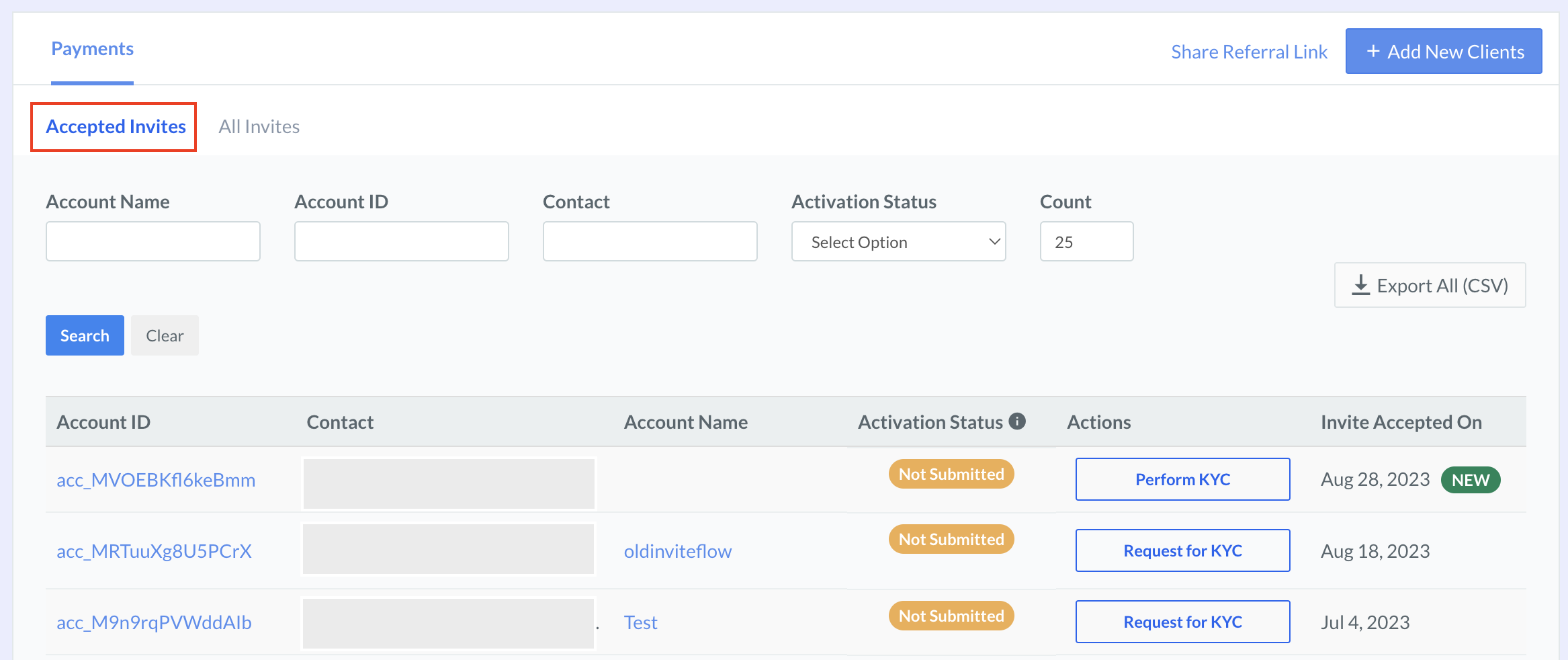
| The **Affiliate Accounts** section contained a list of all sub-merchants added with the activation state. | The **Affiliate Accounts** section is split into 2: - **All Invites**: Contains a list of all contacts invited. It does not show the activation status.
- **Accepted Invites**: Contains a list of all contacts that have accepted your invite and created a Razorpay account. You can view the activation status and take KYC related actions.
|